
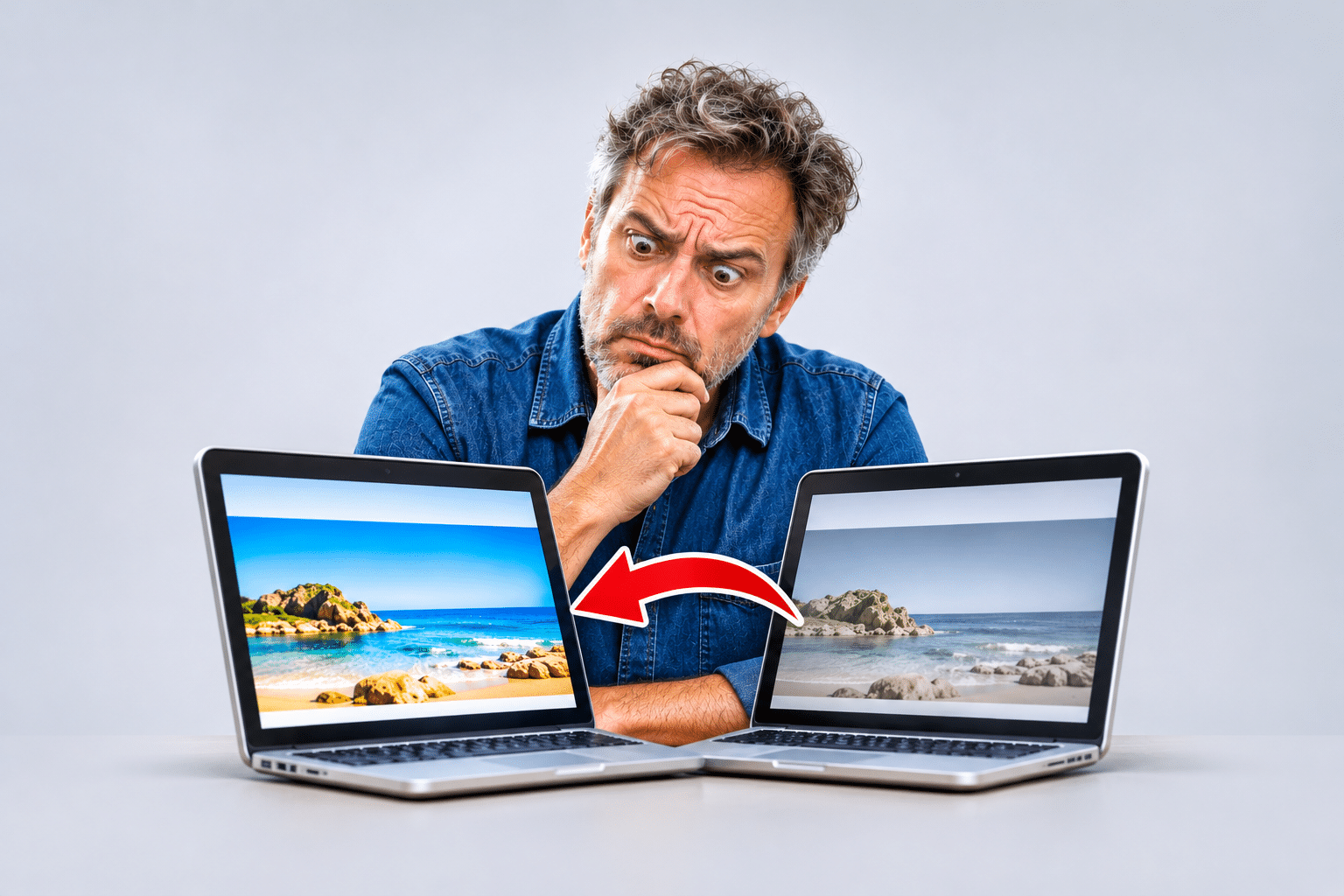
Why Is WordPress Showing Visitors an Old Version of My Website?
You’ve just updated your WordPress website. Perhaps you’ve changed your prices, replaced an old photograph, added a new service or corrected some information on your homepage. Everything looks right when you’re logged in to WordPress, so you save your changes and assume the job is finished.
Then you open the website in another browser or ask someone else to check it, and there’s a problem. They’re still seeing the old version. The previous prices are showing, the new photograph hasn’t appeared, or the page looks exactly as it did before you made the changes.
It’s a frustrating situation, particularly when customers need to see accurate information. You might even start wondering whether WordPress has failed to save your work. In many cases, however, the changes are stored correctly. The problem is that visitors are being shown an older copy of the website rather than the latest version.
This commonly happens because of caching, although there are other possible explanations. The good news is that you can usually narrow down the cause by checking where the outdated version appears and which systems are responsible for delivering your website to visitors.
Quick Answer
If WordPress is showing visitors an old version of your website, the most likely explanation is caching. Your browser, a WordPress caching plugin, your hosting server or a content delivery network may be storing an older copy of the page.
First, confirm that your changes have been published. Then open the website in a private browser window and check it on another device. If the old version still appears, clear the relevant WordPress cache and check whether your hosting company or CDN has a separate cache.
If clearing the cache doesn’t help, investigate whether you’re editing the correct page, whether a page builder has its own generated files, or whether the domain is pointing to the expected hosting server. Avoid changing several settings at once because that can make the original problem harder to identify.
Why Does WordPress Show Visitors an Old Version of My Website?
WordPress websites are made up of content, design files, images and other resources that work together to create the pages visitors see. When someone opens your website, their browser requests the information needed to display the page.
To make websites load faster, copies of pages and files are often stored temporarily. This is called caching. Instead of rebuilding every page from scratch for every visitor, the website may deliver a previously generated version.
Normally, this works very well. The problem occurs when the stored copy isn’t refreshed after you make a change. Visitors may continue receiving outdated information even though the correct version is already saved in WordPress.
For example, imagine you run a plumbing business and update your emergency call-out prices. The new prices appear when you’re logged in, but visitors still see the old ones. If the public page is being served from an outdated cache, customers could be making decisions based on information you thought you’d already replaced.
However, caching isn’t the only possible cause. Sometimes the wrong page has been edited, a change remains unpublished, a page builder hasn’t refreshed its generated files or the website is being delivered from an unexpected server.
What Is Website Caching and Why Does It Matter?
Website caching is a way of temporarily storing information so that it can be delivered more quickly. It can improve loading speed and reduce the amount of work your hosting server needs to perform.
Think of it like keeping a photocopy of a restaurant menu. Rather than printing a new menu every time someone asks for one, you hand them an existing copy. That’s efficient until the prices change. If you keep handing out the old menu, customers won’t see the latest information.
WordPress websites can use several different types of caching, and each one may need to be checked separately.
Browser Cache
Your web browser can store images, stylesheets and other website files on your device. This helps pages load more quickly when you return. However, the browser may sometimes continue using an older file after the website has changed.
WordPress Plugin Cache
Plugins such as WP Rocket and other performance tools can create cached versions of WordPress pages. If those cached pages aren’t refreshed correctly, visitors may see outdated content.
Hosting Server Cache
Some hosting companies provide caching directly through their servers or hosting control panels. This can operate separately from any caching plugin installed in WordPress.
Content Delivery Network Cache
A content delivery network, usually called a CDN, stores copies of website resources on servers in different locations. Services such as Cloudflare can help deliver content more quickly, but their caching settings may also affect how quickly changes become visible.
Page Builder and Optimisation Files
Some page builders generate their own styling files. If those files aren’t updated correctly, the page may contain your latest text but continue displaying an older design.
The important point is that clearing one cache doesn’t necessarily clear every other cache. Your browser, WordPress plugin, hosting server and CDN may all be working independently.
Why Does My WordPress Website Look Correct When Logged In but Old When Logged Out?
This is one of the most useful clues when investigating outdated WordPress pages. Many caching systems treat logged-in administrators differently from ordinary visitors.
When you’re logged in, WordPress may generate the page directly so you can see your latest changes. When you’re logged out, the caching system may deliver a stored copy that hasn’t been refreshed.
For example, you might update your cleaning company’s homepage and see the new heading immediately while logged in. But when a customer opens the same page, they still see the previous heading and an older photograph.
If this happens, compare the exact same page in a normal browser window and a private browsing window. Then check whether the public version changes after clearing the relevant website cache.
Don’t assume that your website is working correctly simply because it looks right inside your WordPress account. Your customers normally see the logged-out version, so that’s the version you need to test.
How Do I Check Whether My WordPress Changes Were Published?
Before clearing caches or changing technical settings, make sure the latest content has actually been published. Sometimes a change has been saved as a draft, remains scheduled for later or hasn’t been applied to the page visitors are viewing.
Check the Page Status
Go to Pages > All Pages or Posts > All Posts and locate the content you’ve edited. Open it and check its publication status. Make sure the latest changes have been saved and published.
Check the Correct Page
Some websites have several pages with similar names, duplicate landing pages or separate homepage templates. Make sure you’re editing the page that’s actually displayed to visitors.
If you’re unsure which page is used as the homepage, check Settings > Reading and review the homepage selection where applicable.
Check Scheduled Content
If a blog post or page is scheduled for a future date, it won’t normally appear as published content until its scheduled publication takes place. If the scheduled time has passed but the post hasn’t appeared, investigate the publishing status and WordPress scheduling system.
Check the Page Builder
If your website uses Elementor or another page builder, make sure you’ve used its normal update or publish controls. Saving changes inside an editor doesn’t always mean the public page has been updated until the publishing process is complete.
How to Fix WordPress Showing an Old Version: Step-by-Step
Step 1: Open the Website in a Private Browser Window
Start by opening your website in an Incognito or Private Browsing window. This provides a useful comparison because it normally starts without the same active browsing session and some stored information used by your regular window.
If the new version appears in private browsing but the old version appears in your normal browser, the issue may involve your browser’s cached files or extensions.
However, private browsing doesn’t bypass every type of cache. If a server or CDN is delivering an old page, the private window may still show it.
Step 2: Check Another Device and Network
Open the website on your mobile phone and, if possible, use mobile data rather than the same Wi-Fi connection as your computer. Compare the exact page and look for the changes you’ve made.
If one device shows the new version and another shows the old one, the difference can help narrow down the cause. It may involve browser caching, network-level behaviour or a difference in which server is being reached.
Step 3: Clear Your Browser Cache
If the problem appears to affect only your browser, try refreshing the page. On many Windows browsers, pressing Ctrl + F5 requests a fresh version of the page and its resources.
You can also clear cached website files through your browser’s settings. Be careful not to remove saved passwords or other browsing information unnecessarily.
Step 4: Clear Your WordPress Caching Plugin
If your website uses a caching plugin, open its settings and look for a button labelled Clear Cache, Purge Cache or something similar.
Use the plugin’s normal cache-clearing option, then reopen the public website in a private browser window. Check whether the latest content now appears.
If the new version becomes visible, the cache was likely involved. However, if the problem returns after a short time, further investigation may be needed to find out why the cache isn’t refreshing correctly.
Step 5: Check Hosting-Level Caching
Some hosting providers operate caching systems that work separately from WordPress plugins. You may find these controls in your hosting dashboard, cPanel or a hosting-specific WordPress management tool.
If you’re unsure whether your host provides caching, ask its support team. They can explain whether a server-level page cache is active and how it should be refreshed.
Avoid changing unrelated server settings while investigating. The aim is to identify the cache responsible for the outdated page, not to disable every performance feature.
Step 6: Check Your CDN Cache
If your website uses Cloudflare or another CDN, review whether it is caching the affected page or files. Depending on its configuration, you may be able to purge the specific URL rather than clearing everything.
After purging the relevant content, test the website again. If the problem continues, check whether the CDN is receiving the latest version from the hosting server.
Step 7: Check Page Builder Files
If the latest text appears but the design still looks old, your page builder’s generated stylesheets may need attention. This is particularly relevant when fonts, spacing, colours or layouts haven’t updated correctly.
Some page builders provide supported tools for regenerating CSS or other generated files. Use the developer’s official instructions and make sure a suitable backup is available before carrying out significant changes.
Step 8: Check Whether You’re Editing the Correct Website
If nothing changes after clearing the appropriate caches, confirm that the WordPress dashboard you’re editing belongs to the website visitors are actually viewing.
This is especially important if the website has recently moved hosting companies, changed domains or been copied to a staging environment. You may be updating one installation while visitors are reaching another.
Step 9: Test the Public Website Again
After making a change, open the affected page while logged out and compare it with the WordPress editor. Check the latest text, images, prices and other information.
Don’t stop at the homepage. If you’ve updated service pages, blog posts or contact information, make sure those changes are visible as well.
What If I’m Using WP Rocket and Visitors Still See Old Pages?
WP Rocket is a WordPress performance plugin that includes page caching and other optimisation features. If your website uses WP Rocket, it is sensible to check whether the affected page has been cleared from its cache after you make changes.
WP Rocket provides cache-clearing controls through the WordPress dashboard. Depending on the version and configuration, you can clear cached pages using the plugin’s normal options.
For more information, see the official WP Rocket cache-clearing guide.
Why Does Clearing WP Rocket Fix the Problem Temporarily?
If clearing the cache makes the latest version appear but the old version returns later, the problem may involve how cached files are being generated or refreshed.
For example, a scheduled blog post may publish correctly in WordPress, but an existing cached page might not be refreshed as expected. Visitors could continue seeing an older blog listing until the relevant cache is cleared.
Check the plugin’s cache-clearing and preload behaviour, along with any hosting-level cache or CDN that may also be active. If the issue affects a particular URL repeatedly, investigate how that page is being purged when its content changes.
Should I Disable WP Rocket?
Not automatically. Disabling a caching plugin may help with controlled troubleshooting, but it can also affect website performance. If the issue is caused by a configuration problem or another caching layer, removing the plugin may not solve it.
For a business website, it is usually better to identify the underlying cause and test changes carefully rather than uninstalling software without a clear reason.
What If My Hosting Company Is Showing an Old Version?
Some hosting companies provide page caching directly on their servers. This can improve website speed, but it also means your website may have more than one caching system operating at the same time.
For example, your WordPress caching plugin might clear its stored pages when you publish a change, while a separate hosting cache continues delivering an older copy. Clearing the plugin cache alone may not update what visitors see.
If you suspect this is happening, contact your hosting provider and explain that published WordPress changes aren’t appearing on the public website. Ask whether server-level caching is enabled and whether the affected URLs can be purged.
It’s also worth asking whether the hosting cache automatically refreshes when WordPress pages or posts are updated. If it doesn’t, the host may be able to recommend an appropriate integration or configuration.
Can Cloudflare or Another CDN Show an Old Version of My Website?
Yes. A content delivery network can sometimes continue serving older cached files after the original website has changed. This depends on what the CDN is configured to cache and how its cache is refreshed.
Cloudflare, for example, provides cache purging options that can remove stored content so that a newer version can be retrieved. Its official cache purging documentation explains the available methods.
However, clearing the CDN cache won’t help if the hosting server itself is still delivering an outdated version. In that situation, the CDN may simply retrieve another old copy from the origin server.
This is why it’s important to understand the order in which your website’s caching systems operate. If several layers are involved, the problem may need to be investigated from the hosting server outwards.
Could My Domain Be Pointing to an Old WordPress Website?
Yes, particularly if you’ve recently moved your website to a new hosting company or changed its domain settings. Your domain uses DNS records to direct visitors towards the correct server.
When those records change, different networks may temporarily use previously cached DNS information. This can sometimes mean that visitors reach different servers during a hosting migration.
For example, you might have moved your website from one hosting provider to another and started updating the new installation. If some visitors are still reaching the previous server, they may continue seeing the old website.
However, DNS isn’t usually the first thing to investigate if the website hasn’t recently moved or changed its domain configuration. Start with publishing status and caching before assuming the domain is responsible.
If you suspect a hosting or DNS problem, ask your hosting company to confirm which server is serving the public website and whether the domain records are correct.
Why Does My WordPress Website Keep Returning to an Old Version?
If clearing the cache fixes the problem but the old version keeps returning, the issue may involve a cache that isn’t being refreshed correctly or another caching layer that continues storing outdated content.
For example, you might clear the WordPress plugin cache and see the new homepage. Later, after the cache rebuilds, visitors begin seeing the old version again. This could happen if a separate cache is supplying outdated content or if the website’s cache-clearing rules aren’t working as expected.
Another possibility is that different versions of the website are being delivered depending on the visitor’s location, device or login status. This can make the problem appear inconsistent.
Rather than repeatedly clearing the cache every time the issue occurs, investigate why it isn’t updating automatically. A website professional or hosting provider can review the active caching layers, page headers, purge behaviour and relevant server configuration.
The goal is to make sure future changes appear reliably without requiring someone to manually clear the cache after every update.
WordPress Showing an Old Version: Troubleshooting Table
| What You’re Seeing | Possible Cause | What to Check First |
|---|---|---|
| New content appears when logged in but not logged out | Public page cache | WordPress plugin and hosting cache |
| Old version appears only on one computer | Browser cache or extension | Private browsing and another device |
| New text appears but old styling remains | Cached CSS or page builder files | Stylesheet and optimisation settings |
| Changes appear after clearing WP Rocket | WP Rocket cache involvement | Cache purging and preload behaviour |
| Old version returns after cache rebuild | Multiple caches or incorrect purge rules | Hosting, plugin and CDN caching layers |
| Some visitors see a different website | CDN, DNS or server differences | Hosting and domain configuration |
| New blog post doesn’t appear publicly | Publishing status or cached listing | Post status and relevant page cache |
| Changes never appear anywhere | Unpublished content or wrong installation | Page status and website being edited |
| Only one page remains outdated | Page-specific caching or wrong page | Exact URL and page settings |
These are starting points rather than confirmed diagnoses. The same symptom can have several causes, so compare the evidence before making changes.
Expert Insight From Daren Ward

Having worked with business websites since 2004, one thing I always recommend is checking the public version of a WordPress website after making changes. It’s easy to update a page, see everything looking correct while you’re logged in and assume customers are seeing exactly the same thing.
I’ve dealt with WordPress websites where the content was published correctly but visitors were still seeing an older version because of caching. In some cases, the problem involved more than one caching system, making it difficult to identify which one was responsible.
Another issue worth watching for is when the problem keeps returning. Clearing the cache might make the website look correct for a while, but if the old version comes back, that suggests something still needs investigating. Repeatedly pressing the clear cache button isn’t a long-term solution.
My approach would be to confirm that the changes were published, compare the logged-in and logged-out versions, and then work through the active caching layers. I would also check whether the problem affects one page or the entire website. For a business, the important thing is making sure customers see accurate information every time they visit, not simply making the website look correct on the administrator’s computer.
Warning: Don’t Disable Every Caching System Without Understanding Your Setup
If visitors are seeing outdated pages, it can be tempting to disable every caching plugin and performance feature. However, doing so may slow down the website or create additional problems, especially if several systems are configured to work together.
Start with the least disruptive checks. Confirm that the content is published, compare browsers and devices, and clear the appropriate cache using its normal controls.
If you need to change caching settings, create a backup and record the original configuration. Avoid deleting plugins, changing DNS records or modifying server files without understanding the consequences. For an active business website, controlled testing is preferable to making several changes at once.
Action Checklist: Fix WordPress Showing Old Website Content
- Confirm that the latest page or post changes are published.
- Make sure you’re editing the correct page and WordPress installation.
- Open the public website in a private browser window.
- Check the same page on another device and network.
- Clear the browser cache if the problem is device-specific.
- Identify which WordPress caching plugin is active.
- Clear the relevant plugin cache using its normal controls.
- Check whether your hosting provider uses server-level caching.
- Review any CDN caching that may affect the page.
- Check page builder styling files if the design remains outdated.
- Investigate domain and server configuration after a recent hosting move.
- Check whether the problem returns after the cache rebuilds.
- Test the website while logged out after each change.
- Keep a record of the cause and the final configuration.
Frequently Asked Questions About WordPress Showing Old Website Versions
1. Why is WordPress showing an old version of my website?
The most common explanation is caching. A browser, WordPress plugin, hosting server or CDN may be delivering a stored copy of the page. However, unpublished changes, page builder settings or an incorrect hosting configuration can also cause outdated content to appear. Start by checking the publishing status and comparing the public website across devices.
2. Why does my WordPress website look updated when I’m logged in but old when I’m logged out?
Many caching systems treat logged-in administrators differently from ordinary visitors. You may see the latest page directly from WordPress while customers receive a cached version. Compare the same page in a private browser window and check the active caching systems before changing the design or content.
3. How do I force WordPress to show the latest version of a page?
First, make sure the page has been published. Then clear the relevant WordPress page cache and check whether your hosting provider or CDN has a separate cache. If the problem only affects your browser, refresh the page or clear its cached files. The exact steps depend on your website’s configuration.
4. Why are my WordPress changes not showing after I click Update?
The changes may have been saved correctly but hidden by caching. Another possibility is that you’re editing a different page, template or installation from the one visitors see. Check the page’s published status, open the exact public URL and compare it while logged out before investigating technical caching problems.
5. Can WP Rocket cause visitors to see old website content?
WP Rocket creates cached versions of WordPress pages to improve loading speed. If the relevant cache isn’t refreshed after a change, visitors may temporarily see outdated content. Use the plugin’s normal cache-clearing controls and investigate any recurring issue rather than assuming the plugin must be removed.
6. Why does my website show an old version on mobile but not desktop?
The difference may involve browser caching, separate mobile cache behaviour or device-specific website settings. Some caching systems can create different versions for different devices. Compare the same page on multiple phones and browsers, then review any mobile caching or optimisation settings used by your website.
7. Can Cloudflare show visitors an old version of my WordPress website?
Yes, depending on how Cloudflare is configured to cache your website. It may continue serving older cached resources until they expire or are purged. However, Cloudflare may also be receiving outdated content from the hosting server, so clearing the CDN cache alone won’t always resolve the problem.
8. Why does my website return to an old version after I clear the cache?
This may indicate that another caching layer is supplying outdated content or that cache purging isn’t working correctly. It can also happen when different servers or website installations are involved. If the issue repeatedly returns, investigate the caching configuration rather than relying on manual clearing every time.
9. Can changing website hosting cause visitors to see an old version?
Yes. After a hosting migration, some visitors may temporarily reach the previous server because of cached DNS information. The new and old hosting accounts may also contain different versions of the website. Ask your hosting provider to confirm which server is receiving public traffic and whether the domain configuration is correct.
10. Why is my new WordPress blog post not appearing on the homepage?
The post may still be scheduled, unpublished or excluded from the homepage’s blog listing. If the post is published and appears at its direct URL, the homepage or blog archive may be cached. Check the post status, the website’s reading settings and any page builder or caching rules affecting the listing.
11. Will clearing my WordPress cache delete my website content?
Clearing a normal website cache should remove temporary stored copies rather than your published pages, posts or database content. However, different tools have different controls, so use the correct cache-clearing option and avoid unrelated reset or deletion features. A recent backup is sensible before making significant configuration changes.
12. How can I stop WordPress from showing old versions in the future?
Make sure your caching plugin, hosting cache and CDN are configured to refresh affected pages when content changes. Avoid unnecessary overlapping caching tools and keep WordPress software maintained. After publishing important changes, check the public website while logged out to confirm that customers are receiving the latest information.
Summary: Make Sure Visitors See Your Latest WordPress Website
If WordPress is showing visitors an old version of your website, the most likely cause is a stored copy that hasn’t been refreshed. Browser caching, WordPress plugins, hosting servers and content delivery networks can all play a part.
Start by confirming that your changes were published, then compare the website while logged in and logged out. Check different devices and work through the active caching layers in a controlled order. If the problem keeps returning, investigate why the cache isn’t refreshing rather than repeatedly clearing it.
For a business website, this matters because customers need accurate prices, services, contact details and other information. A website that looks correct to its administrator but outdated to visitors can create confusion and potentially cost enquiries or sales.
Getting Help With WordPress Caching Problems
If your WordPress website keeps showing outdated pages or visitors are seeing a different version from the one you see when logged in, our website maintenance service is one option for getting help with caching, updates and technical troubleshooting. You can also explore our managed website hosting service for information about website hosting and support.
Key Takeaways
- Outdated WordPress pages are commonly caused by browser, plugin, hosting or CDN caching.
- Always confirm that your changes have been published before troubleshooting.
- The logged-in version of a website may differ from the public version.
- Clearing one cache doesn’t necessarily clear every caching layer.
- WP Rocket and other caching tools may need their purge settings reviewed if problems keep returning.
- Hosting migrations and DNS changes can sometimes cause visitors to reach an old website.
- Repeatedly clearing the cache isn’t a substitute for fixing the underlying cause.
- Check important website updates while logged out so customers see accurate information.
Found This Helpful? Share It
If you found this article useful, please share it with other business owners who might find it helpful too.
A quick share on LinkedIn, Facebook or your favourite social platform could help someone else find the advice they need.



