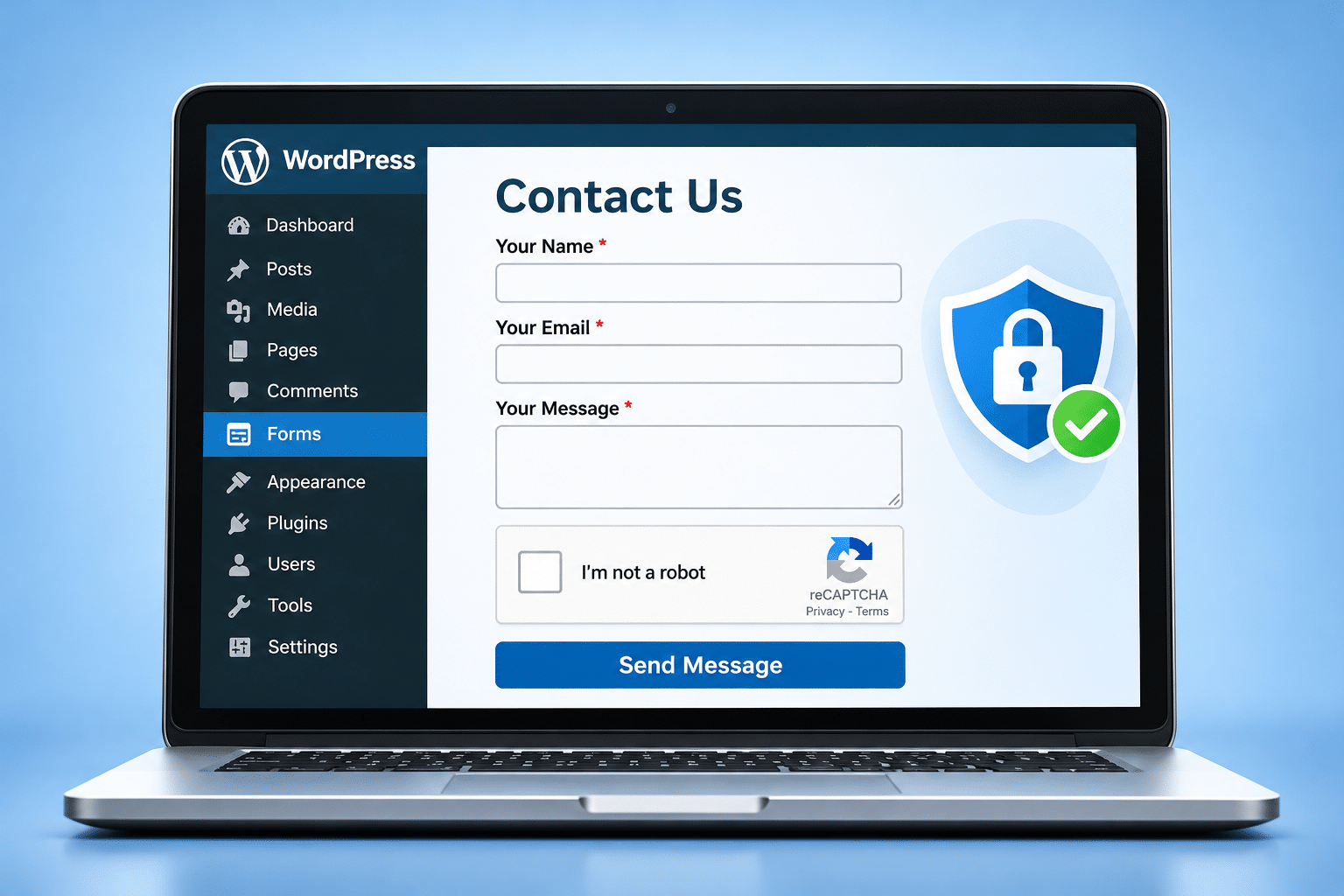
How Do I Add CAPTCHA Protection to My WordPress Forms?
You’ve added a contact form to your WordPress website so potential customers can get in touch. But instead of receiving genuine enquiries, your inbox starts filling up with suspicious messages, unwanted advertising and strange links from people you’ve never heard of.
Spam enquiries are a common frustration for small business owners. They waste time, make it harder to spot genuine customer messages and can sometimes contain harmful links or attempts to misuse your website.
One way to reduce this problem is to add CAPTCHA protection to your WordPress forms. The good news is that you don’t usually need coding knowledge to get started. Many popular WordPress form plugins already support CAPTCHA services, making setup relatively straightforward.
Quick Answer
To add CAPTCHA protection to your WordPress forms, first identify which form plugin your website uses. Check whether it supports Google reCAPTCHA, Cloudflare Turnstile or hCaptcha, then register with the chosen service and obtain the required site key and secret key.
Enter those details into your form plugin’s CAPTCHA settings, enable protection for the relevant forms and save your changes. Finally, test the form while logged out of WordPress to confirm genuine enquiries can still be submitted.
CAPTCHA can reduce automated spam, but it won’t stop every unwanted message. For better protection, combine it with server-side validation, suitable spam filtering and regular form testing.
What Is CAPTCHA?
CAPTCHA is a security test designed to help distinguish genuine human visitors from automated software, commonly called bots. The letters stand for Completely Automated Public Turing test to tell Computers and Humans Apart.
You may have encountered CAPTCHA when completing an online form, creating an account or making a purchase. Some versions ask you to tick a box or complete a simple challenge, while others assess activity in the background without requiring an obvious action.
For a WordPress business website, CAPTCHA can help reduce automated form submissions that contain spam advertisements, suspicious links or repeated unwanted messages.
How Does CAPTCHA Work?
When someone submits a protected form, the CAPTCHA service checks information associated with that interaction. Depending on the service, it may issue a challenge, assess signals associated with automated activity or provide a risk score.
The website then needs to validate the result before accepting the submission. This server-side check is important because simply displaying a CAPTCHA widget doesn’t provide reliable protection if the result isn’t verified.
Modern CAPTCHA services often try to minimise interruptions for genuine visitors, although the level of interaction can vary.
Does CAPTCHA Stop All Spam?
No. CAPTCHA is one part of a wider spam prevention strategy, not a guarantee that every unwanted message will disappear.
Some spam is submitted manually, while more advanced automated systems may attempt to bypass protective checks. A properly configured CAPTCHA can reduce many automated submissions, but other measures may still be needed.
Why Do WordPress Forms Need CAPTCHA Protection?
Contact forms make it convenient for potential customers to request information, quotations and appointments. Unfortunately, forms that accept public submissions can also attract unwanted automated activity.
For example, a cleaning company might receive repeated messages advertising unrelated services, while a local electrician may find dozens of suspicious links appearing in their enquiry inbox.
Even when these messages aren’t directly harmful, they can make managing genuine customer enquiries more difficult.
Protect Your Time
Small business owners often manage their own emails. Sorting through large amounts of spam takes time that could be spent responding to customers or running the business.
Reduce Automated Form Abuse
Some bots repeatedly submit forms or attempt to exploit poorly protected form-processing systems. CAPTCHA can help reduce this activity when combined with appropriate server-side controls.
Keep Genuine Enquiries Easier to Find
When fewer spam messages arrive, it’s easier to identify and respond to real customer enquiries. This is particularly important for businesses where a missed enquiry could mean losing a booking or sale.
Avoid Making Forms Difficult to Use
Security needs to be balanced with usability. If customers have to complete frustrating challenges every time they contact you, some may abandon the form.
The aim is to reduce spam without creating unnecessary barriers for legitimate visitors.
Which CAPTCHA Service Should You Choose?
Several CAPTCHA services work with WordPress. The right choice depends on your existing form plugin, the features available and how much interaction you want customers to experience.
| Service | How It Works | What to Consider |
|---|---|---|
| Google reCAPTCHA | Uses challenges or risk assessment, depending on the version and configuration. | Widely supported, but review current setup, pricing and privacy requirements. |
| Cloudflare Turnstile | Uses browser and interaction signals to help detect automated activity, often without a visible challenge. | Can offer a low-friction experience, subject to plugin compatibility. |
| hCaptcha | Provides bot detection and may display interactive challenges. | Check accessibility, privacy requirements and available plugin integrations. |
Google reCAPTCHA
Google reCAPTCHA is a well-known CAPTCHA service supported by many WordPress form plugins. Different versions operate differently. For example, reCAPTCHA v2 can use a checkbox or challenge, while reCAPTCHA v3 uses risk scores to help assess submissions.
Before configuring it, check which version your form plugin supports and review Google’s current service terms and pricing arrangements. Don’t assume that keys created for one version will work with another.
Cloudflare Turnstile
Cloudflare Turnstile is another option for protecting website forms against automated submissions. It is designed to reduce the need for traditional visual puzzles, although challenges may still occur in some situations.
You don’t necessarily need to move your website hosting to Cloudflare to use Turnstile. However, you do need a compatible integration and properly configured validation.
hCaptcha
hCaptcha is an alternative that provides bot protection through its own verification system. Some WordPress plugins support it directly, while others require an additional integration.
As with any third-party service, review its current features, terms and privacy documentation before adding it to your website.
How to Identify Your WordPress Form Plugin
Before installing CAPTCHA protection, find out how your existing contact form was created. This matters because the setup instructions vary between plugins.
Log in to your WordPress dashboard and open Plugins > Installed Plugins. Look for names such as Contact Form 7, WPForms, Fluent Forms, Gravity Forms or another form-building plugin.
If your website uses Elementor, some forms may have been created using its Form widget rather than a separate form plugin. Check the relevant page in the Elementor editor if you’re unsure.
Once you’ve identified the form system, look at its settings and documentation to see which CAPTCHA services are supported.
Should You Install Another Form Plugin?
Not necessarily. If your existing plugin supports CAPTCHA, it’s normally better to use that integration rather than replace a working contact form without a good reason.
Replacing a form plugin can affect layouts, notification emails, saved submissions and other settings. Make sure you understand the existing setup before making changes.
How to Add CAPTCHA Protection to WordPress Forms Step by Step
The exact screens depend on your form plugin and CAPTCHA provider, but the overall setup usually follows a similar process.
Step 1: Back Up Your Website
Before changing important website settings, make sure a recent backup is available. CAPTCHA integration is generally a manageable change, but a backup provides a recovery option if an unexpected problem occurs.
Step 2: Choose a Supported CAPTCHA Service
Check your form plugin’s available integrations and choose a compatible service. Consider the experience for mobile users, accessibility, privacy and any current service charges.
Step 3: Register Your Website
Visit the official website of your chosen CAPTCHA provider and follow its registration process. You’ll normally need to enter the domain name where the protected forms will operate.
Make sure the domain is entered correctly. If your website uses a separate staging or testing domain, that may need its own configuration.
Step 4: Obtain Your Site Key and Secret Key
After registration, the provider generally supplies credentials used to connect the CAPTCHA service to your website.
The site key is normally used by the browser-facing integration. The secret key is used for secure server-side verification and should not be published in visible website content.
Step 5: Enter the Keys in WordPress
Return to your WordPress dashboard and open the CAPTCHA or integration settings for your form plugin. Select the correct service and version, then enter the credentials in the appropriate fields.
Save the settings and check whether CAPTCHA must also be enabled separately for each individual form.
Step 6: Enable Protection on Your Forms
Review all public forms that need protection. These might include your contact form, quotation request, booking enquiry or other forms that accept visitor submissions.
Don’t assume that connecting the service automatically protects every form. Some plugins require you to enable CAPTCHA on individual forms or add a specific form field.
Step 7: Test the Live Website
Open your website in a private browsing window or while logged out of WordPress. Submit a genuine test enquiry and confirm that the form accepts the submission and delivers or stores it as expected.
Also check the form on a mobile phone. A CAPTCHA that blocks genuine customers can cause more business problems than the spam it was intended to prevent.
Adding CAPTCHA to Contact Form 7
Contact Form 7 is a popular WordPress form plugin with support for reCAPTCHA integration. Its standard reCAPTCHA integration has used reCAPTCHA v3, so you should follow the documentation for your installed version rather than assume that older checkbox tutorials still apply.
- Log in to WordPress and open the Contact menu.
- Select Integration and locate the reCAPTCHA integration.
- Register your website with the compatible Google reCAPTCHA service.
- Copy the required site key and secret key.
- Enter the credentials in the Contact Form 7 integration settings.
- Save the configuration and test the contact form on the public website.
Depending on your Contact Form 7 version and any additional plugins installed, other CAPTCHA services may be available through separate integrations.
Always confirm that the integration validates submissions correctly. A CAPTCHA badge appearing on the page isn’t sufficient proof that spam protection is working.
Adding CAPTCHA to WPForms
WPForms provides CAPTCHA options through its settings and form-building interface. Available providers and features may vary according to the installed version and plan.
- Open your WordPress dashboard and select WPForms > Settings.
- Find the CAPTCHA settings and choose a supported provider.
- Register your domain with that provider and obtain the required credentials.
- Enter the keys and save your settings.
- Open the form you want to protect in the WPForms builder.
- Enable the configured CAPTCHA integration for that form.
- Save the form and submit a test enquiry from the live website.
If CAPTCHA doesn’t appear or work as expected, check that the provider selected in WordPress matches the credentials you’ve created.
Adding CAPTCHA to Elementor Forms
If your website uses the Elementor Form widget, CAPTCHA can be configured through the supported integration settings. The Form widget is a feature associated with Elementor Pro, and available integrations depend on the installed version.
Open the relevant Elementor settings area and locate the CAPTCHA integration. Add the provider credentials, then edit the form and configure the supported CAPTCHA field or option.
Save your changes and test the public page. If your Elementor page contains a shortcode from another form plugin, you’ll need to configure CAPTCHA through that plugin instead.
Check the current Elementor documentation before following instructions from an older tutorial, as settings locations and supported services can change.
How to Test CAPTCHA Protection
Installing CAPTCHA is only the beginning. You need to confirm that genuine customers can still contact you and that the protective checks are being carried out correctly.
Test While Logged Out
Open a private browser window and submit a test enquiry. Some WordPress plugins treat logged-in administrators differently, so testing only from your dashboard may give you a misleading result.
Check Email Delivery
Make sure the test enquiry reaches the intended email inbox or is saved in your form plugin’s submission records, where that feature is available.
If the form reports a successful submission but no email arrives, you may have a separate email delivery problem. CAPTCHA does not replace correct WordPress email configuration or SMTP setup.
Test Mobile Devices
Complete the form on a mobile phone. Check that any CAPTCHA challenge fits the screen and doesn’t prevent customers from reaching the Submit button.
Check Different Browsers
Where practical, test the form in more than one browser. Privacy settings, script blockers or browser extensions can sometimes interfere with third-party verification services.
Review Spam Levels
Monitor how many unwanted messages arrive after activation. If spam continues, investigate whether CAPTCHA is being validated and whether additional protective measures are appropriate.
Common CAPTCHA Problems and How to Fix Them
CAPTCHA integration doesn’t always work correctly on the first attempt. Most problems involve configuration, browser scripts, domain restrictions or conflicts with existing website tools.
CAPTCHA Is Not Appearing
Some CAPTCHA systems work without a visible checkbox, so the absence of a challenge isn’t necessarily a problem. Check the provider’s expected behaviour and whether your form plugin confirms that the integration is enabled.
If a visible widget should appear but doesn’t, check the keys, domain registration, plugin settings and any browser console errors.
Invalid Site Key or Domain Error
This can occur when credentials belong to a different CAPTCHA version or the website domain hasn’t been registered correctly.
Check the exact domain and provider settings. Don’t mix credentials from different services or incompatible versions.
Genuine Customers Cannot Submit Forms
This is one of the most important problems to resolve quickly. A form that blocks real enquiries can directly affect your business.
Test the form in a private browser window and check for errors. If necessary, investigate JavaScript optimisation, caching, security rules or third-party scripts that may be interfering with CAPTCHA.
Spam Messages Continue Arriving
CAPTCHA doesn’t stop every form of spam. Check whether protection is enabled on the affected form and whether the verification result is checked on the server before accepting submissions.
Consider adding a honeypot, suitable spam filtering or rate limiting if the problem continues. Avoid adding multiple overlapping security plugins without understanding how they interact.
CAPTCHA Stops Working After an Update
Plugin updates, theme changes or changes to a CAPTCHA provider’s requirements can sometimes affect an existing integration.
Check for compatibility notices, review the provider’s documentation and test the form after updates. Make sure a working backup is available before changing several settings at once.
Other Ways to Reduce WordPress Form Spam
CAPTCHA can be effective, but it works best alongside other sensible protective measures. You don’t need every available security feature, and adding too many can create unnecessary complexity.
Use a Honeypot Field
A honeypot is a form field designed to be ignored by genuine visitors but potentially completed by automated bots. If a bot fills in the hidden field, the website can treat the submission as suspicious.
Many form plugins include honeypot protection or offer it through a compatible extension. It can help reduce spam without making customers complete a visible challenge.
Enable Suitable Spam Filtering
Some form plugins integrate with spam filtering services that examine submissions for suspicious patterns. These can provide another layer of protection alongside CAPTCHA.
Review how the service handles personal information before enabling it, particularly when customer messages are sent to an external provider for analysis.
Use Rate Limiting
Rate limiting restricts how frequently a visitor or automated system can submit requests. This can help reduce repeated automated submissions.
It should be configured carefully so that genuine customers aren’t unfairly blocked, particularly where several users share the same network or IP address.
Keep WordPress and Plugins Updated
Maintaining supported versions of WordPress, your theme and form plugins helps reduce security and compatibility problems. However, updates should be carried out with suitable backups and testing.
Secure the Form Processing System
A well-protected form should validate submitted information on the server, not rely entirely on checks running in the visitor’s browser.
This is especially important for custom-built forms. CAPTCHA tokens should be verified securely, and invalid submissions should be rejected according to the provider’s instructions.
Privacy and Accessibility Considerations
CAPTCHA services can involve third-party scripts and the processing of information about website visitors. Before adding one, check what information the provider collects, how it is used and whether your privacy notice needs updating.
For UK businesses, the UK GDPR, Data Protection Act 2018 and applicable electronic privacy rules may be relevant. Whether consent is required depends on the specific technology, its purpose and how it operates, so don’t assume every CAPTCHA service has identical requirements.
Review the provider’s documentation and obtain appropriate privacy or legal advice where necessary.
Make Forms Accessible
Some CAPTCHA challenges can be difficult for visitors with visual, hearing, motor or cognitive disabilities. A security feature should not unnecessarily prevent people from contacting your business.
Choose an accessible integration, test keyboard navigation and mobile usability, and provide an alternative contact method where practical.
CAPTCHA should help protect your website without creating unnecessary barriers for genuine customers.
Expert Insight From Daren Ward

From my experience working with business websites since 2004, I would recommend checking your existing contact form before installing any additional CAPTCHA or security plugins. Many WordPress form systems already provide suitable spam protection options, and adding unnecessary plugins can create conflicts.
For me, the most important part of CAPTCHA setup is testing what happens afterwards. It’s no good reducing spam if genuine customers suddenly find they cannot submit an enquiry. I would always check the live form while logged out, test it on a mobile phone and confirm the message actually arrives.
I would also avoid assuming that every spam problem needs a more aggressive CAPTCHA challenge. Sometimes a properly configured honeypot or spam filter can help without making the form more difficult for visitors.
My advice is to choose the simplest suitable protection, configure it correctly and regularly test the complete enquiry process. Your website should make it easy for real customers to contact you while making automated abuse more difficult.
CAPTCHA Setup Checklist
Use this checklist when adding CAPTCHA protection to your WordPress contact forms.
- Identify which WordPress plugin or page builder created your form.
- Check whether your existing form system already supports CAPTCHA.
- Make sure a recent website backup is available.
- Choose a compatible CAPTCHA provider.
- Register your website domain with the provider.
- Obtain the correct site key and secret key.
- Enter the credentials in your WordPress integration settings.
- Enable CAPTCHA on each form that requires protection.
- Confirm that server-side CAPTCHA verification is working.
- Test the form while logged out of WordPress.
- Check that enquiries are delivered or stored correctly.
- Test the form on mobile devices and review accessibility.
- Review privacy information and any applicable legal requirements.
- Monitor spam submissions and adjust protection if necessary.
Frequently Asked Questions
1. Is CAPTCHA Free for WordPress Websites?
Some CAPTCHA services provide free usage options, but features, limits and charges vary between providers. Certain WordPress plugins may also require a paid version for particular integrations.
Check current pricing and compatibility before registering or installing anything.
2. Do I Need a CAPTCHA Plugin if I Already Use WPForms?
Not necessarily. WPForms supports CAPTCHA integrations, so you may be able to configure protection using its existing settings.
Check your installed version and available features before adding another plugin.
3. Is Cloudflare Turnstile Better Than Google reCAPTCHA?
Neither service is automatically the best choice for every website. Turnstile is designed to reduce traditional interactive challenges, while Google reCAPTCHA offers different approaches depending on the version.
Compare compatibility, visitor experience, privacy considerations and current provider terms before choosing.
4. Will CAPTCHA Stop All Spam Emails?
No. CAPTCHA can reduce automated form submissions, but it won’t stop spam sent directly to your email address or every unwanted message submitted through your website.
Additional filtering and correctly configured form protection may still be necessary.
5. Can CAPTCHA Stop Genuine Customers From Contacting Me?
Yes, if it is incorrectly configured or creates challenges that visitors cannot complete. Browser restrictions and script conflicts can also cause problems.
Always test the form on the public website, including mobile devices, after enabling protection.
6. Do I Need CAPTCHA on Every WordPress Form?
Not every form needs the same level of protection. Public contact, registration, quotation and booking forms may benefit from suitable anti-spam measures.
Choose protection according to the risks and purpose of each form rather than automatically applying the most restrictive option everywhere.
7. Why Is CAPTCHA Not Showing on My Contact Form?
Some CAPTCHA systems work in the background without displaying a visible challenge. If a visible widget is expected, check the provider keys, domain registration and form settings.
Also investigate caching or JavaScript problems if the integration appears incorrectly configured.
8. Does CAPTCHA Affect Website Speed?
CAPTCHA services may load additional scripts or communicate with external servers, which can affect performance. The impact depends on the provider, integration and website setup.
Test your website after enabling protection and avoid unnecessary overlapping scripts.
9. Can I Use CAPTCHA With Elementor Contact Forms?
Yes, supported CAPTCHA integrations can be used with Elementor’s Form widget, depending on the installed version and available features.
If your Elementor page displays a form created by another plugin, configure CAPTCHA through that plugin instead.
10. What Should I Do if Spam Continues After Installing CAPTCHA?
First confirm that CAPTCHA is enabled on the affected form and that verification takes place on the server. Then investigate whether spam is automated, manually submitted or arriving directly by email.
Consider a honeypot, spam filtering or suitable rate limiting where appropriate, and keep testing to make sure genuine enquiries aren’t blocked.
Summary
Adding CAPTCHA protection to your WordPress forms can help reduce automated spam and make genuine customer enquiries easier to manage. Many popular WordPress form plugins support CAPTCHA services, so you may be able to configure protection without replacing your existing forms.
The important steps are choosing a compatible provider, registering your website, entering the correct credentials and enabling protection on the forms that need it. You should then test the entire submission process to make sure real customers can still contact you.
CAPTCHA isn’t a complete solution to every spam problem. Combining it with sensible form validation, suitable filtering and regular testing can provide more reliable protection without making your website unnecessarily difficult to use.
Your Next Steps
Start by checking which form plugin your WordPress website uses and whether CAPTCHA protection is already available. If you’re unsure about changing security settings or your contact forms are causing problems, consider professional website maintenance assistance to investigate the existing setup and make appropriate improvements.
Key Takeaways
- CAPTCHA helps distinguish genuine visitors from automated form submissions.
- Popular services include Google reCAPTCHA, Cloudflare Turnstile and hCaptcha.
- Check your existing WordPress form plugin before installing additional software.
- Correct site keys, secret keys and server-side verification are essential.
- Test forms while logged out and on mobile devices.
- CAPTCHA reduces automated spam but cannot guarantee complete protection.
- Honeypots, spam filtering and rate limiting can provide additional protection.
- Review accessibility, privacy and customer experience before enabling a service.
Found This Helpful? Share It
If you found this article useful, please share it with other business owners who might find it helpful too.
A quick share on LinkedIn, Facebook or your favourite social platform could help someone else find the advice they need.