
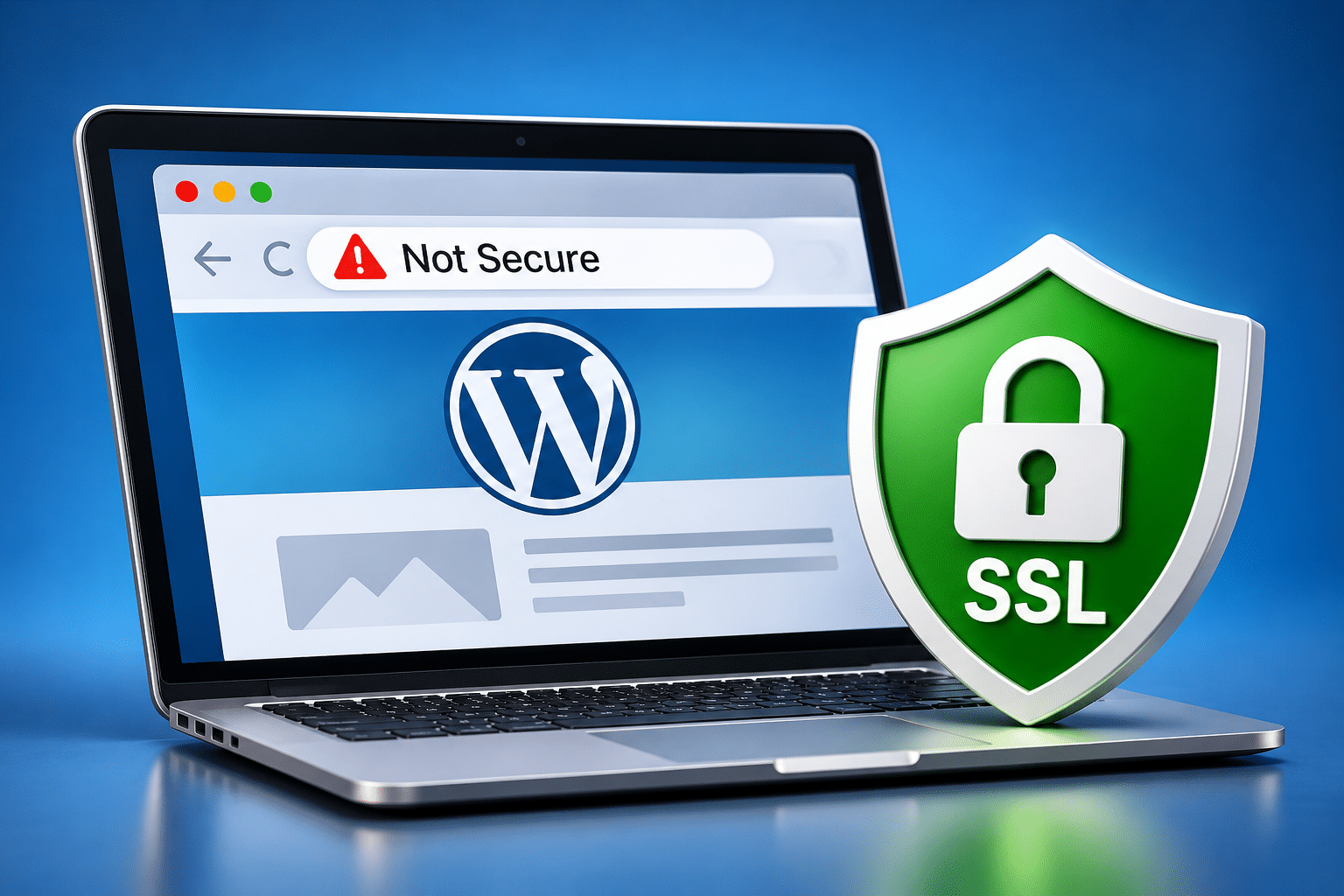
Why Is My WordPress Website Showing a “Not Secure” Warning?
Imagine a potential customer visiting your business website for the first time. They want to find out about your services, perhaps request a quote or book an appointment. Everything seems fine until they notice a warning beside your website address saying “Not Secure”. Suddenly, they start wondering whether they should trust your business with their personal details.
For a small business owner, this can be frustrating, particularly if your website has been working perfectly for months or even years. You may not have changed anything, yet your browser is now displaying a warning that makes your website look unsafe. If customers are being asked to complete a contact form, enter payment details or create an account, the warning becomes even more concerning.
A WordPress “Not Secure” warning usually means your browser cannot confirm that the connection to your website is properly protected using HTTPS. Common causes include a missing or expired SSL/TLS certificate, incorrect HTTPS settings, or website resources that still load through HTTP. The right solution depends on the specific warning and what your browser is reporting.
Quick Answer
If your WordPress website is showing a “Not Secure” warning, first check whether the address begins with https:// rather than http://. If the website uses HTTP, the connection is not protected by HTTPS encryption. If it already uses HTTPS but the browser reports a certificate problem, ask your hosting provider to check whether the SSL/TLS certificate is valid, correctly installed and covers your domain name.
If the certificate is valid but certain pages still show security warnings, check for mixed content, where images, scripts or other resources are loaded through HTTP. Do not change your WordPress website addresses or force HTTPS redirects until the certificate is working correctly. Make a complete backup before changing website settings.
What Does a WordPress Not Secure Warning Mean?
A “Not Secure” warning usually indicates that your browser does not consider the connection to the website properly protected. The warning may appear beside the website address, within the browser’s site information panel or as a full-page security alert, depending on the browser and the problem.
The important distinction is that a warning about the connection does not automatically mean your WordPress website has been hacked. It means there is a problem with how the connection is being protected or verified. The website may still contain all its normal pages, images and information, but visitors cannot be confident that their connection is secure.
For example, imagine a customer completing a quotation form on a building company’s website. If the page uses ordinary HTTP rather than HTTPS, the information being transmitted is not protected by HTTPS encryption. This creates unnecessary risk, particularly when customers are submitting names, telephone numbers, addresses or other personal details.
Does Not Secure Mean My Website Has Been Hacked?
No. A browser security warning does not automatically mean your website has been hacked or infected with malware. A missing certificate, an expired certificate or an incorrect HTTPS configuration can produce warnings even when the website’s files and database are otherwise working normally.
However, HTTPS does not guarantee that a website is free from malware either. It protects the connection between the visitor and the website, but WordPress still needs secure passwords, updates, backups and other security measures.
What Is the Difference Between SSL and HTTPS?
SSL stands for Secure Sockets Layer, while TLS stands for Transport Layer Security. TLS is the modern technology used to protect connections between browsers and websites. People still commonly refer to website security certificates as SSL certificates, even though modern secure connections use TLS.
HTTPS stands for Hypertext Transfer Protocol Secure. It is the secure version of HTTP, using TLS to encrypt information travelling between the visitor’s browser and the website server.
A website using HTTPS normally has a digital certificate that allows the browser to verify the identity of the website it is connecting to. The certificate must be valid, trusted and appropriate for the domain being visited.
| Feature | HTTP | HTTPS |
|---|---|---|
| Connection encryption | Not encrypted by HTTPS | Encrypted using TLS |
| Website certificate | Not required for ordinary HTTP | Requires a valid TLS certificate for a trusted connection |
| Website address | Begins with http:// | Begins with https:// |
| Browser trust indicators | May display a Not Secure warning | Normally avoids connection security warnings when correctly configured |
| Customer information | Not protected by HTTPS during transmission | Protected in transit by the encrypted connection |
HTTPS is an essential part of running a professional business website, particularly if customers use contact forms, booking systems or online payments. However, it is only one part of website security. A website can have a valid certificate and still contain outdated software or other vulnerabilities.
Why Does WordPress Show a Not Secure Warning?
Several different problems can cause a browser to display a security warning. Identifying the exact cause is important because installing another certificate will not necessarily fix a problem caused by mixed content or incorrect website settings.
1. The SSL/TLS Certificate Has Expired
Website security certificates have an expiry date. Many hosting companies automatically renew certificates, but renewal can fail because of domain validation problems, DNS settings or hosting configuration issues. When a certificate expires, browsers may display a warning that the connection is not private or cannot be trusted.
2. No Valid Certificate Is Installed
If your website does not have a valid certificate for its domain, visitors may be unable to establish a trusted HTTPS connection. Some hosting packages include certificates automatically, while others require additional setup.
3. The Website Is Still Using HTTP
Your WordPress website may have a working certificate but still direct visitors to an address beginning with http://. In that situation, the website is not consistently using HTTPS, even though the hosting server may support it.
4. The Website Contains Mixed Content
Mixed content occurs when a page is loaded through HTTPS but requests certain resources through HTTP. This can happen with images, JavaScript, stylesheets, fonts or other files. Browsers may block some insecure resources or display warnings depending on the type of content.
5. The Certificate Does Not Match the Domain
A certificate must cover the hostname being visited. For example, a certificate covering www.example.com does not necessarily cover example.com. If the correct hostname is missing, visitors may receive a certificate warning.
6. Hosting or DNS Settings Have Changed
Moving to another hosting company, changing DNS records or introducing a content delivery network can sometimes cause certificate and HTTPS configuration problems. The website may be pointing to a server that does not have the correct certificate installed.
7. A Plugin or Theme Uses Old HTTP Addresses
Some WordPress themes, plugins and page builders store full website addresses. If these still begin with HTTP after HTTPS has been enabled, the website may continue loading resources insecurely.
What Should You Check First?
Before changing WordPress settings, check exactly what your browser is reporting. A simple HTTP warning requires a different investigation from an expired certificate or a domain name mismatch.
- Check the address. Does it begin with
http://orhttps://? - Read the browser warning. Record whether it mentions an expired certificate, an untrusted connection or another problem.
- Check several pages. Does the warning appear everywhere or only on particular pages?
- Try another browser. This helps establish whether the problem affects multiple browsers.
- Review recent changes. Have you moved hosting, changed DNS records or installed an SSL certificate?
- Check your hosting account. Look for SSL/TLS certificate information and renewal warnings.
If the browser displays a full-page certificate warning, do not bypass it to enter WordPress login details or customer information. Use your hosting control panel or contact your provider through a trusted support channel to investigate.
How to Fix the WordPress Not Secure Warning
The following steps cover the most common causes. Work through them in a sensible order and test your website after each change. If you are unfamiliar with SSL certificates, DNS records or server settings, ask your hosting provider to help.
Step 1: Check Whether Your SSL Certificate Is Valid
Log in to your hosting account and find the section for SSL/TLS certificates. On cPanel hosting, this may be called SSL/TLS Status or a similar name, depending on the version and hosting configuration.
Check whether a certificate is installed, whether it has expired and whether it covers the domain you are using. Make sure the certificate includes any required hostname variations, such as the main domain and its www version.
If the certificate is expired or missing, contact your hosting provider to arrange installation or renewal. Many hosting companies offer automatic certificates, including those issued through Let’s Encrypt.
Step 2: Confirm That HTTPS Works Before Changing WordPress
Once the certificate is installed, test the HTTPS version of your website directly. Open the address beginning with https:// and check whether the browser accepts the certificate without displaying a connection warning.
If HTTPS does not work correctly, do not force the entire website to use it yet. Changing WordPress addresses or enabling redirects before the certificate is valid can make the website difficult to access.
Step 3: Check Your WordPress Website Addresses
If HTTPS works correctly, log in to WordPress and open Settings > General. Look for the fields called WordPress Address (URL) and Site Address (URL).
For a standard WordPress installation that has been correctly configured for HTTPS, these addresses would normally begin with https://. However, some websites use different installation arrangements, and the fields may be locked because their values are defined elsewhere.
Do not change these addresses unless you have confirmed that HTTPS works and understand how your website is configured. Incorrect changes can prevent you from accessing the WordPress dashboard.
Step 4: Check That HTTP Redirects to HTTPS
Once HTTPS is working, visitors using the old HTTP address should normally be redirected to the secure version. This helps ensure that customers reach the HTTPS website even when following older links.
Redirects can be managed through hosting settings, server configuration or suitable WordPress tools. The correct method depends on your hosting environment. Avoid adding several separate HTTPS redirect rules because conflicting rules can create redirect loops.
Ask your hosting provider to confirm that HTTP requests are redirected correctly and that both the www and non-www versions of your domain lead to the intended secure address.
Step 5: Check for Mixed Content
If the certificate is valid but certain pages still have warnings or missing design elements, investigate mixed content. This often happens when a website was originally built using HTTP and some images, scripts or stylesheets still use those older addresses.
Open the affected page in a desktop browser and use its developer tools to inspect the Console and Security information. Mixed content messages can identify the exact resource being requested through HTTP.
Once you know which resources are affected, correct their addresses or replace them with secure versions. Avoid changing database entries blindly because WordPress plugins and page builders may store information in formats that require special handling.
Step 6: Check Plugins, Themes and External Resources
Some WordPress themes and plugins load resources from external websites. These might include fonts, scripts, images, booking widgets or other features. If an external resource is only available through HTTP, the browser may block it when your page uses HTTPS.
Check whether the external provider supports HTTPS. If it does, update the resource address through the relevant plugin or theme settings. If it does not, consider replacing the resource or contacting the provider.
Do not disable important plugins without understanding what they do. A booking system, contact form or ecommerce plugin may be essential to your business, and disabling it could create problems beyond the original warning.
Step 7: Clear Relevant Website Caches
After correcting HTTPS settings and mixed content, clear the relevant WordPress, hosting and content delivery network caches. Cached pages may continue containing old HTTP resource addresses even after the underlying settings have been fixed.
Then test the website in a private browser window. Check the homepage, service pages, contact forms and any other areas that previously displayed warnings.
Step 8: Test the Entire Customer Journey
Once the browser no longer reports a connection problem, test the features customers use. Open your contact page, submit a test enquiry and check any booking or checkout processes.
Also confirm that the WordPress dashboard works over HTTPS. If your website has an online shop, verify that payment pages use secure connections and that the checkout system is functioning normally.
Remember that removing a browser warning does not prove the website is free from other security problems. Keep WordPress, themes and plugins maintained and continue using appropriate security measures.
How Do You Fix Mixed Content in WordPress?
Mixed content is one of the more confusing HTTPS problems because the website may appear to be using a secure address while still requesting certain resources insecurely. Some pages may look normal, while others have missing images, incorrect fonts or broken design elements.
For example, imagine a cleaning company’s website that was originally built using HTTP. The business later installs a valid SSL certificate and changes the main website address to HTTPS. However, a homepage banner still uses an old image address beginning with http://. The browser may upgrade or block that request, depending on the resource and browser behaviour.
The correct solution is to identify the affected resource and update it to a working HTTPS address. If the resource belongs to your own website, check whether it can be loaded securely. If it comes from another provider, confirm that the provider supports HTTPS.
For larger websites, a suitable WordPress search-and-replace tool may help correct old addresses in the database. However, the tool must handle WordPress data safely, including serialised values. Make a complete backup first, and use a staging environment where possible.
Google’s web security documentation explains mixed content and how browsers handle insecure resources on HTTPS pages. See What Is Mixed Content? for further technical information.
Why Does the Warning Appear After Moving Hosting?
Moving a WordPress website to another hosting company can sometimes result in SSL and HTTPS problems, particularly if the certificate was managed by the previous provider. A certificate that worked on the old server may not automatically be installed or configured on the new one.
The domain’s DNS records may also need checking. If the domain points to a server without the correct certificate, visitors can receive a warning even though the website files and database have transferred successfully.
Before changing WordPress settings, ask the new hosting provider to confirm that the domain is pointing to the correct server and that a valid certificate is installed for the hostname being used.
Once HTTPS works on the new hosting account, check WordPress addresses, redirects and mixed content. This helps ensure that the migration has not left behind references to the old HTTP website or previous hosting environment.
Why Does the Warning Remain After Installing SSL?
Installing a certificate is only one part of configuring HTTPS. Your website also needs to use the certificate correctly and load its resources securely.
If the warning remains, check whether the certificate covers the correct domain, whether the browser is reaching the intended hosting server and whether WordPress is still using HTTP addresses. Also check for mixed content and old cached pages.
Another possibility is that the certificate chain has not been configured correctly. Browsers need to establish trust in the certificate, and missing intermediate certificates can sometimes cause validation problems. Your hosting provider should be able to investigate this.
If the browser displays a specific certificate error code, provide that information to your hosting company. It can help them distinguish between an expired certificate, an incorrect hostname, an untrusted certificate and other technical issues.
How Can a Not Secure Warning Affect Your Business?
Customers need to feel confident when using your website. If a browser displays a security warning, some visitors may decide not to continue, particularly if they are being asked to provide personal information or make a payment.
Imagine a customer visiting an accountant’s website to arrange a consultation. They are ready to complete the contact form, but the browser warns that the connection is not secure. Even if the accountant is perfectly reputable, the warning may cause the customer to hesitate or leave.
The same applies to online shops, booking websites and local service businesses. A security warning can create uncertainty at exactly the moment when a visitor is deciding whether to trust your business.
HTTPS is also an established part of Google’s approach to website quality and search. However, installing a certificate does not guarantee higher rankings. Its main purpose is to protect connections and provide a safer experience for visitors.
Expert Insight From Daren Ward

Daren Ward – Founder, A to Z Website Solutions
Having worked with business websites since 2004, one thing I would emphasise is that a “Not Secure” warning should never be ignored simply because the website appears to be working normally. Customers may still be able to read your pages, but the warning can make them think twice before completing a form or contacting your business.
My first check would be whether the website has a valid SSL certificate and whether the correct domain is covered. If the certificate is working, I would then look at the WordPress addresses, redirects and any mixed content. It is important to identify the actual problem rather than installing extra plugins and hoping the warning disappears.
I would also pay particular attention to websites that have recently moved hosting or been redesigned. Old HTTP addresses can remain in themes, page builders and other website settings, even when the main website has been switched to HTTPS. These problems are not always obvious until you inspect the affected pages.
My recommendation is to treat HTTPS as an essential part of a professional business website, but not as a complete security solution. A valid certificate protects the connection. Proper WordPress maintenance, secure access, reliable backups and regular checks are still needed to keep the website operating safely.
Important Precautions Before Making Changes
SSL and HTTPS problems can often be resolved without major website changes, but incorrect settings may make your website inaccessible or create redirect loops.
- Do not change WordPress URL settings until HTTPS is working correctly.
- Do not bypass browser certificate warnings to enter administrator passwords or sensitive information.
- Do not install multiple SSL or redirect plugins without checking whether their settings conflict.
- Do not edit server configuration files without making a secure backup.
- Do not run an uncontrolled database search-and-replace operation.
- Do not disable important booking, payment or contact form plugins without considering the consequences.
- Do not assume that a valid SSL certificate means the entire website is protected against hacking.
If you are unsure about certificate installation, DNS settings or HTTPS redirects, contact your hosting provider or a WordPress professional. A properly configured connection is more important than simply hiding the browser warning.
How Can You Prevent Future SSL and HTTPS Problems?
Once your website is working correctly over HTTPS, a few regular checks can help reduce the risk of future warnings.
Make Sure SSL Certificates Renew Automatically
Ask your hosting provider whether certificate renewal is automatic and how you will be notified if renewal fails. A certificate that expires unexpectedly can cause serious browser warnings, even when the website itself has not changed.
Check HTTPS After Hosting Changes
Whenever you move hosting, change DNS records or introduce a content delivery network, check that the correct certificate is installed and that HTTPS works across the website. Test both the www and non-www versions of your domain where applicable.
Keep WordPress Software Maintained
Regular WordPress, plugin and theme maintenance helps reduce security risks and compatibility problems. Updates should be carried out with reliable backups available and important website functions tested afterwards.
Monitor Your Website
Website monitoring can help identify availability problems, while certificate monitoring can alert you when an SSL/TLS certificate is approaching expiry or has become invalid. This gives you an opportunity to investigate before customers begin reporting warnings.
Our WordPress maintenance service is one option for businesses that prefer help with updates, technical checks and ongoing website reliability.
Action Checklist
If your WordPress website is showing a “Not Secure” warning, use this checklist to work through the problem.
- Check whether the website address begins with HTTP or HTTPS.
- Read and record the exact browser security warning.
- Check whether the warning affects the entire website or particular pages.
- Confirm that the SSL/TLS certificate is valid and covers the correct domain.
- Ask your hosting provider to investigate any certificate installation or renewal problems.
- Make a complete backup before changing WordPress or server settings.
- Confirm HTTPS works before changing WordPress website addresses.
- Check that HTTP requests redirect correctly to HTTPS.
- Inspect affected pages for mixed content and old HTTP resource addresses.
- Review plugin, theme and page builder settings where necessary.
- Clear relevant caches after correcting the problem.
- Test contact forms, booking pages, checkout and WordPress administration.
- Arrange certificate renewal checks and ongoing website monitoring.
Frequently Asked Questions
1. Why does my WordPress website say Not Secure even though I have SSL?
A valid SSL/TLS certificate does not automatically mean every part of your website is using HTTPS correctly. WordPress may still use HTTP addresses, the certificate may not cover the hostname being visited, or some resources may be loaded insecurely. Check the exact browser warning, certificate details, redirects and mixed content before making changes.
2. Can I get a free SSL certificate for my WordPress website?
Yes. Many hosting companies provide free SSL/TLS certificates, often through Let’s Encrypt or another certificate service. The certificate still needs to be installed, renewed and configured correctly. Ask your hosting provider what is included with your package and whether automatic renewal is enabled.
3. Will installing an SSL certificate automatically fix the Not Secure warning?
Not always. Installing a valid certificate is an important step, but WordPress must also use HTTPS correctly. You may need to update website addresses, configure redirects and correct mixed content. If the certificate is invalid or does not cover the correct domain, the browser may continue displaying a warning.
4. Does Not Secure mean my WordPress website has been hacked?
No. A Not Secure warning normally concerns the website connection rather than proving that the website has been compromised. It may result from HTTP, an expired certificate or another HTTPS problem. However, a valid certificate does not rule out hacking either. Website security requires additional measures beyond HTTPS.
5. Why does my website show Not Secure after moving hosting?
The new hosting server may not have the correct certificate installed, or the domain may still be pointing to a different server. WordPress settings and stored HTTP resource addresses can also cause problems after a migration. Ask the new hosting provider to confirm DNS, certificate coverage and HTTPS configuration before changing WordPress settings.
6. What is mixed content in WordPress?
Mixed content occurs when an HTTPS page requests resources through HTTP. These resources may include images, scripts, stylesheets or fonts. Browsers may upgrade or block some requests depending on the resource type. The proper fix is to identify the insecure resources and update them to working HTTPS addresses.
7. Can an expired SSL certificate stop customers accessing my website?
Yes. Browsers may display a full-page warning when a certificate has expired, and some visitors will not continue to the website. This can interrupt enquiries, bookings and sales. Contact your hosting provider to renew or replace the certificate and confirm that the secure connection works correctly afterwards.
8. Should I use an SSL plugin to fix the warning?
An SSL or HTTPS plugin may help manage some WordPress settings, but it cannot fix every certificate or server problem. If the certificate is expired, incorrectly installed or does not match the domain, the hosting configuration needs attention. Avoid installing several plugins that attempt to control the same redirects or HTTPS settings.
9. Will HTTPS improve my Google rankings?
Google has used HTTPS as a lightweight ranking signal, but installing a certificate does not guarantee better rankings. HTTPS is primarily important for protecting connections and giving visitors a safer experience. Website content, relevance, usability and many other factors also influence search visibility.
10. Can I change my WordPress website from HTTP to HTTPS myself?
It is possible if you understand WordPress settings, certificates and redirects. However, changing website addresses before HTTPS is working can cause login problems, broken resources or redirect loops. Make a backup first and confirm that the certificate is valid. If you are unsure, ask your hosting provider or a WordPress professional to help.
Summary
A WordPress “Not Secure” warning usually means the browser cannot confirm that the connection to your website is properly protected. Common causes include missing or expired SSL/TLS certificates, HTTP website addresses, incorrect redirects and mixed content.
Start by checking the exact browser warning and confirming that your certificate is valid. Once HTTPS is working, review WordPress addresses, redirects and any insecure resources. Avoid making several changes at once, particularly if you are unfamiliar with hosting or server settings.
After resolving the problem, test your website’s important pages and customer functions. Regular certificate renewal checks, WordPress maintenance and monitoring can help prevent similar problems in the future.
Getting Further Help
If your WordPress website continues displaying a “Not Secure” warning and you are unsure how to resolve it, getting technical assistance may be the safest option. You can find out more about our WordPress maintenance service if you would like help keeping your business website secure, updated and working reliably.
Key Takeaways
- A Not Secure warning usually indicates a problem with HTTP, HTTPS or certificate validation.
- The warning does not automatically mean your WordPress website has been hacked.
- A valid SSL/TLS certificate must cover the correct domain and be properly installed.
- HTTPS should be working before you change WordPress addresses or force redirects.
- Mixed content can cause warnings or broken resources even when the main page uses HTTPS.
- Hosting migrations and DNS changes can introduce certificate configuration problems.
- Test forms, bookings and checkout pages after resolving HTTPS issues.
- Certificate monitoring, reliable hosting and regular WordPress maintenance help reduce future problems.
Found This Helpful? Share It
If you found this article useful, please share it with other business owners who might find it helpful too.
A quick share on LinkedIn, Facebook or your favourite social platform could help someone else find the advice they need.



