
Why Is My WordPress Blog Post Not Appearing on My Website?
You’ve spent time writing a new blog post, chosen a suitable image, checked everything looks right and clicked Publish. As far as WordPress is concerned, the article is ready for people to read. But when you visit your website, the new post is nowhere to be found.
Perhaps it doesn’t appear on your main blog page, even though you can see it in the WordPress dashboard. Maybe it shows up when you’re logged in but disappears when you visit the website as an ordinary visitor. Or perhaps the post opens when you use its direct link, but it isn’t showing alongside your other articles.
It’s frustrating, especially when you’ve published something important for your business. The good news is that a missing WordPress blog post doesn’t necessarily mean your content has disappeared. In many cases, the problem involves publishing settings, the blog page layout, categories, caching or the way your website displays posts. The important thing is to find out exactly where the post is missing before trying to fix it.
Quick Answer
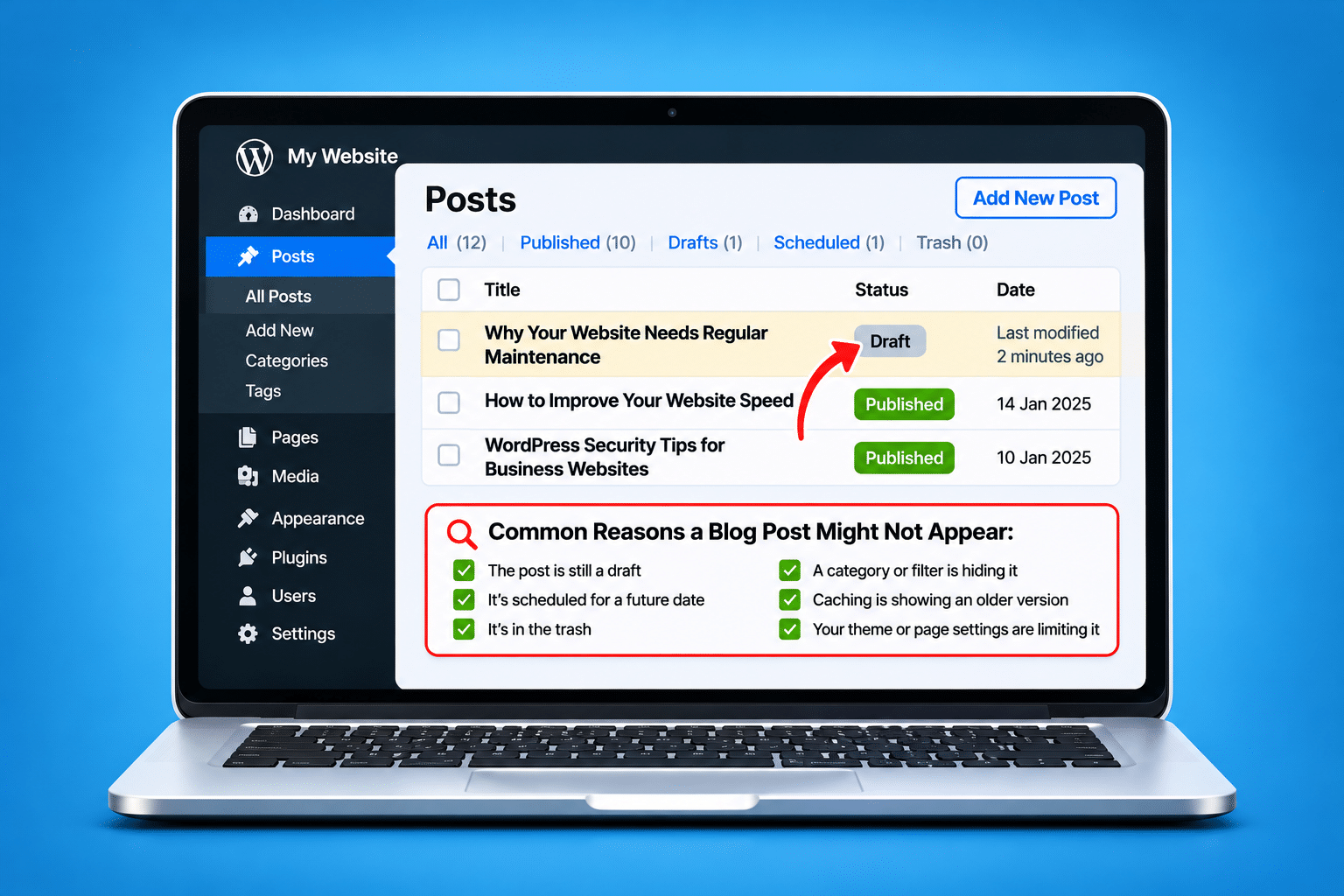
If your WordPress blog post isn’t appearing on your website, go to Posts > All Posts in your WordPress dashboard. Find the article and check that its status is Published, rather than Draft, Pending Review, Scheduled or Private.
Next, click View Post to see whether the article opens using its direct website address. If it does, but isn’t appearing on your blog page, check your blog layout, category filters, post ordering and caching settings.
If the post doesn’t open at all, investigate its publishing status, URL and any error messages. If it appears while you’re logged in but not when logged out, check whether visitors are being served an outdated cached version of the website.
Important: Don’t delete and republish the article until you’ve identified the problem. Doing so can create unnecessary URL changes, duplicate content or lost links.
Where Is Your WordPress Blog Post Missing?
Before making changes, establish exactly what you mean by the post not appearing. A blog article can be published correctly but missing from a particular part of the website. For example, it might be available through its direct URL but absent from the main blog listing.
This distinction is important because different symptoms suggest different causes. If the article opens normally, the problem may be with how posts are selected or displayed. If it doesn’t open at all, you may need to investigate publishing status, permissions or the website address.
| What You’re Experiencing | What to Check First |
|---|---|
| Post appears in the dashboard but not on the website | Publishing status and direct post URL. |
| Post opens directly but isn’t on the blog page | Blog template, query settings, categories and pagination. |
| Post appears when logged in but not logged out | Public visibility, caching and visitor-specific settings. |
| Scheduled post hasn’t appeared | Scheduled date, time zone and WordPress scheduling. |
| Post doesn’t appear on the homepage | Homepage display settings and featured-post sections. |
| Post displays a 404 error | Published status, permalink and rewrite settings. |
| Post appears on the website but not Google | Indexing and search engine discovery, which are separate from publishing. |
Once you know which situation applies, you can concentrate on the relevant settings rather than changing unrelated parts of your WordPress website.
Check Whether Your WordPress Blog Post Is Actually Published
The first place to look is your WordPress dashboard. Open Posts > All Posts and find the article that isn’t appearing. WordPress normally shows the post’s current status, which helps you establish whether it’s available to the public.
A post can exist in WordPress without being publicly visible. This is normal when you’re working on a draft, waiting for approval or scheduling an article for a future date.
What Does Draft Mean?
A draft is a post that hasn’t been published. You can edit and preview it while logged in, but ordinary website visitors generally can’t see it.
If the article is still a draft and you’re ready for it to go live, open the editor, review the content and select Publish. Check the confirmation before leaving the editor.
What Does Pending Review Mean?
Pending Review means the article is waiting for approval or further editorial action. This is common on websites where several people contribute content but not everyone has permission to publish.
If your post is pending review, someone with the appropriate permissions may need to approve and publish it.
What Does Scheduled Mean?
A scheduled post is set to publish at a future date and time. Until that time arrives and WordPress processes the scheduled event, the article won’t normally be publicly available.
Check the scheduled date carefully, including the year and time. A simple date or time zone mistake can explain why an article hasn’t appeared when expected.
What Does Private or Password Protected Mean?
A private post isn’t available to ordinary public visitors. Depending on WordPress permissions, certain logged-in users may still be able to access it.
A password-protected post can be publicly accessible at its URL, but visitors must enter the password to read the protected content. If your article is intended for everyone, check its visibility settings and change them to Public where appropriate.
What If WordPress Says Published?
If the status is Published and the visibility is Public, your next step is to check whether the article opens directly. Don’t assume the publishing process has failed simply because the post isn’t showing in a particular listing.
How Do I Check Whether My WordPress Blog Post Opens Directly?
Go to Posts > All Posts, find the article and select View or View Post. Alternatively, open the post in the editor and use its public link.
Copy that link and open it in a private browser window. This helps you check what an ordinary visitor sees without relying on your existing WordPress login session.
If the Post Opens Correctly
This is a useful sign. It means the article is accessible at its direct address, even if it isn’t appearing on your main blog page or homepage.
The next step is to investigate how those pages select and display posts. The issue may involve categories, filters, templates or the number of posts shown.
If the Post Doesn’t Open
Check whether WordPress shows an error, a password prompt or a message saying the page can’t be found. Each result points towards a different type of problem.
If you see a 404 error, check the published status and permalink. If the website displays a technical error, avoid repeatedly editing the post without understanding what is failing.
Why Isn’t My Published WordPress Post Showing on My Blog Page?
One of the most common situations is a blog post that has been published successfully but doesn’t appear in the list of articles. You can open it using the direct link, yet the blog page still shows older content.
In this situation, the post itself may be working correctly. The problem is more likely to involve the settings that control which articles appear in the blog listing.
Check Whether You’re Looking at the Correct Blog Page
Some websites have a dedicated Blog page, while others call it News, Articles, Updates or Insights. There may also be separate category pages showing only certain types of posts.
Make sure you’re checking the main blog listing rather than a page designed to show a particular category or collection of articles.
Check WordPress Reading Settings
Go to Settings > Reading in the WordPress dashboard. Look at the homepage display settings and whether a particular page has been assigned as the Posts page.
If your website uses a static homepage, WordPress can also have a separate page assigned to display blog posts. However, some themes and page builders use custom blog layouts instead, so these settings may not control every blog listing.
Check How Many Posts Are Displayed
WordPress includes a setting for the number of blog pages to show at most. Themes and custom post-listing blocks may also have their own limits.
If your blog displays only a few articles at a time, the missing post might be on another page of the listing. Check the pagination controls and confirm that the articles are being sorted in the expected order.
Check Whether the Blog Is Sorted by Date
Many WordPress blog pages display the newest articles first, but custom layouts can use different sorting rules. For example, a website might show featured posts first, sort by title or use a custom order.
If your latest article isn’t at the top, check whether the blog listing is sorting by publication date and whether the article has the date you intended.
Could a Sticky Post Affect the Order?
WordPress allows posts to be marked as sticky. Depending on the blog layout, sticky posts may appear above newer articles, making the newest post less obvious.
Check whether older posts have been marked as sticky. Don’t remove that setting automatically, because it may have been used deliberately to highlight important content.
Could WordPress Categories or Tags Be Hiding My Blog Post?
Categories help organise WordPress articles into groups. For example, a business website might have categories for Website Design, SEO, WordPress Troubleshooting and Online Marketing.
If your blog page or a particular section only displays posts from selected categories, a new article assigned to the wrong category may not appear where you expect it.
How Do I Check My Blog Post Category?
Open the article in the WordPress editor and find the Categories settings. Check which categories have been selected and whether they match the section where the post should appear.
For example, if your WordPress Troubleshooting page displays only posts assigned to that category, an article published under General News may not appear there.
What Happens If I Forget to Select a Category?
WordPress normally assigns a default category when no other category is selected. Depending on your website settings, that may be Uncategorized or a custom default category.
If your blog layout excludes that category, the article may be missing from the section you’re checking. Assign the correct category, update the post and check the listing again.
Can Tags Affect Whether a Post Appears?
Yes, if the website uses a tag-based listing or a custom filter. Tags don’t normally stop a public post from being accessible, but they can affect whether it appears in a particular filtered section.
Check the filters used by your blog layout rather than adding lots of unnecessary tags in the hope that the article will appear.
Could WordPress Caching Stop My New Blog Post From Appearing?
Caching can sometimes explain why a newly published article isn’t showing on the public website. A cache stores previously generated pages or files so visitors can access them more quickly.
That’s useful for website performance, but it can occasionally mean visitors are shown an older version of a blog page. Your new article may be published correctly while the cached listing still shows the posts that were available earlier.
Why Can I See the Post in WordPress but Not on the Website?
The WordPress dashboard shows the content stored in the website’s database. The public website may be served through a separate caching system, which can temporarily display older content.
This is particularly worth investigating if the new post opens using its direct link but doesn’t appear on the main blog page.
How Do I Clear the WordPress Cache?
If your website uses a caching plugin, look for its Clear Cache or Purge Cache option. The exact wording depends on the plugin.
Your hosting provider may also have server-level caching, and some websites use a content delivery network. Clearing one cache doesn’t always clear the others.
After using the appropriate existing cache-clearing tools, open the blog page in a private browser window and check whether the new article appears.
Why Does My Post Appear Only After I Clear the Cache?
If clearing the cache makes the article appear, but the same problem happens with every new post, the website may not be invalidating the blog page cache when content is published.
In that situation, the longer-term solution is to investigate how the cache is refreshed after publishing. Repeatedly clearing everything may work as a temporary measure, but it doesn’t necessarily resolve the underlying configuration problem.
Could Multiple Caching Plugins Cause Problems?
They can, particularly if several tools are trying to manage the same pages or optimisation tasks. However, multiple caching layers aren’t automatically wrong when they’re configured to work together.
Don’t install another speed plugin to fix a missing article. First, identify which caching systems are already active and how they handle newly published content.
Why Can I See My WordPress Blog Post When Logged In but Not Logged Out?
This situation can be confusing because everything looks normal while you’re managing the website. You publish an article, visit the blog page and see the new post. But when you open the website in a private browser window, the article is missing.
One possible reason is that WordPress or your caching system treats logged-in users differently from ordinary visitors. Logged-in administrators may receive a fresh version of a page, while the public receives a cached copy.
Check Whether the Post Is Public
Before assuming caching is responsible, confirm that the article is Published and its visibility is Public. A private post may be visible to an authorised logged-in user but unavailable to ordinary visitors.
If the visibility is correct, continue by checking the public blog page and direct article URL.
Compare the Logged-In and Logged-Out Versions
Open the same blog page in your normal browser and a private browser window. Make a note of whether the article appears in one version but not the other.
If the difference is consistent, check public-page caching and any visitor-specific settings. This comparison provides useful information if you need to ask a developer or hosting provider for help.
Why Has My Scheduled WordPress Blog Post Not Appeared?
WordPress allows you to write an article in advance and schedule it to publish automatically. This is useful when you’re planning regular blog content, but occasionally a scheduled post doesn’t appear at the expected time.
The first thing to check is the date and time you’ve selected. A mistake in the scheduled date or the website’s time zone can make the article appear late or at an unexpected time.
Check the Scheduled Date and Time
Open the post in WordPress and review its scheduled publishing information. Make sure the date, year and time are correct.
You can check your website’s time zone under Settings > General. A website using a different time zone from your local one may publish articles at times you weren’t expecting.
What Does Missed Schedule Mean?
WordPress may display a Missed Schedule message when a scheduled publishing event hasn’t run as expected. WordPress uses a scheduling system called WP-Cron for many background tasks.
On some websites, WP-Cron depends on visits or a correctly configured server scheduling process. If that process isn’t running reliably, scheduled posts may be delayed.
Should I Change WP-Cron Settings Myself?
Not unless you understand how your website’s scheduling system is configured. Some hosting providers use a server cron job instead of relying on normal visitor-triggered WordPress scheduling.
Changing these settings without checking the existing setup can interfere with other scheduled tasks. If scheduled posts regularly fail, ask your hosting provider or developer to check the cron configuration and related error logs.
Why Isn’t My New WordPress Blog Post Appearing on the Homepage?
Publishing a new article doesn’t automatically mean it will appear on your homepage. Some WordPress websites show their latest posts on the homepage, while others use a static homepage designed around business services, testimonials and contact information.
If your homepage is a static page, it may not include any blog articles unless a specific section has been added to display them.
Check Your Homepage Settings
Go to Settings > Reading and check whether your homepage displays your latest posts or a static page. If it uses a static page, look at how the homepage has been built.
A custom homepage may include a Latest News or Recent Articles section, but that section could be controlled by a page builder or a particular WordPress block.
Check the Latest Posts or Query Loop Block
WordPress offers blocks that can display lists of posts. The Query Loop block, for example, can be configured to show posts based on selected settings.
Check whether the block is filtering by category, limiting the number of articles or using a different sorting order. If the post doesn’t match those settings, it may not appear.
Could the Homepage Show Only Featured Posts?
Yes. Some themes and page builders display only articles marked as featured or selected through custom settings.
If your homepage uses a featured-post section, publishing a normal article may not automatically add it there. Check how that particular section selects its content.
Could My WordPress Theme or Page Builder Be Hiding the Blog Post?
Many business websites use themes or page builders to create custom blog layouts. Instead of relying on the standard WordPress blog listing, the website may use a special template or post grid to display articles.
These layouts can look professional, but they may also have settings that control which posts appear. A newly published article might be excluded because of a category filter, date setting or manually selected collection of posts.
Check the Blog Listing Settings
If your website uses a page builder such as Elementor or Divi, open the template or page containing the blog listing. Find the element responsible for displaying posts and review its settings.
Look for options controlling categories, post types, sorting, exclusions and the number of articles displayed. Don’t change unrelated design settings while investigating the missing post.
Could a Custom Post Type Be Involved?
WordPress can store different types of content. Standard blog articles use the Posts content type, while some websites also have separate types for portfolios, case studies, testimonials or other content.
If you’ve created content in a custom post type, it may not appear in a normal blog listing. Check whether the content was created under Posts or another section of the dashboard.
Could a Theme Update Change the Blog Layout?
It’s possible. Theme and plugin updates can sometimes affect templates, queries or compatibility with page-builder features.
If several articles have disappeared from the blog page after an update, investigate the shared layout rather than editing each article individually.
What If My Published WordPress Blog Post Shows a 404 Error?
A 404 error means the requested page couldn’t be found at that website address. If WordPress says the article is published but its direct link shows a 404 error, the issue may involve the URL or the way WordPress handles permalinks.
Start by checking the exact URL of the article. Make sure you’re using the current link from WordPress rather than an older address saved before the post was renamed or moved.
Check the Post Slug
The slug is the part of the website address that identifies the post. For example, a post might use a slug such as wordpress-blog-post-not-appearing.
If the slug has been changed, an older link may no longer work unless a redirect has been set up. Avoid changing the slug again simply to see whether the problem disappears.
Check WordPress Permalink Settings
WordPress permalink settings control the structure of website addresses. Problems with rewrite rules can sometimes cause published content to return 404 errors.
A developer may check the permalink configuration and whether rewrite rules need refreshing. Be careful about changing the permalink structure on an established website, because doing so can affect existing links and search engine access.
Could a Security Plugin Be Blocking the Post?
Security settings, access restrictions or server rules can sometimes prevent visitors from opening particular URLs. If you see a 403 error or an access-denied message rather than a normal 404, this may be worth investigating.
Don’t disable website security just to test an article without understanding the risks. Check the relevant logs or ask your hosting provider for assistance.
Why Isn’t My Published WordPress Blog Post Appearing on Google?
There’s an important difference between a blog post not appearing on your own website and not appearing in Google search results. Publishing an article makes it available on your website, but it doesn’t guarantee that Google will discover, index or rank it immediately.
A new article may take time to appear in search results. Google also decides which pages to index, so even a technically accessible article isn’t guaranteed to be included.
Check Whether the Article Is Publicly Accessible
Open the post in a private browser window and confirm that it loads correctly. If visitors can’t access the page, search engines may also have difficulty reaching it.
Make sure the article isn’t private or password protected if it’s intended to appear in public search results.
Check for Noindex Settings
SEO plugins such as Rank Math can control whether a page is marked for indexing. If a post has a noindex directive, search engines are being instructed not to include it in their search results.
Review the article’s SEO settings and make sure they match your intentions. Don’t change site-wide indexing settings without checking how they affect the rest of your website.
Use Google Search Console
If your website is connected to Google Search Console, you can use its URL Inspection tool to check the article’s indexing status. The tool may show whether Google knows about the URL and whether it has encountered indexing problems.
You can also request indexing for an eligible URL, although that doesn’t guarantee immediate indexing or a particular ranking.
For more information, see Google’s URL Inspection Tool guidance.
How to Troubleshoot a Missing WordPress Blog Post Safely
When a blog article isn’t appearing, the best approach is to work through the likely causes in a sensible order. Start with the simplest checks before investigating plugins, themes or server settings.
Step 1: Find the Post in WordPress
Open Posts > All Posts and locate the article. Confirm that it’s the correct post and that the content hasn’t been saved under a different title or as a draft.
Check the publication date and status before moving on.
Step 2: Confirm the Post Is Public
Check that the status is Published and visibility is Public. If the post is scheduled, review the scheduled date and time.
Make any necessary publishing corrections and save the article.
Step 3: Open the Direct Post Link
Select View Post and open the link in a private browser window. If it works, you know the article is accessible even if it’s missing from a listing.
If it doesn’t work, record the error message and check the permalink.
Step 4: Check the Blog Page
Visit the main blog listing and check whether the article appears on another page of the results. Look for pagination, featured posts and unusual sorting.
Make sure you’re viewing the correct blog page rather than a filtered category archive.
Step 5: Review Categories and Filters
Check the categories assigned to the article and compare them with the filters used by the blog page. If the listing displays only certain categories, the article must match those settings to appear.
Update the category if necessary, then check the public listing again.
Step 6: Check the Existing Cache
If the article is published correctly but the public listing hasn’t updated, check the caching tools already installed on the website. Clear the appropriate cache and test again in a private browser window.
If the problem returns after each new publication, investigate why the cache isn’t being refreshed automatically.
Step 7: Check the Blog Template
If the website uses a page builder or custom blog template, review the post-listing settings. Look for category restrictions, exclusions, post limits and sorting options.
A custom layout may be configured to show only selected articles rather than every published post.
Step 8: Investigate Scheduling if Necessary
If the post was scheduled and didn’t publish, check the time zone and whether WordPress reports a missed schedule. Repeated failures may indicate a problem with WP-Cron or the server scheduling configuration.
Ask your hosting provider or developer to investigate rather than making random server changes.
Step 9: Test the Website After Making Changes
Once the article appears, check the blog listing, its direct link and the mobile version of the website. Make sure the featured image, title, excerpt and category display correctly.
Also confirm that older articles remain visible and that your changes haven’t affected other sections of the website.
Expert Insight From Daren Ward

Having worked in website design and development since 2004, one of the first things I’d recommend when a WordPress blog post seems to have disappeared is checking whether the article is actually missing or simply not appearing in the place you expect. There’s an important difference between a post that hasn’t published and one that’s published correctly but isn’t showing on the blog page.
I’d start by checking the publishing status and opening the direct article link in a private browser window. If the article opens normally, I’d concentrate on the blog listing, category settings and caching rather than changing the article itself. It’s also worth checking whether the website uses a custom blog template, because some layouts only display posts that match particular settings.
Another thing I’d pay attention to is what happens after publishing. If a new article only appears after you manually clear the website cache, that’s something worth investigating properly. Publishing blog content should be a straightforward process, and you shouldn’t have to keep troubleshooting the same issue every time you add an article. My advice is to identify the cause and correct the underlying problem rather than relying on temporary workarounds.
Important Warning Before Changing WordPress Settings
Don’t delete and recreate a published blog post simply because it isn’t appearing in the blog listing. The original article may already be accessible, and unnecessary changes could affect its URL, existing links, comments or search engine indexing.
Avoid deactivating several plugins, switching themes or changing permalink structures without a clear reason. These actions can affect other parts of your website and may introduce problems that weren’t there before.
If you need to investigate plugins, templates or server settings, create a full backup and use a staging website where possible. Make one controlled change at a time so you can identify what actually resolves the issue.
WordPress Blog Post Not Appearing Checklist
Use this checklist to find out why your new WordPress article isn’t appearing where you expect it.
- Log in to your WordPress dashboard.
- Go to Posts > All Posts.
- Find the article and check its status.
- Confirm that the post is Published.
- Check that its visibility is Public.
- Review the publication date and time.
- Open the post using View Post.
- Test the direct link in a private browser window.
- Check whether the article appears on another page of the blog listing.
- Review the categories assigned to the article.
- Check whether the blog page filters posts by category or tag.
- Review post sorting and pagination settings.
- Check whether older sticky posts are displayed first.
- Review the homepage and Posts page settings.
- Check the existing website caching system.
- Clear the relevant cache if appropriate.
- Review any custom blog template or page-builder settings.
- Check WP-Cron if scheduled posts repeatedly fail.
- Investigate permalink errors if the direct URL doesn’t work.
- Test the blog listing and article on desktop and mobile.
Frequently Asked Questions About WordPress Blog Posts Not Appearing
Why Is My WordPress Blog Post Not Showing After I Publish It?
The article may still be a draft, scheduled or private. If it’s published correctly, check whether it opens using its direct URL. A missing blog listing entry may be caused by categories, template settings, pagination or caching.
Why Can I See My WordPress Post in the Dashboard but Not on My Website?
The dashboard can display posts that aren’t publicly available, including drafts and private articles. Check the publishing status and visibility first. If the post is public, investigate the website’s blog listing and caching settings.
Why Is My New WordPress Post Not Showing on the Blog Page?
The blog page may be displaying only selected categories, a limited number of articles or posts in a different order. A cached version of the listing may also be showing older content. Check the blog template and filters.
Why Does My WordPress Post Appear When Logged In but Not Logged Out?
Logged-in users may see a different version of the website from public visitors. Check that the post is public, then investigate caching and any visitor-specific restrictions.
Can Clearing the WordPress Cache Make My Blog Post Appear?
Yes, if the public blog page is displaying an outdated cached version. Clear the appropriate cache and check again. If this happens after every publication, the cache-refresh configuration may need attention.
Why Is My Scheduled WordPress Post Not Publishing?
The scheduled date or time zone may be incorrect, or WordPress may have missed the scheduled publishing event. Check the post’s schedule and the website time zone. Repeated missed schedules may require a WP-Cron or hosting configuration check.
Why Is My Blog Post Missing From a WordPress Category Page?
The article may not be assigned to the category you’re viewing, or the category page may use additional filters. Open the post editor, review its categories and check the settings of the relevant listing.
Why Is My WordPress Blog Post Showing a 404 Error?
A 404 error may indicate an incorrect URL, changed slug or permalink problem. Confirm that the post is published and use its current link from WordPress. Avoid changing the site’s permalink structure without checking the consequences.
Why Isn’t My WordPress Blog Post Showing on My Homepage?
Your homepage may be a static page rather than a latest-posts listing. It might also use a custom section that displays only featured posts or selected categories. Check the homepage design and post-display settings.
Why Is My WordPress Blog Post Not Appearing on Google?
Publishing a post doesn’t guarantee immediate Google indexing. Check that the article is publicly accessible, review any noindex settings and use Google Search Console to inspect the URL. Search engine indexing is separate from whether a post appears on your website.
Summary: Why Your WordPress Blog Post Isn’t Appearing
When a WordPress blog post isn’t showing on your website, the first thing to establish is whether it has actually been published. Check the post status, visibility and publication date, then open its direct URL to see whether visitors can access it.
If the article opens correctly but doesn’t appear on your blog page, concentrate on the settings that control the listing. Categories, custom templates, post ordering, pagination and caching can all affect where a published article appears.
Most importantly, avoid deleting content or making major website changes before you’ve identified the problem. Work through the checks carefully, make one change at a time and test the public website afterwards. Once you’ve found the cause, you can make sure future articles appear where your readers expect to find them.
Getting Further Help With Missing WordPress Blog Posts
If your blog posts aren’t appearing, scheduled articles keep failing or your website only updates after clearing the cache, professional assistance may be useful. You can find out more about our WordPress website maintenance service if you need help investigating publishing problems, checking caching settings or keeping your business website working correctly.
Key Takeaways
- Check the WordPress post status before changing anything else.
- Make sure the article is Published and its visibility is Public.
- Open the direct post URL to check whether the article is accessible.
- A published post can be missing from a blog listing without being deleted.
- Categories and custom filters can control which posts appear.
- Pagination and sorting may affect where new articles are displayed.
- Caching can sometimes cause visitors to see an outdated blog page.
- Logged-in users may see a different version from ordinary visitors.
- Scheduled posts depend on correct dates, time zones and scheduling.
- A static homepage doesn’t automatically display new blog articles.
- A 404 error may involve the permalink or an incorrect URL.
- Google indexing is separate from publishing a post on your website.
- Don’t delete and republish an article before identifying the cause.
Found This Helpful? Share It
If you found this article useful, please share it with other business owners who might find it helpful too.
A quick share on LinkedIn, Facebook or your favourite social platform could help someone else find the advice they need.



