
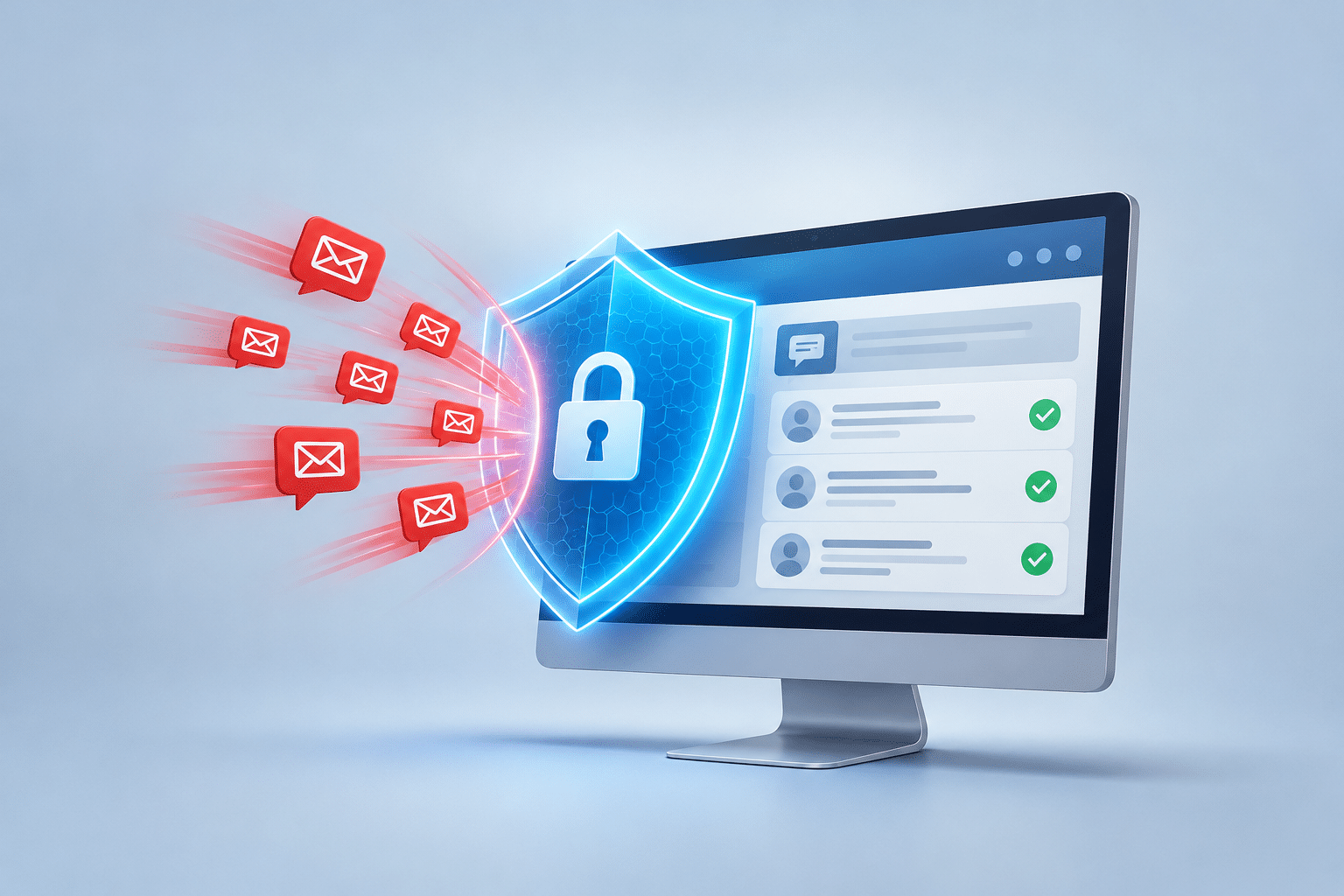
How Do I Stop Spam Comments on My WordPress Website?
You’ve opened your WordPress dashboard to check your website and discovered dozens of comments waiting for approval. Some are advertising strange products, others contain suspicious links, and a few are written in languages you don’t understand. You haven’t asked for any of these messages, so why are they appearing on your business website?
Spam comments are a common problem for WordPress website owners. They can fill your dashboard with unwanted messages, waste your time and, if published, make your business look unprofessional. Fortunately, you don’t need to be a technical expert to get the problem under control.
Whether you run a plumbing business, cleaning company, beauty salon or local shop, there are several straightforward ways to stop spam comments on WordPress. Some involve changing a few settings, while others use automatic protection to catch unwanted messages before they become a nuisance.
Quick Answer
To stop spam comments on WordPress, log in to your dashboard and go to Settings > Discussion. Enable Comment must be manually approved so unwanted comments cannot appear publicly without your permission. You can also limit comments containing links, block common spam terms and install a reputable anti-spam plugin.
If your business website doesn’t need visitors to leave public comments, you can disable comments altogether. For many small business websites, this is the simplest option. Remember that disabling comments for new posts doesn’t automatically close them on older posts. You’ll need to check those separately.
What Are Spam Comments on WordPress?
Spam comments are unwanted messages submitted through the commenting system on your WordPress website. Unlike genuine comments from customers or readers, they are usually intended to advertise products, promote websites, distribute suspicious links or attract attention to unrelated services.
For example, imagine you own a cleaning business and publish a blog article about removing stains from carpets. A genuine visitor might ask whether a particular cleaning method is safe for wool carpets. A spammer, however, might leave a message promoting cryptocurrency investments or an unrelated shopping website.
Spam comments often contain vague compliments such as “Excellent article, very helpful”, followed by a website link. Others contain random text, repeated phrases or offers that have nothing to do with your business. Some look convincing at first glance, which is why checking comments before publishing them can be useful.
WordPress has built-in tools for managing this problem, including moderation, comment restrictions and spam filtering. Its official guidance on understanding comment spam explains the different types of unwanted comments and ways to control them.
Why Does My WordPress Website Receive So Many Spam Comments?
Most WordPress comment spam is not directed at your business personally. Automated programs, commonly called bots, can submit unwanted messages across large numbers of websites. These programs search for places where comments are allowed and attempt to publish messages without a person having to type each one.
Some spammers hope that a link in your comment section will encourage people to visit their website. Others are simply trying to place promotional messages wherever they can. A website doesn’t need to be popular or attract thousands of visitors to receive this kind of attention.
Receiving spam also doesn’t automatically mean your website has been hacked. A spammer may simply be using the public comment form that WordPress provides. However, if you notice unfamiliar administrator accounts, unexpected website changes or other unusual activity, those issues should be investigated separately.
How to Stop Spam Comments on WordPress: 7 Practical Steps
1. Make Every Comment Require Approval
One of the most useful changes is to prevent comments from appearing automatically. WordPress allows you to hold every new comment until you have checked and approved it. This means a spammer can submit a message, but visitors won’t see it unless someone with the correct permissions approves it.
- Log in to your WordPress dashboard.
- Click Settings in the left-hand menu.
- Select Discussion.
- Find the section labelled Before a comment appears.
- Tick Comment must be manually approved.
- Click Save Changes.
This is a sensible starting point if you want genuine visitors to continue leaving comments. However, it doesn’t stop spam being submitted. Instead, it prevents unwanted comments from being published without approval, so you may still have messages to review.
2. Limit Comments Containing Website Links
Many spam comments contain links to unrelated websites. WordPress lets you hold comments for moderation when they contain a certain number of links. You can find this option under Settings > Discussion in the comment moderation settings.
For example, setting the limit to one means a comment containing one or more links will be held for review. This can be useful for a local business that rarely expects customers to include website links in comments. It won’t catch every spam message, and genuine comments containing links may also be held, so choose a limit that suits your website.
3. Use the Comment Moderation and Disallowed Keys Lists
WordPress allows you to enter words, phrases, email addresses, website addresses and IP addresses that you want to filter. The Comment Moderation list holds matching comments for review, while the Disallowed Comment Keys list sends matching comments to spam.
If your cleaning company repeatedly receives comments promoting a particular unrelated website, you could add that website’s address to the appropriate list. You can enter one term per line in the relevant box under Settings > Discussion.
Be careful with broad words. WordPress can match terms that appear inside longer words, so an innocent comment might be caught by an overly general rule. Start with specific phrases or addresses you have actually seen in spam messages, rather than blocking common words that real customers might use.
4. Install a Reputable Anti-Spam Plugin
An anti-spam plugin can automatically examine incoming comments and identify messages that appear suspicious. This can save time if your website receives large numbers of unwanted comments every day. One well-known option is Akismet, although other tools are available through the official WordPress plugin directory.
To explore anti-spam plugins, open Plugins > Add New Plugin in your WordPress dashboard and search for an appropriate tool. Before installing anything, check that it is maintained, compatible with your website and suitable for commercial use. Some services require an account, an API key or a paid plan.
Remember that no spam filter is perfect. A genuine customer’s comment may occasionally be classified as spam, while an unwanted message might slip through. If customer comments are important to your business, review the spam folder occasionally rather than assuming every message inside it is unwanted.
5. Close Comments on Older Blog Posts
Older articles can continue attracting spam long after you have published them. If you no longer need people to comment on these posts, WordPress allows you to close comments automatically after a chosen number of days.
Under Settings > Discussion, look for the option to automatically close comments on posts older than a specified number of days. You might choose 30, 60 or 90 days, depending on how long conversations normally remain useful on your website.
This is an optional measure, not something every business needs. If your articles regularly attract useful questions months after publication, keeping comments open with moderation may be a better choice.
6. Consider Requiring Visitors to Log In
WordPress can require visitors to register and log in before posting a comment. You can enable this under Settings > Discussion. It adds another barrier for people and automated systems attempting to submit unwanted messages.
However, this setting also makes it harder for genuine visitors to participate. Someone who wants to ask a simple question about your café, salon or plumbing services probably won’t want to create an account first. For most ordinary small business websites, manual approval or anti-spam filtering is likely to be more practical.
7. Review Pingbacks and Trackbacks
WordPress also supports pingbacks and trackbacks, which are types of notifications related to links between websites. Depending on your settings, these can appear in the same area where comments are managed and may attract unwanted activity.
If your business doesn’t use these features, go to Settings > Discussion and consider unticking Allow link notifications from other blogs (pingbacks and trackbacks) on new posts. As with normal comment settings, the default change may not automatically affect existing posts.
How Do I Disable Comments Completely on WordPress?
If your business website doesn’t need public comments, disabling them is often the most straightforward solution. Many small businesses use their websites to explain services, display photographs, answer customer questions and encourage enquiries. They don’t necessarily need visitors to leave public messages underneath blog posts.
Turn Off Comments on Future Posts
- Open your WordPress dashboard.
- Go to Settings > Discussion.
- Untick Allow people to submit comments on new posts, or the equivalent wording shown in your version.
- Click Save Changes.
This changes the default setting for new posts. It does not automatically close comments on articles that were already published. If spam is arriving through older articles, you need to deal with those separately.
Turn Off Comments on Existing Posts
- Go to Posts > All Posts.
- Select the posts you want to change.
- Choose Edit from the Bulk Actions menu.
- Click Apply.
- Find the Comments setting in the bulk editor.
- Choose Do not allow and click Update.
If you have several pages of posts, repeat the process for the remaining posts. You may also need to check individual pages, custom content types or forms added by plugins. Some themes and plugins use their own discussion settings, so the exact controls can vary.
Disabling comments doesn’t normally delete comments that have already been approved. If you want those removed as well, review them separately in the Comments area before deleting anything.
How Do I Remove Existing Spam Comments From WordPress?
Once you have improved your settings, the next job is to clean up the unwanted comments already stored on your website. WordPress provides a central area where you can review, approve, reject and delete comments without needing to change website files or use complicated software.
- Log in to your WordPress dashboard.
- Click Comments in the left-hand menu.
- Open the Pending section to review comments waiting for approval.
- Mark unwanted messages as Spam.
- Open the Spam section to review the filtered messages.
- Once you are satisfied that the messages are unwanted, use Empty Spam to remove them permanently.
If you have hundreds or thousands of comments, you can use the bulk actions to process multiple messages at once. However, avoid approving or deleting everything without checking the contents, particularly if genuine customers have previously used your website to ask questions.
You should also review the Approved section. Spam comments may have been published before you changed your settings, and those messages can remain visible until you remove or unapprove them. WordPress explains these controls in its official Comments screen documentation.
Which Spam Protection Is Best for Your Business Website?
The right solution depends on whether public comments are useful to your business. A blog that encourages customers to share questions and experiences has different needs from a small company website that simply provides information and a contact form.
| Protection method | Best suited to | Main limitation |
|---|---|---|
| Disable comments | Business websites that don’t need public discussions | Visitors cannot leave comments through the disabled forms |
| Manual approval | Businesses wanting control over published comments | Unwanted submissions may still fill the moderation queue |
| Anti-spam plugin | Websites receiving regular spam submissions | Requires setup, maintenance and occasional checking |
| Link and word filters | Websites receiving repeated types of spam | Some genuine comments may be filtered accidentally |
| Login requirement | Membership or community websites | Creates an extra barrier for visitors |
For a typical local service business, I would start by asking whether comments are needed at all. If you receive customer enquiries through a contact form, telephone or email, removing public comments may have little effect on how customers communicate with you. If you actively use blog comments to answer questions, combining moderation with a suitable anti-spam plugin may be the better approach.
What If the Spam Is Coming Through My Contact Form Instead?
WordPress comments and contact form messages are not the same thing. Comments normally appear in the WordPress Comments area, while contact form submissions are handled by whichever form plugin or service your website uses. Changing the Discussion settings may therefore have no effect on spam arriving through your contact form.
If you receive dozens of unwanted quote requests or strange messages through your contact page, check which form plugin your website uses. Look for its spam protection options, which may include automated checks, honeypot fields or CAPTCHA challenges. A honeypot is a hidden field designed to catch certain automated submissions without making genuine visitors complete an extra task.
Don’t make your contact form so difficult that real customers give up. A plumber, electrician or cleaning company could lose a worthwhile enquiry if a customer has to complete several confusing security checks just to request a quote. Test the form yourself after changing its protection settings to make sure genuine enquiries can still get through.
Expert Insight From Daren Ward

Having worked with business websites since 2004, my advice is to think about what you actually want visitors to do before deciding which comment settings to use. A small business website is usually there to help people understand your services, trust your business and make contact. Public comments are only useful if they support that purpose.
I would also make an important distinction between stopping spam from being published and stopping spam from being submitted. Manual approval protects what visitors see, but it doesn’t necessarily reduce the number of unwanted messages arriving in your dashboard. If you’re spending time deleting spam every week, it may be more sensible to disable comments or use a properly configured spam filter.
My recommendation is to choose the simplest setup that meets your business needs. Avoid installing several overlapping security and spam plugins just because they promise extra protection. Check what your website already uses, keep the necessary tools updated and make sure genuine customers can still contact you easily.
Warning: Check Before Deleting Comments or Installing Plugins
Before deleting large numbers of comments, make sure you aren’t removing genuine customer questions or useful discussions. Emptying the Spam folder permanently removes its contents, so review it first. If your website contains important customer conversations, take a suitable backup before making major changes.
Be equally careful when installing new anti-spam plugins. Check compatibility, licensing, privacy requirements and whether the plugin duplicates protection already installed. If a service processes visitor details such as IP addresses or email addresses, review its privacy information and whether your own website privacy notice needs updating.
Action Checklist: Stop WordPress Comment Spam
- Check Comments > Pending to see how much spam you are receiving.
- Review Settings > Discussion and enable manual approval if you want to keep comments.
- Decide whether your business needs public comments at all.
- Disable comments on new posts if they aren’t needed.
- Close comments on existing posts where appropriate.
- Review link limits and add specific recurring spam terms to moderation lists.
- Consider one reputable anti-spam plugin if unwanted submissions continue.
- Check the Spam and Approved folders before permanently deleting messages.
- Test your contact form separately to confirm genuine enquiries still work.
- Review your comment activity periodically and adjust the settings if necessary.
Frequently Asked Questions About WordPress Spam Comments
1. Why am I getting spam comments when nobody visits my website?
Spam bots can find and submit comments to websites even when those websites receive very little genuine traffic. They may target public comment forms automatically rather than visiting your website in the same way as a customer. A large number of spam comments doesn’t necessarily mean your website has suddenly become popular.
2. Can I stop WordPress spam comments without installing a plugin?
Yes. WordPress includes built-in moderation settings, comment restrictions and options to disable comments completely. For many small business websites, these controls may be enough. If you continue receiving large volumes of unwanted submissions, an anti-spam plugin may reduce the amount of manual work involved.
3. Does disabling comments affect my WordPress blog posts?
Disabling comments doesn’t normally remove the blog posts themselves or prevent visitors from reading them. It changes whether people can leave new comments. Existing published comments may remain visible unless you remove them separately. Check your website after changing the settings to make sure everything displays as expected.
4. Will spam comments damage my website’s Google rankings?
Unwanted comments containing misleading links or low-quality content can make a website less trustworthy for visitors. Publicly visible spam may also create content quality concerns. However, receiving spam submissions in your dashboard does not automatically mean your search rankings will fall. Preventing unwanted comments from being published is a sensible precaution.
5. Is Akismet free for a business website?
Akismet has different licensing arrangements, and eligibility depends on how the website is used. Don’t assume that a free personal-use option covers a commercial business website. Check the current terms and pricing on the official Akismet website before choosing a plan.
6. Why do spam comments still arrive after I disable comments?
You may have disabled comments only for future posts while older articles remain open. Check existing posts, pages and any custom content types that allow comments. Also confirm whether the unwanted messages are actually WordPress comments rather than contact form submissions or another type of website notification.
7. Can I block spam comments from particular countries?
Some security services offer geographical restrictions, but blocking entire countries is a broad measure that may also prevent genuine visitors from interacting with your website. It isn’t usually the first solution I would recommend for ordinary comment spam. Start with comment settings and suitable spam filtering before considering wider restrictions.
8. Should I delete all pending WordPress comments?
Only if you have checked that they are unwanted. The Pending section may contain genuine questions from potential customers as well as spam. Review the messages before using bulk deletion. If you have a large backlog, you can work through it in smaller batches to reduce the chance of losing useful comments.
9. Why are genuine customer comments being marked as spam?
Spam filters sometimes make mistakes. A legitimate comment may contain a link, a phrase included in your filtering rules or other details that trigger automatic checks. Review the Spam folder and adjust overly strict settings if necessary. You may also be able to mark a genuine comment as Not Spam to restore it.
10. Can spam comments infect my WordPress website with malware?
A spam comment does not automatically infect your website simply because it has been submitted. However, some comments may contain links to unsafe websites or deceptive material. Avoid opening suspicious links, keep WordPress and its plugins updated, and investigate any separate signs of unauthorised access or unexpected website changes.
Summary: Keeping Your WordPress Website Free From Spam
Spam comments are an irritating but manageable part of running a WordPress website. You can reduce the problem using the built-in Discussion settings, manual approval, targeted filtering and reputable anti-spam tools. The right combination depends on whether public comments provide any real value to your business.
If your website exists mainly to explain services and generate enquiries, disabling comments may be the simplest choice. If you want customers to participate in discussions, keeping comments open with moderation and filtering gives you more control over what appears publicly. Whichever option you choose, review existing spam and make sure genuine customer communication remains easy.
Getting Help With WordPress Spam
If unwanted comments keep returning or you’re unsure which settings are suitable for your website, you can explore our WordPress maintenance service for help with ongoing website updates, security and stability. You can also find further information about website support from A to Z Website Solutions.
Key Takeaways
- Spam comments are often submitted automatically and don’t necessarily mean your website has been hacked.
- Manual approval stops unwanted comments appearing publicly without permission.
- Disabling comments may be the simplest option for business websites that don’t need public discussions.
- Changing the default setting for new posts won’t automatically close comments on older posts.
- Anti-spam plugins can reduce manual work, but no filter is perfect.
- Contact form spam requires separate protection from WordPress comment spam.
- Always check for genuine customer messages before permanently deleting comments.
Found This Helpful? Share It
If you found this article useful, please share it with other business owners who might find it helpful too.
A quick share on LinkedIn, Facebook or your favourite social platform could help someone else find the advice they need.



