
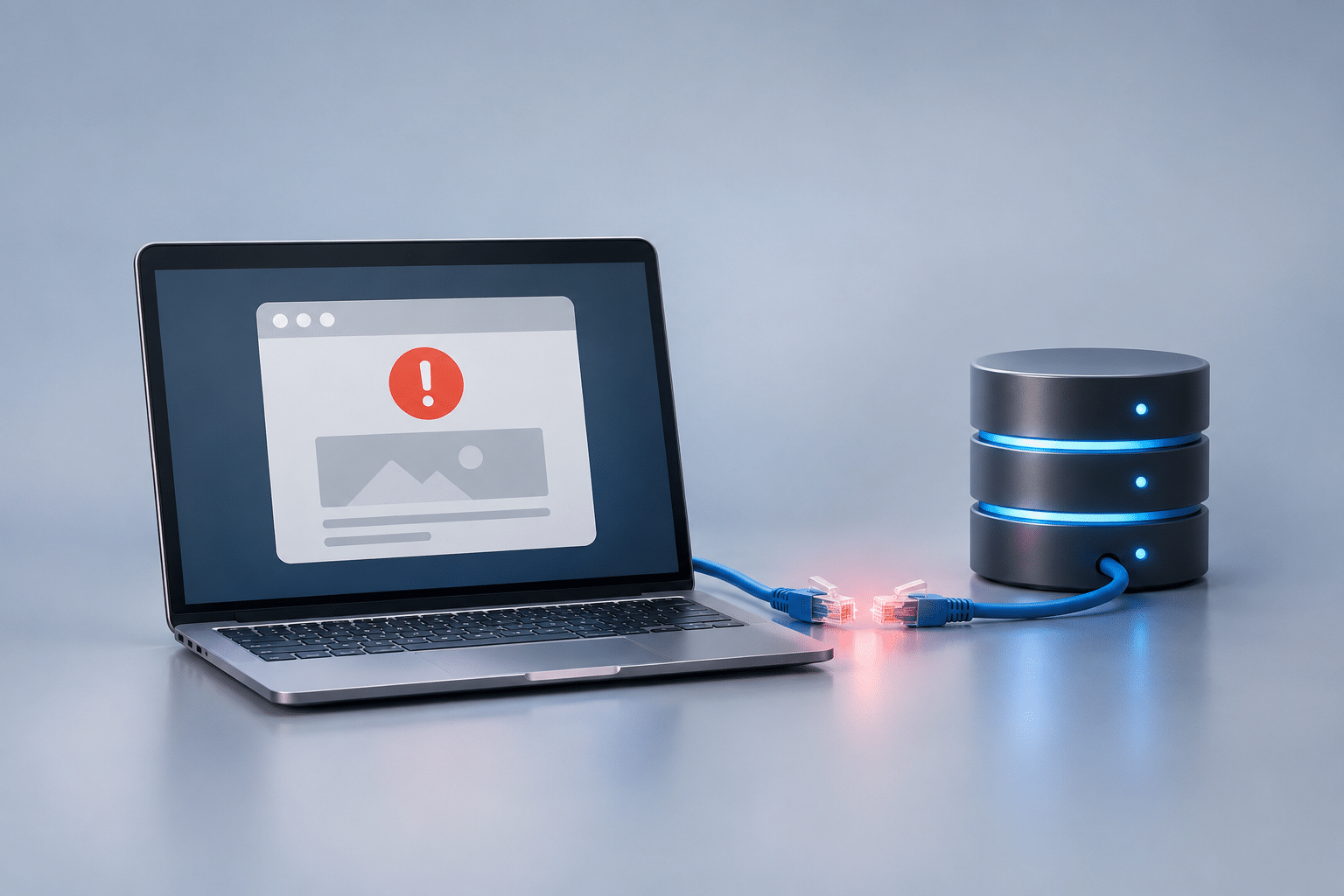
How Do I Fix the WordPress Error Establishing a Database Connection?
Imagine opening your business website one morning and discovering that everything has disappeared. Instead of your usual homepage, there is a plain white screen displaying the message “Error establishing a database connection”. Your services, photographs, contact information and booking forms are nowhere to be seen.
If your website helps bring in enquiries or sales, this can be worrying. Customers visiting your website may see the same error, and you might not even be able to log in to WordPress to investigate. It can look as though your entire website has been deleted, but that is not necessarily what has happened.
The WordPress Error Establishing a Database Connection means that WordPress cannot communicate properly with the database that holds much of your website’s information. There are several possible causes, ranging from incorrect connection details to a temporary problem with your hosting provider. Understanding the difference can help you get the problem fixed without making matters worse.
Quick Answer
To fix the WordPress Error Establishing a Database Connection, first check whether your hosting provider is experiencing a database server problem. If the hosting service is working normally, the next step is to check the database connection details stored in your WordPress wp-config.php file. These include the database name, username, password and server address.
In some cases, the problem may involve database corruption, server resource limits or a recent website migration. Before changing files or attempting repairs, make sure you have a reliable backup of both your website files and database. If you are not comfortable accessing hosting settings, ask your hosting provider or website professional to investigate. The error does not automatically mean your website content has been lost.
What Does the Database Connection Error Mean?
A WordPress website depends on two main parts working together. The first is the website’s files, which include WordPress itself, your theme, plugins and uploaded images. The second is the database, which stores information such as page content, blog posts, settings, user accounts and other website records.
When someone visits your website, WordPress needs to retrieve information from that database to build the page they are viewing. If WordPress cannot make the connection, it may display an error instead of the page. The website files could still be present, but WordPress cannot retrieve the information needed to show the website correctly.
Think of a local restaurant with a computerised booking system. The computer may be working perfectly, but if it cannot connect to the system holding the reservations, staff cannot see who has booked a table. The information may still exist, but the connection to it has stopped working. A WordPress database connection error is similar.
Does This Mean Your Website Has Been Deleted?
No. A database connection error does not, by itself, mean your website has been deleted or hacked. It simply tells you that WordPress cannot establish the database connection it needs. Your content may still be safely stored in the database, waiting for the connection to be restored.
However, it is important not to assume everything is safe without checking. A missing database, damaged database tables or an incomplete migration can also cause serious problems. This is why investigating the cause is better than immediately trying random fixes.
What Causes the WordPress Database Connection Error?
There is no single cause of this error. The official WordPress documentation identifies incorrect database settings and hosting problems among the possible explanations. Database damage and server resource issues can also be relevant, depending on the circumstances.
| Possible cause | What it means | Who may need to help? |
|---|---|---|
| Incorrect database details | WordPress is using the wrong name, username, password or host. | Hosting provider or website professional |
| Database server unavailable | The database service has stopped or cannot be reached. | Hosting provider |
| Server resource limits | The server may be struggling with demand or connection limits. | Hosting provider |
| Damaged database tables | Some stored database information may need checking or repair. | Experienced WordPress professional |
| Website migration problem | Connection settings may no longer match the new hosting environment. | Hosting provider or migration specialist |
| Missing database or permissions | The database may be unavailable or the assigned user may lack access. | Hosting provider |
Incorrect Database Login Details
WordPress uses stored connection information to communicate with its database. If the database password has changed but the WordPress settings have not been updated, the connection may fail. The same problem can happen when the database name, username or server address is incorrect.
This is particularly relevant after a website has been moved to another hosting company. The new server may use different database details, and the website must be configured to match them.
Problems With Your Hosting Provider
Sometimes the website itself is not responsible. Your hosting provider runs the database service, usually using MySQL or MariaDB. If that service stops responding, becomes overloaded or experiences a technical fault, WordPress may lose access to its information.
In this situation, changing WordPress settings could create an additional problem. It is usually better to ask the hosting company to check the database service before editing anything.
What Should You Check First?
Start with a few straightforward checks that do not involve changing website files. These can help you establish whether the problem is temporary, whether it affects the entire website and whether your hosting provider already knows about it.
- Open your website in a private browser window. Check whether the same error appears without using your normal browser session.
- Try the WordPress login page. Visit your normal WordPress administration address and see whether the error also appears there.
- Check your hosting provider’s service status. Look for reported database outages or maintenance work.
- Think about recent changes. Has the website been moved, restored, updated or had its database password changed?
- Record the time and message. A screenshot and the approximate time can help your hosting company check its logs.
If the error appeared suddenly and you have not changed anything, contact your hosting provider before attempting complicated repairs. Ask whether the database server is running and whether any connection limits, account restrictions or service faults have been recorded.
It is also useful to establish whether other websites on the same hosting account are affected. If several sites are showing database errors, that may point towards a wider hosting issue rather than a problem with one WordPress installation.
How to Fix the WordPress Error Establishing a Database Connection
The safest way to fix this WordPress error is to identify the failed connection rather than make several changes at once. Some checks can be carried out through your hosting account, while others require technical knowledge. If you are unsure, ask your hosting provider to carry them out.
Step 1: Check That the Database Server Is Working
Log in to your hosting account if you have access. Depending on the hosting company, you may see a service status area, database management section or resource usage report. Look for any warnings about MySQL, MariaDB, account limits or database availability.
If you cannot find this information, contact support and ask them to confirm that the database service is responding. A database server fault cannot normally be fixed from the WordPress dashboard. The hosting provider may need to restart a service, correct a server problem or investigate account restrictions.
Step 2: Check Your WordPress Database Settings
WordPress stores its main database connection details in a file called wp-config.php. This is usually found in the main WordPress installation directory, although some installations keep it one directory above. You may be able to access it through cPanel File Manager, SFTP or another hosting file manager.
The four important settings are shown below. These are examples only and must not be copied over your actual website settings.
define( 'DB_NAME', 'your_database_name' );
define( 'DB_USER', 'your_database_user' );
define( 'DB_PASSWORD', 'your_database_password' );
define( 'DB_HOST', 'your_database_host' );
The database name identifies the correct database. The username and password allow WordPress to connect, while the host identifies the database server. Some hosting providers use localhost as the host, while others supply a different server address or port.
Compare these settings with the information supplied by your hosting company. Do not guess a password, change the database host without confirmation or replace existing details with the example above. If a database password needs resetting, the new password must also be updated in the WordPress configuration.
For further technical details, see the official WordPress configuration documentation.
Step 3: Check That the Database Exists and the User Has Access
Most hosting control panels provide a section for managing databases. In cPanel, this may be labelled MySQL Databases or Database Management. The exact wording varies between hosting companies.
Check that the database named in the WordPress configuration exists. The database user must also have the appropriate permissions to access it. A database can exist and still be inaccessible if the assigned user has been removed or its permissions have changed.
Do not create a replacement database just because the expected one seems to be missing. The original database may have a different name, may be stored elsewhere or may need restoring from a backup. Creating an empty database will not restore your existing website content.
Step 4: Investigate Recent Hosting Changes
If the error appeared after moving your website to a new hosting provider, check whether the migration included the database as well as the website files. A complete WordPress migration normally needs both, together with the correct connection settings.
For example, a cleaning company might move its website to a new hosting company to improve performance. The files could transfer successfully, but if the database was not imported or the connection details still point to the old server, the website may show this error.
Ask whoever handled the migration to confirm that the correct database was transferred, that its tables are present and that WordPress is connecting to the intended database. Avoid starting a fresh WordPress installation over the existing site.
Step 5: Ask Your Host to Check Database Logs and Limits
If the connection details are correct, the next step is to investigate what the server is reporting. Hosting support can often review database error logs, resource usage, failed connections and service interruptions.
Explain whether the error happens continuously or only at certain times. If the website works in the morning but fails during busy periods, the hosting company should investigate possible resource or connection limits. This does not automatically mean you need a more expensive hosting package.
Step 6: Test the Website After the Fix
Once the database connection has been restored, do more than check the homepage. Open several important pages, test the contact form, check the WordPress dashboard and confirm that recent content is still present.
If you run an online shop or booking website, also check that orders, bookings and customer records are correct. A website that loads again is encouraging, but it does not prove that every function is working properly.
Should You Repair Your WordPress Database?
Database repair is worth considering only when there is evidence of damaged database tables. It is not the correct first response to every connection error. If the database server is offline or WordPress is using an incorrect password, repairing database tables will not solve that underlying problem.
WordPress includes a database repair facility that can be enabled through its configuration file. However, this should only be used after creating a verified backup and establishing that repair is appropriate. The repair facility can be accessed without logging in while it is enabled, so it must not be left available afterwards.
If you are not familiar with database management, ask an experienced professional to investigate. Repair attempts, database imports and restoration procedures can affect stored information. A mistake could be particularly costly for a business with customer orders, bookings or membership records.
Where available, a qualified technician may use database management tools to check the condition of tables before deciding whether any repair is necessary. The aim should be to preserve existing data and correct the actual fault, not simply make the error message disappear.
What If the Error Keeps Coming Back?
An intermittent database connection error deserves a different investigation from a website that has stopped working completely. If the website loads normally after refreshing the page but fails again later, the connection may be dropping temporarily rather than being permanently misconfigured.
Ask your hosting provider to review database availability, server resource usage and connection limits around the times when the error occurs. They should also look for database restarts, slow queries or other faults that could interrupt service. Website activity, scheduled tasks or unusually heavy traffic may help explain when the issue happens.
Keep a simple record of each incident, including the date, time, duration and what visitors experienced. This gives your hosting company something specific to investigate instead of relying on a general statement that the website sometimes stops working.
Do not assume that installing another caching or performance plugin will fix a database connection problem. Caching can help reduce some website requests, but it cannot repair incorrect credentials or bring an unavailable database server back online.
How Can This Error Affect Your Business?
For a small business, a database connection error is more than a technical inconvenience. If customers cannot open your website, they may be unable to find your services, view your prices or contact you. The impact depends on how much your business relies on the website and how long the problem continues.
Consider a local electrician whose website normally receives emergency call enquiries. If the website becomes unavailable, potential customers may move on to another business. A beauty salon with an online booking system could face missed appointments, while an online shop could lose access to its checkout process.
A short interruption does not automatically mean your Google rankings will fall. However, repeated or prolonged downtime can interfere with search engine crawling and create a poor experience for visitors. Restoring reliable access should therefore be a priority.
While the problem is being investigated, make sure customers can still contact your business through another channel. Your Google Business Profile, social media pages or existing customer contact arrangements may provide alternative ways to reach you.
Expert Insight From Daren Ward

Daren Ward – Founder, A to Z Website Solutions
Having worked with business websites since 2004, my advice when a WordPress website suddenly stops connecting to its database is to avoid making changes until you understand what has happened. It is tempting to start changing passwords, reinstalling plugins or restoring backups, particularly when customers cannot access the website. Unfortunately, that approach can make a straightforward problem much harder to diagnose.
I would normally start by checking the hosting environment and establishing whether anything changed immediately before the error appeared. A database connection problem after a hosting migration needs a different investigation from one that starts suddenly on a website that has been running normally for months.
Another point I would emphasise is the importance of checking your backups before you need them. A backup is only useful if it contains the information required to restore your website and can actually be recovered. For a business taking bookings or online payments, I would also want to understand how much recent information could be affected by restoring an older database.
My recommendation is to make one controlled change at a time, keep a record of what has been checked and confirm that the entire website works afterwards. Getting the homepage back online is only part of the job. The real objective is restoring a reliable website that your customers can use with confidence.
Important Precautions Before Making Changes
Before editing wp-config.php, resetting database passwords, repairing tables or restoring backups, make sure you understand the possible consequences. Incorrect changes can prevent WordPress from connecting even after the original hosting problem has been resolved.
- Keep a secure copy of the original configuration file before editing it.
- Make sure your backup includes both website files and the database.
- Never share database passwords in public forums, screenshots or unsecured messages.
- Do not delete database tables or create a new WordPress installation over your existing website.
- Do not restore an old database without considering recent orders, bookings and customer information.
- Never leave WordPress database repair access enabled after repair work is complete.
If you are uncertain about any of these steps, stop and ask your hosting provider or a suitably experienced WordPress professional for assistance. A careful investigation is usually safer than experimenting with a live business website.
How Can You Prevent Database Connection Problems?
Not every database connection error can be prevented. Hosting companies can experience technical faults, and hardware or software problems may occur without warning. However, sensible website management can reduce avoidable risks and make recovery easier.
Choose Reliable Website Hosting
Your hosting provider plays an important role in keeping WordPress and its database available. When comparing hosting services, look beyond the monthly price. Consider the quality of technical support, backup arrangements, monitoring and how the company handles server problems.
Our website hosting service is one option for businesses that want managed hosting support rather than handling every technical issue themselves.
Maintain Reliable Backups
Arrange regular backups that include your website files and database. The right frequency depends on how often your website changes. A simple business information website may need a different backup schedule from an online shop receiving orders throughout the day.
Keep backups in a safe location separate from the live website where possible, and periodically check that they can be restored. A backup that has never been tested may not provide the protection you expect.
Keep WordPress Properly Maintained
WordPress, themes and plugins should be kept compatible and updated through a controlled process. Before major changes, create a backup and check whether the website still works afterwards. This is particularly important when updating hosting software or moving to another server.
Regular maintenance can also help identify warning signs, such as outdated software, repeated errors or failing scheduled tasks. However, routine WordPress updates cannot prevent every hosting-related database failure.
Monitor Website Availability
Consider using a website monitoring service that alerts you when your website becomes unavailable. This can help you discover problems sooner, rather than waiting for a customer to tell you that your website is not working.
For businesses that depend heavily on online bookings or sales, it may also be worth asking the hosting provider what monitoring and recovery arrangements are included with the hosting service.
Action Checklist
If your WordPress website is currently showing a database connection error, work through these checks in order.
- Check the website in a private browser window and record the exact error message.
- Try your normal WordPress login page to see whether the error appears there too.
- Check for reported hosting or database server problems.
- Contact your hosting provider and ask whether the database service is running.
- Confirm that a recent, usable backup of the files and database is available.
- Ask a qualified person to compare the database settings in
wp-config.phpwith the hosting account. - Check whether the problem followed a migration, password change or server update.
- Only consider database repair if there is evidence that database tables are damaged.
- After the fix, test important pages, forms, bookings and any online checkout functions.
- If the problem returns, record the times and ask your host to investigate server logs and resource limits.
Frequently Asked Questions
1. Can I fix a WordPress database connection error without logging in?
Yes, some database connection problems can be fixed without accessing the WordPress dashboard. Your hosting control panel or SFTP access may allow a qualified person to inspect the configuration file and database settings. If the problem is caused by the hosting database service, your hosting provider may be able to resolve it directly. You do not need to reinstall WordPress simply because the administration area is unavailable.
2. Will I lose my website pages and blog posts?
Not necessarily. The error means WordPress cannot connect to the database, not that the stored information has automatically disappeared. Your pages and posts may still be present and become available again once the connection is restored. However, if the database is missing or damaged, recovery may depend on the condition of the database and the backups available.
3. Can a WordPress plugin cause this error?
A plugin can sometimes contribute to heavy database activity or other technical problems, but incorrect connection details and database server issues should be checked first. Do not assume that a plugin is responsible simply because the error appeared after an update. Your hosting logs and recent change history can help establish whether there is a connection.
4. Is the database connection error caused by a hacker?
Not automatically. Most investigations should begin with connection settings, database availability and hosting problems. However, if you also notice unfamiliar administrator accounts, unexpected file changes or other signs of compromise, ask a professional to investigate website security. A database connection error alone is not proof of hacking.
5. How long does it take to fix the error?
The time required depends on the cause. A temporary hosting interruption may be resolved quickly by the provider, while a damaged database or incomplete migration could require more investigation. There is no reliable fixed repair time without knowing what has failed. Ask whoever is investigating to explain the cause, the next steps and whether any data may be affected.
6. Can I restore my WordPress website from a backup?
Yes, restoring a suitable backup may be an option when files or database information are missing or damaged. However, restoration should not be the first step when the problem is simply a database server outage. Restoring an older database could replace newer orders, bookings, enquiries or content, so the backup date and possible data loss must be considered before proceeding.
7. What is the difference between a database connection error and a WordPress critical error?
A database connection error specifically indicates that WordPress cannot establish the required database connection. A critical error is a broader message that can result from serious PHP or WordPress code problems. The two messages can require different investigations. Identifying the exact error displayed is useful when speaking to your hosting provider.
8. Can a full database cause this problem?
Database storage limits or account restrictions can contribute to connection problems on some hosting services. The exact behaviour depends on the hosting environment. Ask your provider to check whether your database has reached a quota or whether any resource restrictions have been applied. Do not delete database records simply to create space without understanding what they contain.
9. Should I change the DB_HOST setting to localhost?
Only if your hosting provider confirms that localhost is the correct database host. Many WordPress installations use that setting, but others require a different hostname, port or socket. Changing a correct setting to an incorrect one can stop the website connecting. Always use the connection information supplied for your particular hosting account.
10. Will this error damage my Google rankings?
A brief website interruption does not automatically mean your search rankings will be damaged. However, if your website remains unavailable for a prolonged period or repeatedly fails when search engines try to access it, this can create crawling and availability problems. Focus on restoring reliable access and monitoring the website rather than assuming a single short outage has caused permanent damage.
Summary
The WordPress Error Establishing a Database Connection can make a business website appear completely broken, but it does not necessarily mean the website has been deleted or its content lost. The problem occurs because WordPress cannot communicate with the database it needs to display information.
Start by checking the hosting service and recent website changes. If the database server is working, the next steps involve verifying the connection settings, database availability and permissions. Database repair should only be considered when there is evidence that it is needed, and potentially destructive changes should never be made without a suitable backup.
Once the website is running again, test its important functions and investigate the underlying cause if the problem keeps returning. Reliable hosting, sensible maintenance, working backups and availability monitoring can all help reduce the impact of future problems.
Getting Further Help
If your WordPress website is showing this error and you are not comfortable changing database settings, it is sensible to get technical help rather than risk making the problem worse. You can find out more about our WordPress maintenance service if you would like support with the ongoing reliability and upkeep of your business website.
Key Takeaways
- The database connection error means WordPress cannot access the database it needs.
- Your website content may still be present even when the website will not load.
- Check the hosting database service before changing WordPress settings.
- Incorrect database names, usernames, passwords and host settings are common causes.
- Always protect your website files and database before attempting repairs or restoration.
- Repeated connection errors may require investigation of server resources and logs.
- After restoring access, check forms, bookings, orders and other important functions.
Found This Helpful? Share It
If you found this article useful, please share it with other business owners who might find it helpful too.
A quick share on LinkedIn, Facebook or your favourite social platform could help someone else find the advice they need.



