
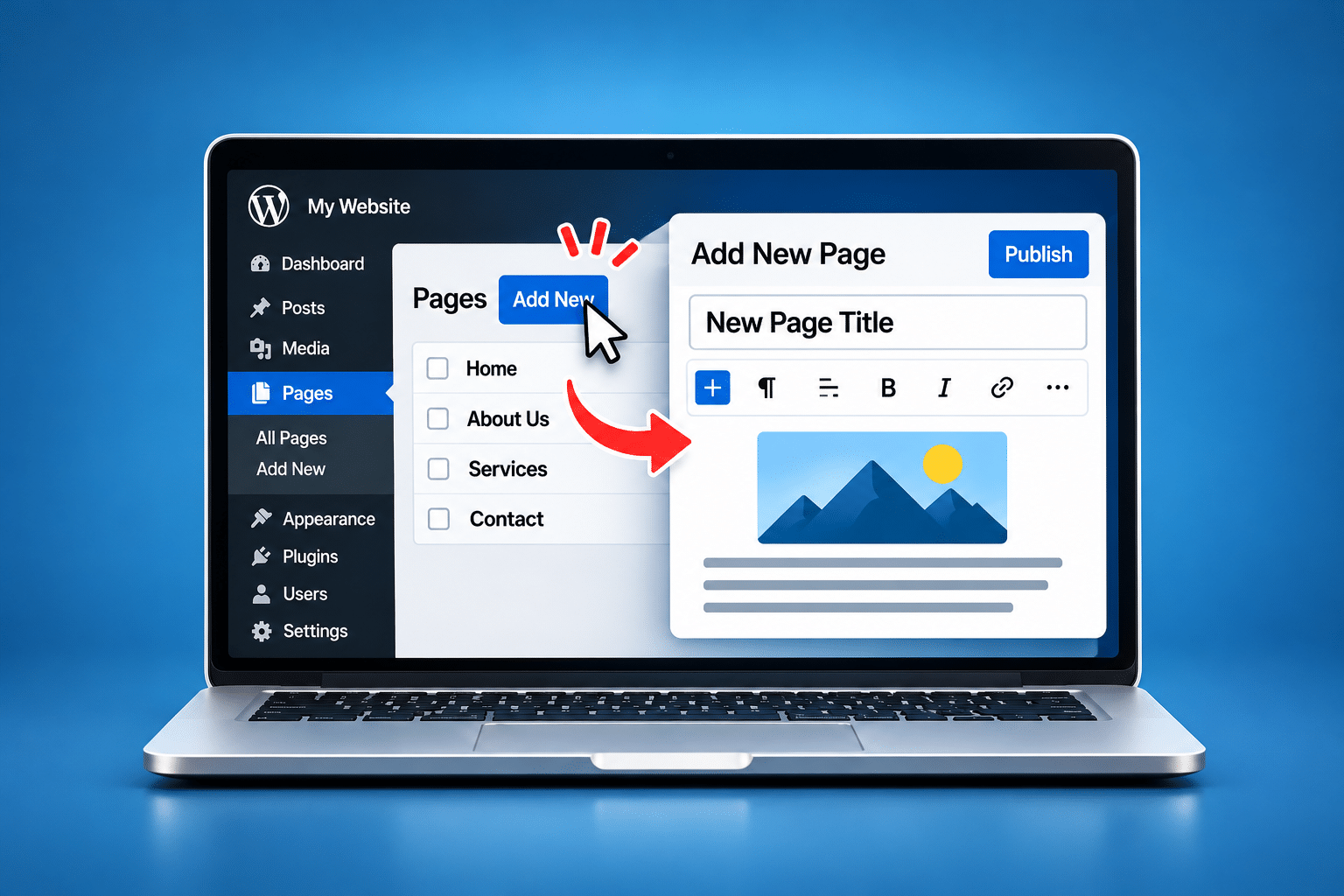
How Do I Create a New Page in WordPress?
You’ve got a WordPress website for your business, and now you want to add something new. Perhaps you’ve introduced another service, taken on a new team member or decided that your customers would benefit from a dedicated Frequently Asked Questions page. You know the information needs to go on your website, but you’re not entirely sure how to create the page.
If somebody else originally built your website, it’s understandable that you might feel nervous about making changes. After all, you don’t want to accidentally remove something important or interfere with the design. Fortunately, creating a new page in WordPress is usually straightforward once you know where to find the right options.
There are a few things worth understanding before you start. Creating the page is only part of the process. You’ll also want to think about its title, content, website address, layout and how visitors will find it. This guide takes you through the process step by step, including what to check before publishing and how to deal with common problems.
Quick Answer
To create a new page in WordPress, log in to your WordPress dashboard and select Pages > Add New. Enter a title, add your content using the WordPress editor, then select Preview to check how the page looks. When you’re happy with everything, click Publish and confirm the publication if WordPress asks you to.
Your new page will normally be available through its own website address once published. However, publishing a page doesn’t necessarily add it to your website’s navigation menu. You may need to add it separately through Appearance > Menus, the Site Editor or your website’s page builder.
If you aren’t ready to publish, select Save draft instead. This allows you to return later without making the unfinished page publicly available.
What Should I Check Before Creating a New WordPress Page?
Before opening the WordPress editor, it’s worth spending a few minutes thinking about why you need the page. This might seem unnecessary when you simply want to add some information, but a little planning can save you from having to rewrite everything later.
Start by checking whether a suitable page already exists. For example, if you run a cleaning business and want to advertise a new office cleaning service, you may already have a general Commercial Cleaning page. You could expand that page or create a separate Office Cleaning page if the service needs its own detailed explanation.
Next, decide what the visitor should learn or do. Are you explaining a service, answering questions, encouraging customers to request a quote or providing important business information? Having a clear purpose will make it easier to decide what content to include.
Make Sure You Have the Correct WordPress Access
You’ll need to log in to the WordPress administration area using an account with permission to create pages. Administrators and Editors can normally create and publish pages on a standard WordPress installation, although custom permissions may change this.
If you can’t find the Pages option in your dashboard, your account may not have the necessary access. Ask your website administrator to check your permissions rather than trying to change unfamiliar settings.
Check Whether Your Website Uses a Page Builder
Some websites use the standard WordPress block editor, while others use tools such as Elementor, Divi or another page-building system. These tools can change how pages are designed and edited.
You may still create the page through Pages > Add New, but the next steps could be different. If your existing website uses custom page layouts, it’s worth understanding how those layouts were created before designing a completely new page.
How Do I Create a New Page in WordPress Step by Step?
The following instructions explain the normal process using the WordPress dashboard. The exact appearance of some buttons may vary depending on your WordPress version, theme and editor.
Step 1: Log In to Your WordPress Dashboard
Open your WordPress login page and enter your username or email address and password. For many self-hosted WordPress websites, you can reach the login screen by adding /wp-admin/ to the end of your website address.
Once you’re logged in, you’ll normally see the WordPress dashboard with a menu down the left-hand side. This is where you manage your website’s pages, posts, images and other settings.
Step 2: Select Pages > Add New
Look for Pages in the WordPress dashboard menu. Move your pointer over it or select it, then choose Add New. WordPress should open the page editor with a blank page ready for you to work on.
If you already have several pages, you can also select Pages > All Pages to see what’s currently published. This is useful if you want to check whether a similar page already exists.
Step 3: Give Your New Page a Clear Title
At the top of the editor, enter the page title. Choose something that accurately explains what the page is about rather than a vague heading that leaves visitors guessing.
For example, a plumbing company introducing a boiler servicing service might use “Boiler Servicing” as its page title. A title such as “Our Latest Service” wouldn’t be nearly as helpful because it doesn’t immediately tell visitors what they’ll find.
Your page title will often become the main heading displayed on the page. Depending on your theme and SEO settings, it may also influence the suggested website address and other information associated with the page.
Step 4: Add Your Page Content
Click inside the main editing area and begin adding your content. You can type paragraphs, insert headings, add images and include other elements depending on the editor you’re using.
If you’re creating a service page, start by explaining what the service is and who it’s for. Then provide useful details about what’s included, how the service works and how someone can contact your business.
Don’t worry about making everything perfect immediately. You can save the page as a draft, review it and make improvements before publishing.
Step 5: Check the Page Layout and Settings
Before publishing, look at the settings available in the editor. These may include the page URL, visibility, featured image, parent page and template. The exact options depend on your theme and WordPress setup.
For example, if you’re adding a service page beneath a main Services section, you may want to assign a parent page. However, this doesn’t automatically guarantee that the page will appear as a dropdown item in your navigation menu.
Step 6: Preview Your New Page
Use the Preview option to see how the page is likely to appear to visitors. Check the text, headings, images, spacing and overall design. Where available, use the desktop, tablet and mobile previews to look for layout problems.
Remember that editor previews don’t always reproduce every part of the live website perfectly. It’s still worth checking the published page on an actual phone and computer afterwards.
Step 7: Publish Your Page
When you’re happy with the content, select Publish. WordPress may show a confirmation panel before making the page public. Review any final settings and confirm publication.
Once published, open the page using its public website address. Make sure it loads correctly and that the information appears as expected. You can return to the editor later to make changes whenever necessary.
How Do I Add Text, Images and Other Content to a WordPress Page?
The standard WordPress editor uses blocks to organise content. Each paragraph, heading, image or other element can be added as its own block, allowing you to build a page without writing code.
To add a block, select the plus symbol in the editor or use the block inserter. You can then choose the type of content you want to add. If your website uses a different page builder, the process may involve dragging widgets or modules into a page layout instead.
Adding Paragraphs and Headings
Paragraph blocks are used for ordinary written content, while Heading blocks divide the page into sections. Headings help visitors understand the information and make longer pages easier to scan.
For example, a page about commercial cleaning might include sections explaining the services available, how the cleaning process works and how to request a quote. Use clear headings that describe each section rather than trying to make every heading sound clever.
It’s also worth keeping the heading structure logical. Your page will normally have one main H1 heading, followed by H2 headings for important sections and H3 headings for smaller sections within them.
Adding Images
To insert an image using the block editor, add an Image block and choose an image from your Media Library or upload a new one. WordPress will then place it within your content.
Use images that genuinely support the page. A cleaning company might show its team carrying out commercial cleaning work, while a kitchen installation company might display examples of completed projects.
Make sure images are suitable for website use and aren’t unnecessarily large. Add meaningful alternative text where an image conveys information, so people using screen readers can understand its purpose. Purely decorative images can normally use empty alternative text.
Adding Buttons and Links
A new page should make it easy for visitors to take the next step. Depending on the purpose of the page, this could mean contacting your business, requesting a quote, booking an appointment or reading related information.
The WordPress block editor includes a Buttons block, which can be used to create a clear call to action. You can also add ordinary text links to relevant pages within your website.
For example, a page describing a new service might include a button labelled “Request a Quote” that links to your contact or quotation form. Check that the button leads to the correct destination before publishing.
Which WordPress Page Settings Should I Check?
WordPress provides several settings that affect how a page behaves. You don’t need to change every option, but understanding the important ones can help you avoid publishing mistakes.
| Setting | What It Does | What to Check |
|---|---|---|
| Page title | Identifies the page and often supplies its main heading. | Make it clear and relevant to the content. |
| URL or slug | Controls the final part of the page’s website address. | Use a short, descriptive address. |
| Status | Determines whether the page is a draft, published or scheduled. | Make sure it has the intended status. |
| Visibility | Controls whether the page is public, private or password protected. | Choose the appropriate audience. |
| Parent page | Places the page within a page hierarchy. | Use it where a parent-and-child structure makes sense. |
| Template | Controls the page layout provided by the theme. | Choose a layout that fits your existing website. |
| Featured image | Provides an image that some themes use in page listings or layouts. | Add one if your design requires it. |
What Should I Use for the Page URL?
WordPress usually creates a suggested URL based on the title. For example, a page called “Office Cleaning Services” might use an address ending in /office-cleaning-services/.
A short, descriptive URL is generally easier to understand and share. Avoid adding unnecessary words, dates or complicated characters unless there’s a genuine reason to include them.
If you’re creating a brand-new page, it’s worth checking the URL before publication. Changing an established URL later can create broken links unless the change is managed properly.
Should I Make the Page Public or Private?
Most ordinary business service pages should be public so potential customers can read them. However, WordPress also supports private and password-protected pages for content that shouldn’t be freely available.
Be careful when using privacy settings. A private page won’t behave like an ordinary public page, and a password-protected page may not be suitable for important information customers need to access easily.
How Can I Make My New WordPress Page Match the Rest of My Website?
One problem business owners sometimes encounter is that a newly created page doesn’t look like the other pages on their website. The header may be different, the content may stretch across the screen or the usual buttons and design elements may be missing.
This often happens because the website uses special templates or a page builder. For example, your existing service pages may have been created with Elementor, while your new page has opened in the standard WordPress editor.
Before rebuilding the layout from scratch, check whether the website has an appropriate page template. Some themes offer layouts such as Default, Full Width or No Sidebar. A custom-built website may also have reusable design patterns or templates.
Can I Duplicate an Existing WordPress Page?
Some websites have a duplication feature supplied by a plugin or page builder. This can be useful when you want a new page to follow the same layout as an existing service page.
However, duplication isn’t a standard option on every WordPress installation. If you do duplicate a page, check that you’ve changed all the relevant content, including the title, URL, images, SEO metadata, forms and internal links.
Don’t leave the original service information hidden somewhere on the duplicated page. Visitors could end up seeing incorrect details, and search engines may find two pages containing substantially the same information.
How Do I Make My New WordPress Page SEO-Friendly?
Creating a new page gives you an opportunity to make your website more useful to customers and easier for search engines to understand. You don’t need to be an SEO expert to get the basics right, but a little attention to the content and structure can make a difference.
Start by thinking about what someone would search for when looking for the information on your page. If you run a commercial cleaning business, a page describing office cleaning services should explain that service clearly rather than filling the content with vague marketing claims.
Write a Useful Page Title and Introduction
Your title should tell visitors exactly what the page covers. The opening paragraph should then explain the service or subject in straightforward language.
For example, an Office Cleaning page could begin by explaining the types of workplaces you clean, the areas you cover and the options available to customers. This helps visitors quickly decide whether they’ve found what they need.
Use Clear Headings
Break the content into useful sections with descriptive headings. A service page might explain what’s included, how the service works, who it’s suitable for and how to request a quotation.
Avoid adding headings purely to repeat the same keyword. Good headings should make the page easier to understand for real visitors.
Add Relevant Internal Links
Link your new page to other useful information on your website. For example, a commercial cleaning service page could link to related cleaning services, customer testimonials or your contact page.
Internal links help visitors discover related content and can help search engines understand how pages on your website connect. Make sure the links are genuinely useful rather than adding them simply to increase their number.
Check Your SEO Title and Meta Description
If your website uses an SEO plugin such as Rank Math, you may be able to edit the SEO title and meta description. These help describe the page in search results, although search engines can choose to display different text.
Write a clear title and a short description that accurately represents the content. Avoid promising services, prices or results that aren’t actually explained on the page.
Don’t Forget Mobile Visitors
Many customers will view your website on a phone, so check that the text is readable, images fit the screen and buttons are easy to use. A page that looks attractive on a large computer monitor may still be frustrating on a smaller device.
Also check that the page loads properly and doesn’t contain oversized images or unnecessary elements that slow it down. Good usability and clear information are important regardless of how visitors discover the page.
How Do I Preview and Publish a New WordPress Page?
Before making the page public, use the preview feature to check how everything looks. Read through the content as if you were a customer visiting the page for the first time. Does the heading make sense? Is the information easy to follow? Is it clear what the visitor should do next?
Check spelling, contact details, images and links. If you’ve included a form, make sure it works correctly and that enquiries are sent to the right place. It’s also worth checking whether the page displays the correct header and footer.
If you aren’t ready to publish, save the page as a draft. This keeps the work in WordPress so you can return later. When the page is finished, select Publish and confirm any final settings shown by the editor.
Can I Schedule a WordPress Page to Publish Later?
Yes. WordPress allows you to schedule publication for a future date and time. This can be useful if you’re preparing a new service page ahead of a launch or updating your website for a planned business change.
Check the scheduled date, time and website timezone carefully. Also remember that scheduled publishing depends on WordPress’s scheduling system working correctly. If the page must appear at an exact time, it’s worth checking that it has published as expected.
How Do I Add My New WordPress Page to the Website Menu?
One of the most common surprises for WordPress beginners is discovering that a newly published page doesn’t automatically appear in the website’s navigation menu. The page may be working perfectly, but visitors won’t necessarily see a link to it in the header.
If your website uses a classic WordPress theme, you may be able to add the page through Appearance > Menus. Select the correct menu, add the new page, position it where you want and save the changes.
If your website uses a block theme, navigation is usually managed through Appearance > Editor and the Navigation block. You may need to open the header or navigation area, insert the page link and save the updated navigation.
Some page builders use their own header templates and menu widgets. In that case, the visible menu may be controlled by a different setting, so check how your website was originally built.
Should Every New Page Go in the Main Menu?
No. Your main navigation should help visitors find important information quickly, not display every page on the website. A dedicated service page may belong under a Services dropdown, while a detailed information page might be better linked from another relevant page.
Think about how customers are likely to look for the information. If the page is important to your business, make sure there’s a clear route to it, whether that’s through the main menu, another page or a relevant call-to-action button.
Why Isn’t My New WordPress Page Working Properly?
Most new pages can be created without problems, but occasionally something doesn’t work as expected. The following issues are worth checking before assuming there’s a serious technical fault.
The Page Isn’t Showing on My Website
First, check whether the page has actually been published. Go to Pages > All Pages and look at its status. If it’s still a draft, it won’t normally be available to ordinary visitors.
If it’s published but missing from the menu, the navigation may need updating separately. Try opening the page directly using its URL to confirm that the content is available.
The New Page Looks Different From My Other Pages
This may be caused by a different page template, missing layout settings or the use of another editor. Check how similar pages were built before attempting to recreate the design.
If the website uses a custom page builder, you may need to use its templates or editing tools to achieve a consistent layout.
My Changes Aren’t Appearing After I Update the Page
Check that you’ve selected Save, Update or Publish as appropriate. If the changes were saved but the public website still shows the old version, caching may be involved.
Try viewing the page in a private browser window. If necessary, check whether your website uses a caching plugin, hosting cache or content delivery network. Avoid installing extra caching plugins or changing unfamiliar optimisation settings without understanding the existing setup.
I Can’t Find the Add New Page Option
If Pages > Add New isn’t available, your WordPress account may have limited permissions. Some customised websites also restrict access to particular editing features.
Ask the website administrator to confirm your role and permissions. Don’t assume you need to reinstall WordPress or change technical settings to solve the problem.
The Page Shows a 404 Error
A 404 error means the requested address couldn’t be found. Check that you’re using the correct published URL and that the page hasn’t been moved, deleted or given a different slug.
If the page is definitely published and the address is correct, there may be a permalink or server configuration issue. Avoid making broad changes to permalink settings on a live website without checking the possible effect on existing URLs.
The Page Doesn’t Appear in Google
Publishing a page doesn’t guarantee that it will immediately appear in Google search results. Search engines need to discover, crawl and decide whether to index the content.
Make sure the page is publicly accessible, linked from relevant parts of your website and not accidentally marked as noindex. If you use Google Search Console, you can inspect the URL to check its indexing status and request indexing where appropriate.
Expert Insight From Daren Ward

Having worked in website design and development since 2004, one thing I always encourage business owners to remember is that creating a page and creating an effective page are two different things. WordPress makes it relatively easy to publish content, but that doesn’t mean every new page will help your business.
Before adding another page, I would ask what it’s supposed to achieve. If you’re introducing a new service, does the page explain what customers need to know? Does it answer their likely questions? Does it make it easy to request a quote or contact your business? Those details are often more important than how quickly you can publish the page.
I’d also recommend checking how the new page fits into the rest of your website. A useful page that nobody can find isn’t doing much for your business. Make sure it’s linked from the right places, looks professional on mobile devices and gives visitors a clear next step. A well-planned page can become a valuable part of your website rather than simply another item in your WordPress dashboard.
Important Warning Before Making Changes to Your WordPress Website
Creating a new page is normally a low-risk task, but changing existing templates, global design settings or page-builder layouts can affect other parts of your website. If you’re unfamiliar with those features, avoid experimenting on important live pages.
Make sure a suitable backup is available before making significant changes. Be particularly careful when duplicating existing pages, changing URLs or editing shared templates, because those actions may affect navigation, search engine visibility or other website content.
If you’re unsure whether a setting affects only the new page or the whole website, check with your developer or website administrator before saving the change.
New WordPress Page Checklist
Use this checklist before publishing a new page on your business website.
- Check whether a similar page already exists.
- Decide what the new page should achieve.
- Log in with an account that has permission to create pages.
- Go to Pages > Add New.
- Choose a clear, descriptive page title.
- Add useful content that answers visitors’ questions.
- Organise the content with logical headings.
- Add relevant images with suitable alternative text.
- Include useful internal links and a clear next step.
- Check the URL, visibility and page template.
- Review the SEO title and meta description where available.
- Preview the page on desktop and mobile.
- Publish the page and check its live URL.
- Add the page to the appropriate navigation or link to it from relevant content.
- Check that buttons, links and forms work correctly.
Frequently Asked Questions About Creating WordPress Pages
How Do I Add a New Page to My WordPress Website?
Log in to your WordPress dashboard, go to Pages > Add New, enter a title and add your content. Preview the page before selecting Publish. Once published, check the live page and add it to your website navigation if necessary.
Can I Create a WordPress Page Without Publishing It?
Yes. You can save a new page as a draft and return to it later. Draft pages aren’t normally available to ordinary website visitors, making them useful when you’re still preparing content or waiting for approval.
Why Can’t I See Pages > Add New in WordPress?
Your account may not have permission to create pages, or your website may use a customised administration setup. Ask the website administrator to check your user role and access permissions before changing any technical settings.
How Do I Add Images to a WordPress Page?
In the standard WordPress block editor, add an Image block and choose an existing image from the Media Library or upload a new one. If your website uses a page builder, you may need to use its image widget or module instead.
Why Isn’t My New WordPress Page Showing in the Menu?
Publishing a page doesn’t always add it to your navigation automatically. Depending on your theme, you may need to use Appearance > Menus, the Site Editor’s Navigation block or your page builder’s header settings to add the link.
Can I Copy an Existing WordPress Page to Create a New One?
Some WordPress websites have duplication tools supplied by plugins or page builders. These can help you reuse an existing layout, but you should carefully replace the title, text, images, URL, links and SEO information before publishing the copied page.
Can I Change a WordPress Page After Publishing It?
Yes. Go to Pages > All Pages, find the page and select Edit. Make your changes and select Update to save them. Check the public page afterwards to make sure everything displays correctly.
How Do I Change the URL of a New WordPress Page?
WordPress normally lets you edit the page slug through its page settings. It’s best to choose the correct URL before publishing. If the page is already established, changing its address may require a redirect and updates to existing links.
Will My New WordPress Page Automatically Appear in Google?
No. Publishing makes a public page available on your website, but search engines still need to discover and evaluate it. Internal links, indexing settings and your website’s technical configuration can affect whether the page appears in search results.
Should I Create a WordPress Page or a Post?
Use a page for core business information such as services, company details or contact information. Use a post for blog articles, advice, news and other regularly published content. Both can be updated and can appear in search results, but they have different organisational features.
Summary: Creating a New Page in WordPress
Creating a new WordPress page is usually straightforward. Log in to your dashboard, select Pages > Add New, enter a clear title and add the content you want visitors to see. Preview everything carefully, check the important settings and publish when you’re happy with the result.
However, don’t treat publication as the final step. Make sure the new page looks right on mobile devices, works properly and is linked from appropriate parts of your website. If it’s a service page, check that visitors understand what you offer and know how to contact you.
WordPress gives you the tools to manage your own website content, but taking a little extra care with the planning, design and navigation can make the finished page far more useful to your business.
Getting Further Help With Your WordPress Website
If you’re having trouble creating a page, matching your existing website design or getting your changes to appear correctly, professional help may save you time and frustration. You can learn more about our WordPress website maintenance service if you need support with updates, content changes or the ongoing care of your business website.
Key Takeaways
- Create a new page through Pages > Add New in your WordPress dashboard.
- Choose a clear title and give the page a useful purpose.
- Use headings, images and links to make the content easy to understand.
- Check the URL, visibility and template before publishing.
- Save the page as a draft if you’re not ready to make it public.
- Preview the page and test it on mobile devices.
- Publishing doesn’t automatically add the page to your navigation menu.
- Make sure visitors can find the page and know what to do next.
- Be careful when editing shared templates or changing existing URLs.
Found This Helpful? Share It
If you found this article useful, please share it with other business owners who might find it helpful too.
A quick share on LinkedIn, Facebook or your favourite social platform could help someone else find the advice they need.



