
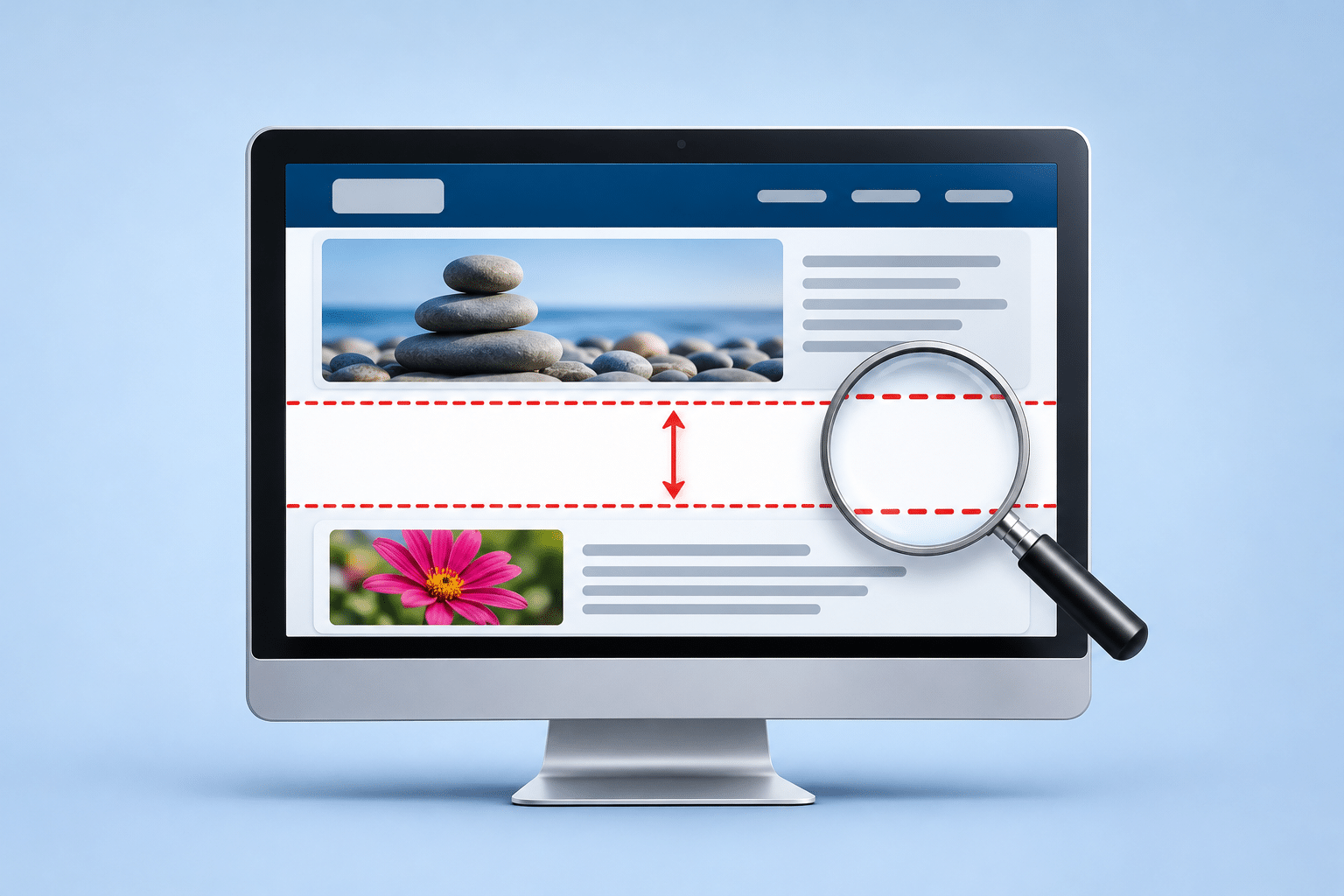
How Do I Fix Unwanted White Space on My WordPress Website?
You’ve opened your business website and noticed something that doesn’t look right. Perhaps there’s a huge empty gap between two sections, a large white area underneath a photograph, or so much blank space at the top of the page that visitors have to scroll before seeing anything useful. The rest of your website might look perfectly normal, which makes the problem even more confusing.
Unwanted white space is a common WordPress layout problem. Sometimes it appears after editing a page, updating a plugin or changing a theme. Other times, it has been there for months without anyone noticing, particularly if the website looks different on mobile phones and desktop computers.
Not all white space is bad. A little breathing room between headings, images and paragraphs helps people read your website. The problem starts when empty areas become so large that they interrupt the page, hide important information or make your business website look unfinished.
Quick Answer
To fix unwanted white space on WordPress, first identify exactly where the blank area appears. Common causes include excessive padding or margins, empty blocks, Spacer blocks, oversized sections, hidden elements, theme settings and page builder layout problems.
Open the affected page in the WordPress editor and check the blocks or sections around the gap. Look for empty containers, unnecessary Spacer blocks and unusually large spacing settings. If the problem appeared after an update, check whether caching or a stylesheet problem is affecting the layout.
Always compare the page on desktop and mobile before saving changes. If the gap is caused by missing content or a technical fault, simply reducing the spacing may hide the problem rather than solve it.
Why Does Unwanted White Space Appear on WordPress Websites?
Unwanted white space usually appears because part of the website layout is reserving more room than it needs. That space might be controlled by a WordPress block, a theme setting, a page builder container or instructions within the website’s styling files. In some cases, the space is supposed to contain an image, video or another element that has failed to appear.
For example, imagine your cleaning company’s homepage has a photograph at the top, followed by a short explanation of your services. If the section containing the photograph has an unusually large minimum height, visitors may see a huge empty area before the service information begins. The photograph itself might be perfectly fine, but the section around it is taking up too much room.
Understanding Padding, Margins and Spacing
Three terms are particularly useful when investigating WordPress layout problems: padding, margin and block spacing. They sound technical, but the differences are straightforward.
- Padding is the space inside an element, between its content and the element’s boundary.
- Margin is the space outside an element, separating it from other parts of the page.
- Block spacing or gap controls the distance between items arranged inside a group, column or container.
Imagine a photograph inside a frame. Padding is like the space between the photograph and the inside edge of the frame. Margin is the space between that frame and another picture hanging beside it. Both can be useful, but unusually large values can create gaps that make the layout look wrong.
The official WordPress dimension settings guide explains how these controls work in the Block Editor.
Other Common Causes
White space can also come from empty paragraphs, unnecessary Spacer blocks, oversized image containers, page templates, hidden widgets or a section that has been given a fixed height. Sometimes several small spacing settings combine to create one surprisingly large gap.
There is another possibility worth considering. If a photograph, video or another section of content fails to load, the space reserved for it may remain visible. In that situation, the blank area is a symptom of missing content, not necessarily a spacing problem.
How Can I Identify What’s Causing the Blank Space?
Before changing anything, find out whether the problem affects one page, several pages or the entire website. This matters because a gap on one service page may be caused by an individual block, while the same gap appearing everywhere could point to a shared template or theme setting.
Check the Same Page on Different Devices
Open the affected page on your computer and mobile phone. If possible, check another browser as well. Look at the exact position of the blank space and whether it appears at the same point on every device.
If the problem only appears on mobile, responsive layout settings may be involved. Responsive design means your website adjusts its layout to suit different screen sizes. A section that fits neatly on a large monitor can sometimes leave an unwanted gap on a smaller screen.
Compare the Editor With the Public Website
Log in to WordPress and open the affected page for editing. Compare what you see in the editor with the published version that customers can access. Check the public page while logged out as well.
If the blank area appears in the editor, look closely at the blocks or sections around it. If the editor looks correct but the public website doesn’t, caching, theme styling or page builder files may be involved. This distinction can save time by directing your attention towards the most likely cause.
Look at the Blocks Around the Gap
In the WordPress Block Editor, open List View, which shows the blocks arranged on the page. You can normally access it using the list-style icon near the top of the editor. Select the blocks immediately above and below the unwanted space.
Look for a Spacer block, an empty Group block, a blank paragraph or another element that may be taking up room. If you find something suspicious, inspect its settings before deleting it. A seemingly empty block may contain an element that is hidden at your current screen size.
How to Fix Unwanted White Space on WordPress: 9 Practical Checks
1. Check for Unnecessary Spacer Blocks
WordPress includes a Spacer block designed to add controlled empty space between elements. It’s useful when you deliberately want extra room, but an oversized or unnecessary Spacer block can create a large blank area.
- Open the affected page in the WordPress editor.
- Click List View to see the page’s blocks.
- Look for a block labelled Spacer near the unwanted gap.
- Select the Spacer block and inspect its height setting.
- Reduce the height if the space is excessive, or remove the block if it serves no purpose.
- Preview the page on desktop and mobile before saving.
WordPress’s official Spacer block documentation explains how to change the height and position of these blocks. Remember that the aim isn’t to remove all spacing, but to keep enough room for the page to remain comfortable to read.
2. Reduce Excessive Padding
Padding is a common cause of large gaps above or below website content. A section may have generous padding applied to its top and bottom, even when the content inside it only takes up a small amount of room.
In the WordPress Block Editor, select the relevant block and open its settings. Depending on the block and theme, you may find Dimensions controls under the Styles tab. Look for Padding and inspect the values for the top, bottom, left and right sides.
Try reducing the affected value gradually and preview the result. Avoid setting every value to zero, because some padding is usually needed to stop text and images sitting too close to the edges of their sections.
3. Check the Margins Above and Below Sections
Margins control the distance between separate elements. A large bottom margin on one section, combined with a large top margin on the next, may create more space than you intended.
For example, your plumbing website might have a heading introducing emergency call-outs, followed by a contact button. If the heading has an unusually large bottom margin, the button could appear much further down the page than expected.
Check the margin settings on both sides of the gap. Don’t assume the element immediately below the empty space is responsible. The space may actually be coming from the element above it or from a shared layout setting.
4. Remove Empty Paragraphs and Unused Blocks
Empty paragraph blocks sometimes get left behind when website content is edited. A single blank paragraph may be barely noticeable, but several together can create a visible gap, especially if the theme applies generous paragraph spacing.
Use List View to inspect the blocks around the problem. If you find genuinely empty paragraphs or unused blocks, you can remove them carefully. Check that they don’t contain hidden content or provide spacing that is needed on another screen size.
After removing a block, preview the page rather than assuming the problem has been solved. If the gap remains, the space may be controlled by the surrounding Group or template instead.
5. Check Group Blocks and Containers
WordPress Group blocks allow several elements to be arranged together. A Group may contain headings, images, paragraphs and buttons, with its own spacing and layout settings. Even if the content inside looks normal, the Group itself may have extra padding or a layout setting creating unwanted space.
Select the outer Group rather than just the paragraph or image inside it. Review its Dimensions and Layout settings, where available. Pay attention to the difference between the spacing around individual elements and the spacing applied to the entire Group.
For further guidance, see the official WordPress Group block documentation.
6. Look for Oversized Sections or Minimum Heights
Some WordPress themes and page builders allow sections to have a minimum height. This tells the browser to make the section at least a certain height, even if there isn’t enough content to fill it.
For example, a section might be set to fill the height of the visitor’s screen. That can work well for a large introductory banner, but it may create excessive empty space when the content is short or the layout changes on a mobile phone.
Check whether the affected section has a fixed or minimum height setting. If it does, consider whether the section really needs that amount of space. Reducing an unnecessary height may solve the problem without changing any of the text or images.
7. Check Whether an Image or Video Is Missing
A blank area doesn’t always mean the spacing is wrong. Sometimes the website is reserving room for an image, video, slideshow or another element that isn’t displaying correctly.
If your beauty salon’s homepage previously showed a photograph of your services and now displays a large empty section, check whether the photograph is still present in the editor. Also inspect whether a slideshow, video or background image is supposed to appear in that area.
If content is missing, investigate why it isn’t loading before changing the section height. Removing the empty space could make the page look better temporarily while leaving important business information or imagery unavailable to customers.
8. Check Your Theme and Page Template
WordPress themes can add spacing around page titles, headers, content areas and footers. Some templates also include areas intended for sidebars, banners or other features. If those areas are empty, the remaining layout may appear to contain unnecessary space.
For example, your website might use a page template with a large title area above the main content. If the page title is hidden but the template still reserves room for it, visitors may see a blank section at the top.
Review the page’s template settings and any relevant theme options. If the same unwanted gap appears across several pages, the shared template is a sensible place to investigate.
9. Check Caching and Stylesheet Problems
If the white space appeared suddenly after an update or design change, the browser may be loading outdated styling files. A stylesheet contains instructions that control the size, position and spacing of website elements.
Start by checking the website in a private browser window and on another device. If the problem remains, review the caching system used by your website and consider clearing the appropriate cache using its normal controls.
Don’t install another caching or optimisation plugin to try to fix the problem. If your website already uses performance tools, adding overlapping software can make it harder to identify which settings are responsible.
How Do I Remove Unwanted White Space in Elementor?
If your WordPress website was built using Elementor, the unwanted space may be controlled by a container, section or widget rather than the standard WordPress Block Editor. Elementor provides its own layout controls, so the instructions are slightly different.
Open the affected page using Edit with Elementor. Select the container or section surrounding the blank area, then review its Layout and Advanced settings. Depending on your version and the type of element, you may find controls for padding, margin, minimum height, gaps and alignment.
Check Elementor Padding and Margins
Under the Advanced tab, look for the margin and padding controls. These normally allow you to change spacing on each side of the selected element. If the values are linked, changing one may affect the others, so unlink them when you need to adjust only the top or bottom.
For example, if there’s a large white area underneath your homepage photograph, inspect the bottom padding of the photograph’s container and the top margin of the next section. Adjust only the setting that is causing the unwanted gap.
Elementor’s official padding and margin guide explains these controls in more detail.
Check Minimum Height and Content Gaps
Elementor containers can also have minimum height and gap settings. A minimum height that’s too large may leave empty space below the content. Similarly, a large gap setting can push elements apart even when their individual margins look normal.
Check the parent container as well as the elements inside it. Sometimes the space is controlled by the parent, so changing the individual text or image widget won’t solve the problem.
Check Responsive Settings
Elementor allows layouts to be adjusted for different screen sizes. Use its responsive preview controls to compare desktop, tablet and mobile layouts. A setting that looks fine on desktop may create an excessive gap on mobile.
Don’t remove an element just because it appears empty in one preview. It may contain content intended for another screen size. Review the visibility and layout settings before making changes.
Why Does My WordPress Website Have White Space Only on Mobile?
White space that appears only on mobile phones is often related to responsive layout settings. Your website may rearrange columns, resize images, hide certain elements or change the spacing between sections when viewed on a smaller screen.
Imagine your accountant’s website has two columns on desktop, with a photograph on one side and a description of your services on the other. On mobile, those columns may stack vertically. If the original layout uses a large minimum height or extra padding, the mobile version could end up with a noticeable blank area.
Start by checking the mobile preview in your WordPress theme or page builder. Look at the section directly above the gap and see whether its height, padding or alignment differs from the desktop version. Also check whether a hidden image or widget is still taking up space.
Remember that different mobile devices have different screen sizes. A layout that looks correct on one phone may still need checking on another. After making changes, test the published page on a real mobile device rather than relying entirely on the editor preview.
What If There’s White Space Along the Right Side?
A blank strip down the right side of a mobile page can indicate that something is wider than the screen. This is called horizontal overflow. It may be caused by an oversized image, a fixed-width table, a wide container or another element extending beyond the visible page.
Try scrolling sideways. If the entire page moves horizontally, look for the element that’s wider than the screen. Fixing that element’s width or responsive settings is generally better than hiding the overflow, which could conceal content that customers need to see.
How Do I Fix White Space at the Top or Bottom of My Website?
Large gaps at the very top or bottom of a WordPress page may come from the theme’s header, footer or page template rather than the main content. This is especially likely if the same empty space appears on several pages.
White Space Above the Header
Check whether your theme has a top bar, announcement area or another header section enabled. Some themes reserve space for these features even when they contain no visible content. If the area isn’t needed, disabling the unused feature through the theme’s settings may remove the gap.
Elementor’s official guidance on unwanted top and bottom padding also identifies theme settings and empty top bars as possible causes.
White Space Between the Header and Page Content
This gap may come from a page title area, breadcrumb section, content wrapper or top padding. Breadcrumbs are small navigation links that show where a page sits within the website. If a theme hides the text but leaves the surrounding section in place, the area can look empty.
Check the page template and theme settings before editing individual content blocks. If the space appears on every page, changing each page separately is unlikely to be the best solution.
White Space Above or Below the Footer
A large gap above the footer may be caused by bottom padding on the final content section or top padding on the footer itself. A gap underneath the footer may involve the page’s overall height, a footer template or another layout element.
Check the footer on several pages. If only one page is affected, inspect that page’s final section. If the gap appears everywhere, review the shared footer and theme layout settings instead.
Why Did Unwanted White Space Appear After a WordPress Update?
A WordPress, theme or plugin update can sometimes affect how website layouts are displayed. An update may change styling rules, reveal a compatibility issue or alter the way a page builder generates its files. However, a problem appearing after an update doesn’t automatically prove that the update itself is faulty.
First, check whether the blank area appears on every page and whether it affects logged-in and logged-out visitors. Then review the recent update history and any caching or performance tools used by the website.
If the website uses a page builder, it may have a supported method for rebuilding generated styling files. That should be considered only after checking the relevant documentation and ensuring a suitable backup is available. Avoid randomly changing settings or disabling plugins on a live business website.
If the problem appeared after several updates, a staging website can be useful. This is a separate testing copy where a website professional can investigate the issue without immediately affecting customers.
Which White Space Fix Should You Try First?
The location and appearance of the blank area can help you decide where to begin. The following table provides a practical starting point, although the exact cause may need further investigation.
| What you’re seeing | Possible cause | First thing to check |
|---|---|---|
| Large gap between paragraphs | Empty blocks or excessive margins | List View and paragraph spacing |
| Blank area below an image | Container padding or minimum height | Image section and parent container |
| Huge gap between sections | Spacer block or section spacing | Spacer, padding and gap settings |
| White space only on mobile | Responsive layout or hidden elements | Mobile preview and container settings |
| White strip along the right side | Horizontal overflow | Oversized images, tables or containers |
| Blank area above the header | Theme top bar or header padding | Header and theme settings |
| Gap above the footer | Bottom section or footer spacing | Final content section and footer template |
| Space appeared after an update | Stylesheet, compatibility or cache issue | Update history and public-page styling |
| Empty area where content used to be | Missing image, video or widget | Whether the original content still loads |
One useful habit is to take a screenshot before making changes. Mark the area that looks wrong and record which page and device you used. If you need professional help later, those details can make the problem easier to investigate.
Expert Insight From Daren Ward

Having worked with business websites since 2004, I would always recommend finding out what’s creating the unwanted space before trying to remove it. A large blank area may look like a simple design problem, but the cause isn’t always obvious. It could be an empty container, a setting inherited from the theme or an element that has stopped displaying properly.
One thing I would pay particular attention to is whether the problem appears on the public website but not when you’re logged in. Some websites deliver cached pages and styling differently to ordinary visitors. If you only check the page while editing it, you may miss the version your customers are actually seeing.
I would also avoid the temptation to add negative margins or extra CSS just to pull sections closer together. That might improve one screen size while creating a new problem on another. In my view, it’s better to identify the original spacing rule or missing element and correct it properly.
For a small business, the important question is whether the gap is making the website harder to use. If customers have to scroll past a large empty area before finding your services, prices or contact details, it’s worth investigating. My approach would be to fix the underlying cause, then check the finished page on desktop, tablet and mobile.
Warning: Don’t Delete Sections or Change CSS Without Checking Their Purpose
Before removing a blank section, make sure it doesn’t contain hidden content, a background image, a mobile-only element or something that has failed to load. Deleting the section could remove useful information from your website. If you’re unsure, take a backup and investigate the element before making permanent changes.
Be particularly careful with custom CSS, negative margins and global layout settings. A change that fixes one page may affect several others. If the problem appeared after an update or hosting change, avoid making multiple unrelated adjustments because this can make the original fault harder to identify.
Action Checklist: Remove Unwanted WordPress White Space
- Identify the exact page and location of the unwanted gap.
- Compare the page on desktop, tablet and mobile.
- Check the public website while logged out.
- Open the WordPress editor and inspect the surrounding blocks.
- Look for unnecessary Spacer blocks and empty paragraphs.
- Review padding, margins and block spacing on both sides of the gap.
- Check parent Groups, sections and containers for minimum height settings.
- Confirm that images, videos and other content are loading correctly.
- Review responsive settings if the problem only appears on mobile.
- Check theme and page template settings if the gap appears on several pages.
- Investigate recent updates and caching if the problem appeared suddenly.
- Preview changes and test the published website before considering the issue resolved.
Frequently Asked Questions About White Space on WordPress
1. Why has a large white gap suddenly appeared on my WordPress website?
A large white gap can appear because of changed padding, margins, container heights, missing content or a styling problem. If the gap appeared suddenly, check whether the website was recently updated or edited. Compare the page on different devices and inspect the blocks or sections around the empty area before making changes.
2. How do I remove empty space between WordPress blocks?
Open the affected page in the Block Editor and select the blocks surrounding the gap. Check their margin, padding and block spacing settings, where available. Also look for an unnecessary Spacer block or empty paragraph. Reduce the relevant spacing gradually and preview the result rather than removing all gaps between elements.
3. Why is there a huge blank space below an image?
The image may sit inside a container with excessive bottom padding or a large minimum height. Another possibility is that an empty block follows the image. Inspect the image’s parent section and the next element in the editor. If the space is intended for missing content, investigate why that content isn’t displaying.
4. Can a WordPress theme cause unwanted white space?
Yes. WordPress themes control page layouts, content widths, header areas, footers and spacing. A theme may add padding or reserve room for a page title or another feature. If the same gap appears across several pages, check the theme’s shared layout settings before editing individual pages.
5. Why does my WordPress website have extra white space on mobile?
Mobile-only gaps often come from responsive layout settings, oversized containers or elements that are hidden or rearranged on smaller screens. Check the mobile preview in your theme or page builder and inspect the section around the gap. Test the published website on a real phone to confirm that any changes work correctly.
6. How do I remove white space in Elementor without breaking the layout?
Open the affected page in Elementor and select the container or section around the blank area. Review its padding, margins, gaps and minimum height. Change one setting at a time and use the responsive preview to check different screen sizes. Avoid deleting entire sections until you’ve confirmed they contain nothing important.
7. Why is there white space above my WordPress header?
The gap may come from a theme top bar, header padding or an empty announcement area. Some themes reserve space for features even when they contain no visible content. Check the theme’s header settings and any top bar options. If the problem appears across the website, it is more likely to involve a shared layout setting.
8. Why is there white space at the bottom of my WordPress page?
Extra space at the bottom can be caused by padding on the final content section, footer spacing or the page’s overall height settings. Compare several pages to see whether the problem is shared. If only one page is affected, inspect its final section. If every page has the same gap, check the footer template.
9. Can a caching plugin create unwanted white space?
A caching or optimisation problem can sometimes cause outdated or incomplete styling to appear on the public website. This may affect spacing and other design elements. Compare the logged-in and logged-out versions, then clear the relevant cache if appropriate. If the problem keeps returning, the underlying optimisation settings may need checking.
10. Why does my page look fine in the WordPress editor but have gaps when published?
The editor and published website may use different styling or cached files. Theme rules, page builder settings or missing stylesheets can cause the public version to look different. Check the page while logged out and compare it with the editor. If the gap only appears publicly, investigate how the website’s styling files are delivered.
11. Should I use negative margins to remove white space?
Negative margins can move elements closer together, but they are not usually the best first solution for unexplained gaps. They may hide the real cause and create overlapping content on smaller screens. Check for unnecessary padding, empty blocks and oversized containers before using advanced positioning adjustments.
12. Can unwanted white space affect my business website’s performance?
Excessive blank space can make important information harder to find and may cause visitors to scroll unnecessarily. It can also make a website look unfinished. However, white space isn’t automatically a performance or search ranking problem. The practical concern is whether the layout makes it harder for customers to understand your services and contact your business.
Summary: Getting Your WordPress Layout Back to Normal
Unwanted white space on a WordPress website is often caused by excessive spacing, empty blocks, oversized containers or theme layout settings. In some cases, a missing image, stylesheet problem or caching issue can create a blank area that looks like a design mistake.
The best approach is to identify the cause before changing the layout. Check where the gap appears, compare desktop and mobile views, and inspect the surrounding blocks or sections. If the problem affects several pages or appeared after an update, shared theme settings and styling files deserve particular attention.
Once you’ve made a correction, review the entire page rather than just the area that was previously empty. A professional-looking business website needs balanced spacing, readable content and clear routes to the information customers are looking for.
Getting Help With WordPress Layout Problems
If unwanted white space keeps returning or your website’s layout has changed unexpectedly, our WordPress maintenance service is one option for getting help with website stability and technical problems. If the issue is part of a wider design problem, you can also explore the website redesign service to see what a more complete improvement could involve.
Key Takeaways
- Unwanted white space is often caused by padding, margins, empty blocks or oversized sections.
- Use WordPress List View to identify Spacer blocks and unnecessary empty elements.
- Check the parent container as well as the elements immediately above and below a gap.
- Mobile-only white space may involve responsive settings or horizontal overflow.
- Gaps appearing across several pages may come from shared theme or template settings.
- Missing images and styling files can create blank areas that resemble spacing problems.
- Avoid using negative margins or random CSS changes to hide an unidentified fault.
- Always check the public website on desktop and mobile after making repairs.
Found This Helpful? Share It
If you found this article useful, please share it with other business owners who might find it helpful too.
A quick share on LinkedIn, Facebook or your favourite social platform could help someone else find the advice they need.



