
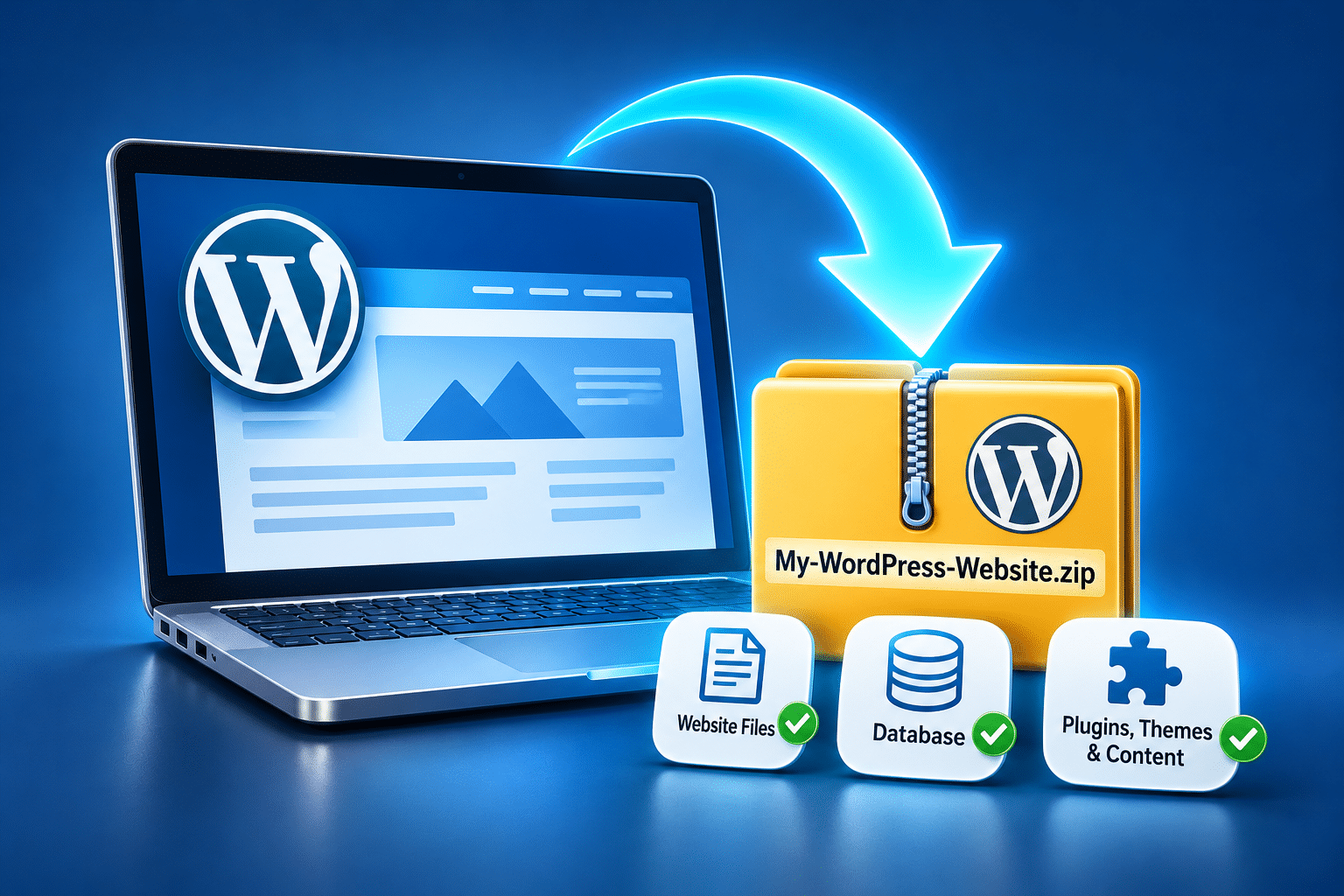
How Do I Download a Complete Copy of My WordPress Website?
Imagine you’ve spent years building your business website. It contains photographs of your work, carefully written service pages, customer testimonials and perhaps an online booking system. Then one day, you decide to change hosting companies, update your website or simply make sure you have a safe copy of everything. That’s when an important question comes up: how do you download the entire website without accidentally leaving something behind?
Many WordPress website owners assume they can log into their dashboard, click a download button and save everything to their computer. Unfortunately, it isn’t quite that simple. A complete WordPress website is made up of different parts, and downloading your pages or images alone doesn’t necessarily give you everything needed to restore the website later.
The good news is that there are several ways to download a complete copy of your WordPress website. You can use your hosting control panel, a suitable WordPress backup plugin or secure file transfer software. The right method depends on how your website is hosted and how comfortable you feel using technical settings.
Quick Answer
To download a complete copy of your WordPress website, you need both your website files and its database. The files include WordPress software, themes, plugins, uploaded images and configuration files. The database stores pages, blog posts, menus, settings, user accounts and other information used by your website.
For many small business owners, the easiest option is a full website backup through their hosting control panel or a trusted WordPress backup plugin. If your hosting company uses cPanel, you can usually download website files through File Manager and export the database through phpMyAdmin. Once downloaded, check that both parts are included and store the copies securely.
What Is Included in a Complete WordPress Website Copy?
A WordPress website normally consists of two essential parts: its files and its database. These work together to display your pages, manage website features and store important information. If you only download one part, you may not have everything needed to rebuild or move your website.
1. WordPress website files
Your website files include the WordPress installation, themes, plugins, photographs, documents and other uploaded material. They also include important configuration files that tell WordPress how to connect to its database and operate on your hosting server.
For example, the wp-content folder normally contains themes, plugins and uploaded media. The wp-config.php file contains important configuration details, including database connection information. Hidden files such as .htaccess may also be important, depending on your server setup.
2. The WordPress database
The database stores much of your website’s content and settings. This includes pages, blog posts, menus, user accounts and information saved by many plugins. If you run an online shop, booking website or membership system, the database may also contain customer orders, appointments and membership records.
Imagine you run a kitchen installation business. Downloading your photographs and theme files might preserve the visual parts of your website, but without the database you could lose the page content, menu structure and settings that organise everything. Both parts are needed for a reliable, restorable copy.
3. Additional information stored outside WordPress
Some business websites rely on external services. These might include email hosting, payment processors, booking platforms, customer relationship management systems or externally hosted images. Downloading WordPress does not automatically include information stored by those services.
If your website uses an external booking platform, for example, its appointment records may need to be exported separately. Similarly, downloading your WordPress files and database will not normally download emails stored in Microsoft 365 or Google Workspace. Check which services your website depends on before assuming you have a complete copy of every business record.
Why Would You Need to Download Your Entire Website?
There are several good reasons to keep a complete copy of your WordPress website. One of the most important is protection against unexpected problems. If an update fails, a website is compromised or important information is accidentally deleted, having a recent copy may make recovery much easier.
You might also need a complete download when moving your website to another hosting company. Your new provider will generally need access to the website files and database to recreate the installation on its server. Having your own copy gives you greater control over the move and reduces your dependence on the previous hosting provider.
Another reason is website redesign work. If you’re planning significant changes, keeping a copy of the original website gives you a reference point and may allow you to restore important content if something goes wrong. It can also be useful when creating a separate testing environment, often called a staging website.
Finally, keeping a downloadable copy is simply good business practice. Your website may represent a considerable investment of time and money. Knowing where its files and database are stored, and having a way to recover them, helps protect that investment.
Three Ways to Download a WordPress Website
The most suitable download method depends on your hosting provider, the size of your website and your confidence with technical tools. Some hosting companies provide a complete downloadable backup through their control panel, while others require you to save the files and database separately.
| Method | Best For | What You Need |
|---|---|---|
| Hosting control panel | Business owners with hosting access | Hosting login and backup or file management tools |
| WordPress backup plugin | Owners who prefer working inside WordPress | Administrator access and a suitable backup plugin |
| SFTP and database export | Owners or developers comfortable with technical tools | SFTP access and a way to export the database |
There is no need to use all three methods to create a single backup. However, it can be sensible to maintain an independent backup arrangement alongside your hosting company’s automatic backups. Whichever method you choose, confirm that the result contains the information needed to restore the website rather than assuming the download is complete.
How to Download Your WordPress Website Using cPanel
Many WordPress hosting companies use cPanel to help customers manage their websites. If your hosting provider supplies cPanel, you can often download the website files through File Manager. The exact layout and available options may vary depending on your hosting company.
Step 1: Log in to your hosting account
Open your hosting provider’s website and sign in to your customer account. Look for an option labelled cPanel, Hosting Control Panel or Manage Hosting. If you don’t know how to access it, ask your hosting company for the correct login instructions.
Step 2: Open File Manager
Once inside cPanel, find the Files section and select File Manager. This displays folders and files stored within your hosting account. Depending on your hosting setup, you may see several website folders, particularly if you host more than one domain.
Step 3: Locate your WordPress installation
For many websites, WordPress is installed inside a folder called public_html. However, this is not always the case. Add-on domains, subdomains and custom hosting configurations may use different folders.
Look for familiar WordPress folders such as wp-admin, wp-content and wp-includes. You should also see files such as wp-config.php. These can help you identify the correct installation.
Step 4: Check hidden files
Some important website files begin with a full stop and may be hidden by default. In cPanel File Manager, look for the settings option that allows hidden files to be displayed. This helps ensure you don’t overlook configuration files such as .htaccess.
Step 5: Compress the website files
Select the files and folders belonging to your WordPress installation and use the Compress option, if available. Creating a ZIP archive can make downloading the website easier because you transfer one archive rather than thousands of individual files.
Make sure the archive includes the complete WordPress installation. Avoid accidentally selecting an unrelated website or a folder containing large amounts of unnecessary backup data. If you are unsure what should be included, ask your hosting provider before continuing.
Step 6: Download the ZIP archive
Once compression has finished, select the archive and choose Download. Save it to a clearly named folder on your computer, such as business-website-backup-2026-11-07. Wait until the download finishes and check that the archive is accessible.
Remember that this process downloads the website files only. You still need to export the matching WordPress database to create a complete website copy.
Step 7: Remove temporary archives from public hosting folders
After confirming that the downloaded archive is complete, remove any temporary backup archive you created inside a publicly accessible website folder. A ZIP file containing your website may include sensitive configuration information and should not be left where unauthorised visitors could potentially download it.
Do not delete the original WordPress files or folders. Only remove the temporary archive after you have verified the downloaded copy.
How to Download Your WordPress Database
Downloading the database is just as important as downloading the website files. The database contains much of the content and information that WordPress uses to build your website. Without it, the files alone may not provide a working copy.
Step 1: Open phpMyAdmin
In cPanel, look for the Databases section and select phpMyAdmin. This is a database management tool commonly provided by hosting companies. It allows you to view databases and export their information.
Step 2: Identify the correct database
If your hosting account contains several websites, you may see multiple databases. You need to select the one used by the WordPress website you are downloading.
The database name is normally identified in the website’s wp-config.php file through the DB_NAME setting. You can inspect this file carefully through File Manager if necessary, but do not edit it simply to find the database name.
Step 3: Select the database
Inside phpMyAdmin, select the correct database from the list. You should see its tables, which may include names beginning with wp_, although WordPress websites can use different table prefixes.
Check that you have selected the intended database before proceeding. Exporting the wrong database may leave you with a backup that does not match your website files.
Step 4: Choose Export
Select the Export tab. For many ordinary WordPress databases, the Quick export method with SQL format provides a straightforward way to download the database. Larger or more complex databases may need custom export settings or another method recommended by your hosting provider.
Step 5: Download the SQL file
Start the export and save the resulting SQL file to your computer. Keep it with the matching website files so you know which database belongs to which backup. If your website changes frequently, try to create the file and database copies close together, or use a backup system that produces a consistent snapshot.
The official WordPress database backup documentation explains database exports and the importance of saving this information separately from the website files.
How to Download a Complete WordPress Backup Using a Plugin
If you prefer working inside WordPress rather than using cPanel, a suitable backup plugin may be easier. Backup plugins can collect website files and database information, create downloadable backup packages and, in some cases, send copies to external storage automatically.
One example is UpdraftPlus, although other backup plugins are available. Before installing another plugin, check whether your website already has a suitable backup system. Adding unnecessary plugins can make website management more complicated.
Step 1: Log in to WordPress
Open your WordPress dashboard using an administrator account. If you cannot access the dashboard, you may need to use your hosting control panel instead.
Step 2: Open or install your backup plugin
If a backup plugin is already installed, open its settings and check what it can save. Otherwise, go to Plugins > Add New Plugin, search for a suitable maintained backup plugin and review its compatibility with your WordPress version before installing it.
Step 3: Create a complete backup
Look for the option to create a backup immediately. Make sure the website files and database are included. Some plugins allow you to select separate components such as plugins, themes, uploads and database information.
Step 4: Wait for the backup to finish
Large websites can take longer to back up, especially if they contain thousands of images or products. Allow the process to finish and check for error messages. If the backup fails, investigate the problem rather than assuming a partial backup is sufficient.
Step 5: Download all required backup files
Some backup plugins produce several separate archives rather than one complete ZIP file. Download every required component and keep the files together. Follow the plugin’s restoration instructions so you know what would be needed if you had to recover the website later.
The official Learn WordPress backup lesson explains the different backup methods and why complete backups are important.
How to Download WordPress Files Using SFTP
SFTP stands for SSH File Transfer Protocol. It provides a secure way to transfer files between your hosting server and your computer. Website developers and hosting professionals often use SFTP when working with WordPress installations, particularly when a hosting control panel does not offer a convenient download option.
To use SFTP, you normally need the server address, username, password or SSH key, and connection port supplied by your hosting company. You also need a suitable file transfer application, such as FileZilla, that supports SFTP.
Once connected, locate the folder containing your WordPress installation and download the necessary files and folders to your computer. Because WordPress websites can contain thousands of files, the transfer may take some time. Check the transfer results for failed or skipped files before assuming the download is complete.
SFTP downloads website files, not the database itself. You will still need to export the WordPress database separately through phpMyAdmin or another supported database tool. For business owners unfamiliar with file transfers, the hosting control panel or a backup plugin may be more straightforward.
Why WordPress Tools > Export Is Not a Complete Backup
WordPress includes a built-in feature under Tools > Export. It allows you to export certain website content, including posts, pages and other supported content types. This can be useful when transferring content between WordPress installations or keeping a copy of written material.
However, the built-in export tool does not create a complete backup of your WordPress website. It normally produces a WordPress XML file containing selected content information, rather than a full copy of your website files and database. It does not automatically include your installed theme, plugins, complete settings or all uploaded media files.
For example, if you export the content from a restaurant website, you may be able to transfer pages and blog posts into another WordPress installation. However, the new website would not automatically have the same theme, booking plugin, design settings or complete media library. Those elements require additional files or migration steps.
The official WordPress Tools Export documentation explains what the built-in export feature provides. It is useful for content transfers, but should not be mistaken for a full website backup.
Can Your Hosting Company Download the Website for You?
Yes, many hosting companies can help you obtain a complete copy of your WordPress website. Some provide downloadable backups through their control panel, while others may offer a backup service or assistance from technical support. The exact options depend on your hosting package.
If you are unsure how to download the website yourself, contact your hosting company and ask for a complete backup containing the website files and database. Explain that you want a downloadable copy suitable for restoring or moving the WordPress installation, not simply an export of its pages.
It is also worth asking whether the backup includes any additional server configuration information needed for migration. Some hosting backups include email accounts and other hosting data, while others cover only the website. Your provider should be able to explain what is included and whether there are any charges.
How to Check That Your Download Is Complete
Once you have downloaded the website, don’t assume everything is correct simply because the files are sitting on your computer. A download can be interrupted, an archive may be incomplete or the wrong database may have been exported. Checking these details now is much easier than discovering a problem when you urgently need to restore the website.
Start by confirming that you have the WordPress files and a matching database export. If you used cPanel, check that the ZIP archive can be opened and contains the expected folders. Make sure the SQL database file is present and has a reasonable file size. If you used a backup plugin, check that every required archive was downloaded successfully.
The strongest test is restoring the website to a separate staging environment. This allows you to confirm that pages, images, menus, forms and important features work correctly. For an online shop or booking website, use a safe testing setup that does not interfere with live payments, customer messages or appointments.
A complete download is valuable, but a successfully tested restoration provides much greater confidence that the files can actually be used when needed.
Where Should You Store Your Downloaded Website?
Keep your downloaded WordPress website in a secure location that is separate from your main hosting account. If the hosting server becomes unavailable, you should still be able to access your backup. Suitable options may include encrypted external storage, a reputable cloud storage service or a dedicated backup system.
Give the files clear names that include the website and backup date. If you manage several websites, keep each website’s files and database together in a clearly labelled folder. This reduces the risk of accidentally restoring the wrong database or confusing backups from different dates.
Remember that a WordPress backup can contain sensitive information. Configuration files may include database credentials, while database exports can contain customer details, account information and other private records. Protect the backup with appropriate access controls and encryption, and avoid sharing it through public download links.
Can You Restore a Website From the Downloaded Copy?
Yes, a complete and usable WordPress backup can normally be used to restore a website, provided the files, database and required hosting environment are compatible. The exact restoration process depends on how the backup was created and whether you are restoring it to the original server or moving it to another hosting provider.
For a manual backup, restoration usually involves uploading the website files, importing the database and checking the WordPress configuration. If the website address or server details have changed, additional migration steps may be required. A backup plugin may provide its own restoration process, while a hosting company may offer a guided restore tool.
However, restoring an older backup can overwrite newer information. If your website has received customer orders, enquiries or bookings since the backup was created, those records may need to be preserved separately. Always consider what has changed before replacing a live website with an earlier copy.
Common Mistakes When Downloading WordPress Websites
One of the most common mistakes is downloading the WordPress files but forgetting the database. The website files may contain your images, theme and plugins, but they do not normally include the database content that holds your pages and settings. Without the matching database, restoring the website may be difficult or incomplete.
Another mistake is using Tools > Export and assuming the resulting XML file is a full website backup. This feature is useful for transferring certain content, but it does not provide a complete copy of the WordPress installation.
Some website owners also forget to check hidden files or accidentally download the wrong website folder. This is particularly easy when several websites share one hosting account. Others download large ZIP archives but never confirm that the files can be opened or restored.
Finally, avoid leaving complete backup archives in publicly accessible hosting folders. A backup may contain information that should never be available to ordinary website visitors. Once you have safely downloaded and checked the archive, remove temporary copies from public website directories.
Expert Insight From Daren Ward

Having worked with business websites since 2004, my advice is to make sure you understand what you’re actually downloading before assuming you have a complete website backup. Saving the visible pages or downloading a folder of photographs is not the same as having everything needed to restore a working WordPress installation.
I would also recommend that business owners know where their website is hosted and how to access the hosting control panel. Even if you prefer someone else to manage the technical work, having those details available gives you more control over your website. If you ever need to change providers or recover from a serious problem, knowing where your files and database are stored can save considerable time and frustration.
Important Warning: Your Website Backup May Contain Customer Information
A complete WordPress download may contain personal information, including customer contact details, website user accounts, orders, bookings and form submissions. It may also contain configuration files with sensitive server or database credentials.
Do not email complete website backups casually, upload them to publicly accessible folders or share them through unsecured download links. Store them securely and only provide access to people who genuinely need it. If your business processes personal information, your backup arrangements should also reflect applicable data protection requirements.
Before restoring a backup, check whether newer customer information has been added since the copy was created. Restoring an older database can overwrite recent records, so preserving current business information should be part of any recovery plan.
WordPress Website Download Checklist
- Confirm which hosting account contains your WordPress website.
- Identify the correct WordPress installation folder.
- Check that hidden configuration files are included.
- Download the complete website files or a suitable backup archive.
- Identify and export the matching WordPress database.
- Check whether external booking, email or payment services need separate exports.
- Confirm that downloaded archives can be opened.
- Keep website files and database exports together with clear date labels.
- Store at least one copy securely outside your hosting account.
- Remove temporary backup archives from publicly accessible website folders.
- Arrange a safe test restoration where practical.
- Keep future backups up to date as your website changes.
Frequently Asked Questions
1. Can I download my entire WordPress website as one ZIP file?
Sometimes, depending on the backup method. A hosting provider or backup plugin may create a downloadable archive containing the website files and database. However, some systems produce separate archives for files and database information. If you use cPanel File Manager to compress the WordPress folder, that ZIP file will not normally include a database export unless you add it separately.
2. Can I download my WordPress website without cPanel?
Yes. You can use a suitable WordPress backup plugin, another hosting control panel or SFTP to download website files. The database can be exported using a database management tool supplied by your host. Some hosting providers also offer downloadable backups through their customer accounts without using cPanel.
3. Can I download a WordPress website without installing a plugin?
Yes. You can download the website files through your hosting File Manager or SFTP and export the database separately. This avoids installing another WordPress plugin. However, the manual process requires care because you need to identify the correct files, database and configuration information.
4. Does downloading my WordPress website affect the live website?
Normally, downloading existing files does not change the live website. However, creating large archives or database exports can use hosting resources and may temporarily affect performance on some servers. Avoid deleting or modifying original files during the process, and schedule large backups during quieter periods where practical.
5. How long does it take to download a complete WordPress website?
The time depends on the size of your website, the number of files, your internet connection and the hosting server’s performance. A small business website may download relatively quickly, while a large online shop with thousands of images could take considerably longer. Database size and the chosen backup method also affect the time required.
6. Can I download my WordPress website to an external hard drive?
Yes. You can save downloaded website files and database exports to an external drive. It is sensible to encrypt the drive if the backup contains customer information or sensitive configuration details. Keeping another secure copy in a separate location can provide additional protection if the drive is lost, damaged or unavailable.
7. Can I move my WordPress website to another hosting company using the download?
Yes, a complete website copy can be used as the basis for moving WordPress to another hosting provider. The new server will need the website files, database and suitable configuration settings. Additional work may be required to update database connections, website addresses, email settings or server configuration. A website migration should be tested before switching visitors to the new server.
8. Does the WordPress export tool download my images?
The WordPress Tools > Export feature creates an XML file containing supported content information and references to media. It does not automatically provide a complete downloadable copy of all your uploaded image files. If you need the entire media library, include the relevant files from your WordPress uploads folder or use a suitable complete backup method.
9. What if my WordPress website is too large to download?
Large websites may exceed the limits of some hosting tools or backup plugins. Your hosting provider may offer another backup method, or you may need to transfer files using SFTP and export the database separately. For very large databases, specialised export tools or hosting assistance may be necessary. Avoid repeatedly starting failed backup jobs without checking the cause.
10. Can I download my WordPress website if I cannot log in?
Yes, provided you still have authorised access to the hosting account or another backup system. WordPress dashboard access is not always required to download the website files and database. If you cannot access either WordPress or the hosting account, contact your hosting provider to discuss account recovery and available backups.
11. Will a complete WordPress download include my business emails?
Not necessarily. A WordPress files-and-database backup normally covers the website itself, not emails stored in a separate email service. Some full hosting account backups may include email data, depending on the provider and backup type. Check with your email provider if you need to preserve mailboxes and messages.
12. How do I know whether my downloaded WordPress website will work?
The most reliable check is to restore the files and database to a separate testing environment. This allows you to confirm that the website loads correctly and that its pages, images, menus and important features work. Simply opening a ZIP file or checking that a database export exists does not guarantee a successful restoration.
Summary
Downloading a complete copy of your WordPress website means saving both the website files and its database. You can do this through your hosting control panel, a suitable backup plugin or secure file transfer software. The method you choose matters less than making sure the downloaded information is complete and usable.
For most small business owners, a hosting backup or WordPress backup plugin is the simplest option. If you prefer a manual download, make sure you include hidden configuration files and the matching database export. Store the copies securely, check that they can be accessed and arrange a test restoration where practical.
Keeping a complete copy gives you more control over your website and can make moving hosting providers, recovering from technical problems or carrying out major changes much easier.
Getting Help With WordPress Website Downloads
If you would rather have help with WordPress backups, website transfers and ongoing technical maintenance, you can find out more about our WordPress maintenance service. You can also explore our website hosting service if you are considering moving your business website to another hosting provider.
Key Takeaways
- A complete WordPress website copy normally includes both files and the database.
- cPanel, backup plugins and SFTP are common ways to download website files.
- phpMyAdmin can be used to export a WordPress database.
- The built-in WordPress Tools > Export feature is not a complete website backup.
- Some external services and business emails need separate backup arrangements.
- Check that downloaded archives and database exports are complete.
- Keep backups secure because they may contain customer information and passwords.
- Testing a restoration is the best way to confirm that a backup can be used.
Found This Helpful? Share It
If you found this article useful, please share it with other business owners who might find it helpful too.
A quick share on LinkedIn, Facebook or your favourite social platform could help someone else find the advice they need.



