
How Do I Change the Order of Pages in My WordPress Menu?
You’ve added a few new pages to your WordPress website, but they’re not appearing in the order you want. Perhaps your Contact page is sitting between two service pages, your most important service is hidden at the end of the menu or a new page has appeared somewhere that doesn’t make sense to visitors.
It’s a common frustration for business owners who manage their own websites. You might have spent time getting the page content just right, only to discover that the navigation menu doesn’t match the way you want customers to explore your website.
Fortunately, changing the order of pages in a WordPress menu is usually straightforward. The exact steps depend on whether your website uses a classic WordPress theme, a modern block theme or a page builder with its own navigation system. Once you know which setup you’re using, you can rearrange your menu without changing the actual pages or their website addresses.
Quick Answer
To change the order of pages in your WordPress menu, log in to your dashboard and check the Appearance section.
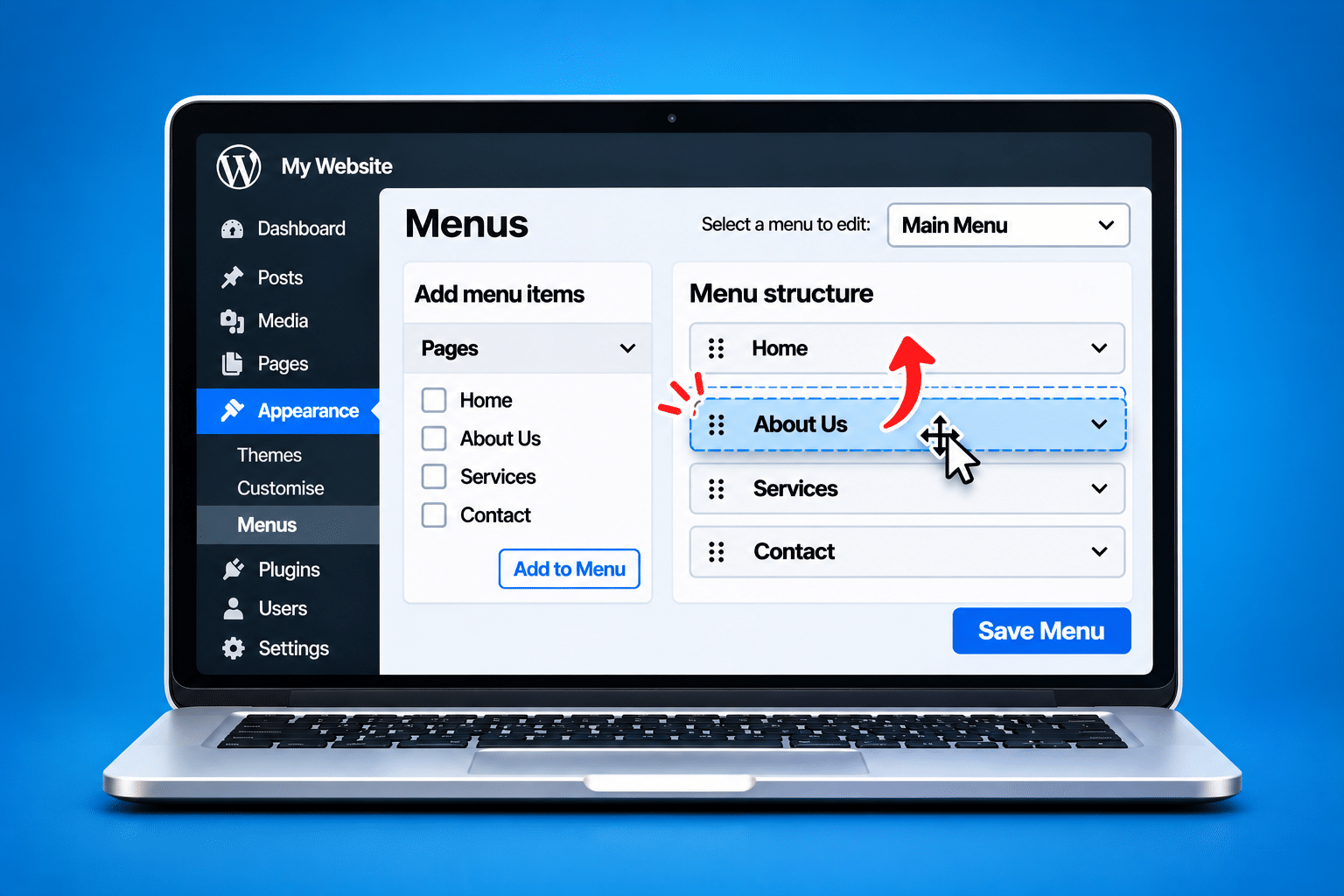
If your website uses a classic theme, go to Appearance > Menus, select the menu you want to edit and drag the menu items into your preferred order. Click Save Menu when finished.
If your website uses a block theme, go to Appearance > Editor and open the navigation area or template containing your menu. Select the Navigation block, rearrange its menu items using the available controls and save your changes.
Important: Moving a menu item changes where its link appears in the navigation. It doesn’t normally change the page’s content, URL or search engine settings. Always check the live website on desktop and mobile after saving.
What’s the Difference Between WordPress Page Order and Menu Order?
Before rearranging anything, it’s worth understanding that WordPress pages and navigation menus are two different things. A page contains your website content, while a navigation menu contains the links visitors use to find that content.
For example, your website might have pages called Home, About Us, Website Design, SEO Services and Contact. You can change the order of those links in your menu without changing the actual pages themselves.
This distinction matters because changing a page’s settings in the WordPress editor doesn’t always change where it appears in your navigation. On websites using a manually managed menu, the order is controlled separately.
What Happens When I Move a Menu Item?
Moving a menu item simply changes its position within that particular menu. For example, you could move SEO Services above Website Design or place Contact at the end of the navigation.
The page itself normally remains unchanged. Its text, images and URL should stay the same unless you deliberately edit those settings separately.
Can One Page Appear in More Than One Menu?
Yes. A WordPress page can be linked from your main navigation, footer menu and other menus at the same time. Each menu can have its own order and structure.
This means rearranging a page in your main menu doesn’t necessarily change its position in the footer or mobile navigation if those are managed separately.
How Do I Know Which WordPress Menu System My Website Uses?
WordPress has more than one way to manage navigation menus. The options you see depend mainly on your theme and whether your website uses a custom header or page-builder navigation system.
Start by logging in to WordPress and opening the Appearance section of the dashboard.
| What You See | What It Usually Means |
|---|---|
| Appearance > Menus | Your website probably uses the classic WordPress menu system. |
| Appearance > Editor | Your website may use a block theme with the Site Editor and Navigation block. |
| Appearance > Customise | Your classic theme may offer menu management through the Customizer. |
| A separate header or theme-builder area | Your navigation may be controlled by a page builder or theme-specific tool. |
If you see more than one of these options, don’t assume they all control the same menu. Some websites have a mixture of WordPress navigation settings and custom header templates.
Find out which menu is actually displayed on your website before making changes. This will help you avoid editing an unused menu and wondering why nothing has happened.
How Do I Change the Order of Pages in a Classic WordPress Menu?
If your website uses the classic WordPress menu system, rearranging the navigation is usually a simple drag-and-drop task. You don’t need to edit the pages themselves.
Step 1: Log In to WordPress
Open your WordPress dashboard using your usual administrator login. You’ll need an account with permission to manage the website’s menus.
If you can’t see the relevant options, your account may have restricted permissions. Ask your website administrator to check your access.
Step 2: Go to Appearance > Menus
In the left-hand dashboard menu, select Appearance, then Menus. This opens the classic menu management screen.
If you don’t see Menus, your website may use a block theme or another navigation system. Check the relevant sections later in this guide.
Step 3: Select the Correct Menu
If your website has several menus, use the menu selection option to choose the one you want to edit. It might be called Main Menu, Primary Menu, Header Menu or something similar.
Check the menu’s display location where available. This helps confirm whether you’re editing the menu that appears across the top of your website.
Step 4: Drag the Pages Into Your Preferred Order
You’ll see the existing menu items arranged in a list. Click and hold the menu item you want to move, then drag it up or down to its new position.
For example, if your current menu reads Home, Contact, About Us, Services, you could drag Contact to the bottom so the order becomes Home, About Us, Services, Contact.
Take care when dragging items sideways. Moving an item slightly to the right can turn it into a submenu item rather than simply changing its position.
Step 5: Check for Accidental Dropdown Items
Look carefully at the menu structure before saving. Items that are indented underneath another item are usually treated as submenus.
If you accidentally move a page underneath another page, drag it back to the left so it appears at the same level as the other main menu items.
Step 6: Click Save Menu
Once you’re happy with the order, select Save Menu. WordPress should save your updated navigation structure.
If you leave the screen without saving, your changes may not appear on the website.
Step 7: Check Your Live Website
Open the website in a separate browser window and check the navigation. Make sure the pages appear in the correct order and that each link opens the intended page.
Also check the mobile version, because some websites use a separate mobile menu or header layout.
How Do I Rearrange Pages in a WordPress Block Theme?
If your website uses a modern WordPress block theme, navigation is usually managed through the Site Editor and Navigation block. This works differently from the older Appearance > Menus screen.
The exact layout of the Site Editor can vary between WordPress versions and themes, but the main principle is the same. You need to find the Navigation block that controls your website menu and rearrange the links inside it.
Step 1: Open Appearance > Editor
Log in to your WordPress dashboard and select Appearance > Editor. This opens the Site Editor, where you can manage parts of your website’s design and navigation.
Depending on your WordPress version, you may see a Navigation section or need to open the relevant template or header template part.
Step 2: Find the Navigation Block
Open the navigation area or header containing your menu. Select the Navigation block so you can see its individual menu items.
If you’re unsure which block you’re selecting, use the editor’s List View to see the page structure more clearly. This can make it easier to identify the Navigation block and its links.
Step 3: Rearrange the Menu Items
Use the available move controls or List View to change the order of the links. Depending on the editor version and context, you may be able to drag items or move them using the block toolbar.
Take care when moving a link into a submenu. If you want it to remain in the main navigation, keep it at the same level as the other top-level items.
Step 4: Save Your Changes
When the menu is in the correct order, select Save and review the changes WordPress is asking you to confirm. The Site Editor may save changes to navigation, templates or template parts, depending on what you’ve edited.
Check the save confirmation carefully, especially if you’ve made other design changes during the same editing session.
Step 5: Test the Navigation
Open the live website and check the updated menu. Test the links, dropdowns and mobile navigation to make sure the changes appear correctly.
If the menu hasn’t changed, check whether the header is using a different navigation menu or whether caching is showing an older version.
How Do I Change the Order of Pages in a WordPress Dropdown Menu?
Dropdown menus allow you to group related pages underneath a main menu heading. They’re particularly useful when a business offers several services and doesn’t want every service page displayed across the top of the website.
For example, a website design company might have a main menu item called Services, with Website Design, SEO, Website Maintenance and Online Marketing appearing underneath it.
Rearranging Dropdown Items in a Classic Menu
Go to Appearance > Menus and select the relevant menu. Find the submenu items, which are usually indented beneath their parent item.
Drag the submenu pages up or down while keeping them indented at the correct level. Click Save Menu when finished, then test the dropdown on your website.
Rearranging Dropdown Items in a Block Theme
Open the Site Editor and select the Navigation block. Find the submenu or parent item, then use the editor controls or List View to rearrange the links inside it.
Save your changes and check the live website. Dropdown behaviour may vary between themes, particularly on mobile devices.
How Many Pages Should Be in a Dropdown Menu?
There’s no single correct number, but a dropdown should be easy to understand and use. If visitors have to scroll through a long list of unrelated pages, the navigation may be becoming unnecessarily complicated.
Group related services together and use clear names. If your business has a large number of service pages, consider whether a dedicated Services overview page would make navigation easier.
How Do I Add or Remove Pages From My WordPress Menu?
Changing the order of pages is only one part of managing navigation. You may also want to add a newly published page, remove an outdated link or replace a menu item with a more useful destination.
Adding a Page to a Classic WordPress Menu
Go to Appearance > Menus and select the menu you want to edit. In the available page selection panel, find the page you want to include and add it to the menu.
The new item will usually appear in the menu structure, where you can drag it into the correct position. Click Save Menu when you’re finished.
Adding a Page to a Block Theme Menu
Open the relevant Navigation block in the Site Editor. Use the block’s add option to insert a new page link or another supported navigation item.
Move the new item into the correct position, then save the navigation changes.
Removing a Page From a Menu
In the classic menu system, expand the menu item and select Remove. In a block theme, select the relevant navigation item and use the available removal controls.
Removing a menu item normally removes only the navigation link. It doesn’t delete the underlying WordPress page, which can still be accessed through its URL or other links.
This distinction is important. If you want to hide a page from your main menu but keep it available elsewhere, removing the menu link may be all you need to do.
Why Isn’t My WordPress Menu Updating After I Change the Order?
You’ve rearranged the menu, clicked Save and opened your website, but the navigation still looks exactly the same. This can happen for several reasons, and it doesn’t necessarily mean WordPress failed to save your changes.
You May Have Edited the Wrong Menu
Some websites have separate menus for the main header, footer, mobile navigation or other areas. If you’ve edited a menu that isn’t assigned to the location you’re checking, the visible navigation won’t change.
Return to the menu settings and confirm which menu is assigned to the relevant display location. On a block theme, check which Navigation block or menu is being used in the active header.
The Menu Changes May Not Have Been Saved
It’s easy to rearrange items and forget to click Save Menu or confirm changes in the Site Editor. Return to the editor and check whether the updated order is still there.
If the old order remains, make the changes again and save them before leaving the screen.
Your Website May Be Showing a Cached Version
Caching systems sometimes continue displaying an older version of a page after changes have been made. If the updated menu appears in WordPress but not on the public website, caching is worth checking.
Open the website in a private browser window. If necessary, clear the relevant cache using your existing WordPress, hosting or CDN tools.
Your Theme or Page Builder May Control the Menu Separately
Some websites use custom headers that don’t automatically follow the classic WordPress menu settings. A page builder or theme-specific navigation system may be controlling the links instead.
If you suspect this is the case, identify the active header template before making further changes. Don’t edit several different menus at random.
Why Is My WordPress Mobile Menu Showing a Different Order?
Many WordPress themes automatically adapt the main navigation for smaller screens. However, some websites use a completely separate menu for mobile devices.
This means you could change the desktop menu order while the mobile menu continues displaying the previous arrangement. It may also contain different links or dropdown structures.
Check Whether Your Theme Uses a Separate Mobile Menu
Look for menu locations or theme settings labelled Mobile Menu, Mobile Navigation or something similar. If a separate mobile menu exists, you may need to rearrange its links independently.
Don’t assume the mobile menu is automatically connected to the desktop menu without checking your theme’s setup.
Check the Mobile Header Template
If your website uses a page builder, the mobile header may be a separate template or a different version of the desktop header. Its navigation settings may need updating separately.
Check the relevant header settings and test the result on an actual phone.
Test the Dropdowns on Mobile
Mobile visitors usually interact with menus by tapping rather than hovering. Make sure dropdown items open correctly and that visitors can reach every important page.
A menu that looks neat on a desktop can still be awkward to use on a small screen, so always test the finished navigation rather than relying only on the editor preview.
What If My WordPress Menu Was Created With Elementor, Divi or Another Page Builder?
Some WordPress websites use page builders to create custom headers and navigation areas. In these cases, the menu may be displayed through a widget, module or template rather than directly through the theme’s standard navigation settings.
The correct method depends on how the website was built. A page-builder menu might use a standard WordPress menu as its source, or it might contain navigation links managed separately inside the builder.
Check Which Menu the Header Uses
Open the header template or relevant page-builder settings and look for the navigation element. Check whether it’s linked to an existing WordPress menu or uses its own list of links.
If it uses a classic WordPress menu, changing that menu’s order may be all that’s required. If the links are managed inside the page builder, you’ll need to edit them there instead.
Be Careful With Global Header Templates
A global header may appear across every page on your website. Changing it can affect the entire site rather than just the page you’re currently viewing.
Make sure you’re editing the correct template and avoid changing unrelated layout settings. If you’re unsure, take a backup or test the changes on staging first.
Does Changing the Page Order Setting in WordPress Change My Navigation Menu?
Not necessarily. WordPress pages can have an Order setting, sometimes called Page Attributes or Order, depending on the editor and theme.
This setting can be used by themes, templates or page-listing features that display pages according to their assigned order. However, a manually managed navigation menu normally has its own ordering system.
What Is the WordPress Page Order Setting?
The Page Order setting is a number associated with a WordPress page. Some themes or features can use that number when deciding how pages should be listed.
For example, a page with an order value of 1 might appear before a page with an order value of 5 in a page list that sorts by menu order.
Why Doesn’t Changing Page Order Move the Menu Link?
If your website uses a manually managed menu, the navigation items are arranged independently. Changing the page’s Order value may have no visible effect on that menu.
For most business websites with a custom navigation menu, the simplest solution is to edit the menu itself rather than changing page order numbers.
What If My Menu Automatically Lists Pages?
Some navigation setups automatically generate links from published pages. In those cases, the available sorting options may differ from a manually arranged menu.
Check whether your menu uses an automatic Page List block or another page-listing feature. If you want full control over which links appear and in what order, you may need to use a manually managed navigation structure.
What’s the Best Menu Order for a Small Business Website?
There’s no perfect menu order that works for every business, but your navigation should make it easy for visitors to find what they’re looking for. The best approach is usually to put your most important information where people can reach it quickly.
Think about why somebody is visiting your website. They might want to understand what you offer, compare your services, see examples of your work or contact you for a quote. Your menu should help them complete those tasks without having to search through unnecessary links.
Example Menu for a Small Service Business
A straightforward navigation menu for a service business might look like this:
- Home
- About Us
- Services
- Our Work
- Blog
- Contact
If your business offers several important services, you could group them under Services rather than displaying every service as a separate top-level link. This keeps the navigation tidy while still allowing visitors to find detailed information.
Should Contact Be the Last Menu Item?
Many business websites place Contact towards the end of the main navigation, which can make it easy to find. However, the most important thing is that visitors can reach your contact information quickly from anywhere on the website.
Some businesses also use a separate Call Now, Get a Quote or Book an Appointment button in the header. This can help draw attention to the main action they want visitors to take.
Should Every WordPress Page Appear in the Menu?
No. Your website might contain privacy policies, thank-you pages, detailed service information, blog articles and other content that doesn’t need a place in the main navigation.
Including too many links can make a menu confusing, especially on mobile devices. Focus on the pages that help visitors understand your business and take the next step.
Does Changing the Order of WordPress Menu Pages Affect SEO?
Changing the order of links in your WordPress menu doesn’t normally change the pages themselves or their URLs. As a result, simply moving a menu item isn’t the same as deleting a page or changing its website address.
However, navigation can influence how easily visitors and search engines discover pages. Important pages that are clearly linked from your website may be easier to find and understand.
Can Menu Order Improve Google Rankings?
There’s no guarantee that moving a page higher in your menu will improve its Google rankings. Search engine performance depends on many factors, including content quality, relevance, technical accessibility and the wider website structure.
A clear navigation system can still be useful because it improves the experience for visitors and supports sensible internal linking.
Should Important Service Pages Be in the Main Menu?
Often, yes. If a service is central to your business, it should be easy for visitors to find. That might mean including it directly in the main menu or placing it within a clearly labelled Services dropdown.
Don’t overload the navigation just to include more keywords. Use natural labels that make sense to customers.
Does Renaming a Menu Item Change the Page’s SEO Title?
Normally, no. In a manually managed WordPress menu, you can often change the navigation label without changing the page title, URL or SEO title.
For example, a page called Professional Website Design Services for Small Businesses could appear in the menu simply as Website Design. This can make navigation easier to read while keeping the page’s full title and content unchanged.
Common WordPress Menu Mistakes to Avoid
Rearranging a WordPress menu is usually simple, but a few common mistakes can cause confusion or make your website harder to use.
Editing the Wrong Menu
Always confirm which menu is assigned to the location you want to change. A website may have several menus with similar names, and editing an unused one won’t affect the navigation visitors see.
Accidentally Creating Dropdown Items
In classic WordPress menus, dragging an item sideways can turn it into a submenu. Check the indentation before saving so pages don’t end up hidden under the wrong heading.
Forgetting to Save
After rearranging menu items, make sure you save the changes. In the Site Editor, review the save confirmation so you know which navigation or template changes are being applied.
Ignoring the Mobile Menu
Don’t assume that a menu working on desktop will automatically work well on a phone. Check the mobile order, dropdowns and tap targets after making changes.
Removing Important Links
It’s fine to simplify navigation, but make sure visitors can still reach important pages. Contact information, key services and other useful content should remain easy to find.
Changing Too Many Things at Once
If you only want to rearrange menu links, avoid editing page templates, URLs or global header styling at the same time. Keeping the changes focused makes it easier to check the result and reverse anything unexpected.
Expert Insight From Daren Ward

Having worked in website design and development since 2004, I’d encourage business owners to think about their website menu from the customer’s point of view rather than simply arranging pages in the order they were created. The navigation is one of the first things visitors use when they’re trying to understand what a business offers, and it should make their journey easier.
I’d also be careful not to confuse changing the menu with changing the pages themselves. If you want Website Design to appear before SEO Services, there’s normally no reason to edit either page or change its URL. You simply need to rearrange the navigation links in the correct menu. That might sound obvious, but knowing the difference can prevent unnecessary changes and avoid creating new problems.
My other recommendation is to check the finished menu on a mobile phone. A navigation structure that looks perfectly sensible across a large desktop screen can become awkward when it’s squeezed into a small mobile menu. Keep the labels clear, group related services together and make sure visitors can reach your contact details without having to hunt for them.
Important Warning Before Editing Your WordPress Menu
Changing the order of existing menu items is normally a low-risk task, but take care if your website uses custom header templates, a page builder or several different navigation menus. Editing the wrong menu may have no visible effect, while changing a global header template can affect the entire website.
Don’t delete pages, change URLs or switch themes just to rearrange navigation links. If you’re making substantial changes to a custom header or navigation system, create a backup and consider testing on a staging website first.
After saving, check the live website on desktop and mobile. Make sure the links work, dropdowns open correctly and important pages remain easy to find.
WordPress Menu Checklist
Use this checklist when changing the order of pages in your WordPress navigation menu.
- Log in to your WordPress dashboard.
- Check whether your website uses a classic menu, block theme or page builder.
- Identify the menu displayed on your live website.
- Open Appearance > Menus or the relevant Navigation block.
- Check the current order of menu items.
- Move the pages into your preferred order.
- Check that no pages have accidentally become submenu items.
- Review any dropdown menus.
- Make sure important service pages are easy to find.
- Keep navigation labels short and clear.
- Save the menu or navigation changes.
- Open the live website and check the new order.
- Test every important menu link.
- Check the mobile menu separately.
- Confirm that dropdowns work on mobile devices.
- If changes don’t appear, check menu assignments and caching.
- Make sure you haven’t accidentally changed page URLs or deleted content.
- Review the menu from a customer’s point of view.
Frequently Asked Questions About Changing WordPress Menu Order
How Do I Rearrange Pages in My WordPress Menu?
For classic themes, go to Appearance > Menus, select the correct menu and drag the links into your preferred order. Click Save Menu when finished. For block themes, use the Site Editor and Navigation block to rearrange the menu items.
Why Can’t I Find Appearance > Menus in WordPress?
Your website may use a block theme that manages navigation through Appearance > Editor. Some websites also use page builders or custom header tools. Check which system controls your live navigation before making changes.
Can I Change Menu Order Without Changing My WordPress Pages?
Yes. Rearranging a manually managed navigation menu normally changes only the order of its links. The underlying pages, content and URLs remain unchanged unless you edit them separately.
How Do I Move a Page to the Top of My WordPress Menu?
Open the correct menu and move the relevant item to the first position. In a classic menu, you can usually drag it to the top. In a block theme, use the Navigation block’s move controls or List View. Save your changes afterwards.
How Do I Change the Order of Pages in a WordPress Dropdown Menu?
Find the submenu items in your menu editor and rearrange them while keeping them nested under the correct parent item. Save the menu and check that the dropdown displays properly on desktop and mobile.
Why Isn’t My WordPress Menu Order Changing?
You may have edited the wrong menu, forgotten to save or be seeing a cached version of the website. A custom header or page builder may also control the navigation separately. Check the active menu assignment and test the public website.
Can I Have a Different Menu Order on Mobile?
Yes, if your theme or page builder supports separate mobile navigation. Some websites use the same menu for desktop and mobile, while others allow independent menus or header templates. Check your theme’s settings.
Does Changing WordPress Page Order Affect the Main Menu?
Not always. The Page Order setting may affect automatic page lists, but manually managed navigation menus usually have their own ordering system. If you want to rearrange the main menu, edit the menu itself.
Will Changing My WordPress Menu Affect Google Rankings?
Changing the position of menu links doesn’t guarantee a ranking improvement or decline. Clear navigation can help visitors and search engines discover important pages, but search performance depends on many factors.
Can I Remove a Page From My Menu Without Deleting It?
Yes. Removing a link from a WordPress menu normally leaves the underlying page intact. Visitors may still reach it through its URL, internal links or search results, depending on the page’s settings.
Summary: How to Change the Order of WordPress Menu Pages
Changing the order of pages in your WordPress menu is usually a straightforward task once you know which navigation system your website uses. Classic themes normally allow you to rearrange links through Appearance > Menus, while block themes use the Site Editor and Navigation block.
The important thing is to edit the correct menu rather than changing the pages themselves. Rearranging navigation links doesn’t normally affect page content or URLs, so there’s no need to make unnecessary changes elsewhere in WordPress.
Once you’ve saved the new order, check the live website on desktop and mobile. Make sure the menu is easy to understand, dropdowns work properly and visitors can quickly find your services and contact information.
Getting Further Help With WordPress Navigation Menus
If your WordPress menu isn’t updating, your mobile navigation is different or you’re unsure which header template controls your website, professional assistance may be useful. You can learn more about our WordPress website maintenance service if you need help managing menus, correcting navigation problems or keeping your business website working properly.
Key Takeaways
- WordPress page order and navigation menu order are not always the same.
- Classic themes usually manage menus through Appearance > Menus.
- Block themes normally use the Site Editor and Navigation block.
- Rearranging menu items doesn’t normally change page content or URLs.
- Take care not to accidentally create dropdown items when dragging links.
- Always save your menu changes before leaving the editor.
- Some websites use separate menus for desktop and mobile devices.
- Page builders may control navigation through custom header templates.
- If changes don’t appear, check the menu assignment and website cache.
- Keep navigation labels clear and important pages easy to find.
- Test the finished menu on desktop and mobile.
Found This Helpful? Share It
If you found this article useful, please share it with other business owners who might find it helpful too.
A quick share on LinkedIn, Facebook or your favourite social platform could help someone else find the advice they need.



