
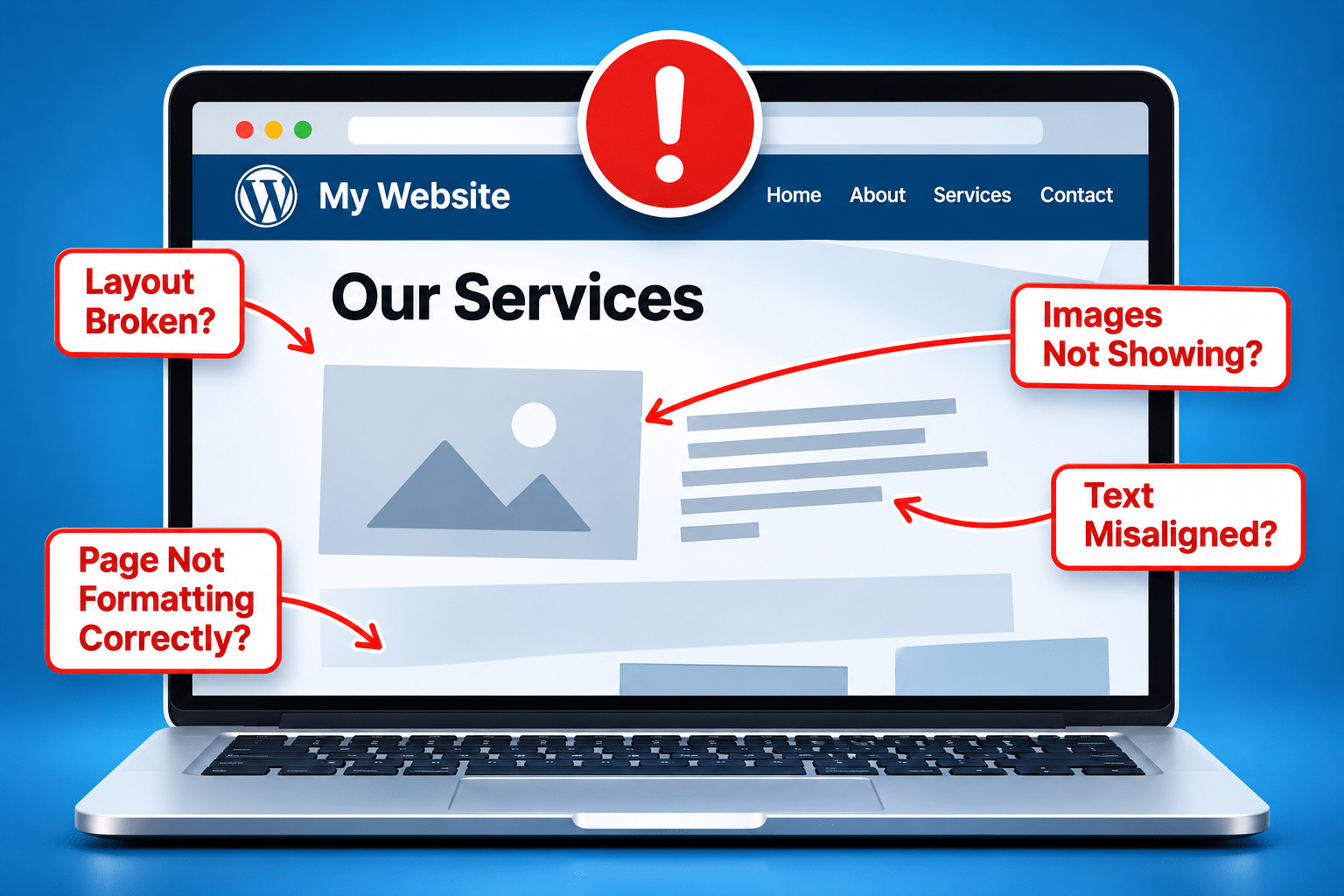
Why Are My WordPress Pages Not Displaying Correctly?
You’ve logged in to your WordPress website, made a few changes and everything looks fine in the editor. But when you open the actual website, something isn’t right. The text might be in the wrong place, images could be missing, sections might have disappeared or the entire page could look completely different from how it should.
Perhaps the website looks fine on your computer but falls apart on your mobile phone. Or maybe everything looks perfect when you’re logged in to WordPress, yet customers see a broken layout when they visit the website. These problems can be particularly frustrating when you haven’t deliberately changed anything.
The good news is that a WordPress page displaying incorrectly doesn’t automatically mean your website has been permanently damaged. Problems can be caused by caching, plugin conflicts, theme settings, missing files, updates or changes to the way a page is built. The important thing is to work out what’s causing the problem rather than randomly changing settings and hoping something works.
Quick Answer
If your WordPress pages aren’t displaying correctly, start by opening the affected page in a private browser window and checking it on another device. This helps you establish whether the problem affects everyone or only your browser or logged-in session.
Next, check whether the issue started after a WordPress, theme or plugin update. Look for missing images, caching problems, page-builder settings and any error messages in your dashboard.
If the problem affects the public website but not the WordPress editor, caching or front-end styling may be involved. However, don’t assume caching is responsible without checking.
Important: Before making significant changes, create a full backup of your website. Avoid switching themes, deleting plugins or changing several settings at once on a live business website.
What Does a WordPress Display Problem Look Like?
WordPress display problems don’t always look the same. Some are obvious, such as an entire page appearing blank, while others are more subtle. You might notice that headings have changed size, buttons have moved or images are no longer lining up correctly.
Understanding exactly what’s wrong can help narrow down the possible cause. For example, a page with missing colours and unusual spacing may be experiencing a stylesheet problem, while a page with missing images may have broken file references or loading issues.
| What You’re Seeing | Possible Causes |
|---|---|
| Text and images appear in the wrong places | Missing CSS, theme changes, page-builder settings or plugin conflicts. |
| Page looks fine in the editor but broken when published | Caching, generated CSS, script loading or front-end rendering issues. |
| Images aren’t appearing | Incorrect file URLs, missing files, permissions, lazy loading or optimisation conflicts. |
| Fonts and colours have changed | Missing stylesheets, blocked font files, theme settings or CSS conflicts. |
| Website looks fine on desktop but broken on mobile | Responsive layout settings, fixed-width elements, custom CSS or mobile-specific design issues. |
| Website works when logged in but not when logged out | Public-page caching, optimisation settings, access restrictions or visitor-specific scripts. |
| Only one page is affected | Page-specific content, template settings, embedded scripts or an issue with that page’s assets. |
| Page is completely blank | A PHP error, plugin or theme failure, resource problem or another server-side issue. |
These are possible causes rather than definite diagnoses. Two websites showing similar symptoms can have completely different underlying problems, so it’s worth investigating before making changes.
What Should I Check First if My WordPress Pages Look Wrong?
Before changing anything inside WordPress, establish exactly where and when the problem appears. This can save you time and prevent unnecessary changes to a website that may only be experiencing a temporary browser or caching issue.
Open the Website in a Private Browser Window
Open the affected page using your browser’s private or incognito mode. This gives you a separate browsing session that normally doesn’t use your existing WordPress login cookies.
If the page looks different in private browsing, it suggests that the problem may depend on your login status, browser data or how the public version of the website is being served. It doesn’t prove that caching is responsible, but it gives you a useful clue.
Check Another Browser and Device
Try opening the same page in a different browser and on another device. If the problem only appears in one browser, the cause may involve stored browser data, extensions or compatibility issues.
If everyone sees the same broken layout, the problem is more likely to involve the website itself or the way its files are being delivered.
Check Whether Every Page Is Affected
Open the homepage, a service page, a blog article and your contact page. Make a note of which pages display incorrectly and which still work.
If every page has the same problem, investigate shared elements such as the theme, global styles, plugins and website-wide caching. If only one page is affected, concentrate on that page’s content, template and settings.
Think About What Changed Recently
Ask yourself when the website last looked correct. Was a plugin updated, a new page published, a theme setting changed or a speed optimisation tool installed?
Even if you didn’t personally make any changes, WordPress or a plugin may have updated automatically. Your hosting provider may also have changed a server setting. Knowing when the issue started can help identify what needs investigating.
Could WordPress Caching Be Causing My Pages to Display Incorrectly?
Caching is one of the first things worth investigating when a WordPress website looks different to different visitors. A cache stores previously generated content or files so they can be delivered more quickly instead of being recreated every time someone opens a page.
That’s useful for website speed, but it can sometimes cause confusion when changes aren’t reflected immediately. A visitor might see an older version of a page, or cached HTML may refer to CSS or JavaScript files that have changed.
What Is the Difference Between Browser Cache and Website Cache?
Your browser may store images, stylesheets and other files locally. WordPress caching plugins and hosting systems can also store generated pages and website assets on the server.
Some websites use a content delivery network, often called a CDN, which may store additional copies of files. Because these are separate layers, clearing your browser cache doesn’t necessarily clear the cache held by your hosting provider or CDN.
How Do I Clear My WordPress Cache?
If your website uses a caching plugin, look for its cache-clearing option in the WordPress dashboard. The wording varies between plugins, but it may be labelled Clear Cache, Purge Cache or something similar.
If your hosting provider also offers caching, check whether there’s a separate option in the hosting control panel. Some websites may also need their CDN cache refreshed.
After clearing the relevant cache, open the affected page in a private browser window and check whether the layout has improved. Avoid repeatedly changing optimisation settings without knowing which feature is responsible.
Can Having More Than One Caching Plugin Cause Problems?
Yes, multiple caching or optimisation systems can sometimes interfere with one another, particularly if they’re trying to perform the same tasks. For example, two plugins may both attempt to combine, delay or alter the same CSS and JavaScript files.
However, not every combination of caching tools is automatically a conflict. The important thing is to understand which system handles each function and whether the settings are compatible.
Don’t install additional speed plugins in an attempt to fix a broken layout. Adding more optimisation tools can make the problem harder to diagnose.
Can WordPress Plugin Conflicts Cause Pages to Display Incorrectly?
Plugins add features to WordPress, including contact forms, booking systems, security tools, page builders and speed optimisation. Most work well when properly maintained, but conflicts can occur when plugins interact with one another or with the website’s theme.
For example, a performance plugin might delay a script needed for an animation, or a plugin update might introduce a change that affects a page-builder component. The result could be missing content, broken buttons or a layout that no longer behaves correctly.
How Can I Tell Whether a Plugin Is Causing the Problem?
Start by checking whether the problem appeared after a plugin was installed or updated. Look at the plugin list and any available update history or maintenance records.
On a staging copy of the website, a developer can test suspected plugins one at a time while checking the affected pages after each change. This helps identify the cause without unnecessarily disrupting the live website.
Should I Deactivate All My WordPress Plugins?
Not as your first step on a live business website. Deactivating plugins can disable contact forms, booking systems, payment features, security protection or other important functions.
If you have a staging environment, controlled plugin testing may be appropriate there. Otherwise, take a backup and seek technical help before disabling anything that could affect customers.
Can an Inactive Plugin Still Cause a Display Problem?
An inactive plugin generally doesn’t execute its normal WordPress functionality. However, it may have left settings, database records or generated files behind, depending on how it was built and configured.
Don’t assume an inactive plugin is responsible simply because it’s installed. Focus on evidence from the affected page, error messages and recent changes.
Could My WordPress Theme Be Causing the Display Problem?
Your WordPress theme controls much of your website’s appearance, including layouts, typography, spacing and shared design elements. If the theme or its settings change, pages may look different even when the content itself hasn’t been edited.
A theme update may introduce new styling, fix older behaviour or change how certain templates work. Custom CSS can also stop behaving as expected if the theme’s underlying structure changes.
What Happens if My Theme Isn’t Compatible With a Plugin?
Some plugins rely on particular theme features or styles. If the theme and plugin aren’t working together correctly, you may see missing elements, overlapping content or unexpected changes to the page layout.
Compatibility problems can be especially noticeable when a page builder, ecommerce plugin or navigation tool controls important parts of the design.
Should I Switch to a Different WordPress Theme to Test It?
Switching themes can be a useful diagnostic step, but it should normally be done on a staging website rather than directly on a live business website. Changing themes may affect menus, widgets, templates and other settings.
If your current theme is heavily customised, switching away and back may create additional work. Take a backup and understand the possible impact before testing another theme.
Why Does My WordPress Page Look Different From the Editor?
Some WordPress websites are built using the standard block editor, while others use page builders such as Elementor, Divi or other design tools. These systems provide a visual editing experience, but the public website may still depend on separate stylesheets, scripts and template settings.
This means a page can look correct inside the editor while displaying incorrectly to visitors. The editor and public website don’t always load files in exactly the same way.
Could Generated CSS Files Be Missing?
Some page builders generate CSS files to control the appearance of pages. If those files are missing, outdated or inaccessible, parts of the design may lose their intended styling.
Depending on the page builder, there may be a built-in tool to regenerate CSS or other generated assets. Check the relevant official documentation before using it, and make sure you understand any caching steps that may be required afterwards.
Could a Page Template Have Changed?
WordPress pages can use different templates. A page might use a full-width layout, a template with a sidebar or a custom landing-page design.
If the template is changed accidentally, the page may suddenly display extra spacing, a missing header or an unexpected sidebar. Open the affected page and review its template settings before changing anything else.
What If Sections Have Disappeared?
Check whether the sections still exist in the editor. They may have been hidden through responsive visibility settings, moved into a different layout container or affected by missing scripts.
If the content has actually been deleted or overwritten, WordPress revisions or your page builder’s history tools may help recover an earlier version. Review what would be restored before applying an older revision.
Why Are Images, Fonts or Styles Missing From My WordPress Pages?
Missing images, fonts and styles can make a professional website look unfinished or completely broken. These files are often loaded separately from the main page content, so a page may appear while some of its visual elements fail to load.
Why Are My WordPress Images Not Showing?
Images may fail to display if the file has been deleted, its URL is incorrect, the server denies access or an image optimisation feature interferes with loading. Lazy loading can also cause problems when it isn’t working correctly with a particular theme or script.
Open the WordPress Media Library and check whether the missing image still exists. If it does, the next step is to investigate why the public page can’t load it rather than immediately uploading another copy.
Why Have My Website Fonts Changed?
If your website suddenly displays a different font, the original font file may not be loading. Possible reasons include incorrect file URLs, access restrictions, browser security rules or problems with a font-loading service.
Fonts loaded from another website or an external provider may depend on that service remaining available and correctly configured. A developer can check browser error messages to identify whether the requested font files are being blocked or cannot be found.
Why Has My Website Lost Its Colours and Spacing?
When stylesheets fail to load, a website may lose its normal colours, spacing, button designs and layout. Text and images can appear stacked in unexpected positions because the browser isn’t receiving the instructions that control their appearance.
This can happen when CSS files are missing, blocked or altered incorrectly by an optimisation tool. A developer can inspect the browser’s Network and Console panels to identify failed requests and related errors.
Could HTTP and HTTPS Problems Be Involved?
Yes. If a secure HTTPS page attempts to load certain resources over an insecure HTTP connection, browsers may block them. This is commonly called mixed content.
If your website has recently moved to HTTPS or changed hosting providers, check whether images, fonts and other resources still use outdated addresses. Avoid using a quick fix that weakens website security.
Why Does My WordPress Website Look Wrong on Mobile Phones?
A website can look excellent on a large computer screen but display badly on a phone if its responsive settings aren’t working correctly. You might see text running off the screen, images overlapping, buttons becoming too small or sections appearing in the wrong order.
Responsive design allows a website to adjust to different screen sizes. However, custom layouts, fixed-width elements and page-builder settings can sometimes interfere with that behaviour.
Check Fixed Widths and Oversized Elements
Some design elements may have been given a fixed width that’s too large for smaller screens. For example, a wide table, image or embedded form could force the page to scroll sideways.
Check whether the problem appears across the whole website or only on a particular section. This can help identify whether a shared layout rule or a specific element needs attention.
Check Mobile Visibility Settings
Some page builders allow sections to be hidden on desktop, tablet or mobile devices. If these settings are changed accidentally, content may disappear on one device while remaining visible on another.
Open the affected page in its editor and review the responsive settings. Don’t simply make every hidden element visible without checking why it was hidden in the first place.
Test Real Mobile Devices
Browser developer tools can simulate different screen sizes, but it’s also useful to test on an actual phone. This can reveal issues involving touch controls, mobile menus and device-specific behaviour.
Pay particular attention to your contact buttons, enquiry forms and navigation. A small visual issue may be inconvenient, but a broken contact button could stop potential customers from getting in touch.
Can WordPress, Plugin or PHP Updates Cause Display Problems?
WordPress, themes and plugins need updating to maintain security, compatibility and functionality. However, updates can sometimes introduce conflicts, particularly when a website relies on older plugins, custom code or unsupported features.
For example, a plugin may require a newer PHP version, or a theme update may change styling that custom code depends on. The result could be a broken layout, missing feature or error message.
What Is PHP and Why Does It Matter?
PHP is the programming language that helps run WordPress. It processes much of the website’s server-side functionality, including loading content and working with themes and plugins.
An outdated PHP version can create security and compatibility problems. However, seeing a PHP update warning doesn’t automatically mean it’s responsible for the display issue you’re experiencing.
Should I Update PHP to Fix My Website?
Don’t change the PHP version simply because a page looks broken. First, check the current version and whether your WordPress installation, theme and plugins support the proposed update.
Create a full backup and, where possible, test the change on a staging website. A PHP upgrade can be important, but changing versions without checking compatibility may cause additional problems.
What If the Problem Started Immediately After an Update?
Make a note of the update and the time the problem appeared. Check whether the developer has published a known issue or compatibility fix.
In some situations, restoring a previous compatible version may be appropriate, but rolling back software can introduce security or data compatibility risks. This should be handled carefully, ideally by someone familiar with the website’s setup.
Why Is Only One WordPress Page Displaying Incorrectly?
If the rest of your website looks normal but one page is broken, that’s a useful clue. The problem may be connected to something unique to that page rather than a website-wide issue.
For example, the affected page might use a different template, a custom animation, an embedded form or a page-builder feature that isn’t used elsewhere. It might also have its own CSS or JavaScript settings.
Compare the Broken Page With a Working Page
Open a similar page that displays correctly and compare its settings. Look at the page template, layout options, featured images, embedded content and any page-specific scripts.
If both pages use the same theme and builder but only one is broken, the difference between them may help identify the cause.
Check Whether the Page Was Recently Edited
A change to one section can sometimes affect the layout of the entire page, particularly when custom HTML, CSS or nested layout containers are involved.
If the problem started after an edit, review the recent changes and any available revisions. Avoid restoring an older revision without checking what newer content might be lost.
Could a Particular Image or Animation Be Responsible?
Yes. Some interactive effects and animations depend on JavaScript files, images and particular HTML structures. If one of those resources fails to load, the effect may stop working or interfere with nearby elements.
Don’t remove the animation simply because it appears to be involved. First, investigate whether the required files are loading and whether a recent optimisation change has affected them.
Why Does My WordPress Website Look Fine When I’m Logged In but Broken When I’m Logged Out?
This is a particularly confusing WordPress problem because the website can appear completely normal while you’re working on it. You log in, check the homepage and everything looks fine. But when you open the same page in a private browser window, the layout is broken.
One possible explanation is that logged-in users and ordinary visitors are being served different versions of the page. Many caching systems bypass or handle caching differently for logged-in WordPress users.
This means you might see a fresh version of the page while visitors receive an older cached copy. However, caching isn’t the only possible cause. Different scripts, access permissions, optimisation settings or visitor-specific content can also create differences.
How Can I Check Whether Public Caching Is Involved?
Compare the page while logged in and logged out. If the public version is broken, check which caching and optimisation systems are active and whether the affected URL is being cached.
If appropriate, clear the existing cache and test again. If the problem disappears temporarily but returns later, that may suggest an issue with how cached content or optimised files are being generated.
Could CSS or JavaScript Optimisation Be Responsible?
Yes. Some speed optimisation tools change how stylesheets and scripts are loaded. Features such as delaying JavaScript, removing unused CSS or combining files may affect particular layouts or interactive elements.
These features can improve performance when configured correctly, but they need testing. A developer may need to exclude a particular file or script from optimisation rather than disabling every speed feature.
Should I Turn Off My Caching Plugin?
Not necessarily. If caching is suspected, the best approach is to identify the particular feature causing the problem. Completely removing a caching plugin without a plan may affect performance and doesn’t guarantee the underlying issue will disappear.
Make one controlled change at a time, preferably on staging, and test the public website after each adjustment. This gives you a clearer picture of what actually fixes the problem.
What Do Common WordPress Display Errors Mean?
Sometimes WordPress displays an error message rather than a broken layout. The message can provide useful information about what’s going wrong, although it doesn’t always identify the exact cause.
| Error or Symptom | What It May Mean |
|---|---|
| 404 Not Found | The requested page or resource couldn’t be found at its URL. |
| 403 Forbidden | Access to the requested page or file is being denied. |
| 500 Internal Server Error | The server encountered a problem processing the request. |
| Critical Error | WordPress has encountered a serious error, often involving PHP code. |
| Blank white page | A PHP failure, missing output or another server-side problem may be preventing the page from rendering. |
| Mixed Content Warning | A secure page is attempting to load resources through an insecure connection. |
| Missing CSS or JavaScript file | A required design or functionality file may be unavailable, blocked or incorrectly referenced. |
If you see a critical error, repeated server errors or a completely blank page, avoid repeatedly changing plugins and settings without a recovery plan. Your hosting provider or developer may need to examine the server error logs and WordPress diagnostic information.
How to Troubleshoot WordPress Display Problems Safely
The safest way to investigate a WordPress display problem is to work through a clear process. Changing several things at once can make it difficult to identify what caused the issue and what eventually fixed it.
Step 1: Record the Problem
Take screenshots of the affected pages and make a note of the website addresses. Record which browsers and devices show the problem and whether it happens when you’re logged in, logged out or both.
This information can be useful if you need help from your hosting provider or website developer.
Step 2: Check Whether the Problem Is Widespread
Test several pages to establish whether the issue affects the entire website or only a particular page. Also check the homepage, navigation, contact form and other important customer-facing features.
If customers can’t complete essential actions, treat the issue as more urgent than a minor visual problem.
Step 3: Review Recent Changes
Look for recent WordPress, theme, plugin, PHP or hosting changes. If you know exactly when the problem started, this can help narrow down the likely causes.
Don’t automatically reverse every recent update. Some updates contain important security fixes, and rolling them back without checking may create other risks.
Step 4: Check the Existing Cache
If your website uses caching, identify which systems are active. Clear the appropriate cache using the existing tools and compare the result in a private browser window.
Make a note of whether the problem changes. If the layout improves after clearing the cache but breaks again later, that information may help identify a recurring caching or optimisation issue.
Step 5: Check for Missing Files
If images, fonts or styles aren’t loading, check whether the relevant files exist and whether their URLs are correct. A developer can use browser tools to inspect failed network requests and JavaScript errors.
This is often more useful than guessing which plugin might be responsible.
Step 6: Create a Full Website Backup
Before significant troubleshooting changes, create a current backup of the database and relevant website files. Ideally, confirm that you have a reliable restoration method.
If your website is already broken, don’t assume an existing backup is safe or complete without checking. Keep a copy of the current state before attempting major repairs.
Step 7: Use a Staging Website for Testing
If your hosting provider offers staging, create a separate copy of the website for testing. This allows you to investigate plugins, themes and optimisation settings without disrupting the live website.
Remember that a staging copy may not reproduce every live-server condition. However, it can still be a useful place to test changes more safely.
Step 8: Test One Change at a Time
Whether you’re investigating a plugin, page-builder setting or optimisation feature, make one controlled change and check the result. Keep a record of what was changed and whether it made any difference.
This approach helps identify the actual cause and makes it easier to reverse an unsuccessful change.
Step 9: Check the Finished Website
Once the problem appears to be fixed, test the website again on desktop and mobile. Check the public version while logged out and make sure the main navigation, forms, buttons, images and important pages all work.
Don’t stop at the first page that looks correct. A change that fixes one layout could affect another part of the website, so a final review is important.
Expert Insight From Daren Ward

Having worked in website design and development since 2004, one thing I’d always recommend when a WordPress page suddenly looks wrong is to find out what’s actually causing the problem before trying to fix it. It’s tempting to start changing settings, clearing everything or installing another plugin, but that can make matters worse and leave you unsure which change caused what.
I’d start by comparing the website when logged in and logged out, checking whether the problem affects one page or several, and looking at any recent updates. If the public website is broken but the editor looks fine, I’d investigate caching, generated stylesheets and script loading rather than assuming the page itself has been damaged. I’ve also seen how problems can become more complicated when a website has unnecessary plugins or several optimisation tools trying to do similar jobs.
I’d pay particular attention to anything that affects customers. A heading that’s slightly out of place is inconvenient, but a missing contact button, broken enquiry form or unreadable mobile page can cost a business genuine opportunities. The aim shouldn’t simply be to make the page look right again. It should be to identify the cause, fix it properly and check that the website works reliably for visitors.
Important Warning Before Changing WordPress Settings
Don’t deactivate multiple plugins, switch themes, change PHP versions or remove caching tools without understanding the possible impact. These actions can affect contact forms, bookings, ecommerce features, security settings and other important website functions.
Before significant changes, create a full backup and, where possible, test repairs on a staging website. If the website is already experiencing errors, keep a record of its current condition and avoid making several changes at once.
If you’re unsure how to investigate the problem safely, ask your hosting provider or a WordPress professional for assistance. A controlled diagnosis is usually more useful than making random changes that may introduce additional problems.
WordPress Display Problem Checklist
Use this checklist to help narrow down why your WordPress pages aren’t displaying correctly.
- Open the affected page in a private browser window.
- Check the same page in another browser.
- Test the website on a mobile phone.
- Find out whether one page or the entire website is affected.
- Check whether the problem happens when logged in, logged out or both.
- Record screenshots and the affected page URLs.
- Review recent WordPress, plugin, theme and hosting changes.
- Check whether the website uses more than one caching or optimisation system.
- Clear the relevant cache using the tools already installed.
- Check whether images, fonts and stylesheets are loading.
- Review page-builder and page-template settings.
- Check for WordPress error messages.
- Create a current backup before significant changes.
- Use staging for plugin and theme testing where possible.
- Make one controlled change at a time.
- Check the public website after each test.
- Test navigation, forms, buttons and other important features.
- Confirm that the website displays correctly on desktop and mobile.
Frequently Asked Questions About WordPress Pages Not Displaying Correctly
Why Does My WordPress Website Look Different From the Editor?
The public website may load different stylesheets, scripts or cached content from the editor. Page-builder settings, missing CSS files and optimisation conflicts can also cause differences. Compare the logged-in and public versions before making changes.
Why Is My WordPress Website Layout Suddenly Broken?
A broken layout can result from missing stylesheets, plugin conflicts, theme changes, caching problems or recent updates. Start by checking when the problem appeared and whether it affects one page or the entire website.
Why Does My WordPress Website Look Fine When Logged In but Broken When Logged Out?
Logged-in users may bypass certain caching or optimisation processes, while ordinary visitors receive a different version of the page. Caching is worth investigating, but access settings and visitor-specific scripts may also be involved.
Can Clearing the WordPress Cache Fix a Broken Page?
Sometimes. Clearing the relevant cache may help if visitors are seeing outdated HTML, CSS or JavaScript files. However, it won’t fix every display problem, and a recurring issue may need further investigation.
Why Are My WordPress Images Not Displaying?
Images may be missing because their files have been deleted, their URLs are incorrect or loading is being blocked. Lazy loading, optimisation settings and file permissions can also be involved. Check the Media Library and investigate failed file requests.
Why Does My WordPress Website Look Bad on Mobile?
Mobile display problems may be caused by fixed-width elements, responsive design settings, custom CSS or page-builder layouts. Check the affected sections on an actual phone and review their mobile-specific settings.
Can WordPress Plugin Updates Break My Website Design?
Yes. Plugin updates can occasionally introduce compatibility issues or change how features work. However, updates are also important for security and reliability. Investigate the specific problem before rolling back software.
Should I Deactivate All My Plugins to Fix a WordPress Layout Problem?
Not as a first step on a live business website. Deactivating plugins can disable essential features. Controlled testing on a staging website is generally safer, particularly if your website handles enquiries, bookings or payments.
Why Is Only My WordPress Homepage Displaying Incorrectly?
Your homepage may use a different template, animation, page-builder layout or caching rule from the rest of the website. Compare its settings and resources with a working page, and check whether the problem affects logged-out visitors.
Can an Outdated PHP Version Cause WordPress Display Problems?
It can contribute to compatibility problems, particularly when themes or plugins require a newer version. However, an outdated PHP warning doesn’t prove it’s responsible for a broken layout. Check compatibility and create a backup before changing PHP versions.
Summary: Why WordPress Pages Stop Displaying Correctly
When WordPress pages suddenly look wrong, the cause isn’t always obvious. A broken layout might be connected to caching, a plugin conflict, missing stylesheets, a theme update or a page-builder setting. The same problem can also appear differently depending on whether you’re logged in, which browser you’re using and whether you’re viewing the website on desktop or mobile.
The best starting point is to establish exactly where the problem occurs and what changed before it appeared. Check the public website, compare affected pages and investigate existing caching and optimisation settings before making major changes.
Most importantly, avoid randomly changing plugins, themes and server settings. Take a backup, test carefully and make one change at a time. Once the page is displaying correctly again, check the rest of the website to make sure customers can still navigate, contact you and use its important features.
Getting Further Help With WordPress Display Problems
If your WordPress pages are broken, images are missing or your website looks different when you’re logged out, professional assistance may be worthwhile. You can find out more about our WordPress website maintenance service if you need help investigating display problems, checking plugin conflicts or keeping your business website working properly.
Key Takeaways
- WordPress display problems can be caused by caching, plugins, themes, page builders or missing files.
- Always compare the website when logged in and logged out.
- Check whether the problem affects one page or the entire website.
- Missing CSS files can cause colours, spacing and layouts to disappear.
- Multiple optimisation systems can sometimes create conflicts.
- A page that looks fine in the editor may still display incorrectly to visitors.
- Mobile layout problems may involve responsive settings or fixed-width elements.
- WordPress, theme, plugin and PHP updates should be investigated carefully.
- Take a full backup before significant troubleshooting changes.
- Use staging and test one change at a time where possible.
- Always check forms, navigation and customer-facing features after repairs.
Found This Helpful? Share It
If you found this article useful, please share it with other business owners who might find it helpful too.
A quick share on LinkedIn, Facebook or your favourite social platform could help someone else find the advice they need.



