
How Do I Restore a WordPress Page I Accidentally Deleted?
You’ve been working on your WordPress website, tidying up old content or making a few changes, when you suddenly realise something has gone wrong. A page you wanted to keep has disappeared. Perhaps you clicked Trash by mistake, deleted the wrong service page or removed something without realising it was still needed.
It’s the sort of mistake that can make your stomach drop, particularly if the missing page contains important information about your business. You might be worried about losing all the text and images, having to rebuild the page from scratch or customers finding broken links when they visit your website.
Fortunately, accidentally deleting a WordPress page doesn’t always mean it’s gone forever. WordPress has a built-in Trash feature that allows you to restore many deleted pages. Even if the page has been permanently deleted, there may still be recovery options through your website backups. The important thing is to identify what happened before making further changes.
Quick Answer
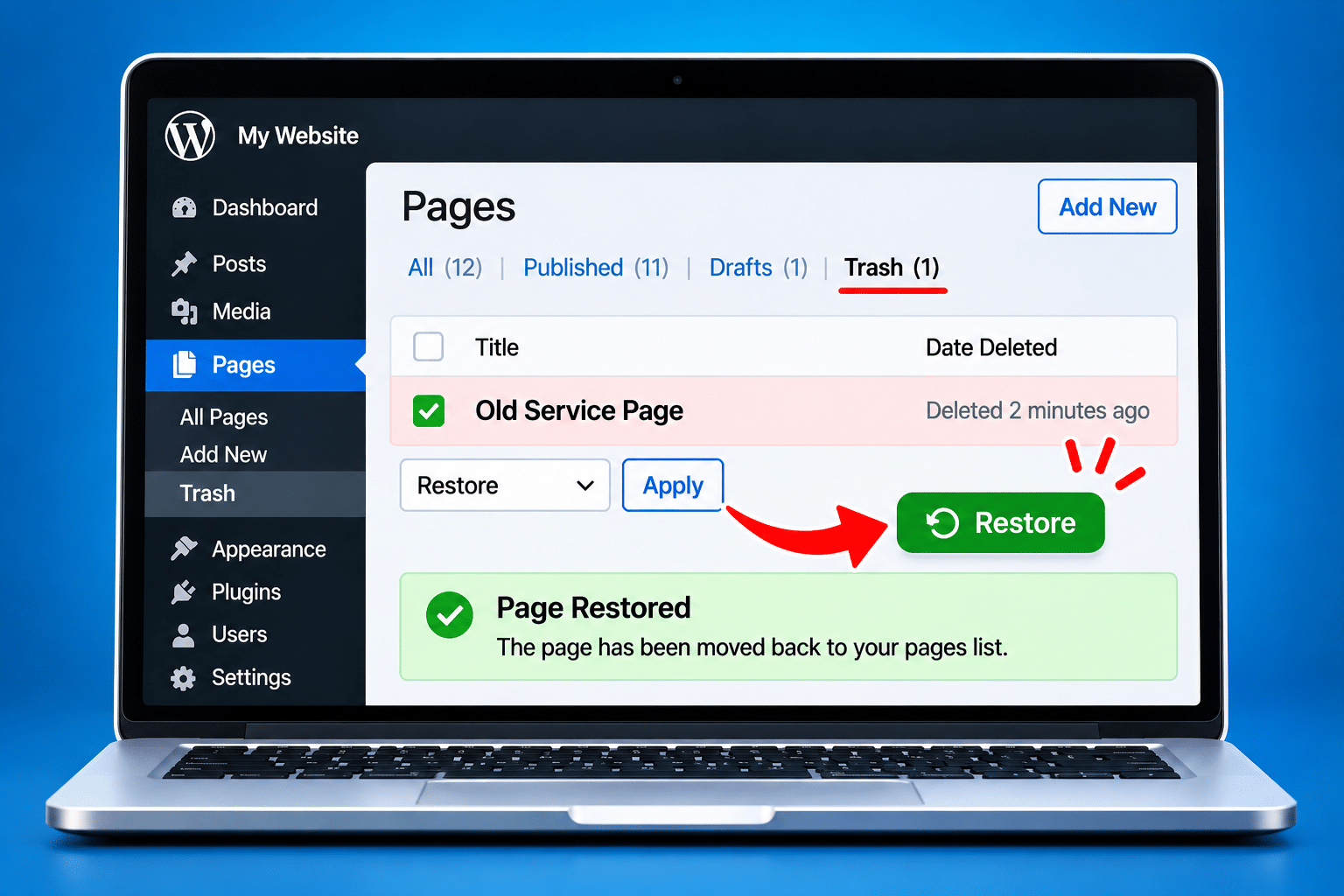
To restore a deleted WordPress page, log in to your WordPress dashboard and go to Pages > All Pages > Trash. Find the missing page, move your pointer over its title and select Restore. WordPress will normally return the page to the status it had before it was moved to the Trash.
After restoring it, open the page and check its content, website address, visibility and navigation links. If the page was previously published, confirm that visitors can access it again.
If the page isn’t in the Trash, it may have been permanently deleted, automatically removed after the Trash retention period or simply moved to a different status. Check your drafts, published pages and backups before assuming the content is lost.
Important: Don’t restore an entire website backup without checking what newer content, enquiries, orders or other changes might be overwritten.
What Happens When You Accidentally Delete a WordPress Page?
When you select Trash for a page in the WordPress dashboard, WordPress normally doesn’t remove the content permanently straight away. Instead, it changes the page’s status and moves it into a separate area called the Trash.
This gives you an opportunity to recover the page if you’ve made a mistake. The page will usually stop being available to ordinary website visitors while it’s in the Trash, but its content remains stored in WordPress until it’s permanently deleted.
For example, imagine you run a kitchen installation business and accidentally remove your Bespoke Kitchens page. The page may disappear from your public website, and visitors following its old address might see a 404 error. However, if it’s still in the WordPress Trash, you can usually restore it without having to recreate the content.
Does WordPress Automatically Delete Pages Permanently?
WordPress normally keeps deleted items in the Trash for 30 days by default. After that, the system may permanently remove them automatically. However, the retention period can be changed through website configuration, so it isn’t necessarily the same on every website.
Some websites may also have plugins or custom settings that affect how deleted content is handled. This is why it’s best to check the Trash as soon as you notice a missing page rather than leaving it for several weeks.
Does Deleting a Page Also Delete Its Images?
Normally, deleting a WordPress page doesn’t automatically delete the images stored in the Media Library. Those image files usually remain available and may still be used elsewhere on your website.
However, this doesn’t mean every design element will necessarily return exactly as expected. If a page was built using a custom page builder, templates or additional plugins, it’s worth checking the layout carefully after restoring it.
How Do I Restore a Deleted WordPress Page From the Trash?
If the page is still in the WordPress Trash, recovering it is usually straightforward. You won’t normally need to access your hosting account, edit website files or install another plugin.
Step 1: Log In to Your WordPress Dashboard
Open your WordPress administration area and log in using your usual account details. On many self-hosted WordPress websites, you can access the dashboard by adding /wp-admin/ to the end of your website address.
You’ll need an account with the appropriate permissions to view and restore deleted pages. If the necessary options aren’t visible, ask your website administrator to check your access.
Step 2: Go to Pages > All Pages
In the left-hand dashboard menu, select Pages, then All Pages. This opens the screen where WordPress lists the pages on your website.
You’ll normally see filters near the top for different page statuses. Depending on your setup, these may include All, Published, Draft and Trash.
Step 3: Select Trash
Click the Trash filter to view the pages that have been deleted but not yet permanently removed. If the Trash filter isn’t visible, there may be no pages currently in the Trash, or your account may not have access to them.
Look through the list for the missing page. If you have several deleted pages, take care to identify the correct one before restoring it.
Step 4: Find the Deleted Page
Look for the title of the page you accidentally removed. If several pages have similar names, check carefully to avoid restoring the wrong one.
For example, you might have an old draft called Kitchen Services and a published page called Bespoke Kitchen Installation. Restoring the wrong page could create confusion, particularly if you’re trying to recover an important service page.
Step 5: Click Restore
Move your pointer over the deleted page title and select Restore. WordPress should remove it from the Trash and return it to its previous status.
If the page was published before deletion, it will normally return to published status. If it was a draft, it will normally return to draft status. Check the result rather than assuming the page is immediately public.
Step 6: Open the Restored Page
Return to Pages > All Pages and find the restored page. Select Edit to check the content, settings and layout, then use View or Preview as appropriate.
Make sure the page contains the expected information and that the website address is correct. If it’s supposed to be publicly available, open the live URL in a separate browser window.
Step 7: Check Your Website Navigation
Finally, check whether visitors can find the page through your website menu and other relevant links. Restoring the page doesn’t guarantee that every menu item or link removed during deletion will automatically return.
Test the website on desktop and mobile devices. If you previously changed redirects or navigation settings, review those changes so visitors reach the correct destination.
What Should I Check After Restoring a WordPress Page?
Once the page has been restored, it’s tempting to assume the problem is solved. However, it’s worth checking a few details to make sure everything is working as it should.
Check the Page Status
Look at whether the page is Published, Draft, Private or another status. If the page was previously public, confirm that it’s available to ordinary visitors rather than only appearing when you’re logged in.
Don’t change the status without checking whether the page was intentionally restricted before it was deleted.
Check the Page URL
Open the page and confirm that its URL matches the original address. Restoring a page from the Trash will often preserve its previous URL, but conflicts with other pages or changes made while it was deleted may affect the result.
If you’ve created a replacement page using the same address, you may need to resolve the conflict before the restored page can use its original URL.
Check the Content and Images
Read through the page and check that the text, headings, images, buttons and other elements appear correctly. If the website uses Elementor, Divi or another page builder, confirm that the layout still matches the rest of your website.
Also check that important links and forms work properly. A page can be restored successfully while still containing outdated information or links that need attention.
Check the Desktop and Mobile Versions
Open the page on a computer and a phone. Look for missing images, unusual spacing, broken layouts and buttons that are difficult to use.
Some websites use separate mobile navigation settings or different layouts for smaller screens, so checking only the desktop version may not reveal every problem.
What If My Deleted WordPress Page Isn’t in the Trash?
If you can’t find the missing page in the Trash, don’t immediately assume it’s permanently lost. There are several reasons why a page might appear to have disappeared from WordPress.
Check Whether the Page Is Still Published
Go to Pages > All Pages and search for the page title. It may still exist but have been removed from the website menu, assigned a different URL or hidden by another setting.
Try searching for part of the title rather than the exact wording. This can help if the page has been renamed.
Check the Drafts
The page may have been changed from Published to Draft rather than deleted. In that case, it won’t normally appear to public visitors, but the content should still be available in the WordPress editor.
Open the Draft filter and check whether the missing page is listed. If it is, review the content and settings before publishing it again.
Check Whether It’s a Post Instead of a Page
WordPress treats pages and posts as different content types. If you’re looking for an article or news update, it may have been created as a post rather than a page.
Go to Posts > All Posts and check the published, draft and Trash sections there as well. This is particularly useful if you’re not sure how the content was originally created.
Check Whether Your Website Uses Custom Content Types
Some WordPress websites use custom content types for portfolios, properties, products, testimonials or other information. These may appear under separate menu items in the dashboard.
For example, a kitchen company’s completed projects might be managed through a Portfolio section rather than Pages. If an item has disappeared, check the relevant content area before assuming it was deleted.
Check Your User Permissions
Different WordPress accounts may have different permissions. If you’re logged in using a restricted account, you may not be able to view or manage all content.
Ask your website administrator to check whether the missing page exists and whether your account has permission to access it.
Can I Recover a Permanently Deleted WordPress Page?
Possibly, but recovery becomes more complicated once a page has been permanently deleted. When you select Delete Permanently or WordPress automatically empties the Trash, the page is removed from the normal WordPress recovery system.
At that point, you generally can’t restore it through Pages > Trash. You may need a website backup, an earlier copy of the content or help from your hosting provider.
Whether recovery is possible depends on what backups exist, when they were created and whether they contain the deleted page. A backup made after the page was permanently removed may not include it.
Check Whether Your Hosting Provider Has Backups
Many hosting providers offer backup services, although the availability, frequency and retention periods vary. Some provide daily backups, while others offer weekly backups or require customers to arrange their own backup system.
Log in to your hosting control panel or contact your hosting provider to ask whether a suitable backup is available. Ideally, you need a backup created before the page was deleted.
Check Whether You Have a WordPress Backup Plugin
Your website may already use a backup plugin that stores copies of the database and files. If so, check whether it has a backup from before the deletion.
Don’t install another backup plugin or start restoring files without first understanding how the existing backup system works. Restoring the wrong backup could create additional problems.
Could the Content Exist Somewhere Else?
If no suitable backup exists, you may still have an earlier copy of the page in a document, email, website export or content management system. You might also have a copy of the text used when the page was originally created.
Public search results or archived copies of websites may occasionally help recover some text, but they aren’t reliable backups and may not contain the complete page or its original design.
How Do I Recover a Deleted WordPress Page From a Website Backup?
If the page has been permanently deleted, a backup may provide the best opportunity for recovery. However, this is where you need to be particularly careful, because restoring a website backup can affect more than the missing page.
Most WordPress pages are stored in the website database. A full backup may include the database, theme files, plugins, images and other website content. Restoring that backup can return the website to an earlier state, potentially replacing newer information.
Step 1: Identify the Correct Backup
Look for a backup created before the page was deleted. If you don’t know when the deletion happened, check the dates of available backups and any records that might help establish when the page was last visible.
Remember that an older backup may contain the missing page but may not include recent changes made elsewhere on the website.
Step 2: Create a Backup of the Current Website
Before restoring anything, create a fresh backup of the current website if possible. This gives you a recovery point in case the restoration causes unexpected problems.
Make sure the backup includes the information needed for your website, and ideally verify that it can be restored. A backup file that hasn’t been checked may not provide the protection you expect.
Step 3: Avoid Restoring the Entire Live Website Immediately
If your website has received new enquiries, published articles, customer registrations or online orders since the older backup was created, a full restoration could overwrite that information.
For a busy business website, this can be a much bigger problem than losing one page. It’s often safer to recover the missing content separately rather than replacing the entire live database.
Step 4: Consider Using a Staging Website
A staging website is a separate copy of your website used for testing and development. If your hosting provider supports staging, it may be possible to restore the older backup there without changing the live website.
You can then inspect the recovered page and decide how best to bring its content back to the live website. Depending on the page builder and website setup, this might involve copying the content, exporting a template or carefully transferring the necessary data.
Step 5: Recover Only What You Need
Where possible, aim to recover the missing page rather than roll the whole website back to an earlier date. This can reduce the risk of losing newer information.
However, recovering individual pages from backups isn’t always a simple one-click process. It may require technical knowledge of WordPress databases, page builders and related content, so professional assistance may be worthwhile.
Step 6: Test the Recovered Page
After recovering the page, check its title, URL, content, images, design and functionality. If the page uses forms or other interactive features, test those too.
Also review any redirects or navigation changes made while the page was missing. The aim is to restore the page without creating new problems elsewhere on the website.
Can WordPress Revisions Help Recover a Deleted Page?
WordPress has a Revisions feature that can save earlier versions of page content. This is useful when you accidentally overwrite text, remove a section or make changes you later want to undo.
However, revisions aren’t the same as the Trash. If a page still exists, you may be able to open it and use Revisions to restore an earlier version. If the page has been permanently deleted, its revisions are not a reliable recovery method.
How Do I Check WordPress Page Revisions?
Open the existing page in the WordPress editor and look for the Revisions option in the page settings, if available. WordPress may display previous versions of the content that you can compare and restore.
The number of available revisions depends on your website’s configuration and whether revisions have been enabled or limited. Some page builders also have their own history or revision tools.
When Are Revisions Most Useful?
Revisions are particularly helpful when the page hasn’t actually been deleted, but its content has been changed by mistake. For example, if you accidentally replace several paragraphs with new text and save the page, an earlier revision may allow you to recover the original wording.
Before restoring an older revision, check what other changes it would undo. You don’t want to recover one paragraph while accidentally removing other improvements made since that version was saved.
How Do I Fix Menus and Links After Restoring a WordPress Page?
Once the missing page is back, check how visitors reach it. If you removed the page from your navigation menu when it was deleted, restoring the content won’t necessarily put the menu item back.
For classic WordPress themes, navigation is often managed through Appearance > Menus. For block themes, you may need to use Appearance > Editor and the Navigation block. Some page builders use their own header and menu systems.
Check the main menu, footer and mobile navigation. Make sure the restored page appears in the correct place and that its link leads to the intended URL.
What If I Created a Redirect While the Page Was Deleted?
If you previously redirected the deleted page’s address to another location, review that redirect before making the restored page publicly available. Otherwise, visitors may continue being sent to the replacement page even though the original page now exists again.
Remove or update the redirect where appropriate, then test the original URL. Be careful if other redirects depend on the same address, because changing one rule can sometimes affect a wider redirect setup.
What If the Page Still Shows a 404 Error?
First, confirm that the page is published and that you’re using the correct URL. Then check whether a redirect, permalink conflict or caching issue is affecting the address.
If the page exists in WordPress but the public URL doesn’t work, avoid changing website-wide permalink settings without checking the possible impact. Ask your website administrator or developer to investigate if the cause isn’t clear.
Will Restoring a WordPress Page Fix Google and SEO Problems?
If the page was previously indexed by Google, restoring it at the same URL may help recover its availability to visitors and search engines. However, this doesn’t guarantee that its previous rankings or traffic will return immediately.
Search engines may have discovered that the page was missing while it was deleted. Depending on how long it was unavailable, Google may need to recrawl the restored page and reassess it.
Make sure the page is publicly accessible, contains the intended content and isn’t accidentally marked as noindex. Check that internal links point to the correct URL and that any temporary redirects have been reviewed.
Should I Use Google Search Console?
If you have access to Google Search Console, you can use its URL Inspection tool to check how Google sees the restored page. You may also be able to request indexing after confirming that the page is accessible.
Requesting indexing doesn’t guarantee immediate inclusion in search results or a particular ranking. It’s simply a way to ask Google to revisit the URL.
What If the Restored Page Has a Different URL?
If the page has been restored under a different address, check whether the original URL can safely be used again. Keeping an established URL is often preferable when the page is intended to return to its previous location.
If the address must change, consider whether a suitable redirect is needed from the old URL to the new one. Also update internal links and navigation so visitors reach the correct page directly.
Common Problems When Restoring a Deleted WordPress Page
Restoring a page from the Trash is often quick, but occasionally the page doesn’t behave exactly as expected. The following checks can help you identify common problems.
The Restore Option Isn’t Available
If you can’t see Restore, check that you’re looking in the correct Trash section and that your account has permission to restore the content. You may also be viewing a different content type, such as Posts or a custom portfolio section.
If the page has already been permanently deleted, it won’t normally appear in the Trash. In that case, you’ll need to investigate backups or other recovery options.
The Page Has Been Restored but Isn’t Visible
Check whether the page is Published or Draft. A restored draft won’t normally be publicly available until it’s published.
Also check whether the page is Private or password protected. If it should be public, review its visibility settings carefully before making changes.
The Page Looks Different From Before
If the page was created using a page builder or custom template, check whether its original layout settings are still available. Missing plugins, changed templates or other website updates may affect how the restored content appears.
Don’t immediately rebuild the page from scratch. First, compare it with other pages that use the same design and check whether the relevant page-builder tools are still active.
The Page Images Are Missing
Check whether the images still exist in the WordPress Media Library. If they do, the page may simply have broken references or layout settings that need correcting.
If the image files themselves have been deleted, restoring the page won’t necessarily recover them. You may need to restore the images separately from a backup or upload replacement files.
The Page URL Has Changed
A URL conflict can occur if another page was created using the original address while the deleted page was in the Trash. WordPress may assign a different slug to avoid duplicate URLs.
Check the page’s permalink settings and identify which page should use the original address. Avoid changing established URLs without considering existing links and redirects.
The Page Still Shows Old Content
If the page has been restored but visitors see outdated information, check whether caching is involved. A caching plugin, hosting cache or content delivery network may still be serving an older version.
Try opening the page in a private browser window. If necessary, clear the relevant cache using the tools already configured on your website rather than installing additional caching plugins.
My Website Has Changed Since the Page Was Deleted
If you’ve updated the theme, plugins or page-builder settings since deleting the page, the restored content may not look exactly as it did originally. Some elements may need adjusting to work with the current website design.
Check the restored page carefully before making it prominent in your navigation. If you’re uncertain about shared templates or global settings, seek assistance before making changes that could affect other pages.
Expert Insight From Daren Ward

Having worked in website design and development since 2004, one piece of advice I’d give any business owner who has accidentally deleted a page is not to rush into making more changes. The first thing I’d check is whether the page is still in the WordPress Trash. If it is, the solution may be much simpler than you think.
Where I’d be particularly careful is when somebody suggests restoring the entire website from an older backup just to recover one missing page. That could solve the original problem but create several new ones, especially if the business has added content, received enquiries or processed orders since the backup was created. I’d always want to understand exactly what the restoration would change before going ahead.
I’d also make sure the recovered page works properly once it’s back. Check the original URL, navigation links, images, forms and mobile layout. Recovering the content is important, but the job isn’t finished until customers can find and use the page again. A few careful checks can save a great deal of frustration later.
Important Warning Before Restoring a WordPress Backup
Restoring an older website backup can overwrite information added since that backup was created. Depending on the website, this could include new blog posts, page changes, customer registrations, contact form entries, bookings or WooCommerce orders.
Never assume that restoring an entire backup is the safest way to recover one deleted page. First, create a fresh backup of the current website and investigate whether the missing page can be recovered separately.
For an active business website, consider using a staging environment to inspect an older backup without changing the live website. If you’re unsure how to recover individual pages or database content safely, ask your hosting provider or a WordPress professional for assistance.
WordPress Page Recovery Checklist
Use this checklist if you’ve accidentally deleted an important WordPress page.
- Stop making unnecessary changes until you’ve checked what happened.
- Log in to your WordPress dashboard.
- Go to Pages > All Pages > Trash.
- Look for the missing page and select Restore if available.
- Check whether the restored page is Published or Draft.
- Confirm that the page contains the expected text and images.
- Check whether its original URL still works.
- Review the main menu, footer and mobile navigation.
- Test buttons, forms and other important links.
- If the page isn’t in the Trash, check drafts, posts and custom content types.
- Investigate available backups if the page was permanently deleted.
- Create a current backup before attempting a major restoration.
- Consider restoring an older backup to staging rather than the live website.
- Recover only the missing content where possible.
- Check redirects and caching if the restored page isn’t displaying correctly.
- Use Google Search Console to inspect the restored URL if appropriate.
- Test the finished page on desktop and mobile.
Frequently Asked Questions About Restoring Deleted WordPress Pages
How Do I Recover a Deleted Page in WordPress?
Go to Pages > All Pages > Trash in your WordPress dashboard. Find the deleted page and select Restore. If the page is still in the Trash, WordPress will normally return it to its previous status. Check the page’s content, URL and visibility afterwards.
Can I Restore a WordPress Page After Emptying the Trash?
Not through the normal WordPress Trash screen. Once the page has been permanently deleted, you may need a website backup or another saved copy of the content. Recovery depends on what backups are available and isn’t guaranteed.
How Long Does WordPress Keep Deleted Pages?
WordPress normally keeps deleted pages in the Trash for 30 days by default. However, the retention period can be changed through website configuration, so some websites may keep deleted content for a shorter or longer period.
Will Restoring a WordPress Page Bring Back Its Original URL?
Usually, restoring a page from the Trash preserves its original URL, provided another page hasn’t taken that address and the relevant settings haven’t changed. Check the live URL after restoration to make sure visitors can access it correctly.
Can I Recover a WordPress Page Without a Backup?
Yes, if the page is still in the Trash. You may also be able to recover content from an existing draft, revision or another saved copy, depending on what happened. If the page has been permanently deleted and no backup exists, full recovery may not be possible.
Will Restoring a Deleted Page Also Restore Its Images?
If the images are still in the WordPress Media Library, they may appear again when the page is restored. However, if the image files were separately deleted or the page’s design settings have changed, you may need additional recovery work.
Can I Restore Just One WordPress Page From a Backup?
Sometimes. The process depends on the backup system, WordPress configuration and page builder. It may be possible to restore an older backup to a staging website and recover the required content without overwriting the live website, but technical assistance may be needed.
Why Is My Restored WordPress Page Still Showing a 404 Error?
Check that the page is published and that you’re using the correct URL. A redirect, permalink conflict or caching issue may also be involved. If the problem continues, ask your website administrator to check the configuration rather than making broad changes to permalink settings.
Will My Google Rankings Return After I Restore a Deleted Page?
Not necessarily. Restoring the page at its original URL may help, but search engines may need to recrawl and reassess it. Previous rankings and traffic aren’t guaranteed to return immediately. Google Search Console can help you monitor the page’s indexing status.
What Should I Do If I Accidentally Deleted My WordPress Homepage?
Check Pages > Trash and restore the homepage if it’s available. Then check Settings > Reading to confirm the correct page is assigned as your static homepage. Test the main website address and navigation afterwards. If the homepage was permanently deleted or uses a custom design, professional help may be advisable.
Summary: How to Restore an Accidentally Deleted WordPress Page
Accidentally deleting a WordPress page can be worrying, but it doesn’t always mean the content is lost. If the page is still in the Trash, you can usually restore it in just a few steps through the WordPress dashboard.
If the page isn’t in the Trash, check whether it has been moved to Draft, renamed or stored under another content type. If it has been permanently deleted, investigate your website backups before attempting any major restoration.
Most importantly, avoid making the problem worse by restoring an older backup over a live website without understanding what might be overwritten. Once the page has been recovered, check its content, URL, navigation and functionality so customers can use it again without problems.
Getting Further Help With WordPress Page Recovery
If you’ve permanently deleted an important page, can’t find a suitable backup or are concerned about losing newer website information during recovery, professional assistance may be worthwhile. You can learn more about our WordPress website maintenance service if you need help recovering content, checking website backups or resolving WordPress problems.
Key Takeaways
- WordPress normally moves deleted pages to the Trash before permanent deletion.
- Restore a page through Pages > All Pages > Trash.
- WordPress normally keeps items in the Trash for 30 days by default, although this can be changed.
- Check drafts, posts and custom content types if the page isn’t in the Trash.
- Permanently deleted pages may require recovery from a backup.
- Don’t restore an entire live website backup without checking what newer information might be lost.
- A staging website can help you inspect an older backup safely.
- WordPress revisions may help recover overwritten content on an existing page.
- Check URLs, navigation, redirects, images and forms after restoring a page.
- Restoring a page doesn’t guarantee that previous Google rankings will return immediately.
Found This Helpful? Share It
If you found this article useful, please share it with other business owners who might find it helpful too.
A quick share on LinkedIn, Facebook or your favourite social platform could help someone else find the advice they need.



