
How Do I Delete a WordPress Page Without Affecting My Website?
You’ve been looking through the pages on your WordPress website and noticed something that shouldn’t be there anymore. Perhaps it’s an old service you no longer offer, a promotional page from last year or a duplicate page that was created by mistake. Naturally, you want to remove it and keep your website tidy.
But there’s one thing making you hesitate. What if deleting that page causes something else to stop working? Could it leave a broken link in your menu, affect your Google rankings or accidentally remove information that customers still need?
These are sensible concerns, particularly if somebody else originally built your website and you’re not entirely sure how everything fits together. Deleting a WordPress page is usually straightforward, but removing it without causing problems requires a little more thought. The good news is that you can reduce the risks by checking a few important things before you click Trash.
Quick Answer
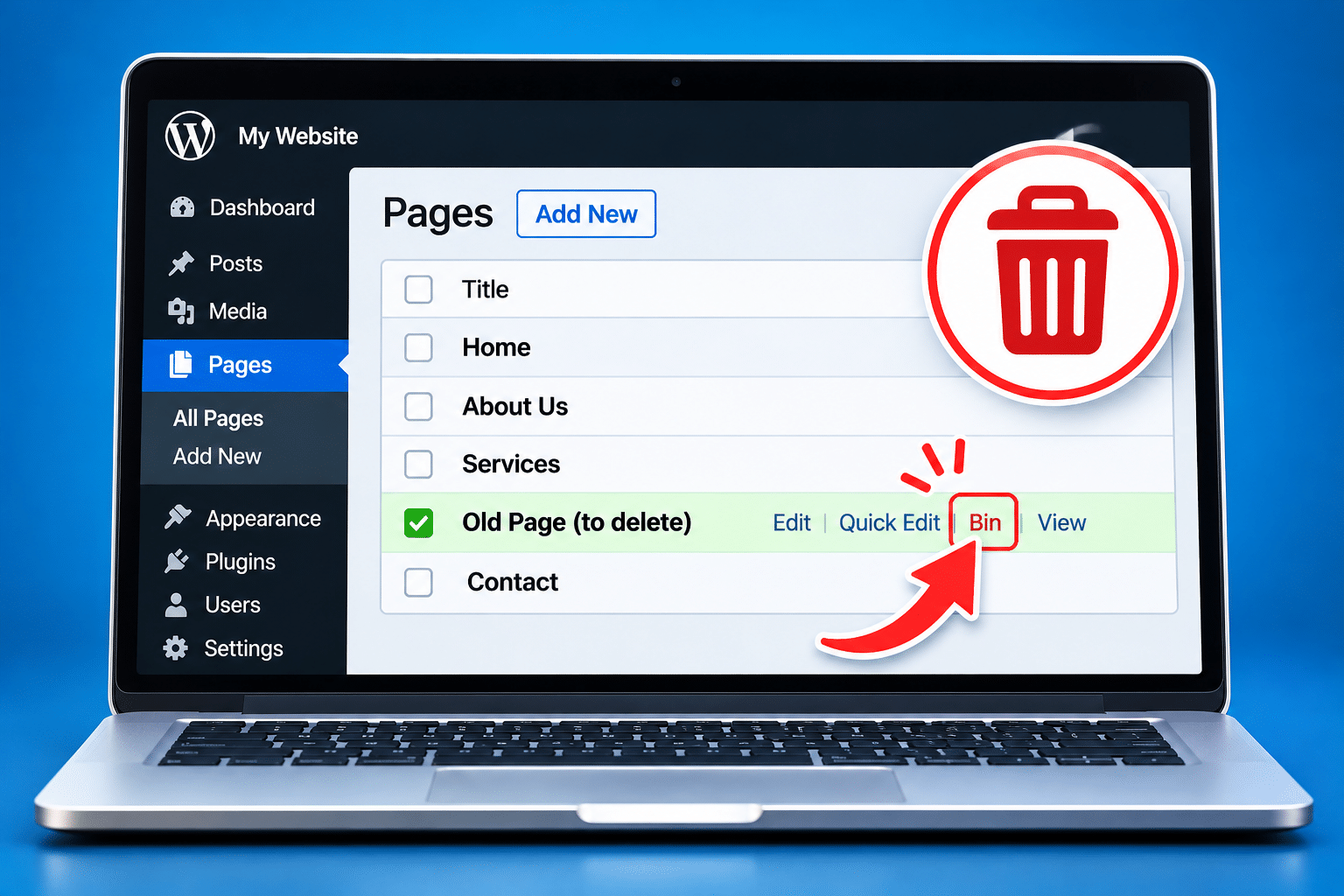
To delete a WordPress page, log in to your dashboard, go to Pages > All Pages, find the page you want to remove and select Trash. WordPress normally moves the page into the Trash rather than permanently deleting it immediately.
However, before removing a published page, check whether it’s linked from your website menu, other pages, Google search results or external websites. If people still use its address, you may need to create a 301 redirect to a suitable replacement page.
For important or established pages, make a backup first. If you’re unsure whether the page is still needed, consider changing it to a draft or reviewing its content instead of deleting it straight away.
Important: Deleting a page doesn’t automatically remove every link pointing to it, and it doesn’t guarantee that your website’s search visibility will remain unchanged.
What Happens When You Delete a WordPress Page?
When you delete a page through the normal WordPress dashboard, the first step is usually to move it into the Trash. This removes the page from its published location, but the page record remains available for recovery until it’s permanently deleted or the Trash is emptied.
WordPress doesn’t normally delete your entire website, other pages or the theme simply because you remove one page. However, the page may be connected to other parts of your website in ways that aren’t immediately obvious.
For example, imagine you run a cleaning company and decide to remove an old Carpet Cleaning service page. Your homepage might contain a button linking to it, your Services menu might include it and several blog articles might recommend that service. Once the page is removed, those links may lead visitors to an error page unless you update them or provide a suitable redirect.
The page might also receive visitors from Google or have links pointing to it from other websites. Removing it could mean losing that traffic if there’s no useful replacement.
Does Deleting a Page Delete Its Images?
Normally, deleting a WordPress page doesn’t automatically delete the image files stored in your Media Library. Those files may still be used elsewhere on your website.
Don’t rush to delete images simply because you’ve removed a page. An image that appears on one service page might also be used on your homepage, in a blog article or within a shared design template.
Can Deleting One Page Break the Whole Website?
Deleting an ordinary, independent content page is unlikely to break the entire website. However, removing a page used for an important function can cause problems.
For example, your homepage, blog listing, WooCommerce shop, checkout or account page may have a special role in your website’s configuration. Removing one of these without checking the settings could interfere with navigation, shopping or other essential features.
Custom-built websites may also rely on specific pages for forms, booking systems, membership areas or landing-page journeys. That’s why it’s important to identify what the page does before removing it.
What Should I Check Before Deleting a WordPress Page?
Before removing a page, take a few minutes to check whether it still serves a purpose. This is especially important for established business websites where pages may have been linked together over several years.
Check Whether the Page Is Still Useful
Ask yourself why you’re deleting it. Is the information completely outdated, is the service no longer available or does another page already cover the same subject?
If the information is still useful but needs updating, editing the existing page may be better than deleting it. You could improve the content, replace old images or update the service details while keeping the existing website address.
Check Whether Other Pages Link to It
Look for links to the page from your homepage, service pages, blog articles and footer. If visitors follow one of those links after you’ve deleted the page, they may reach a 404 error instead of the information they expected.
You can check links manually on a small website. For larger websites, a suitable site-crawling tool can help identify internal links, although access and accuracy will depend on the tool and website configuration.
Check Whether the Page Is in Your Navigation Menu
A page may be linked from the main menu, footer menu or mobile navigation. Removing the page itself doesn’t guarantee that every navigation link will be removed automatically.
Check your menu settings and any custom header or footer templates. If the page is listed, decide whether to remove the link or replace it with another useful destination.
Check Whether the Page Receives Visitors
If your website uses Google Analytics or another analytics tool, check whether people have been visiting the page. You may discover that an old-looking page still brings enquiries or helps visitors find an important service.
Google Search Console can also help you understand whether a page receives clicks and impressions from Google Search. If the page attracts relevant visitors, consider whether updating it would be more valuable than removing it.
Check Whether the Page Has External Links
Other websites may link to the page, including local directories, business partners or previous marketing campaigns. Those links won’t necessarily disappear when you delete the page.
If the page has useful external links, a relevant redirect may help visitors reach the information they were originally looking for. However, the replacement should genuinely match their expectations rather than sending everyone to your homepage.
Make Sure You Have a Backup
Before making important changes to an established website, it’s sensible to create a suitable backup. A reliable backup should include the website database and relevant files, and ideally you should know how to restore it.
For a straightforward draft page that was created by mistake, a full backup may not always be necessary. But for an established published page, particularly one connected to important website functions, having a recovery option is worthwhile.
How Do I Delete a WordPress Page Step by Step?
Once you’ve checked that the page can safely be removed, you can delete it through the WordPress dashboard. These instructions apply to a standard WordPress installation, although the exact layout may vary depending on your version and website configuration.
Step 1: Log In to Your WordPress Dashboard
Open your WordPress administration area and log in using an account with permission to delete pages. On many self-hosted WordPress websites, the dashboard can be reached by adding /wp-admin/ to the website address.
If you can’t access the dashboard or don’t see the Pages option, check your account permissions with the website administrator.
Step 2: Go to Pages > All Pages
In the left-hand dashboard menu, select Pages, then All Pages. WordPress should display a list of the pages on your website.
Use the search box if you have many pages and need to find a particular one. Make sure you’re selecting the correct page, especially if several have similar names.
Step 3: Open the Page Before Removing It
Before deleting anything, select View or Edit to confirm that you’ve found the right page. Check the title, content and website address.
This extra step is useful because you may have several pages with similar titles, including drafts, old versions and published pages. Removing the wrong one could create unnecessary problems.
Step 4: Record the Existing URL
Copy the page’s public website address before deleting it. For example, the address might end in /old-service/.
You’ll need this address if you decide to create a redirect, check for broken links or investigate how the page was previously used. Keep it somewhere accessible until you’ve completed your checks.
Step 5: Move the Page to Trash
Return to Pages > All Pages, move your pointer over the page title and select Trash. Alternatively, you may find a Move to Trash option inside the page editor.
WordPress should move the page into the Trash. This is normally a reversible step, provided the page hasn’t been permanently deleted or automatically removed from the Trash.
Step 6: Check the Live Website
Open your website in a separate browser window and check the areas where the deleted page previously appeared. Look at the main navigation, homepage, relevant service pages and footer.
Check whether links still point to the old address. If the page had a suitable replacement, confirm that any planned redirect works correctly.
Step 7: Test the Website on Mobile
Don’t forget to check your website on a phone. Some websites use separate mobile menus or different layouts that may contain links you haven’t updated.
Make sure visitors can still find your important services, contact information and other key pages. If you removed a menu item, check that the navigation still looks tidy and works properly.
Step 8: Permanently Delete Only When You’re Sure
If you’re confident the page is no longer needed and you’ve completed the necessary checks, you can permanently delete it from the Trash. However, there’s usually no reason to rush this step.
Keeping the page in the Trash temporarily gives you an opportunity to restore it if you discover something important was overlooked. Remember that WordPress may automatically empty the Trash after a configured period.
What Is the Difference Between Moving a Page to Trash and Permanently Deleting It?
WordPress normally gives you two stages of deletion. The first is moving the page to the Trash, and the second is permanently deleting it.
When a page is moved to the Trash, it’s removed from normal public access, but its content remains in the WordPress database for the time being. You can usually restore it through the Trash screen.
When a page is permanently deleted, WordPress removes that page record rather than keeping it available for ordinary restoration. Recovering it may then require a backup or another recovery method, and success isn’t guaranteed.
| Action | What Happens | Can You Reverse It? |
|---|---|---|
| Move to Trash | Removes the page from normal public access and places it in the Trash. | Usually yes, while the page remains in the Trash. |
| Restore | Returns the page from the Trash to its previous status. | Yes, but you should check its settings and links afterwards. |
| Delete Permanently | Removes the page record from WordPress’s normal recovery system. | Not through the ordinary Trash screen. A backup may be needed. |
| Empty Trash | Permanently removes the items currently in the Trash. | Not through WordPress’s normal restore option. |
How Long Does WordPress Keep Deleted Pages in the Trash?
By default, WordPress normally keeps items in the Trash for 30 days before permanently deleting them. However, this period can be changed through website configuration, and some websites may have a different retention period.
Don’t rely on the Trash as a long-term backup. If the content is important, keep a proper backup or export before deleting it.
Do I Need to Create a Redirect After Deleting a WordPress Page?
If the deleted page has an existing address that people may still visit, a redirect can be important. A redirect sends visitors from an old URL to a different destination rather than leaving them on an error page.
For permanently moved content, a 301 redirect is commonly used. It tells browsers and search engines that the old address has been permanently replaced by another location.
Imagine you previously offered separate Domestic Carpet Cleaning and Commercial Carpet Cleaning services, but you’ve now combined them into one Carpet Cleaning page. If you remove the old service pages, redirecting their addresses to the new combined page may be appropriate.
However, redirects should only point to relevant destinations. If you’ve stopped offering a service entirely and there’s no suitable replacement, forcing visitors to an unrelated page may create a confusing experience.
How Can I Create a 301 Redirect in WordPress?
There are several ways to manage redirects. Some SEO plugins, including certain configurations of Rank Math, provide a redirection feature. Hosting providers may also offer redirect settings, and some websites use dedicated redirection tools.
The general process is to enter the old URL as the source, choose the new relevant URL as the destination and select a permanent 301 redirect. After saving it, test the old address to make sure it reaches the correct page.
Be careful not to create redirect loops, where one address sends visitors to another address that eventually sends them back to the first. Also avoid installing extra plugins without checking whether your website already has a redirect system.
Should I Redirect Every Deleted Page to the Homepage?
No. Redirecting every removed page to your homepage is rarely a good solution. Someone looking for a particular service or article may not find the information they expected, and search engines may treat irrelevant redirects as soft 404 errors.
If a page has been replaced by something closely related, use that replacement. If the content has been permanently removed and there’s no suitable alternative, allowing the old URL to return a genuine 404 or 410 response may be more appropriate.
The correct choice depends on what the page contained, whether people still use it and whether a relevant replacement exists.
How Do I Remove a Deleted WordPress Page From My Website Menu?
After deleting a page, check whether its link is still present in your website’s navigation. Depending on your theme and menu setup, WordPress may remove or alter some navigation references, but you shouldn’t assume every link has been updated.
If your website uses a classic WordPress theme, go to Appearance > Menus, select the relevant menu and look for the old page. Remove the menu item if necessary, then save your changes.
If your website uses a block theme, open Appearance > Editor and find the Navigation block controlling your menu. Remove the outdated link and save the navigation changes.
Some websites use Elementor, Divi or another page builder for their header. In those cases, you may need to check a custom menu widget or header template.
What About Footer and Mobile Menus?
Your website may have separate menus for the footer and mobile visitors. Check those areas too, particularly if the page was linked from several locations.
Also review any buttons or text links on other pages. Removing a menu item doesn’t automatically fix links embedded in your content.
Will Deleting a WordPress Page Affect My Google Rankings?
It can. Whether deleting a page affects your search visibility depends on the page’s importance, its existing rankings, the links pointing to it and what happens to its URL afterwards.
For example, if you delete an old draft page that was never publicly available, the SEO effect is likely to be minimal. But if you delete a service page that attracts regular visitors from Google, you may lose traffic and enquiries associated with that page.
Search engines can eventually remove deleted URLs from their results after discovering that the content is no longer available. A suitable 301 redirect can help visitors reach replacement content, but it doesn’t guarantee that the new page will keep exactly the same rankings or traffic.
Should I Check Google Search Console Before Deleting a Page?
Yes, particularly for established pages. Google Search Console can help you check whether a URL receives clicks and impressions from Google Search.
It’s worth reviewing the page’s performance over a meaningful period rather than judging it from a few days of data. Some pages attract seasonal traffic, while others receive only occasional visits from people who are close to making an enquiry.
What Happens If Google Still Shows the Deleted Page?
Google may continue showing an old URL for a while after you’ve removed the page. Search engines need time to recrawl the address and process the change.
If you’ve created a relevant redirect, Google can discover the new destination when it recrawls the old URL. If the page has been removed without replacement, the URL may eventually disappear from search results.
You can use Google Search Console to inspect the URL and monitor indexing. Its temporary removal tool may be useful in particular situations, but it isn’t a substitute for making the correct permanent change on your website.
Are There Safer Alternatives to Deleting a WordPress Page?
Sometimes deleting a page isn’t the best option. If the information is outdated, incomplete or no longer suitable, you may be able to achieve a better result by updating, combining or temporarily removing the content instead.
Update the Existing Page
If the service is still available but the information is old, editing the page is often the simplest solution. You can improve the wording, replace outdated images, update prices or add new information without necessarily changing the URL.
This can be especially useful if the page already attracts visitors or has links pointing to it.
Combine Similar Pages
If you have several pages covering almost the same subject, combining them into one stronger page may make your website easier to use. For example, you might combine two closely related service pages into a more complete guide.
Before removing the old pages, decide which URL should remain and whether redirects are needed. Also update internal links so visitors are directed to the new or improved content.
Change the Page to Draft
Changing a published page to a draft can be useful if you want to take it offline while keeping the content available in the WordPress editor. However, the page will normally stop being publicly accessible, so links to its URL may still lead to errors.
Changing a page to a draft isn’t a way to preserve its public availability. You should still check navigation links and consider whether a redirect is appropriate.
Use Password Protection or Private Visibility
If you want to restrict access rather than remove the content entirely, WordPress offers password-protected and private visibility settings. These can be useful in certain situations, although they don’t provide a complete security solution for every type of sensitive information.
For confidential business or customer data, use a properly secured system rather than assuming a basic WordPress page password is sufficient.
How Do I Restore a WordPress Page I’ve Accidentally Deleted?
If you’ve accidentally moved a page to the Trash, you may be able to recover it without rebuilding everything from scratch.
Log in to your WordPress dashboard and go to Pages > All Pages. Select the Trash view, find the page and choose Restore. WordPress should return it to its previous status.
Once restored, open the page and check that the content, URL, images and layout are correct. Also check whether the page appears in the appropriate navigation menu and whether any redirects you created need to be reviewed.
What If the Page Has Been Permanently Deleted?
If the page has been permanently deleted or automatically removed from the Trash, the normal Restore option won’t be available. Your next possibility may be a website backup.
However, restoring an entire website backup can overwrite changes made after the backup was created. This could affect new pages, posts, orders, enquiries or other information, depending on the website.
For an established business website, it’s often safer to ask your hosting provider or a WordPress professional whether the deleted page can be recovered without restoring the entire live website.
Common Problems After Deleting a WordPress Page
Even when a page has been removed successfully, you may notice a few unexpected issues. Most can be investigated without making major changes to the website.
The Deleted Page Still Appears in My Menu
Your navigation may still contain a link to the old page, particularly if it was added as a custom link. Check the menu settings and remove or replace the outdated item.
If you’ve already updated the menu but the old link remains visible, caching may be showing an older version of your website.
Visitors Are Seeing a 404 Error
A 404 error usually means the requested URL couldn’t be found. If visitors are reaching the deleted page through an old link, check whether there’s a relevant replacement page.
If there is, consider a suitable redirect. If there isn’t, update internal links and allow the old URL to return an appropriate missing-page response.
The Page Still Appears in Google
Search engines don’t always remove deleted URLs immediately. Google may need to recrawl the address before updating its search results.
Check the URL in Google Search Console if you have access. Make sure the website returns the intended response or redirect, then allow time for search engines to process the change.
The Deleted Page Is Still Visible to Some Visitors
Caching can sometimes cause an old version of a page to remain visible temporarily. This may involve a WordPress caching plugin, hosting cache or content delivery network.
Check the page in a private browser window and confirm whether the old URL is still returning content. If necessary, clear the relevant cache using your existing website or hosting tools.
My Homepage or Another Important Page Has Disappeared
If you’ve removed a page assigned to an important website function, the website may no longer display the expected content. For example, deleting a page assigned as the static homepage can affect what visitors see at the main website address.
Check the website’s relevant settings and restore the page from the Trash if appropriate. If you’re unsure how the page was connected to the website, avoid making further changes until the configuration has been checked.
A Contact Form or Booking Link Has Stopped Working
The deleted page may have contained a form, booking system or important call-to-action link. Even if the rest of the website looks normal, customers may no longer be able to complete the action they expected.
Test important forms, booking links and customer journeys after deleting a page. If a business function has been affected, restore the page or update the relevant links and settings.
Expert Insight From Daren Ward

Having worked in website design and development since 2004, I’ve learned that it’s worth looking beyond the WordPress dashboard before removing an established page. Just because a page looks old or unnecessary doesn’t mean it isn’t still doing something useful for the business.
My approach would be to check whether the page attracts visitors, whether other pages link to it and whether customers still need the information. If the content is simply outdated, improving the existing page may be more valuable than deleting it. If the service has changed, updating the page or redirecting visitors to a suitable replacement may be the better option.
I’d also pay particular attention to the customer journey. Imagine someone clicks a service link in your menu or follows a result from Google, only to reach an error page. That doesn’t create a good impression. Before removing a page, make sure visitors will still be able to find the information they need. A tidy website is important, but keeping it useful and easy to navigate matters even more.
Important Warning Before Permanently Deleting WordPress Pages
Don’t permanently delete a WordPress page until you’ve confirmed that it isn’t required for an important website function. This is particularly important for homepages, WooCommerce pages, membership pages, booking pages and pages connected to custom website features.
Check for internal links, navigation references, existing search traffic and suitable replacement content. Create a backup before significant changes, and avoid permanently emptying the Trash until you’re confident nothing important has been removed.
If the page is part of a custom-built website and you don’t understand its purpose, ask a WordPress professional to check it first. Removing the wrong page could affect customer enquiries, online sales or other important business functions.
Safe WordPress Page Deletion Checklist
Work through these checks before and after removing an established WordPress page.
- Confirm why the page needs to be removed.
- Check whether updating the content would be a better option.
- Make sure the page isn’t used for an essential website function.
- Record the page’s existing URL.
- Check whether the page receives visitors from Google or other sources.
- Look for internal links pointing to the page.
- Check the main menu, footer and mobile navigation.
- Consider whether external websites link to the page.
- Identify a relevant replacement page if one exists.
- Plan a 301 redirect where appropriate.
- Make a suitable backup before significant changes.
- Move the page to Trash rather than permanently deleting it immediately.
- Update outdated menu items, buttons and internal links.
- Test any redirects and check for 404 errors.
- Check the website on desktop and mobile.
- Test important contact forms, booking links and customer journeys.
- Only permanently delete the page when you’re confident it’s no longer needed.
Frequently Asked Questions About Deleting WordPress Pages
How Do I Safely Delete a Page in WordPress?
Go to Pages > All Pages, find the page and select Trash. Before doing so, check whether the page is linked from your navigation, other content or external websites. If there’s a relevant replacement, consider a 301 redirect. Keep a backup for important pages and test the website afterwards.
Will Deleting a WordPress Page Break My Website?
Deleting an ordinary content page usually won’t break the whole website, but it can leave broken links or affect navigation. Removing a page used for your homepage, shop, checkout or another essential function may cause more serious problems. Always check the page’s purpose before deleting it.
Does Deleting a WordPress Page Affect SEO?
It can. If the page receives search traffic, has backlinks or ranks for useful searches, deleting it may affect your website’s visibility. A relevant redirect may help when content has moved, but it doesn’t guarantee that rankings or traffic will remain unchanged.
How Do I Delete a WordPress Page Without Creating a 404 Error?
If there’s a suitable replacement page, you can create a 301 redirect from the old URL to the new one. You should also update internal links. If there’s no relevant replacement, a genuine 404 or 410 response may be appropriate rather than redirecting visitors to an unrelated page.
Can I Restore a Deleted WordPress Page?
Usually, yes, if the page is still in the Trash. Go to Pages > All Pages, open Trash, find the page and select Restore. If it has been permanently deleted, recovery may require a backup and isn’t guaranteed.
How Long Do Deleted WordPress Pages Stay in the Trash?
WordPress normally keeps deleted items in the Trash for 30 days by default, but the period can be changed through website configuration. Don’t use the Trash as your only backup because items may be removed automatically.
Will Deleting a WordPress Page Also Delete Its Images?
Normally, no. Images uploaded to the WordPress Media Library usually remain there when a page is deleted. They may also be used elsewhere on your website, so check before removing image files separately.
Should I Delete an Old Page or Update It?
If the information is still useful or the page receives relevant visitors, updating it may be the better option. If the content is no longer needed, deleting or consolidating it may make sense. Consider its purpose, links and search performance before deciding.
Can I Delete a WordPress Page Without Removing It From Google Immediately?
Yes. Google may continue showing the old URL until it recrawls the page and processes the change. The URL may eventually disappear from search results if the content has been removed. Google Search Console can help you monitor the situation.
What Happens If I Accidentally Delete My WordPress Homepage?
Your website may stop displaying its intended homepage or show unexpected content, depending on its settings. If the page is still in the Trash, restore it and check Settings > Reading to confirm the correct homepage is assigned. If you’re unsure, ask a WordPress professional to investigate before making further changes.
Summary: Deleting a WordPress Page Without Causing Problems
Deleting a WordPress page is easy, but removing it safely means thinking about more than the Delete button. A page may be connected to your navigation, other website content, search engine traffic or important customer actions.
Before removing an established page, check whether it’s still useful, whether other pages link to it and whether a suitable replacement exists. If the page is no longer needed, move it to the Trash, update relevant links and create an appropriate redirect where necessary.
Finally, check that your website still works properly on desktop and mobile. A few minutes spent reviewing the changes can help you avoid broken links, lost enquiries and unnecessary disruption to your business website.
Getting Further Help With WordPress Page Deletion
If you’re unsure whether a page can be safely removed, or you’re concerned about broken links, redirects or changes affecting your website, professional assistance may be worthwhile. You can find out more about our WordPress website maintenance service if you need help keeping your business website organised, working correctly and easy for customers to use.
Key Takeaways
- WordPress normally moves deleted pages to the Trash before permanent deletion.
- Check whether a page is still useful before removing it.
- Deleting a page can leave broken links in menus, buttons and other content.
- Important pages may receive visitors from Google or have external links.
- Use a relevant 301 redirect when content has permanently moved.
- Don’t redirect every deleted page to your homepage.
- Be particularly careful with homepages, shop pages, checkout pages and other essential website functions.
- Keep a suitable backup before significant changes.
- Restore accidentally deleted pages from the Trash while they’re still available.
- Test navigation, redirects, forms and mobile layouts after deleting a page.
Found This Helpful? Share It
If you found this article useful, please share it with other business owners who might find it helpful too.
A quick share on LinkedIn, Facebook or your favourite social platform could help someone else find the advice they need.



