
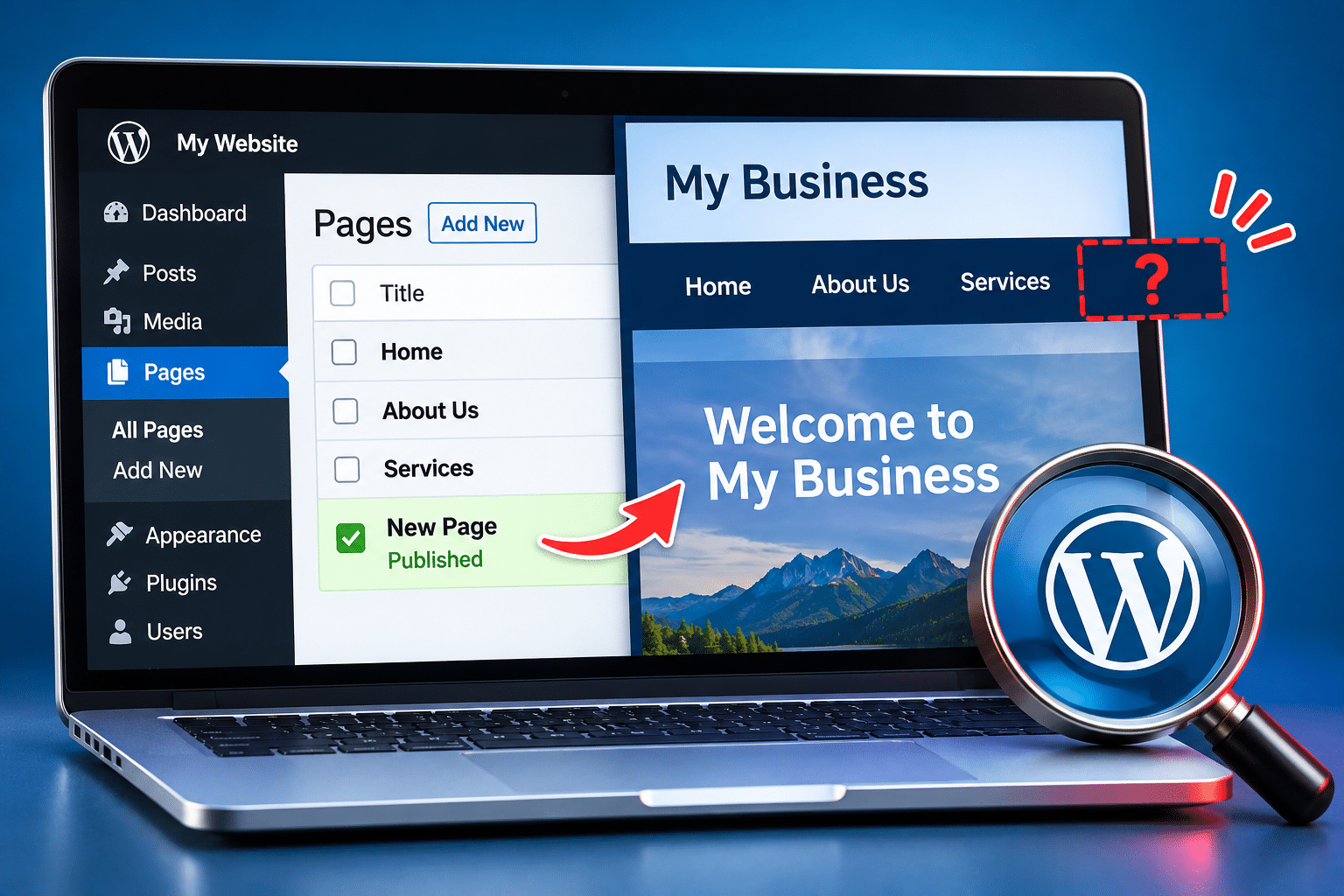
Why Is My New WordPress Page Not Showing in the Menu?
You’ve spent time creating a new page for your WordPress website. Perhaps it’s a page advertising a new service, introducing your team or explaining something important to your customers. You’ve checked the content, added your images and clicked Publish. Everything appears to have gone smoothly, but when you visit your website, the new page is nowhere to be seen in the navigation menu.
It’s easy to assume that something has gone wrong with WordPress, especially if you’re not used to managing websites. You might even create the page again, thinking the first attempt didn’t save properly. However, the problem is often much simpler than that.
Publishing a WordPress page and adding it to your website’s navigation menu are usually two separate actions. Depending on your theme and website setup, you may need to add the page manually, select the correct menu or update a navigation block. This guide explains how to find the problem and fix it without making unnecessary changes to your website.
Quick Answer
If your new WordPress page isn’t showing in the website menu, the most likely reason is that it hasn’t been added to the navigation menu. Publishing a page doesn’t automatically mean it will appear in your website’s header.
If your website uses a classic WordPress theme, go to Appearance > Menus, select the menu used by your website, add the new page and click Save Menu.
If your website uses a block theme, go to Appearance > Editor, open the relevant navigation area and add the page through the Navigation block. Save your changes when finished.
If the page is already included but still doesn’t appear, check its publishing status, the menu location, mobile navigation settings and website caching. The correct solution depends on how your particular WordPress website has been built.
Why Doesn’t WordPress Automatically Show My New Page in the Menu?
WordPress separates the pages you create from the navigation links visitors use to move around your website. This gives website owners more control over which pages appear in the main menu, the footer and other navigation areas.
For example, a local accountant might have pages for Bookkeeping, Payroll, Tax Returns, Privacy Policy and Terms and Conditions. All five pages can be published and available to visitors, but the business might only want the first three in its main navigation menu. The legal pages could instead be linked from the footer.
This is why creating a page doesn’t necessarily add it to your menu. Your website may have a manually managed navigation system that only displays links selected by the administrator.
Some classic WordPress menu setups include an option to automatically add new top-level pages. However, this depends on how the menu is configured, and it doesn’t apply in the same way to every modern WordPress theme or navigation system.
The important distinction is that a page can be published and working correctly even when it isn’t linked from the menu. The missing menu item doesn’t automatically mean that your content has disappeared.
Does a Page Need to Be in the Menu to Work?
No. A published WordPress page can normally be accessed through its direct URL, even if it doesn’t appear in the main navigation. Visitors may reach it through links on other pages, search results or marketing emails.
However, if the page contains an important service or information customers are likely to look for, adding a suitable navigation link can make it easier to find. A well-organised menu helps visitors understand what your business offers without having to search through the entire website.
First, Check That Your New WordPress Page Is Published
Before changing your menu, make sure the page itself has been published. It’s possible to save a page as a draft, schedule it for a future date or leave it in another status that prevents ordinary visitors from seeing it.
Log in to your WordPress dashboard and select Pages > All Pages. Find the page you’ve created and check its status. If it says Draft, the page hasn’t been published yet. If it says Scheduled, it may not become publicly available until the scheduled date and time.
Open the page and check its publishing settings. If you’re ready for visitors to see it, make sure the page is published with the appropriate visibility settings. A private page won’t be available to ordinary visitors in the same way as a public page.
Once you’ve confirmed the page is published, select View Page and check that it opens correctly. Copy its URL if necessary, as this will help you confirm you’re adding the correct destination to your menu.
What If the Page Opens but Isn’t in the Menu?
If the page opens normally when you use its direct address, that’s a useful clue. It suggests the page exists and the problem is more likely related to navigation rather than the page itself.
At this point, you can move on to checking your menu settings. The steps will depend on whether your website uses a classic WordPress theme, a block theme or a separate page builder with its own header and navigation system.
How Do I Add a New Page to a Classic WordPress Menu?
If your website uses a classic WordPress theme, you may be able to manage its navigation through the traditional Menus screen. This is often the simplest place to add a new page to an existing website menu.
Follow these steps carefully:
- Log in to WordPress. Open your WordPress dashboard using your administrator account or another account with the necessary permissions.
- Go to Appearance > Menus. If this option is available, it should open the traditional WordPress menu management screen.
- Select the correct menu. If your website has more than one menu, choose the one used for your main navigation.
- Find your new page. Look in the Pages section, where WordPress normally allows you to choose from recently created pages or view a fuller list.
- Select the page. Tick the checkbox beside the page you want to include.
- Click Add to Menu. The page should appear in the menu structure on the right-hand side of the screen.
- Position the menu item. Drag it to the correct place in the menu. Be careful not to indent it accidentally beneath another item unless you want it to become a submenu.
- Click Save Menu. This is important because the changes may not appear on your website until the menu has been saved.
- Check your live website. Open the public website in another browser tab and confirm the new menu item appears in the expected location.
For example, if you run a cleaning company and have created a new End of Tenancy Cleaning page, you might want to place it under your Services menu. You can normally do this by positioning the new item slightly beneath and to the right of the Services item, provided your theme supports dropdown menus.
If you don’t see Appearance > Menus in your dashboard, don’t assume something is broken. Your website may use a block theme or a different navigation management system.
Should I Enable Automatically Add New Top-Level Pages?
Some classic WordPress menus include an option that automatically adds new top-level pages. Although this can be convenient, it isn’t always the best choice for a business website.
If you create several new pages, automatically adding them all could make your navigation crowded or introduce links that don’t belong in the main menu. It may also create a confusing order for visitors.
For most business websites, I’d recommend choosing which pages appear in the navigation rather than automatically displaying every new page. This gives you more control over the customer experience.
How Do I Add a New Page to the Menu Using the WordPress Site Editor?
Modern WordPress block themes use a different approach to navigation. Instead of managing menus through the traditional Appearance > Menus screen, you may need to use the Site Editor and the Navigation block.
If you open the WordPress dashboard and see Appearance > Editor, your website may be using this system. The exact layout of the Site Editor can vary depending on the WordPress version and theme.
To add your new page, follow this general process:
- Open Appearance > Editor. This takes you into the WordPress Site Editor.
- Find the navigation area. Depending on your version of WordPress, you may be able to open a Navigation section or edit the header template part containing the menu.
- Select the Navigation block. This controls the links displayed in that navigation area.
- Add a new navigation item. Use the block’s add option to search for your published page and select it.
- Arrange the links. Move the new item into the position that makes the most sense for your visitors.
- Save your changes. WordPress may ask you to confirm changes to the navigation or template part.
- Check the public website. Confirm the page appears and that its link opens the correct destination.
It’s worth checking whether your website uses more than one navigation block. For example, your header may have a main menu while your footer uses a separate set of links. Editing one won’t necessarily update the other.
If you’re unsure which navigation block controls the visible menu, take care before saving changes. You don’t want to accidentally replace the entire header or remove existing links.
What If I’ve Added the Page but It Still Doesn’t Appear?
One possibility is that you’ve edited a menu that isn’t actually being displayed on your website. WordPress themes can support multiple menu locations, and a website may have separate menus for the header, footer, mobile navigation or other areas.
For example, a restaurant website might have a main navigation menu containing Home, Menu, Book a Table and Contact. It might also have a footer menu containing Privacy Policy and Terms. If you add your new page to the footer menu, it won’t automatically appear in the main header.
In a classic theme, check the menu location settings. Depending on the theme, you may see names such as Primary, Main Menu, Header or Footer. Make sure you’re editing the menu assigned to the location you want to change.
In a block theme, check which Navigation block is used in the relevant header or template part. If there are several navigation blocks or templates, it’s possible to edit one that isn’t used on the page you’re viewing.
What If My Website Uses Elementor or Another Page Builder?
Some websites use a page builder to create custom headers and navigation layouts. In these cases, the visible menu may be controlled by a theme builder, a header template or a dedicated navigation widget.
For example, an Elementor-based website may use a header template that displays a particular WordPress menu. Adding a page to a different menu won’t update the header you’re looking at.
Before changing anything, identify which menu the header is using. If the website has a custom-built header and you’re unsure how it works, ask the original developer or a WordPress professional to check the setup.
Why Is My New WordPress Page Showing on Desktop but Not Mobile?
If the new page appears in your desktop navigation but is missing when you check the website on your phone, the problem may be related to mobile menu settings rather than the page itself.
Some WordPress themes use the same menu for desktop and mobile visitors. Others allow separate menus, different navigation layouts or special mobile header settings. A page added to the desktop menu might not appear in the mobile menu if the two are managed separately.
Start by opening the website on your phone and checking whether the menu is collapsed behind a menu icon. You may need to tap the icon to reveal the full navigation. If your page is part of a dropdown, you might also need to expand the parent menu item.
If the link is genuinely missing, check the theme or page builder settings to see whether a separate mobile menu has been configured. Also check whether the new menu item has any device visibility settings applied.
For a business website, mobile navigation deserves particular attention. Customers using their phones should be able to find your important services and contact information without struggling through a complicated menu.
Could Website Caching Be Hiding My New WordPress Menu Item?
Yes. If you’ve added the page to the correct menu and saved the changes, but the public website still shows the old navigation, caching could be responsible.
Website caching helps pages load faster by storing versions of website content. However, depending on how caching is configured, visitors may sometimes see an older version of a page after you’ve made changes.
For example, you might update your menu while logged in to WordPress and immediately see the new item. When you open the website in a private browser window, the item is missing. This can happen when logged-in visitors receive a fresh version of the website while ordinary visitors are served a cached version.
Before changing any caching settings, try a simple refresh and check the website in a private browser window. If the problem continues, find out whether your website uses a caching plugin, server-level caching or a content delivery network.
Common WordPress caching plugins include WP Rocket, WP Fastest Cache and other performance tools. Each has its own method for clearing cached pages. Your hosting provider may also offer caching controls through its dashboard.
Should I Clear the WordPress Cache?
If you’re confident the menu has been saved correctly and your website is showing an outdated version, clearing the relevant cache may help. However, it’s important to understand which caching system your website uses.
Some websites have several caching layers, such as a WordPress plugin, hosting cache and CDN cache. Clearing one layer may not update the others immediately.
Avoid installing another caching plugin simply to solve this problem. Running multiple caching or optimisation tools without checking their settings can create conflicts and make troubleshooting more difficult.
If you don’t know how your caching system is configured, ask your hosting provider or website developer for help rather than experimenting with unfamiliar performance settings.
What Else Can Stop a WordPress Page Appearing in the Menu?
If you’ve checked the page status, menu settings and caching, there are a few other possibilities worth investigating. These are less common than simply forgetting to add the page, but they can explain why a menu change doesn’t appear as expected.
The Page Has Been Added as a Submenu
In classic WordPress menus, dragging an item slightly to the right can place it beneath another menu item. This creates a submenu or dropdown rather than a top-level link.
If the new page isn’t visible in the main row of navigation links, open the dropdown menus and check whether it’s been placed under another item. If necessary, move it back to the correct level and save the menu.
The Menu Has Too Many Items
A crowded navigation menu can create display problems, particularly on smaller screens. Depending on the theme, links may wrap onto another line, disappear behind other elements or be hidden inside an overflow menu.
If you’ve added several new pages, consider whether they all need to appear in the main navigation. Grouping related services under a clear parent item can often make the menu easier to use.
The Page Has a Visibility Restriction
A page marked Private won’t behave like an ordinary public page. Membership plugins, access-control settings or other website features can also restrict who can view certain content.
If your new page is intended for customers, confirm that it has the correct visibility settings. Don’t remove restrictions from pages containing private or sensitive information just to make them appear in the menu.
The Menu Item Has Custom Visibility Settings
Some themes and plugins allow menu items to be hidden for particular users, devices or conditions. For example, a website may display different navigation links for logged-in members and ordinary visitors.
If the page appears for administrators but not for the public, check whether a visibility rule is affecting the menu item. These settings are not part of every WordPress installation, so the options available will depend on your website.
A Plugin or Theme Conflict Is Affecting Navigation
Occasionally, a theme or plugin problem can prevent menu changes from displaying correctly. This may be more likely if the issue started after an update or a change to the website’s design.
Don’t immediately deactivate multiple plugins or switch themes on a live business website. Those changes could affect important features, layouts or customer enquiries. A safer approach is to create a backup and investigate the issue in a staging environment where possible.
Expert Insight From Daren Ward

Having worked in website design and development since 2004, one thing I always encourage business owners to remember is that a website’s navigation should be designed around what customers are looking for, not simply around every page that exists.
When you add a new service page, it’s natural to want it displayed prominently. However, adding too many links to the main menu can make a website harder to use. Sometimes a new page belongs under an existing Services dropdown, while other pages are better linked from relevant content elsewhere on the website.
My recommendation is to check how the new page fits into the customer’s journey before deciding where to place it. If someone visits your website looking for a particular service, can they find it quickly? If the answer is no, the navigation probably needs attention. A well-organised menu isn’t just about making pages visible. It’s about helping visitors reach the information they need and encouraging them to take the next step.
Important Warning Before Changing WordPress Navigation Settings
Adding a page to an existing menu is normally a straightforward task, but be careful when changing theme settings, header templates or navigation blocks. These can affect the appearance and usability of your entire website.
Before making major changes, make sure a suitable backup is available. If your website uses a custom header built with a page builder, avoid deleting templates or replacing navigation elements unless you understand how they’re connected.
It’s also worth checking your changes on both desktop and mobile devices before considering the job finished. A menu that looks fine on a large screen may be difficult to use on a phone.
WordPress Menu Troubleshooting Checklist
Work through these checks in order if your new page isn’t appearing in the website menu.
- Go to Pages > All Pages and confirm the page exists.
- Check that the page is published and publicly visible.
- Open the page directly to confirm it works.
- Identify whether your website uses a classic theme, block theme or page builder.
- Find the menu or Navigation block used by your website header.
- Add the new page to the correct menu if it isn’t already there.
- Check the position of the item and whether it’s inside a dropdown.
- Save the menu or navigation changes.
- Check the live website on desktop and mobile.
- If the old menu still appears, investigate browser, plugin, hosting or CDN caching.
- Review any visibility settings or theme-specific menu options.
- If the problem continues, ask a WordPress professional to investigate before making major changes.
Frequently Asked Questions About WordPress Pages Not Showing in Menus
Why Is My Published WordPress Page Not Showing in the Menu?
The most common reason is that the page hasn’t been added to the navigation menu. Publishing a WordPress page doesn’t always add it automatically. Check the menu settings in Appearance > Menus or, for a block theme, use the Site Editor to update the Navigation block.
How Do I Add a New Page to My WordPress Menu?
On a classic WordPress theme, go to Appearance > Menus, choose the correct menu, select your new page, click Add to Menu and save your changes. On a block theme, use Appearance > Editor and add the page to the relevant Navigation block. The exact steps may vary depending on your theme.
Why Can’t I Find Appearance > Menus in WordPress?
Your website may use a block theme that manages navigation through the Site Editor rather than the traditional Menus screen. User permissions or a customised administration interface may also affect which options you can see. Check whether Appearance > Editor is available.
Does WordPress Automatically Add New Pages to the Menu?
Not always. Some classic menu setups offer an option to automatically add new top-level pages, but many websites use manually managed navigation. Block themes and custom page-builder headers may use different systems. For business websites, manually choosing important menu links often produces clearer navigation.
Why Is My New Page Showing on Desktop but Not Mobile?
Your theme may use separate desktop and mobile menus, or the page may be hidden inside a collapsed menu or dropdown. Check the mobile navigation settings and any device visibility rules. Also consider whether caching is showing an older version of the mobile header.
Can Website Caching Stop a New Menu Item Appearing?
Yes. If a caching system is serving an older version of your website, visitors may not see the latest navigation changes. Check that you’ve saved the correct menu, then investigate browser caching, caching plugins, hosting cache or CDN cache if the problem continues.
Why Is My New WordPress Page Not Showing Under Pages?
If the page isn’t listed under Pages > All Pages, check the Draft, Scheduled, Private and Trash views where appropriate. It’s also possible that the content was created as a Post rather than a Page. If you still can’t find it, check whether you’re logged in to the correct WordPress website.
Can I Add a WordPress Page to a Dropdown Menu?
Yes, if your theme and navigation system support dropdowns. In a classic menu, you can normally position a page beneath another item to create a submenu. In a block theme, you can use the Navigation block’s submenu controls. Always test the dropdown on desktop and mobile.
Will Adding a Page to the Menu Improve My SEO?
Adding an important page to your navigation can help visitors discover it and may make it easier for search engines to find through internal links. However, a menu link alone doesn’t guarantee better rankings. The page’s content, relevance, technical accessibility and wider internal linking also matter.
Should Every WordPress Page Appear in My Main Menu?
No. A business website may have many useful pages that don’t belong in the main navigation. Privacy policies, detailed information pages and some campaign landing pages may be better linked from other locations. Your main menu should help visitors quickly find the most important information and services.
Summary: Getting Your New WordPress Page to Appear in the Menu
If your new WordPress page isn’t showing in the menu, don’t assume the page has disappeared or that WordPress is broken. In many cases, the page simply needs to be added to the correct navigation menu and the changes saved.
Start by checking that the page is published. Then identify whether your website uses the traditional Menus screen, the WordPress Site Editor or a custom page-builder header. Once you’ve found the correct navigation settings, add the page and check that it appears in the right position.
If the menu still doesn’t update, investigate caching, mobile navigation and any visibility restrictions. Taking a careful, step-by-step approach is usually much safer than changing several settings at once.
Getting Further Help With WordPress Navigation Problems
If you’ve checked your page and menu settings but the new link still isn’t appearing, the problem may involve your theme, page builder or caching configuration. You can learn more about our WordPress website maintenance service if you need help keeping your business website working properly and making sure visitors can find the information they need.
Key Takeaways
- Publishing a WordPress page doesn’t always add it to your navigation menu.
- Check that your page is published and publicly visible before changing menu settings.
- Classic WordPress themes often use Appearance > Menus.
- Block themes generally manage navigation through the Site Editor and Navigation block.
- Make sure you’re editing the menu actually used by your website header.
- Check desktop and mobile navigation separately when necessary.
- Website caching can sometimes delay the appearance of menu changes.
- Keep your main menu clear and organised around what customers need to find.
Found This Helpful? Share It
If you found this article useful, please share it with other business owners who might find it helpful too.
A quick share on LinkedIn, Facebook or your favourite social platform could help someone else find the advice they need.



