What Do I Do If I Cannot Log In to My WordPress Website?
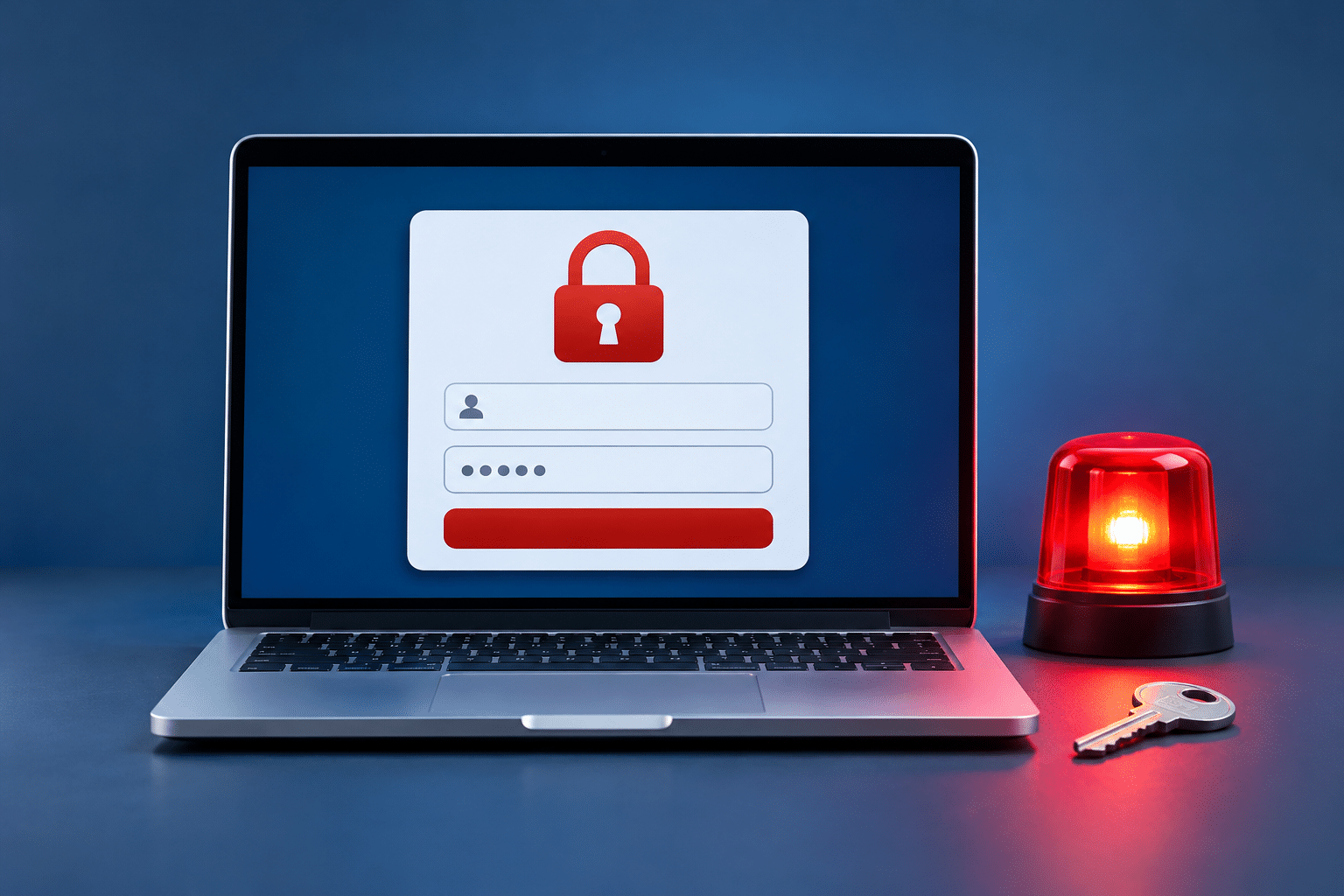
You’ve got an important change to make to your business website. Perhaps you need to update your opening hours, add some photographs, publish a blog post or respond to a customer enquiry. You open your WordPress login page, enter your details and discover that you can’t get into your own website.
It’s frustrating, especially when everything was working perfectly the last time you logged in. You might see an incorrect password message, a blank screen, an error message or a login page that keeps sending you back to the beginning. Sometimes the login page won’t open at all.
If you cannot log in to WordPress, it doesn’t automatically mean your website has been hacked or that you’ve lost your content. There are several possible explanations, and many can be checked without making technical changes. The sensible approach is to identify what is happening before attempting a fix that could make the situation worse.
Quick Answer
If you cannot log in to your WordPress website, first check that you’re using the correct login address, username and password. If you’ve forgotten your password, use the “Lost your password?” link on the WordPress login screen. You can also try a private browser window, clear your website’s browser cookies and check whether a security plugin has temporarily blocked your access.
If the login page won’t load, keeps redirecting or displays a technical error, the problem may involve a plugin, website settings or your hosting service. Avoid making changes to website files or databases unless you know what you’re doing. Your hosting provider or website professional can help investigate safely.
1. Check Your WordPress Login Address
The first thing to check is whether you’re visiting the correct WordPress login page. This might sound obvious, but it’s easy to forget the address if you haven’t logged in for several months or if someone else originally created your website.
For a standard WordPress installation, you can usually reach the login screen by adding /wp-admin/ or /wp-login.php to the end of your website address. For example, if your business website is called yourbusiness.co.uk, the login address would normally look like one of these:
https://yourbusiness.co.uk/wp-admin/https://yourbusiness.co.uk/wp-login.php
These are examples rather than links to a real business website. If you’re already logged out, visiting the normal administration address should take you to the login screen.
However, some websites use a security plugin that changes or hides the normal login address. If neither address works, check any login details supplied by your original website developer. You might also have a saved bookmark or an email containing the correct address.
Don’t assume the website is broken just because the standard WordPress login address doesn’t work. If the login location was deliberately changed for security reasons, you’ll need the correct address rather than another password.
2. Check Your Username and Password
One of the most common reasons for a failed WordPress login is incorrect account information. WordPress usernames and passwords are case-sensitive, so an unexpected capital letter or an extra space can prevent you from signing in.
If your browser automatically fills in your login details, don’t assume they’re correct. Saved passwords sometimes belong to an older account or haven’t been updated after a password change. Try entering your details manually, checking for typing mistakes and making sure Caps Lock isn’t switched on.
WordPress normally allows you to log in using either your username or the email address attached to your user account. That email address might not be the same as the main contact email shown on your website. For example, your cleaning company might advertise one email address to customers while the WordPress administrator account uses another.
If someone else originally set up your website, check whether you were given your own WordPress user account. Your hosting account password, business email password and WordPress administrator password are not necessarily the same.
3. How Do I Reset My WordPress Password?
If you’ve forgotten your WordPress password, the easiest solution is normally to use the built-in password reset feature. You don’t need to know your old password, but you do need access to the email account associated with your WordPress user profile.
Follow These Steps to Reset Your Password
- Open your WordPress login page.
- Select the Lost your password? link.
- Enter your WordPress username or registered email address.
- Submit the password reset request.
- Check your email inbox for the reset message.
- Open the password reset link and create a new, strong password.
- Return to your WordPress login page and sign in using the new password.
If the message doesn’t arrive, check your spam or junk folder before requesting another reset. Make sure you’re checking the correct email account. A reset email can also fail to arrive if the website isn’t sending emails properly, or if the message is being blocked by an email provider.
WordPress provides an official password reset guide covering the normal recovery process and other methods for website administrators.
Once you’ve regained access, save your new password in a trusted password manager. Avoid using the same password for your WordPress website, email account and hosting account.
4. Check Your Browser and Cookies
Sometimes your WordPress username and password are perfectly correct, but your browser is preventing the login from working properly. WordPress uses small pieces of information called cookies to recognise that you’ve signed in. If those cookies are blocked, outdated or conflicting, you may find yourself unable to access the dashboard.
Start by opening your website’s login page in a private or incognito browser window. If the login works there, the problem may be connected to your normal browser settings, stored cookies or an extension. You can then clear the cookies and cached data for your website and try again.
It’s also worth trying another browser or device. For example, if you normally use Google Chrome on your laptop, try Microsoft Edge or your mobile phone. This can help you establish whether the problem is limited to one browser rather than the WordPress website itself.
Remember that clearing cookies can sign you out of websites, so it’s usually better to remove data for the affected website first rather than clearing everything. The official WordPress cookie documentation explains why cookies are needed for successful login sessions.
5. Check Whether WordPress Security Has Blocked Your Login
Many WordPress websites use security tools to reduce the risk of unauthorised access. These tools may limit repeated login attempts, block suspicious traffic or require additional identity checks. Although these features are useful, they can sometimes prevent the genuine website owner from signing in.
If you’ve entered the wrong password several times, you might see a message saying that your account or IP address has been temporarily blocked. An IP address is a number used to identify your internet connection. Some security systems use it when deciding whether to allow or block a login attempt.
If the message mentions a temporary lockout, stop repeatedly trying to sign in. Follow the instructions shown on the screen, wait for the stated lockout period or use the approved recovery method provided by your security plugin. If you have two-factor authentication enabled, you’ll also need access to your authentication app, security key or recovery codes.
Don’t remove your website’s security protection simply because you cannot log in. If the restriction doesn’t clear or you believe your account has been blocked incorrectly, contact the person responsible for managing your website’s security.
6. Why Does WordPress Keep Returning Me to the Login Page?
A WordPress login redirect loop happens when you enter your details, submit the login form and find yourself back at the same login page. Sometimes there isn’t even an error message. It can feel as though WordPress has ignored everything you’ve entered.
This problem can be caused by browser cookies, incorrect website address settings, caching or a conflict involving a plugin. Caching means storing copies of website information to help pages load faster. If login-related pages or sessions are handled incorrectly, it can interfere with signing in.
First, try the browser checks described earlier. If they don’t help, make a note of whether the problem started after a website migration, a security change, an SSL certificate change or a plugin update. These details can help a website professional narrow down the cause.
WordPress’s official login troubleshooting guidance explains how website address settings, cookies and caching can affect login redirects. Changing those settings is a technical task, so avoid experimenting with them unless you have a backup and understand the consequences.
7. What If Your WordPress Login Page Shows a Technical Error?
Not every WordPress login problem is caused by an incorrect password. Sometimes the login screen itself stops working, displays an error or disappears altogether. The type of message you see can help identify where the problem may be coming from.
| What You See | What It May Mean | What to Do |
|---|---|---|
| Incorrect password | Your login details may be wrong or outdated. | Check your details and use password recovery. |
| 404 Page Not Found | The login address may have changed or a website setting may be incorrect. | Check your saved login address and contact your website provider. |
| 403 Forbidden | A security rule or server permission may be blocking access. | Contact your hosting or website support provider. |
| 500 Internal Server Error | A server, plugin or website configuration problem may be involved. | Ask for technical investigation before changing files. |
| Critical error | WordPress may have encountered a serious software error. | Check for a WordPress recovery email and seek help. |
| Too many redirects | Website address, HTTPS or redirect settings may conflict. | Try basic browser checks, then request technical support. |
| Blank white screen | A plugin, theme or PHP error may be preventing the page from loading. | A professional may need to check error logs and website files. |
These messages are clues rather than definite diagnoses. For example, a 403 error can have several causes, and it isn’t possible to identify the exact problem from the message alone. A hosting provider or website professional may need to inspect server logs to establish what is happening.
Could a WordPress Plugin Be Causing the Problem?
Yes. A faulty or incompatible WordPress plugin can sometimes interfere with the login process. This may happen after an update or when two plugins attempt to control similar features, such as security, redirects or caching.
If you cannot access the WordPress dashboard, diagnosing a plugin problem may require access to the hosting control panel or website files. WordPress documents methods for temporarily deactivating plugins without dashboard access, but these should be handled carefully. Disabling plugins can affect forms, bookings, payments and other important website functions.
For a small business that relies on its website for customer enquiries, it is usually better to investigate the cause and have a recovery plan than to start switching things off at random.
What If WordPress Says There Has Been a Critical Error?
A critical error can occur when WordPress encounters a serious problem with a plugin, theme or other website code. In some circumstances, WordPress may send the site administrator a recovery email containing a special link. This can allow an authorised administrator to enter Recovery Mode and investigate the problem.
Check the administrator email inbox, including the spam folder, for a genuine message from your website. Be careful with unexpected links, and verify that the message relates to your own domain before opening it. The WordPress Recovery Mode guide explains how this feature works and when it may be available.
8. What If You Cannot Access the WordPress Administrator Email?
This is a particularly awkward situation for business owners who have inherited a website from a previous developer. You may own the website and pay for its hosting, but the WordPress user account could still be linked to an email address you no longer control.
It’s important to understand that the website’s main administrator email setting and the email address attached to your personal WordPress user account can be different. A password reset is normally sent to the email associated with the user account you’re trying to access.
If another authorised administrator can still log in, they may be able to help update your user account details or reset your password. Otherwise, recovery may be possible through your hosting account using approved administrator tools.
Technical methods can include WP-CLI, which is a command-line tool for managing WordPress, or database administration tools such as phpMyAdmin. These are legitimate recovery options for authorised website owners, but changing the wrong information can cause further problems. If you’re unfamiliar with them, ask your hosting provider or website professional to handle the recovery.
Once access has been restored, check that your business has control of the relevant administrator accounts, recovery email addresses, hosting details and domain registration. Keeping these details up to date can prevent the same situation happening again.
9. When Should You Ask for Professional WordPress Help?
Many login problems can be resolved without paying for technical support. If the issue is a forgotten password or a browser problem, the checks in this article may be enough. However, there comes a point when further experimenting could create more work than the original problem.
I’d recommend asking for help if your website displays a critical error, your hosting account is inaccessible, your administrator account has unexpectedly disappeared or you suspect someone has gained unauthorised access. Professional help is also sensible if the website is taking customer bookings or payments and a change could affect those services.
Before contacting support, gather the website address, the exact error message, when the problem started and whether anything changed recently. If possible, take a screenshot of the error without including passwords or other private information.
If your website needs ongoing technical attention, WordPress maintenance support can be useful for managing updates, security and website stability. The aim should be to identify and resolve the underlying problem rather than repeatedly applying temporary fixes.
Expert Insight From Daren Ward

Having worked with business websites since 2004, my advice is to treat a login problem as something to diagnose rather than something to attack with a series of quick fixes. The first question I would ask is whether the website itself is still working for customers. That helps separate a problem affecting your administration access from one affecting the whole business website.
I would also encourage business owners to know exactly who controls their WordPress administrator accounts, hosting account, domain name and recovery email addresses. These are different parts of running a website, and losing access to one doesn’t necessarily mean losing access to everything. Keeping a secure record of who controls each part can save considerable confusion when something goes wrong.
Finally, I would avoid making several technical changes at once. If you change passwords, disable plugins, alter website settings and clear server caches all together, it becomes much harder to work out what actually caused the problem. Check one possibility at a time, keep a record of what you’ve tried and make sure a suitable backup exists before any risky changes.
Important Security Warning
If your WordPress password has unexpectedly changed, your administrator account has disappeared or you notice unfamiliar users, don’t assume this is an ordinary login problem. It could indicate unauthorised access, although other explanations are possible.
Contact your hosting provider or trusted website professional promptly. Use a trusted device and secure your associated email and hosting accounts if you believe they may also be affected. Avoid deleting suspicious files, changing database records or restoring an old backup without first understanding what happened, as this may remove useful evidence or fail to address the cause.
Never send passwords through public support forums or include them in screenshots. If you need to share access with someone helping you, use an agreed secure method and review that access afterwards.
WordPress Login Recovery Checklist
Work through these checks in order, starting with the simplest options.
- Check that you’re using the correct WordPress login address.
- Confirm your username or registered email address.
- Check for incorrect passwords, extra spaces and Caps Lock.
- Use the official password reset option if necessary.
- Check your email inbox and spam folder for recovery messages.
- Try a private browser window or another browser.
- Clear cookies for the affected website if appropriate.
- Check whether a security tool has temporarily blocked access.
- Write down any error message and recent website changes.
- Contact your hosting provider or website professional if the problem remains.
Frequently Asked Questions About WordPress Login Problems
Can I Log In to WordPress Without Knowing My Password?
You normally need to reset your password before signing in if you no longer know it. The easiest method is to use the password reset link on the login page. If you cannot receive the reset email, another authorised administrator or your hosting provider may be able to help you recover access through other approved methods.
Why Is WordPress Saying My Password Is Incorrect When I Know It Is Right?
Your browser may be using an outdated saved password, or you could be entering details for a different WordPress account. Try typing your password manually and checking your username. If the problem continues, request a password reset rather than repeatedly guessing, particularly if your website limits failed login attempts.
Can I Access WordPress Through My Hosting Account?
Some hosting companies provide a WordPress management tool that can help authorised account holders access or manage their installation. The features vary between hosting providers, and not every hosting account offers direct WordPress login. Check your hosting control panel or ask your provider what recovery options are available.
What Is the Difference Between My WordPress Login and Hosting Login?
Your WordPress login normally gives you access to manage website content, users and settings according to your account permissions. Your hosting login controls the service where your website files and database are stored. These are separate accounts, although some hosting providers offer tools that connect the two systems.
Why Can’t I Log In After Updating WordPress?
A login problem after an update may involve a plugin conflict, theme compatibility issue or another technical error. However, the timing alone doesn’t prove that the update caused it. Record the error and ask your hosting provider or website professional to check the website before attempting further updates or restoring a backup.
Can Clearing My Browser Cache Fix a WordPress Login Problem?
Yes, clearing cached website data and cookies can help when outdated browser information is interfering with WordPress authentication. It’s particularly worth trying if the login page keeps reloading or your details work in a private window. It won’t fix every login problem, especially one caused by a server error or incorrect account permissions.
What Happens If My WordPress Administrator Account Has Been Deleted?
If your administrator account has been deleted, you may need another authorised administrator to create a replacement account. If no administrator can log in, the hosting provider or a qualified WordPress professional may need to investigate available recovery options. First establish whether the account was actually deleted or whether its permissions or login details have changed.
Can a WordPress Security Plugin Stop Me from Logging In?
Yes, security plugins may temporarily restrict login attempts or block access when they detect activity that matches their protection rules. Check any lockout message and follow the plugin’s approved recovery instructions. Avoid repeatedly attempting to sign in while blocked, as this may extend the restriction on some websites.
Will Resetting My WordPress Password Delete My Website Content?
No, a normal WordPress password reset changes your account password and does not delete your pages, posts, photographs or other website content. However, password recovery methods involving direct database changes carry additional risks if performed incorrectly. Use the standard reset process wherever possible.
Can My Website Still Work If I Cannot Access WordPress?
Yes. Your public website can continue working normally even when you cannot access its administration dashboard. Customers may still be able to read your pages, contact you or place orders. However, if the login problem is part of a wider website failure, some customer-facing functions could also be affected, so check them separately.
Summary: Regaining Access to Your WordPress Website
Being locked out of WordPress is inconvenient, but it doesn’t necessarily mean anything serious has happened to your website. Many problems come down to login details, browser settings, password recovery or temporary security restrictions. These are sensible places to begin because they can be checked without interfering with the website’s files or database.
If the problem involves a critical error, repeated redirects, missing administrator access or a possible security incident, it’s better to investigate carefully than to keep experimenting. Knowing what the error means and what changed recently will help you or your website provider choose the safest next step.
Once you’re back inside WordPress, take a few minutes to check your recovery details and access arrangements. Having the right information available can make future problems much easier to resolve.
Getting Further Help With WordPress
If you’re still unable to access your website or you’re concerned about making technical changes, you can find out more about our WordPress website maintenance service. It provides an option for business owners who would prefer professional support with the ongoing care and operation of their websites.
Key Takeaways
- Start by checking your WordPress login address and account details.
- Use the built-in password reset option before trying technical recovery methods.
- Browser cookies and saved passwords can sometimes prevent successful login.
- Security plugins may temporarily block repeated login attempts.
- Login redirects and technical errors may require professional investigation.
- Keep control of your WordPress, hosting and recovery email accounts.
- Make sure a suitable backup exists before changing website files or databases.
Found This Helpful? Share It
If you found this article useful, please share it with other business owners who might find it helpful too.
A quick share on LinkedIn, Facebook or your favourite social platform could help someone else find the advice they need.