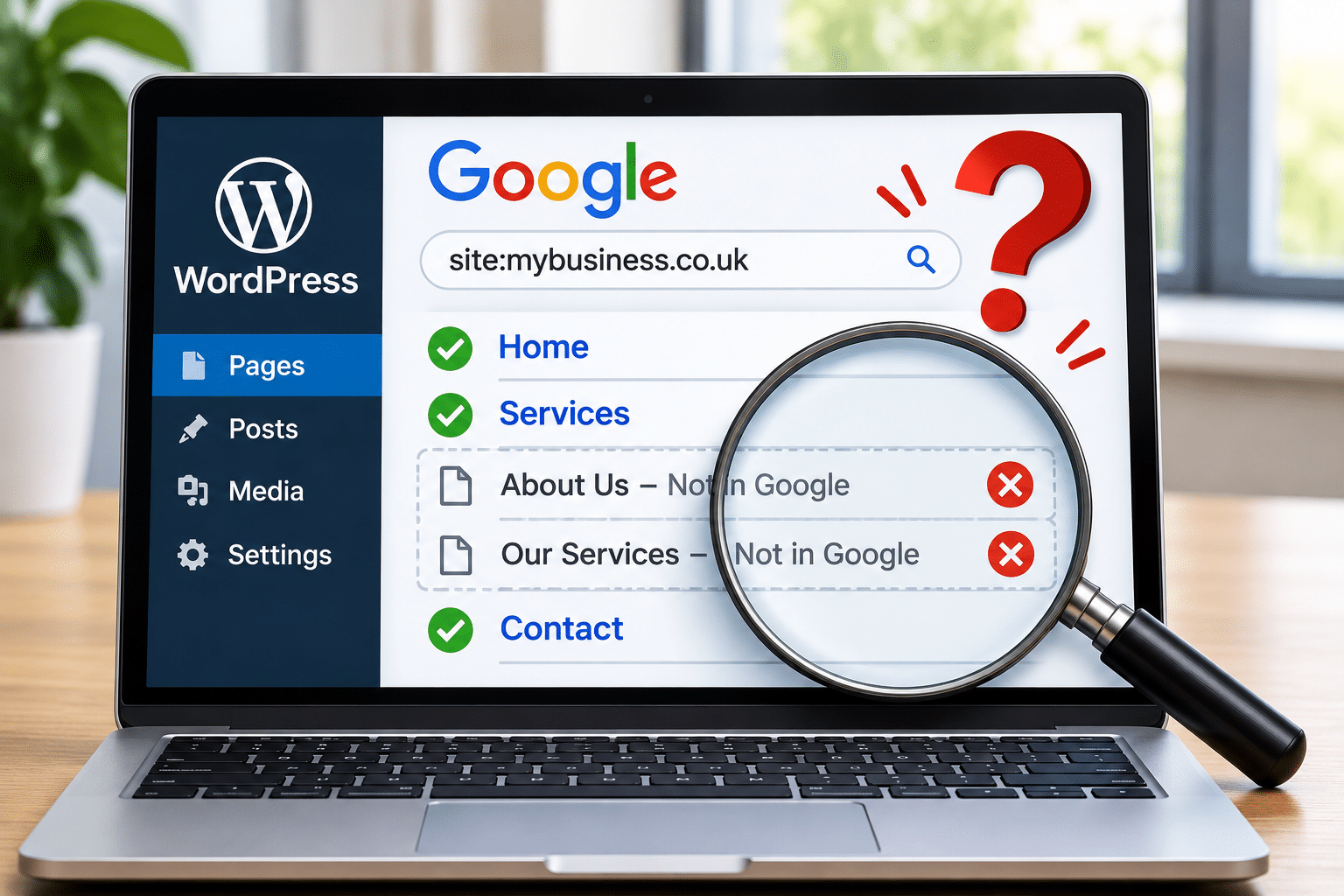
Why Are Some of My WordPress Pages Missing From Google?
You’ve spent time creating pages for your WordPress website. Your homepage appears on Google, and perhaps a few blog posts are showing too. But when you search for one of your important service pages, there’s no sign of it. You know the page exists because you can open it on your website, so why can’t you find it on Google?
This is a common concern for small business owners, especially when the missing pages describe services that could bring in new customers. A plumbing company might find its homepage listed but not its boiler repair page. A cleaning company might discover that Google knows about its office cleaning services but hasn’t included its carpet cleaning page.
There are several possible explanations, and they don’t all mean something is wrong with your website. Google may not have discovered the page yet, it may have encountered a technical restriction, or it may have decided not to include the page in its index. The important thing is to identify which situation applies before making changes.
Quick Answer
Some WordPress pages may be missing from Google because they haven’t been discovered or indexed, have an accidental noindex setting, are blocked from crawling, redirect elsewhere, contain duplicate content or have technical problems. Google may also decide not to index a page even when it is accessible and working correctly.
Start by checking the missing page in Google Search Console using the URL Inspection tool. This can tell you whether Google has indexed the URL and report possible reasons for exclusion. Then check your WordPress visibility settings, SEO plugin, internal links and XML sitemap. Fix the specific problem you find rather than changing multiple settings at once.
Is the Page Missing From Google or Just Not Ranking?
Before investigating a missing page, it’s important to understand the difference between indexing and ranking. These are two separate parts of how Google Search works, and confusing them can lead you to fix the wrong problem.
Indexing means Google has processed a webpage and included information about it in its search index. Ranking refers to where a page appears when someone searches for a particular word or phrase. A page can be indexed without appearing anywhere near the top of the results for the searches you care about.
For example, a website offering kitchen installations in Kent might have its kitchen fitting page indexed. However, when someone searches for “kitchen fitters Kent”, Google may display many competing businesses ahead of it. The page isn’t necessarily missing from Google’s index; it may simply have limited visibility for that search.
Try a Quick Google Search
Open Google and search for the exact address of the page or use a site search such as:
site:yourbusiness.co.uk/kitchen-installations/
Replace the example with your own page address. If Google displays the page, that’s a useful indication that it may be indexed. However, the site search isn’t a complete or definitive indexing test, and a missing result doesn’t prove the page has been excluded.
For a more reliable answer, use the URL Inspection tool in Google Search Console. It reports Google’s known indexing status for the specific URL and is the best place to begin your investigation.
How to Check Missing Pages in Google Search Console
Google Search Console is a free service that helps website owners understand how Google discovers and processes their pages. It can show whether individual URLs are indexed and identify many of the reasons pages have been excluded.
If you haven’t already connected your WordPress website to Search Console, you’ll need to add your website and complete Google’s ownership verification process. Once the property is verified, you can inspect URLs and review the available indexing reports.
Step-by-Step Instructions
- Visit Google Search Console and sign in.
- Select the correct website property.
- Find the URL Inspection field at the top of the screen.
- Copy the complete address of your missing WordPress page.
- Paste the address into the inspection field.
- Wait for Google to display the URL’s indexing information.
- Review the reported status and any explanation provided.
- Where necessary, use Test Live URL to check the page’s current accessibility.
Search Console may report that the page is indexed, discovered but not indexed, crawled but not indexed, excluded by a noindex instruction or affected by another issue. The exact message helps determine what to investigate next.
Remember that the initial inspection often shows information from Google’s last known crawl rather than a live check of the current page. If you’ve recently corrected a problem, the live test can help confirm whether Google can now access the page, although a successful live test doesn’t guarantee indexing.
Why Some WordPress Pages Are Missing From Google
There isn’t one single reason why WordPress pages disappear from search results or fail to appear in the first place. Some problems involve website settings, while others relate to Google’s assessment of the page or how easily it can be discovered.
1. Google Hasn’t Discovered the Page Yet
If you’ve recently published a new page, Google may simply not know it exists. Google discovers URLs through several methods, including links from other webpages and XML sitemaps. Discovery isn’t always immediate, particularly on new or rarely updated websites.
Make sure the page is linked from another relevant page on your website and included in your sitemap where appropriate. A service page that can only be reached by typing its address manually may be harder for search engines and customers to discover.
2. The Page Has a Noindex Instruction
A noindex instruction tells search engines not to include a page in their index. This can be useful for certain pages, but it becomes a problem when applied accidentally to important public content.
SEO plugins such as Rank Math and Yoast SEO allow you to control indexing for individual pages and sometimes entire content types. If your main service page has been marked noindex, Google may exclude it even though visitors can open it normally.
3. Google Is Blocked From Crawling the Page
A robots.txt file can contain rules that restrict Googlebot from crawling particular areas of a website. Security tools and hosting configurations may also interfere with crawler access in some circumstances.
It’s important to distinguish crawling restrictions from indexing instructions. Blocking a page in robots.txt doesn’t reliably prevent its URL from appearing in Google, because Google may still discover the address through links. However, the restriction can stop Google from examining the page’s content.
4. Google Considers the Page a Duplicate
Google sometimes discovers several URLs containing the same or very similar information. It may choose one version as the main page, known as the canonical URL, and leave other versions out of its index.
For example, if your website has several nearly identical pages for the same cleaning service, Google may decide that one version is the most useful to index. Duplicate pages aren’t automatically a penalty, but they can make it harder to understand which URL should represent the content.
5. The Page Has Little Useful Content
A page containing only a photograph, a heading and a few words may provide limited information for someone searching for a service. Google doesn’t require every page to contain a particular word count, but it does assess whether pages are useful and suitable for indexing.
If your page describes a service, explain what the service includes, who it’s for, where it’s available and how customers can enquire. Don’t add unnecessary text simply to make the page longer. The goal is to answer the questions a genuine customer would have.
6. The Page Redirects to Another Address
A redirect automatically sends visitors from one URL to another. This is often intentional, especially after a website redesign or when a page address has changed.
If your missing page redirects elsewhere, Google will normally focus on the destination rather than indexing the old URL as a separate page. Check whether the redirect is correct before treating the original address as a problem.
7. The Page Has a Technical Error
Server errors, broken pages, incorrect HTTP status codes and website access problems can prevent Google from processing content properly. A page may appear to work during one visit but fail when Google’s crawler attempts to access it.
If Search Console reports a server error or another technical problem, investigate the cause before requesting indexing again. Your hosting provider may be able to check server logs, while a WordPress professional can review theme, plugin and website configuration issues.
How to Check WordPress Search Engine Settings
WordPress includes a setting that asks search engines not to index your website. It’s often used while a site is being developed, but it can accidentally remain enabled after launch.
Step-by-Step Instructions
- Log in to your WordPress dashboard.
- Click Settings in the left-hand menu.
- Select Reading.
- Find the Search Engine Visibility section.
- Look for Discourage search engines from indexing this site.
- If your public website should be indexed, make sure the checkbox is unticked.
- Click Save Changes if you’ve changed the setting.
This setting generally applies across the website rather than to one individual page. If some of your pages are already indexed while others aren’t, it may not be the only explanation, but it’s still worth checking.
Unticking the box removes that WordPress-level request to discourage indexing. It doesn’t guarantee Google will index every page or override other restrictions configured through plugins or server settings.
How to Check Rank Math or Yoast SEO Settings
Many WordPress websites use an SEO plugin to manage search engine settings. These plugins can help with titles, descriptions, sitemaps and indexing instructions, but an incorrect setting can sometimes prevent important pages from being included in Google’s index.
Checking Rank Math
- Open the affected page in your WordPress editor.
- Find the Rank Math SEO settings.
- Open the Advanced tab, if available.
- Look for the Robots Meta settings.
- Check whether the page has a No Index instruction.
- If the page should be public and indexed, correct the setting only after confirming it isn’t intentional.
- Save or update the page.
Rank Math can also apply default indexing rules to certain content types. If several pages are affected, check whether a broader setting is responsible rather than editing every page individually.
Checking Yoast SEO
- Open the missing page in WordPress.
- Find the Yoast SEO sidebar or settings panel.
- Open the Advanced section.
- Find the option asking whether search engines should show the page in search results.
- Check whether the page is configured to be indexed.
- Only change the setting if you’re sure the page should appear publicly.
- Update the page to save any changes.
Some versions of Yoast display an option such as “Allow search engines to show this content in search results?” while others may use slightly different wording. If the page inherits a default setting, review the relevant content-type configuration before changing it.
Don’t install a second SEO plugin just to investigate a missing page. First check which plugin is already managing your website’s indexing instructions.
How to Check Your WordPress XML Sitemap
An XML sitemap helps Google discover URLs that you want it to consider for indexing. It is especially useful for websites with many pages or content that isn’t always easy to find through navigation.
Modern WordPress includes built-in sitemap functionality, while plugins such as Rank Math and Yoast SEO may generate their own sitemaps.
Find Your Sitemap
Try opening one of these common addresses, replacing the example domain with your own:
https://yourbusiness.co.uk/wp-sitemap.xmlhttps://yourbusiness.co.uk/sitemap_index.xml
These are common examples, not guaranteed sitemap locations. Your website may use another address depending on its configuration.
Check Whether the Missing Page Is Listed
Open the relevant sitemap and look for the URL of your missing page. If it isn’t included, check whether the page is published, whether your SEO plugin excludes it and whether the sitemap is configured to include that type of content.
Not every missing page needs to be added. Pages deliberately marked noindex, redirected URLs and other pages that aren’t intended for indexing generally shouldn’t be submitted as indexable sitemap entries.
Submit Your Sitemap to Google
- Open Google Search Console.
- Select your website property.
- Click Sitemaps.
- Enter the sitemap address or path requested by Search Console.
- Click Submit.
- Review the submission status for any reported errors.
Submitting a sitemap helps Google discover URLs, but it doesn’t force Google to crawl or index every page. If a particular page remains excluded, use URL Inspection to investigate its individual status.
How to Improve Internal Links to Missing Pages
Internal links connect one page of your website to another. They help visitors find related information and give search engines routes through your website’s content.
Imagine a landscaping company with a homepage, a services page and separate pages for garden maintenance, fencing and patio installation. If the patio installation page isn’t linked from anywhere, customers may struggle to find it and Google may have fewer opportunities to discover it.
Where Should You Add Links?
Start with the main navigation or services overview page. Make sure important services are easy to reach, then add relevant links within other pages where they genuinely help the reader.
For example, a page about roof cleaning might naturally link to gutter cleaning if the company provides both services. The link text should describe the destination rather than using vague wording such as “click here” whenever a clearer description would be helpful.
Avoid adding dozens of unrelated links simply to attract Google’s attention. Good internal linking should make the website easier to use for real visitors as well as search engines.
How to Check Whether Your Page Content Needs Improving
If Google has crawled a page but hasn’t indexed it, there may not be an obvious technical error. Google can choose not to index content even when it is accessible and contains no indexing restrictions.
One useful step is to review the page from a customer’s point of view. Does it clearly explain what the business offers? Does it answer the questions someone would ask before making an enquiry? Is the information genuinely useful, or does the page repeat what appears elsewhere on the website?
Make Service Pages More Informative
A page titled “Commercial Cleaning” that contains one photograph and a contact button may leave customers with unanswered questions. It could be improved by explaining the types of premises cleaned, the services available, how the work is arranged and which areas the business covers.
You don’t need to publish hundreds of words for the sake of it. The amount of information should suit the subject. A straightforward contact page may need very little text, while a detailed service page may need more explanation to help someone make a decision.
Avoid Creating Several Nearly Identical Pages
Some businesses create separate pages for every nearby town but change little more than the location name. This can lead to repetitive content that provides limited additional value to visitors.
If your business serves several locations, make sure each location page has a genuine purpose and offers information that is useful for that particular area. Otherwise, a well-written service-area page may be more helpful than several almost identical pages.
Understanding Google Search Console Indexing Messages
Search Console can display several messages explaining why a URL isn’t indexed. Understanding these messages helps you decide whether action is needed or whether Google simply hasn’t processed the page yet.
| Search Console Message | What It Means | What to Do |
|---|---|---|
| Discovered – currently not indexed | Google knows the URL exists but hasn’t crawled it yet. | Check that the page is accessible, linked internally and included in the sitemap where appropriate. |
| Crawled – currently not indexed | Google has crawled the page but hasn’t selected it for indexing. | Review the page’s usefulness, originality and possible duplication. |
| Excluded by noindex tag | Google detected an instruction not to index the page. | Check whether the instruction is intentional and review SEO plugin settings. |
| Blocked by robots.txt | A crawling rule is preventing Googlebot from accessing the URL. | Review the rule carefully before making changes. |
| Page with redirect | The URL redirects to another address. | Check whether the redirect destination is correct. |
| Duplicate, Google chose different canonical than user | Google selected another URL as the preferred version. | Check whether Google’s selected canonical URL is appropriate. |
| Not found (404) | Google received a response indicating the page doesn’t exist. | Restore the page if needed, or redirect an old URL to a genuinely relevant replacement. |
| Server error (5xx) | Google encountered a server-side error. | Ask your hosting provider or website professional to investigate. |
Not every exclusion is a problem. For example, old URLs that correctly redirect to new pages don’t normally need to be indexed separately. The aim is to make sure your important, intended public pages are eligible for indexing rather than trying to make every URL appear in Google.
How to Ask Google to Recheck a Page
After correcting an indexing problem, you can use Google Search Console to ask Google to crawl or recrawl the affected page. This can be useful after removing an accidental noindex instruction, fixing a technical error or making meaningful improvements to a page.
Step-by-Step Instructions
- Open Google Search Console.
- Select your verified website property.
- Enter the complete URL in the URL Inspection field.
- Review the reported indexing status.
- Use Test Live URL where appropriate to check the current page.
- If the page is eligible, select Request Indexing.
- Allow Google time to process the request.
Requesting indexing doesn’t guarantee that Google will include the page in its index. Google decides when to crawl and whether the page is suitable for indexing.
Google also explains that repeatedly requesting indexing for the same URL won’t make the process faster. Crawling can take several days or weeks, so avoid submitting unchanged pages again and again.
Expert Insight From Daren Ward

Having worked in website design and online marketing since 2004, my advice is to investigate missing pages individually rather than assuming the entire website has an SEO problem. If your homepage appears on Google but an important service page doesn’t, the first thing I’d want to know is what Google Search Console says about that particular URL.
I’d also prioritise pages based on their importance to the business. A cleaning company’s office cleaning page could be far more valuable commercially than an old blog post. If the service page isn’t indexed, that’s where I’d concentrate my attention first. I’d check its indexing instructions, internal links, sitemap inclusion and whether the content properly explains the service.
One mistake I’d avoid is making several technical changes at once. If you alter your SEO plugin, sitemap, redirects and robots.txt file together, it becomes difficult to identify what caused or solved the problem. Work through the evidence, make the necessary correction and then check the result. A methodical approach is usually safer and more useful than guessing.
Important Warning About Changing SEO Settings
Don’t remove noindex instructions, robots.txt restrictions, canonical settings or redirects without checking why they exist. Some pages are deliberately excluded from Google, and changing those settings can create duplicate URLs or expose content that wasn’t intended for search results.
Be particularly careful if your website has recently been redesigned, moved to another domain or changed its URL structure. Redirects may be essential for sending visitors and search engines from old addresses to the correct new pages.
If the problem involves advanced SEO settings, server configuration or website files, take a full backup before making changes and consider asking a qualified WordPress professional for help. A single incorrect technical change can affect more than the page you’re trying to fix.
Action Checklist: Find Out Why Your WordPress Pages Are Missing
Work through these checks in order, starting with the pages that are most important for attracting customers. You don’t need to change every setting; the goal is to identify and correct the specific issue affecting each page.
- List the missing pages. Record the full URLs of important pages you can’t find on Google.
- Check Google Search Console. Inspect each URL to confirm its indexing status.
- Open each page while logged out. Make sure it loads publicly without errors or password prompts.
- Review WordPress Reading Settings. Check that your public website isn’t discouraging indexing.
- Check your SEO plugin. Look for accidental noindex instructions on affected pages.
- Review your sitemap. Confirm that important indexable URLs are included.
- Check internal links. Make sure the pages are linked from relevant parts of your website.
- Review the content. Check that each page offers useful, original information for customers.
- Investigate technical errors. Resolve incorrect redirects, broken URLs and server problems where identified.
- Request indexing when appropriate. After fixing an issue, use URL Inspection and allow Google time to process the page.
Frequently Asked Questions
1. Why is my WordPress homepage on Google but my other pages aren’t?
Google evaluates individual URLs, so your homepage can be indexed while other pages remain excluded. The missing pages may not have been discovered, could contain noindex instructions, may have technical problems or might not have been selected for indexing. Use Google Search Console to inspect each affected URL and identify its reported status.
2. Does Google automatically index every WordPress page?
No. Google doesn’t guarantee indexing for every page it discovers or crawls. A publicly accessible WordPress page can remain unindexed even when it has no obvious technical errors. Google considers several factors when deciding which pages to include, so it’s important to focus on useful, accessible content rather than assuming every published URL will appear.
3. Can a WordPress SEO plugin stop pages appearing on Google?
Yes. Plugins such as Rank Math and Yoast SEO can apply noindex instructions to individual pages or entire content types. These settings can be useful when configured correctly, but an accidental restriction may prevent an important public page from being indexed. Check the affected page’s SEO settings before changing anything.
4. Why does Google say Crawled – currently not indexed?
This means Google has crawled the page but hasn’t included it in its index. It doesn’t automatically mean your website has been penalised or has a technical fault. Review whether the content is useful, original and sufficiently different from other pages. Google may reconsider the page later, but indexing isn’t guaranteed.
5. Will adding a missing page to my XML sitemap make Google index it?
Adding an eligible page to your XML sitemap can help Google discover its address, but it doesn’t guarantee indexing. Google still decides whether and when to crawl the page and whether to include it in the index. If Search Console reports a specific problem, correct that issue rather than relying on sitemap submission alone.
6. Can duplicate content cause WordPress pages to be missing from Google?
Yes. When Google finds several pages containing the same or very similar information, it may select one canonical version and exclude the others. This doesn’t automatically mean you’ve received a penalty. Check whether the pages genuinely need separate URLs and whether their content provides distinct value to visitors.
7. How long does it take Google to index a missing page?
There’s no guaranteed timeframe. Google says crawling can take anywhere from a few days to a few weeks, and indexing isn’t guaranteed even after crawling. If you’ve corrected a technical problem, you can request indexing through Search Console. However, repeated requests won’t make Google process the page faster.
8. Should I delete WordPress pages that aren’t indexed?
Not automatically. Some pages are useful to customers even if Google doesn’t index them, such as contact information or pages intended for existing clients. Before deleting anything, consider the page’s purpose, traffic and links. If the page is genuinely unnecessary, decide whether it should be removed, improved or redirected to a relevant replacement.
9. Can changing my WordPress theme make pages disappear from Google?
A theme change doesn’t automatically remove pages from Google’s index, but changes to website structure, navigation, metadata or technical settings can affect how search engines access content. If pages disappeared after a redesign or theme change, check their URLs, redirects, indexing instructions and internal links to identify what changed.
10. What should I do if several important service pages suddenly disappear from Google?
Start by checking whether the pages are still indexed using Google Search Console. If they were previously indexed, investigate recent website changes, redirects, noindex instructions, server errors and possible security issues. Avoid making widespread changes until you’ve identified a likely cause. A professional technical SEO review may be appropriate if multiple important pages are affected.
Summary
Some WordPress pages may be missing from Google because they haven’t been discovered, have indexing restrictions, contain duplicate content or have technical problems. In other cases, Google may have crawled the page but decided not to include it in its index. A missing search result doesn’t always mean the website is broken.
The most useful starting point is Google Search Console. Inspect the affected URL, understand the reported status and then investigate the relevant WordPress settings, sitemap, internal links or page content. Avoid changing unrelated technical settings in the hope that something will work.
For small businesses, concentrate on the pages that help customers understand your services and make enquiries. Make sure those pages are accessible, easy to discover and genuinely useful. Once the indexing issues have been addressed, you can focus on improving how well your website competes for relevant searches.
Getting Further Help
If important pages on your WordPress website are still missing from Google and you’re unsure why, you can explore the SEO and AI Visibility service from A to Z Website Solutions. Professional support can help identify technical indexing problems and review how effectively your website communicates its services to search engines and potential customers.
Key Takeaways
- A WordPress page can be indexed by Google without ranking visibly for your chosen search terms.
- Google Search Console provides the most useful starting point for investigating missing pages.
- Accidental noindex settings can prevent important public pages from being indexed.
- Robots.txt restrictions, redirects and server errors can affect crawling and indexing.
- XML sitemaps and internal links help Google discover important URLs.
- Duplicate or low-value pages may not be selected for indexing.
- Not every excluded URL needs fixing, particularly when the exclusion is intentional.
- Correct identified problems before requesting indexing, and allow Google time to process changes.
Found This Helpful? Share It
If you found this article useful, please share it with other business owners who might find it helpful too.
A quick share on LinkedIn, Facebook or your favourite social platform could help someone else find the advice they need.