WordPress Admin Email Change Pending: Why It Happens and How to Fix It
Have you tried changing your WordPress website’s administrator email address, only to discover that the change never seems to happen? Perhaps the website still displays an old developer’s email address, even though you entered your own details several weeks ago.
It’s a frustrating situation, particularly when you’re trying to take full control of your business website. You may have followed the instructions correctly, saved the new address and expected everything to update immediately. Instead, WordPress displays a message saying the email address change is pending.
The problem is usually connected to an email confirmation that hasn’t been completed. Understanding how this process works can help you identify what’s gone wrong and get your website’s contact details properly updated.
Quick Answer
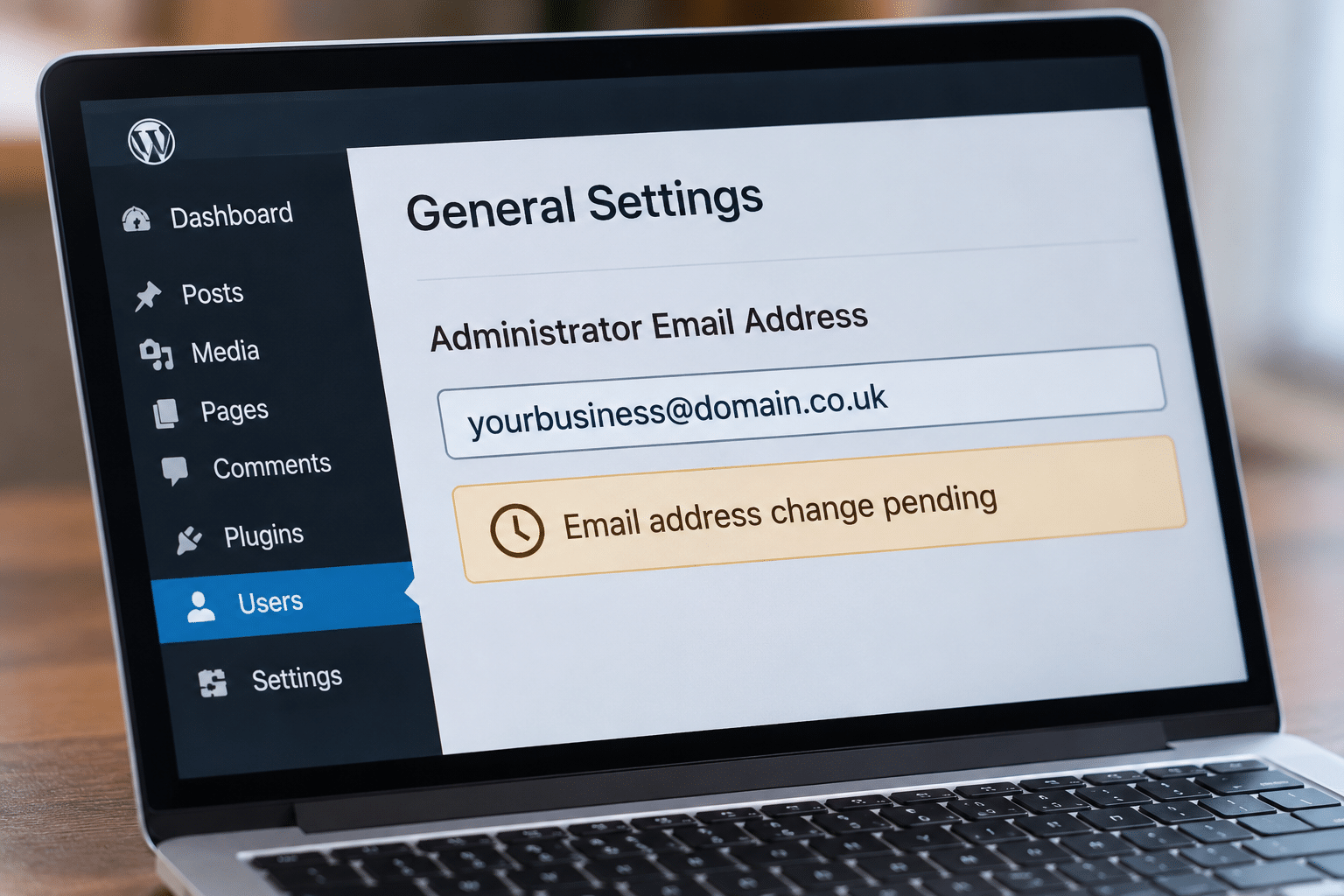
If your WordPress admin email change is pending, it usually means WordPress is waiting for you to confirm the new email address. When you change the administration email in Settings > General, WordPress normally sends a confirmation message to the new address. You must open that email and follow the confirmation link before the change takes effect.
If the change is still pending after several weeks, check your inbox and spam folder. The message may have been filtered, rejected or never sent because the website’s email system isn’t working correctly. You can try the change again, check whether WordPress emails are being delivered, or ask your website administrator to investigate.
Why Does WordPress Say the Admin Email Change Is Pending?
The WordPress administration email address is used for important messages about your website. These can include technical notifications, administrative alerts and other messages that help you manage your website.
Because this address plays an important role, WordPress normally asks you to confirm a new address before replacing the existing one. This helps prevent someone from accidentally entering an incorrect email address and losing access to important notifications.
When you save a different administration email address, WordPress stores the proposed change but continues using the existing address until the new address has been confirmed. That’s why you may see a pending change message even though you have already clicked Save Changes.
The pending message doesn’t necessarily mean your website is broken or that you have done anything wrong. It simply means the confirmation process hasn’t been completed.
How the WordPress Admin Email Confirmation Process Works
The normal process is straightforward, and you can usually complete it without any technical knowledge. You simply need access to your WordPress dashboard and the new email inbox.
- Log in to your WordPress administration dashboard.
- Go to Settings > General.
- Find the Administration Email Address field.
- Enter the new email address you want to use.
- Scroll down and click Save Changes.
- Check the inbox of the new email address for a WordPress confirmation message.
- Open the message and click the confirmation link.
- Return to Settings > General and check that the new address is displayed.
The important part is step seven. Entering and saving the address is not normally enough. The confirmation link is what tells WordPress that the new email address belongs to someone who can receive messages there.
Until that happens, the previous administration email address remains active. If you don’t receive the confirmation message, the change cannot be completed through the normal process.
What Should You Do If the Change Has Been Pending for Three Weeks?
If your change has been pending for three weeks, there is little benefit in simply waiting longer. The sensible approach is to check whether the original confirmation message was received and whether WordPress is successfully sending emails.
1. Check the New Email Inbox
Start by opening the mailbox for the new administration email address. Search for messages from WordPress or containing words such as email confirmation, administrator or email address change. Check that you’re looking at the correct mailbox, especially if your business uses several email addresses.
Also check the spam, junk and quarantine folders. Business email services sometimes filter automated website messages, particularly when the website’s outgoing email settings haven’t been configured properly.
2. Check That You Entered the Correct Address
Return to Settings > General and look carefully at the pending address. A small typing mistake can be enough to prevent the confirmation email from reaching you. Check the spelling of the mailbox name and domain, including any hyphens or additional characters.
If the pending address is incorrect, cancel the pending change if that option is available and enter the correct address again. The exact wording and options may differ depending on your WordPress version and website configuration.
3. Try the Change Again
If you cannot find the original message, you can attempt the change again. Where WordPress provides a way to cancel the pending change, use that first, then save the intended address again. Check the new inbox shortly afterwards.
If the new confirmation message arrives, open it and follow the link. If nothing arrives, the problem may be connected to the website’s email delivery system rather than the address itself.
Why WordPress Confirmation Emails Sometimes Fail to Arrive
WordPress can generate automatic emails, but successful delivery depends on how the website and its hosting environment are configured. A website may look perfectly normal to visitors while some of its background emails fail to reach their destination.
One possible cause is that the website is relying on a server email function that hasn’t been properly configured. Another is that receiving email services don’t trust the message because the sending domain lacks the correct authentication settings.
Business email systems also use spam filtering, which can block or quarantine messages without placing them in the normal inbox. In some cases, a hosting provider may restrict outgoing emails or the website may have an email-related plugin that is misconfigured.
What Is SMTP and Can It Help?
SMTP stands for Simple Mail Transfer Protocol. It is a standard method used to send emails between systems. For a WordPress website, a properly configured SMTP connection can provide a more reliable way of sending messages through an authorised email service.
There are WordPress plugins that help configure outgoing email delivery, but installing one isn’t automatically the answer to every email problem. The correct settings depend on your hosting provider and the email service your business uses.
If your website isn’t delivering confirmation emails, ask your hosting provider or website administrator to check the outgoing mail configuration, email authentication records and any available delivery logs. This can help establish whether WordPress attempted to send the message and what happened afterwards.
WordPress Has Two Different Email Settings That Business Owners Often Confuse
One easily overlooked detail is that WordPress has an administration email address for the website and a separate email address for each individual user account. These serve different purposes, so changing one doesn’t necessarily change the other.
The Website Administration Email
You will usually find this under Settings > General. It is used for administrative notifications relating to the website itself. This is the address that normally requires confirmation when you change it through the standard WordPress settings.
The Administrator User Account Email
Each WordPress user also has an email address associated with their own account. You can find these under Users > All Users, provided your account has permission to view and manage users. The account email is used for matters relating to that user, such as password recovery and account notifications.
Changing a user’s email address can also involve confirmation. The precise process depends on the account, permissions and any custom security features installed on the website.
For example, you could successfully change the website administration email while the original developer’s WordPress user account still exists with their old email address. That is why it’s sensible to check both settings when taking over management of an existing business website.
Why Should You Replace an Old Website Developer’s Email Address?
If a previous developer’s email address is still connected to your business website, it’s worth reviewing why it remains there. The developer may have originally set up WordPress using their own email address simply because they were responsible for building and configuring the website.
That arrangement can become inconvenient when the website changes hands or the business begins managing it independently. Important notifications may continue going to someone who is no longer involved with the website, while the business owner may not receive the information they need.
There is also a difference between receiving administration notifications and having access to the website. Changing the administration email does not automatically remove a developer’s user account or cancel their login permissions.
If you no longer work with the original developer, review the list of administrator accounts and make sure you understand who has access. You should have a working administrator account under your control before removing any old accounts.
Important: Don’t Remove Access Without Checking First
Before deleting a former developer’s WordPress account, make sure you have your own administrator login and that it works correctly. Check whether the old account owns any website content and use the appropriate content reassignment option if necessary. Removing an account without checking could create avoidable problems.
What If the Normal WordPress Email Change Process Doesn’t Work?
If you have checked the inbox, confirmed the address and tried again without success, the next step is to investigate the website’s email system. Fixing the underlying delivery problem is generally preferable to repeatedly attempting the same change.
An experienced WordPress administrator can test outgoing messages, review relevant plugins and check the hosting environment. They may also be able to identify a suitable alternative method for updating the administration email when the normal confirmation process is unavailable.
Some technical methods involve changing stored WordPress settings directly. However, these approaches should only be used by someone who understands the website’s configuration, has the necessary permissions and has taken a suitable backup.
It’s also worth remembering that the website administration email is not necessarily the same as the email address used by your contact form. If customer enquiries are failing to arrive, that may be a separate issue requiring its own investigation.
Expert Insight From Daren Ward

From my experience working with WordPress websites, I would recommend treating an email change that remains pending for several weeks as a reason to check the website’s email delivery rather than simply trying the same change repeatedly. If WordPress can’t send an administration confirmation, there is a possibility that other important website messages aren’t being delivered either.
I would also recommend checking the ownership and access arrangements whenever a business takes control of a website previously managed by another developer. Make sure the business has its own working administrator account, access to its hosting and domain services, and control over the email addresses used for important notifications. These are straightforward checks that can help prevent bigger problems later.
Action Checklist: Fix Your Pending WordPress Admin Email
- Check the new email inbox for the confirmation message.
- Search the spam, junk and quarantine folders.
- Confirm the pending email address has been entered correctly.
- Cancel and restart the change if necessary and possible.
- Check whether other automated WordPress emails are arriving.
- Ask your hosting provider to investigate outgoing email delivery if messages are missing.
- Review the website’s administration email and individual user email addresses.
- Check that your business has its own working administrator account.
- Confirm the new address appears in Settings > General after completing the change.
Frequently Asked Questions
1. How long does a WordPress admin email change normally take?
The change can usually be completed as soon as the confirmation message arrives and you click its link. There isn’t normally a reason for the process to take several weeks. If it remains pending, check the email delivery rather than assuming WordPress will eventually complete it automatically.
2. Why haven’t I received the WordPress confirmation email?
The message could have been filtered into spam, sent to an incorrectly entered address or blocked by an email delivery problem. Start by checking the new mailbox carefully. If the message is missing, the website’s outgoing email settings may need investigating.
3. Can I change the WordPress admin email without confirmation?
There are technical methods for updating WordPress settings directly, but these are not the normal dashboard process. They require appropriate access and should be handled carefully. For most business owners, fixing the email delivery problem is the better first step.
4. Will changing the administration email affect my website?
Changing the administration email should not normally alter your website’s pages, design, products or published content. It changes where certain administrative messages are sent. However, you should check that the new address is correct and can receive important notifications.
5. Does changing the admin email also change my WordPress login?
Not necessarily. The website administration email and the email address associated with your personal WordPress user account are separate settings. Changing one does not automatically update the other, and it does not change your WordPress username.
6. Can the old developer still access my website after I change the email?
Yes, if they still have an active user account with the necessary permissions. Changing the website administration email does not remove existing accounts. Review Users > All Users to check who has access and whether each account is still required.
7. Could a WordPress plugin prevent confirmation emails from arriving?
Yes, an incorrectly configured email or security plugin could interfere with sending or delivering messages. However, the problem could also be caused by hosting or email authentication settings. Investigate the cause before disabling plugins, particularly on a live business website.
8. Will updating WordPress or PHP fix the pending email change?
Not necessarily. An outdated WordPress installation or PHP version should be reviewed for maintenance and security reasons, but a pending email change usually relates to confirmation or email delivery. Updating software without investigating the actual problem may not resolve it.
9. Can my hosting provider help with the pending email change?
Yes. Your hosting provider may be able to check whether the server is sending WordPress emails and whether any restrictions or errors are affecting delivery. Depending on the service they provide, they may also help with outgoing mail configuration or direct you to the appropriate email provider.
10. What should I do if the confirmation link has expired?
If a confirmation link no longer works, return to your WordPress settings and begin the email change process again where possible. Use the newest confirmation message rather than an old one. If a fresh message never arrives, investigate email delivery before attempting further changes.
Summary: Don’t Leave Your WordPress Admin Email Change Pending
A WordPress administration email change that remains pending for three weeks usually indicates that the required confirmation hasn’t been completed. The first step is to check the new email inbox and spam folder. If the message is missing, investigate whether your website can send emails correctly.
It’s also worth checking that your business controls its own WordPress administrator account, particularly if the original website developer is no longer involved. Updating the administration email is one part of making sure your business receives important notifications and has proper control of its website.
If you would prefer someone to investigate the problem, our WordPress maintenance service is an option for getting professional help with website settings, updates and technical issues.
Share This Article
Found this guide helpful? Share it with another business owner.