How Can I Make My Website More Helpful for Customers With Disabilities?
Your website might look attractive, load quickly and explain your services clearly. But what happens if a customer cannot read the text, use a mouse, hear a video or complete your contact form?
For customers with disabilities, everyday website features can sometimes become frustrating barriers. A booking button that cannot be reached using a keyboard, for example, could prevent someone from arranging an appointment. An image without a useful description could leave another customer missing important information.
Making your website more helpful for customers with disabilities is about removing these barriers. It is also about treating accessibility as part of good customer service, rather than an optional technical extra.
Quick Answer
You can make your website more helpful for customers with disabilities by using readable text, clear headings, good colour contrast, descriptive image text, accessible forms and simple navigation. Customers should be able to use your website with a keyboard, enlarge the text and understand important information without relying on sound or colour alone.
Start by checking your most important pages, especially your homepage, services, contact form and booking process. Test them on a mobile phone and without a mouse. You do not need to rebuild your entire website to begin making improvements, although some technical problems may require professional help.
What Does Website Accessibility Mean?
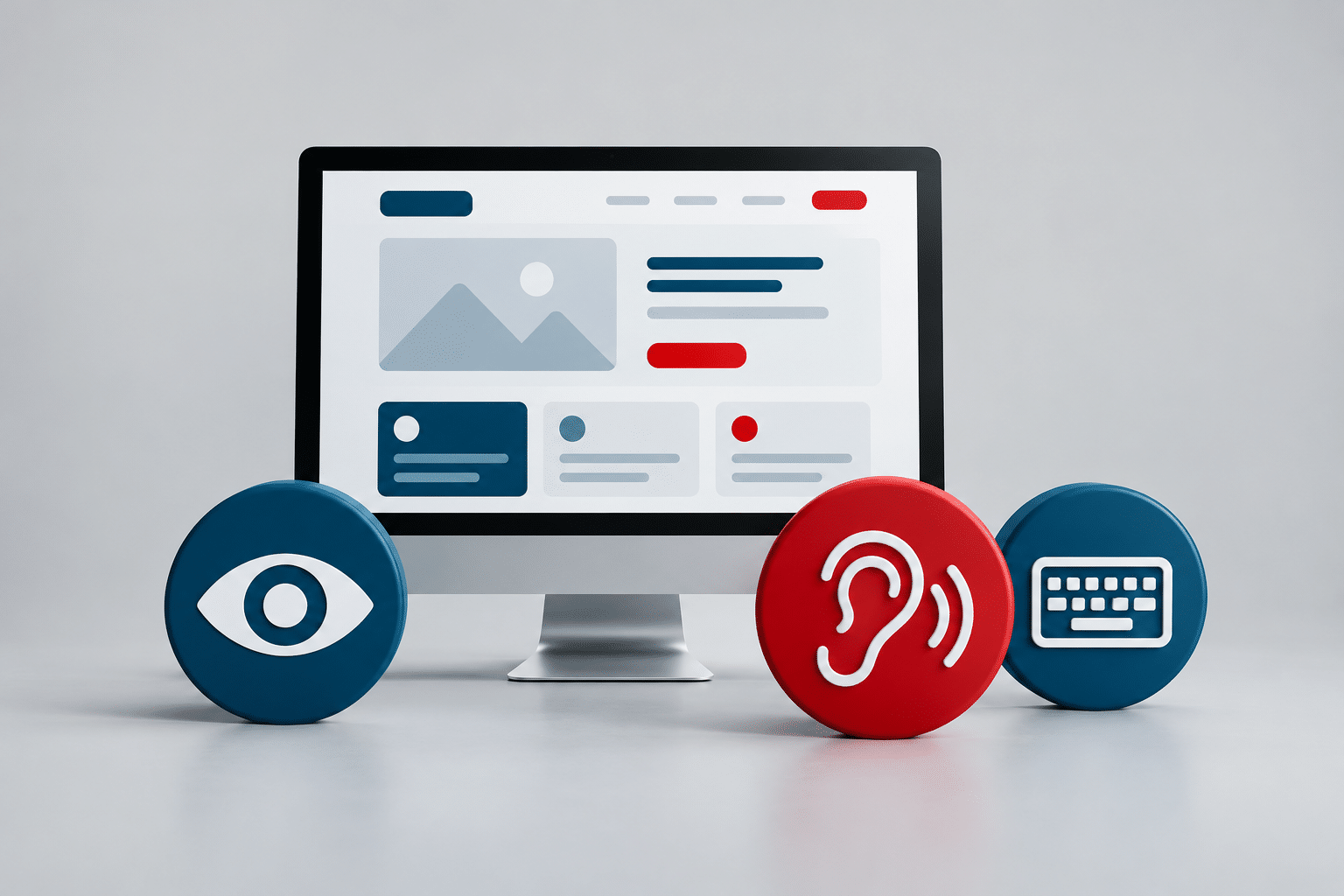
Website accessibility means designing and maintaining a website so people with different disabilities can access its information and use its features. This includes people who have difficulty seeing, hearing, moving, reading or processing information.
For a small business, accessibility can affect simple tasks such as finding your telephone number, reading your prices, booking an appointment or buying a product. A customer should not have to struggle with your website just to do something another visitor can complete in seconds.
Accessibility is not limited to adding a special toolbar or making the text larger. It involves the way your website is built, how information is written and whether customers can complete important tasks using different methods.
The Web Content Accessibility Guidelines (WCAG) provide internationally recognised guidance for making websites more accessible. They cover areas such as readable content, keyboard access, visual contrast and compatibility with assistive technology.
Who Benefits From an Accessible Website?
Accessibility helps people with permanent disabilities, but it can also support customers experiencing temporary difficulties or using a website in challenging conditions.
Customers With Visual Disabilities
Some customers have limited vision, colour vision differences or no usable sight. They may enlarge text, adjust colours or use screen-reading software that reads website content aloud.
For example, someone looking for a local accountant may need a screen reader to find the business telephone number. If that number is only displayed inside an image without suitable text, it may be difficult to access.
Customers With Hearing Disabilities
People who are deaf or hard of hearing may not be able to access information delivered only through speech or sound. Videos explaining your services should have accurate captions, while important audio information should also be available in written form.
Customers With Physical Disabilities
Some people cannot comfortably use a mouse or touch screen. They may rely on a keyboard, voice control, switches or other assistive devices.
If a customer’s only way to book a cleaning service is through a calendar that cannot be operated with a keyboard, the website may prevent that customer from making a booking.
Customers With Cognitive or Learning Disabilities
Long paragraphs, confusing menus, flashing content and complicated instructions can make websites difficult to use. Clear wording, consistent layouts and simple steps help customers understand what to do next.
These improvements can also benefit customers who are tired, distracted, unfamiliar with technology or reading English as an additional language.
How to Make Your Website More Helpful for Customers With Disabilities
Many useful improvements begin with how your website looks, reads and works. The following changes are practical starting points for small businesses.
1. Make Your Text Easy to Read
Use a comfortable text size, clear fonts and enough space between lines. Avoid squeezing long paragraphs into narrow areas or using tiny writing to fit more information onto a page.
Customers should also be able to enlarge text without losing information or having to scroll sideways to read ordinary paragraphs. Do not prevent visitors from using their browser’s zoom settings.
For a local garage, this could mean making service descriptions, opening hours and booking instructions easy to read on both desktop and mobile devices.
2. Use Strong Colour Contrast
Text must stand out clearly against its background. Pale grey writing on white or red text on a dark background can be difficult for some customers to read.
WCAG 2.2 Level AA generally calls for a contrast ratio of at least 4.5:1 for normal text and 3:1 for qualifying large text, with specific exceptions. A contrast-checking tool can help you check your website colours rather than relying on appearance alone.
Do not use colour as the only way to explain something. If a contact form shows an error using a red border, it should also explain the error in words.
3. Add Useful Descriptions to Important Images
Alternative text, often called alt text, provides a written description of an image for people using screen readers and for situations where images cannot be displayed.
If a hairdresser shows a photograph of a particular hairstyle, the description should explain what is useful about that image. A suitable example might be “Shoulder-length layered hairstyle with soft curls”.
Decorative images that add no useful information should normally have empty alt text, so screen readers can skip them. Avoid stuffing descriptions with keywords or repeating information already explained nearby.
4. Make Navigation Work Without a Mouse
Customers should be able to reach menus, links, forms and buttons using a keyboard. On many computers, the Tab key moves between interactive items, while Enter or Space activates suitable controls.
Try visiting your website and navigating without touching your mouse. Can you reach your services menu? Can you select a booking date? Can you submit your contact form?
A visible keyboard focus indicator should show which link or button is currently selected. Without one, customers may not know where they are on the page.
5. Give Every Form Field a Clear Label
Contact forms are especially important because they connect website visitors with your business. Every field should have a clear label explaining what information is needed.
Do not rely only on placeholder text that disappears when someone starts typing. If a customer enters an incorrect email address, explain the problem clearly and show them how to fix it.
Keep forms as short as practical. A cleaning company requesting a quote might only need a name, contact details, property type and a brief description of the work.
6. Add Captions to Videos
If your website includes a video explaining your services, provide accurate captions for spoken words and important sounds. This allows people with hearing disabilities to follow the information.
Where the video contains important visual information that is not explained in the audio, an audio description or suitable text alternative may also be needed.
Check automatic captions before publishing. They can misinterpret names, technical words and prices. Avoid videos that play loud audio automatically when someone opens a page.
7. Use Clear Headings and Simple Language
Good headings help people understand your website and move between sections. They are particularly useful for visitors using screen readers, who may navigate by headings rather than reading every word.
Use one clear main heading for each page, followed by descriptive subheadings in a logical order. Avoid choosing heading sizes purely for their appearance if doing so breaks the structure.
Explain services in everyday language. For example, “Book a boiler service” is more helpful to most customers than a complicated technical description of the booking process.
8. Make Buttons and Links Easy to Understand
Buttons should clearly explain what happens when they are selected. “Request a Quote” or “Book an Appointment” is usually more useful than several identical buttons labelled “Learn More”.
Make clickable areas large enough for people with limited hand movement or difficulty selecting small targets. Leave enough space between nearby buttons to reduce accidental selections.
9. Avoid Flashing Content and Unexpected Movement
Moving banners, flashing animations and constantly changing sliders can make a website harder to use. Certain flashing content can also create a seizure risk for people with photosensitive conditions.
Give visitors a way to pause or stop moving content where required. Respect reduced-motion preferences where possible, and avoid using movement simply to attract attention.
10. Keep Your Mobile Website Accessible
Many customers will first visit your business using a phone. Check that menus open properly, text remains readable, buttons are easy to select and forms work without awkward zooming.
Accessibility also means supporting customers who rotate their devices, increase text size or use accessibility settings built into their phones.
Check the Whole Customer Journey, Not Just the Homepage
One easily overlooked problem is that a website can appear accessible on its homepage while important customer tasks remain difficult or impossible to complete.
Imagine someone visiting a beauty salon’s website. They can read the service descriptions and find the prices, but the booking calendar cannot be operated with a keyboard. The customer understands the offer but cannot make an appointment.
Or imagine a customer buying a product from a small online shop. They can browse the products, but the checkout displays errors without explaining which information needs correcting.
Both examples show why accessibility should be checked from the beginning of a customer journey to the end.
For your business, identify the main action customers need to complete. This could be requesting a quote, making a booking, purchasing a product or finding your contact details. Follow that journey yourself and check every step.
If your website uses an external booking tool, payment system or embedded form, include it in your review. A well-designed website cannot remove barriers inside a separate system unless that system is also accessible.
Common Accessibility Mistakes Small Businesses Should Avoid
Some accessibility problems are surprisingly easy to overlook because the website appears to work normally for its owner.
- Using text inside images: Important information may become unreadable when enlarged or unavailable to screen readers.
- Removing visible focus outlines: Keyboard users may lose track of their position.
- Using vague links: Repeated links labelled “Read More” may not explain their destination when viewed separately.
- Relying on colour alone: Customers may miss warnings or instructions.
- Publishing inaccessible PDFs: Downloadable menus, price lists and brochures may be difficult for assistive technology to read.
- Adding an accessibility toolbar and assuming everything is fixed: A toolbar cannot automatically correct every problem in the underlying website.
Accessibility overlays and toolbars may offer useful personalisation features, but they are not a replacement for accessible website code, content and testing.
It is also worth checking changes made by plugins, booking systems and website updates. A feature that works today can develop problems after its design or software changes.
How Can You Test Your Website for Accessibility Problems?
You can carry out several useful accessibility checks without being a website developer. However, no single automated tool can confirm that a website is fully accessible.
Start With a Simple Manual Test
Open your website on a computer and try navigating using only the keyboard. Check whether every important button, menu and form can be reached, used and exited.
Next, increase your browser zoom to 200%. Can you still read the text and use the navigation? Then test your website on a mobile phone with larger text settings enabled.
Try a Screen Reader
Screen readers convert website information into speech or other accessible output. Windows includes Narrator, while Apple devices offer VoiceOver.
Trying one can help you notice confusing links, missing labels and unclear heading structures. However, a quick first-time test is not the same as an experienced screen-reader user’s assessment.
Use Automated Accessibility Checkers
Tools such as WAVE can help identify possible accessibility errors, including missing alternative text and some contrast problems.
The W3C website accessibility evaluation resources explain different ways to assess accessibility. Automated results should be combined with manual checks and, where possible, testing by people with disabilities.
Ask Real Customers for Feedback
If customers tell you that a booking form is difficult, a menu is confusing or information is hard to read, treat that feedback as useful evidence.
Provide an accessible way for visitors to report problems. This might include an email address and telephone number, provided those contact methods are themselves easy to find and use.
Do UK Small Business Websites Have Legal Accessibility Responsibilities?
Yes. The Equality Act 2010 places duties on service providers in Great Britain, including duties relating to reasonable adjustments for disabled people. How these duties apply depends on the business and circumstances.
A small business should not assume that accessibility only matters to large organisations or public-sector websites. At the same time, the legal requirements for a private business are not identical to the specific accessibility regulations applying to many public-sector websites.
WCAG is widely used as a technical benchmark for website accessibility, but meeting a particular WCAG level does not automatically prove that every legal duty has been met.
For official guidance, see the UK Government’s Equality Act guidance and the Equality and Human Rights Commission.
Businesses operating in Northern Ireland should check the separate legal framework that applies there. If you are uncertain about your responsibilities, obtain advice suited to your business.
When Should You Ask a Website Professional for Help?
Some accessibility improvements are simple content changes. You may be able to rewrite unclear instructions, add meaningful image descriptions, improve headings and correct confusing link text yourself.
Other problems involve the website’s underlying design or code. Keyboard navigation, interactive menus, form error messages, mobile layouts and compatibility with assistive technology may need specialist attention.
If your website has several barriers, ask for a review that identifies problems by severity and explains which changes should come first. Prioritise issues that stop customers completing important tasks.
A website redesign can be an opportunity to improve usability and accessibility alongside the site’s appearance and performance. Before agreeing to work, ask how accessibility will be tested and which standards the work will aim to meet.
Accessibility is an ongoing responsibility. New pages, forms, videos and third-party tools should be checked as your website changes.
Expert Insight From Daren Ward

Having worked in website design since 2004, my advice is to look beyond whether a website appears attractive and ask whether people can actually use it.
I would start with the pages where customers need to take action. Can someone find the information they need? Can they complete a form without using a mouse? Can they understand what went wrong if something does not work?
One practical approach I recommend is keeping a short record of accessibility problems, including the page affected, what went wrong and whether it prevented someone from completing a task. That makes it easier to decide what needs fixing first and to check whether the problem has genuinely been resolved.
For a small business, the aim should be to make the website easier for more people to use, then keep improving it as the business grows.
Important Accessibility Consideration
Do not assume that installing an accessibility plugin, passing an automated test or adding an accessibility statement makes your website fully accessible or legally compliant.
Some barriers can only be found through manual testing, and some require specialist knowledge or feedback from disabled users. If a problem prevents customers from accessing an important service, treat it as a priority.
Action Checklist: Make Your Website Easier to Use
- Open your homepage and check whether the text is easy to read and enlarge.
- Check text and button contrast against their backgrounds.
- Navigate your main pages using only a keyboard.
- Make sure important images have useful alternative text.
- Check that your contact and booking forms have clear labels and helpful error messages.
- Add accurate captions to videos containing speech or important sounds.
- Test your website on a phone with larger text settings.
- Check your booking, checkout and other third-party tools.
- Run an accessibility checker and review its findings manually.
- Keep a record of barriers, prioritise serious problems and retest after changes.
Frequently Asked Questions
1. Does a small business website need to be accessible?
Small businesses in Great Britain can have duties under the Equality Act 2010 to make reasonable adjustments for disabled customers. The details depend on the circumstances. Even apart from legal responsibilities, an accessible website helps more people use your services independently.
2. Is website accessibility expensive to improve?
Not every improvement is expensive. Updating headings, rewriting instructions, adding alt text and improving captions may be manageable within your normal website maintenance. Problems involving complex code, booking systems or a full redesign can cost more. Ask for a prioritised list of fixes before agreeing to major work.
3. Can WordPress websites be accessible?
Yes. WordPress can be used to build accessible websites, but the result depends on the theme, plugins, content and custom features. Using WordPress does not automatically make a website accessible. Each important part of the finished website should be checked.
4. Will an accessibility plugin fix every problem?
No. A plugin may provide helpful tools, but it cannot guarantee that menus, forms, images and other website features work correctly with assistive technology. Accessibility needs to be considered in the website’s actual design, code and content.
5. Do I need an accessibility statement?
An accessibility statement can help explain your approach, known limitations and how visitors can report difficulties. Certain public-sector organisations have specific statement requirements. Private businesses should check which rules apply to them rather than assuming the same requirements cover every website.
6. Are PDF documents accessible?
PDF documents can be accessible when they are created and structured correctly, but many are not. Scanned documents, missing headings and poor reading order can cause problems. Where practical, provide important information as accessible website text as well as a downloadable document.
7. Can customers with disabilities use online booking systems?
They should be able to use an accessible booking system, but not every system works equally well. Check whether customers can choose dates, enter details, correct errors and complete bookings using a keyboard and assistive technology. Ask your booking provider about accessibility support if you discover barriers.
8. Does accessibility help customers without disabilities?
Yes. Clear writing, readable text, well-labelled buttons and simple navigation can help many visitors. Captions are useful when someone cannot play sound, while larger clickable areas can make mobile browsing easier. These improvements support usability as well as accessibility.
9. What accessibility standard should my website aim for?
WCAG 2.2 Level AA is a sensible technical target for many website projects. However, the appropriate legal and contractual requirements can vary. Ask your website provider which version and level of WCAG they are working towards and how they will test the results.
10. How often should I check website accessibility?
Check accessibility whenever you make important changes, such as adding a booking system, redesigning navigation or publishing new interactive features. It is also sensible to review key customer journeys regularly. Accessibility should be maintained rather than treated as a one-time task.
Summary
Making your website more accessible means helping customers with different abilities find information and complete important tasks without unnecessary barriers.
Start with clear text, readable colours, accessible forms, useful image descriptions and navigation that works without a mouse. Then check the complete customer journey, including booking and payment systems.
Automated tools can help you identify some problems, but manual checks and feedback from disabled users are also valuable. Small improvements are worth making, while more complex issues should be assessed and fixed properly.
Need Help Improving Your Website?
If your website is difficult to navigate or has outdated features that make it harder for customers to use, you can explore our website redesign service to discuss improvements to its usability and design.
Key Takeaways
- Accessibility helps customers with different disabilities use your website.
- Clear text, strong contrast and meaningful headings improve readability.
- Menus, forms and buttons should work without a mouse.
- Images and videos need suitable accessible alternatives.
- Test the full journey from finding information to making an enquiry or booking.
- Automated accessibility checkers cannot identify every problem.
- Review accessibility whenever you make important website changes.
Found This Helpful? Share It
If you found this article useful, please share it with other business owners who might find it helpful too.
A quick share on LinkedIn, Facebook or your favourite social platform could help someone else find the advice they need.