Why Does My Website Show a Security Warning to Visitors?
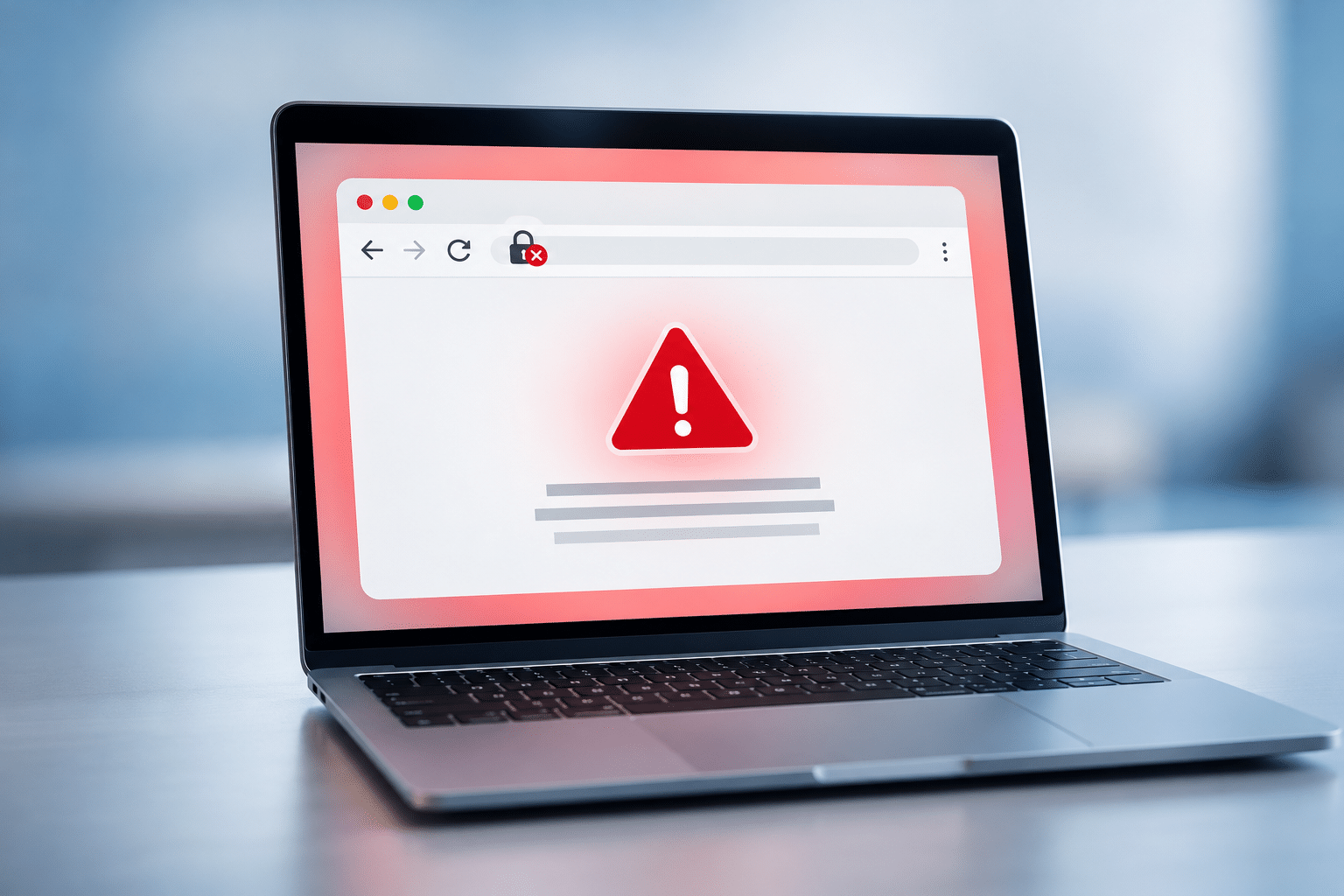
Imagine a potential customer searching for a local electrician, finding your business on Google and clicking through to your website. Instead of seeing your services, they are greeted by a warning saying their connection isn’t private or your website may be unsafe.
That’s hardly the first impression you want to make. Even if your business is genuine and your website looks professional, a security warning can make visitors hesitate, leave the page or decide to contact another company.
If you’re asking, “Why does my website show a security warning to visitors?”, there are several possible explanations. Some are straightforward to fix, while others need more careful attention. Understanding the difference can help you protect your website, your customers and your business reputation.
Quick Answer
A website security warning usually appears because a visitor’s browser cannot confirm that the website connection is secure or trustworthy. Common causes include an expired SSL certificate, an incorrectly installed certificate, a certificate that doesn’t match the website address, or a website loading insecure content.
Other warnings may indicate suspected malware, phishing or a compromised website. These are different problems and may need urgent investigation.
Start by reading the exact warning message, checking your website’s HTTPS connection and contacting your hosting provider if you’re unsure. Don’t tell visitors to ignore security warnings or click through them. The correct solution depends on what’s causing the warning.
What Does a Website Security Warning Mean?
A website security warning is a message displayed by a browser when something about a website’s connection, identity or safety raises concern. Browsers such as Google Chrome, Microsoft Edge, Firefox and Safari use security checks to help protect people from unsafe connections and harmful websites.
Not every warning means a website has been hacked. For example, a perfectly legitimate business website can display a privacy warning simply because its security certificate has expired. However, some warnings do point to a more serious problem, such as malicious software or a deceptive website.
Common warning messages include:
- Your connection is not private: The browser cannot establish a trusted secure connection.
- Not secure: The page may be using an unencrypted HTTP connection or otherwise lack expected connection security.
- Potential security risk ahead: The browser has identified a problem that could put visitors at risk.
- Deceptive site ahead: The website may have been identified as suspicious or involved in phishing.
- This site may harm your computer: The website may be associated with harmful software.
The wording matters because these warnings can have very different causes. An expired certificate needs a different solution from a website infected with malware.
Why Does My Website Show a Security Warning?
There are several reasons a website may trigger a browser security warning. The most common involve SSL certificates, HTTPS settings, insecure content or problems with the website itself.
1. Your SSL Certificate Has Expired
An SSL certificate, more accurately called a TLS certificate in modern web security, helps browsers establish a secure connection to your website. Certificates have expiry dates and need renewing.
If your certificate expires, browsers may stop trusting the connection and display a privacy warning. This can happen even when your website content and hosting are otherwise working normally.
Many hosting companies offer automatic certificate renewal, but renewal can fail because of a domain setting, validation problem or hosting configuration issue.
2. Your SSL Certificate Is Installed Incorrectly
A certificate might be valid but incorrectly configured on your hosting account. For example, the server may not provide the complete certificate chain needed for a browser to confirm that the certificate is trustworthy.
These problems are usually best handled by your hosting provider or website professional. The solution may involve reinstalling the certificate or correcting the server’s security settings.
3. Your Certificate Doesn’t Match Your Website Address
Security certificates are issued for specific domain names. If the certificate doesn’t cover the exact address a visitor is using, the browser may show a warning.
For example, a certificate may cover your main domain but not a separate subdomain. A recent domain change, website migration or hosting adjustment can sometimes cause this mismatch.
4. Your Website Contains Mixed Content
Mixed content occurs when a secure HTTPS page tries to load some resources through an insecure HTTP connection. These resources might include images, scripts, fonts or other website files.
Browsers handle different types of mixed content differently. Some requests may be upgraded to HTTPS automatically, while others may be blocked. The result can be missing images, broken features or a security indication that needs investigation.
This problem is particularly common after a website has moved from HTTP to HTTPS without every resource being updated.
5. Your Website Has Been Compromised
A more serious cause is a website that has been infected with malware or altered by an attacker. Harmful code may redirect visitors, display fake messages, steal information or load dangerous content.
Security services and browsers may flag websites associated with these activities. If your website displays a warning about phishing, harmful software or deceptive content, treat it as a possible security incident rather than assuming the certificate needs renewing.
6. Your Hosting or DNS Settings Are Incorrect
DNS settings tell browsers where to find your website. If your domain points to the wrong server, or your hosting has recently changed, visitors may reach a server that doesn’t have the correct security certificate.
This can happen during a website migration or when domain records have been changed. The website may appear to work from one location but show warnings elsewhere while settings are being corrected.
What Is an SSL Certificate and Why Does Your Website Need One?
An SSL certificate is the commonly used name for a digital certificate that helps secure website connections using HTTPS and modern TLS technology. It helps the browser confirm which domain it is connecting to and establish an encrypted connection.
Encryption means information travelling between a visitor’s browser and your website is protected against someone simply reading it while it travels across the network.
For a small business, this matters when customers complete contact forms, request quotations, create accounts or make online purchases. A secure connection is an important part of protecting that information.
What’s the Difference Between HTTP and HTTPS?
| HTTP | HTTPS |
|---|---|
| Does not provide HTTPS connection encryption. | Uses encryption to protect information in transit. |
| May be labelled as not secure by browsers. | Can establish a trusted secure connection when configured correctly. |
| Unsuitable for sending sensitive information. | Appropriate for protecting information sent between browsers and websites. |
| Uses an address beginning with http:// | Uses an address beginning with https:// |
HTTPS does not automatically mean every part of a website is safe. A website can have a valid certificate and still contain malicious content or insecure software. Think of HTTPS as one important layer of protection, not a complete website security system.
How Can Website Security Warnings Affect Your Small Business?
A security warning can create a problem before a potential customer has even seen what your business offers. The visitor may not know whether the warning is caused by a minor technical fault or a serious security risk. They only know that their browser is telling them to be careful.
Customers May Leave Before Contacting You
Imagine you run a local cleaning company and someone wants to request a commercial cleaning quotation. They click your website but encounter a warning saying the connection isn’t private.
Some visitors will decide not to continue. That could mean a missed enquiry, even though your cleaning service itself has nothing wrong with it.
Visitors May Lose Confidence in Your Business
Your website often acts as your business’s first introduction. If visitors see a warning before reaching your homepage, they may question how professionally the website is managed.
This doesn’t mean every visitor will abandon your business. However, removing avoidable warnings helps provide a more reassuring experience.
Website Forms and Bookings May Be Affected
Security and mixed-content problems can interfere with website functions. Depending on the issue, visitors may struggle to access forms, payment pages or booking systems.
For businesses relying on online appointments or enquiries, it’s sensible to test these features after a security problem has been fixed.
Search Visibility Can Be Affected
Google has confirmed that HTTPS is used as a ranking signal, although it is only one of many factors involved in search ranking. Separately, websites identified as dangerous may trigger warnings through Google Safe Browsing.
A security warning doesn’t automatically mean your website has been removed from Google or that every ranking will fall. The consequences depend on the type and seriousness of the issue.
You can learn more from Google Search Central’s guidance on website security issues.
How Can You Identify What’s Causing the Security Warning?
The most useful first step is to identify the exact message visitors are seeing. This helps you avoid spending time fixing the wrong problem.
Check the Warning Message
Open your website in a normal browser window and look carefully at the warning. Write down the wording and any error code displayed. If a customer reported the problem, ask for a screenshot showing the message and website address.
Different browsers may use slightly different wording, so recording the actual error is more useful than simply saying the website isn’t secure.
Check Your HTTPS Address
Look at the address bar and confirm that your website uses HTTPS. Try the main website address and any commonly used versions, including the version beginning with www if you use one.
If one version works and another displays a certificate warning, the issue may involve the certificate’s domain coverage or redirect settings.
Check Your Certificate Details
Most modern browsers allow you to inspect connection or certificate information through the controls near the address bar, although the exact steps vary.
Check whether the certificate is valid, whether it covers the website address and whether the browser trusts it. Your hosting provider can also check these details from the server side.
Check Whether Google Has Flagged Your Website
If the warning mentions harmful content or deceptive behaviour, review your website in Google Search Console if you have access.
Search Console includes a Security Issues report that may show problems detected by Google. You can also consult the Google Safe Browsing Site Status tool.
A clean result from one tool doesn’t prove that a website is completely safe. However, these checks can help you understand whether a browser warning is connected to a known security issue.
How to Fix a Website Security Warning
The correct fix depends on the warning’s cause. Some website owners can resolve straightforward issues through their hosting dashboard, while other problems require technical help.
Step 1: Renew or Replace an Expired Certificate
If the certificate has expired, sign in to your hosting account and check the SSL or TLS certificate section. Look for a renewal option or ask your provider whether automatic renewal has failed.
Once renewed, confirm that the new certificate is being served correctly to visitors. Don’t assume that purchasing or renewing a certificate automatically means the website is already using it.
Step 2: Correct Certificate Configuration
If the certificate is valid but the browser still displays an error, ask your hosting provider to check the certificate installation, domain coverage and certificate chain.
These settings are usually managed at hosting or server level. Changing unrelated WordPress settings is unlikely to fix an incorrectly installed server certificate.
Step 3: Resolve Mixed Content
When a website uses HTTPS but still loads insecure files, the affected resources need reviewing. This may involve updating old HTTP image addresses, website theme files or plugin settings.
If you’re using WordPress, your website professional may need to review stored URLs and external resources. Take a backup before making changes to website data.
Step 4: Investigate Malware or Suspicious Activity
If the warning suggests malware or phishing, avoid making random changes to the website. Ask your hosting provider or a qualified security professional to investigate the issue.
The work may include scanning website files, removing harmful code, identifying how the attacker gained access, updating vulnerable software and changing affected passwords.
Cleaning visible malicious code is not always enough. The underlying weakness also needs addressing to reduce the chance of another compromise.
Step 5: Test the Website Again
After making corrections, test your website using more than one browser and device. Check the homepage, contact forms, service pages and any booking or payment features.
If Google has identified a security issue, you may need to request a review through Google Search Console after resolving the problem. A warning may not disappear immediately if the browser or security service needs to reassess the website.
Common WordPress Security Problems Small Businesses Should Know About
WordPress is used by many small business websites. It can be a suitable and secure platform when maintained properly, but its security depends partly on the hosting environment, installed software and how the website is managed.
Problems can arise when WordPress, themes or plugins are left outdated, especially when an update addresses a known security weakness. Poor passwords, unnecessary administrator accounts and untrusted plugins can also increase risk.
It’s useful to separate two issues that business owners sometimes confuse. An SSL certificate problem concerns the website’s connection security. A compromised WordPress website concerns the safety of the website’s software, files or accounts. Fixing one doesn’t automatically fix the other.
If you don’t have time to manage updates and security checks yourself, a WordPress maintenance service can provide ongoing support with the practical upkeep of your website.
How Can You Prevent Website Security Warnings in the Future?
Not every security problem can be prevented, but regular checks and sensible website management can reduce avoidable risks.
Use Reliable Hosting With Certificate Management
Choose hosting that supports HTTPS, provides suitable certificate management and offers clear technical support. Check whether certificates renew automatically and how you’ll be informed if renewal fails.
Keep Website Software Updated
Install security updates for WordPress, themes and plugins after taking appropriate backups and checking compatibility. Remove software that is no longer needed, and avoid installing plugins from sources you don’t trust.
Use Strong Account Security
Protect website and hosting accounts with unique passwords and multi-factor authentication where available. Limit administrator access to people who genuinely need it.
Keep Backups That Can Be Restored
Maintain regular website backups and store suitable copies separately from the live website. Test the restoration process so you know the backups are usable if something goes wrong.
Check Your Website Like a Customer
Open your website regularly, including on a mobile phone. Look for warnings, missing images, broken forms and unusual redirects.
These simple checks won’t replace professional security monitoring, but they can help you spot problems before they go unnoticed for weeks.
Expert Insight From Daren Ward

When a business website displays a security warning, my advice is to identify the exact cause before making changes. It’s tempting to assume every warning means the SSL certificate has expired, but that’s only one possible explanation.
I would normally recommend checking the certificate, hosting settings and recent website changes first. If the warning mentions harmful software or deceptive content, I’d treat that as a separate and more serious investigation.
For small business owners, the practical lesson is to know who manages your domain, hosting, certificates and website updates. When those responsibilities are clear, it’s much easier to get the right person involved and resolve a problem without unnecessary delays.
Warning Box: Don’t Ignore Malware or Phishing Alerts
If your website is displaying a warning about malware, phishing or deceptive content, take it seriously. These warnings can indicate that visitors may be exposed to harmful material or that your website has been compromised.
Don’t encourage customers to bypass the warning. Contact your hosting provider or a qualified security professional, investigate the cause and restrict affected website functions where necessary.
If you discover that personal information may have been exposed, assess whether you have reporting duties under UK data protection law. The Information Commissioner’s Office guidance on personal data breaches explains when organisations may need to report a breach.
Website Security Action Checklist
Use this checklist to work through a security warning without overlooking important checks.
- Open your website and record the exact warning message and error code.
- Check whether the problem affects both desktop and mobile visitors.
- Confirm that your website uses the correct HTTPS address.
- Check whether the SSL/TLS certificate is valid and covers your domain.
- Ask your hosting provider to check certificate installation if necessary.
- Review recent changes to hosting, DNS settings or your website.
- Investigate insecure content or broken resources.
- Check Google Search Console for reported security issues.
- Update website software and investigate suspicious activity where relevant.
- Retest contact forms, bookings and important pages after the fix.
- Set up regular certificate, backup and website security checks.
Frequently Asked Questions
1. Why does my website say “Not Secure”?
A browser may display “Not Secure” when a website uses an unencrypted HTTP connection rather than HTTPS. Depending on the browser and the circumstances, other connection problems can also produce warnings. Check your website address and whether a valid certificate is correctly configured.
2. Does a security warning mean my website has been hacked?
No. Many warnings are caused by certificate expiry, incorrect settings or domain mismatches. However, warnings about malware, phishing or deceptive content may indicate a compromised website. The exact message helps determine which type of problem needs investigating.
3. Can I get a free SSL certificate for my business website?
Yes. Free TLS certificates are available through services such as Let’s Encrypt, and many hosting providers include certificate management with their hosting packages. A free certificate can provide strong connection encryption when installed and maintained correctly.
4. How long does it take to fix a website security warning?
It depends on the cause. A straightforward certificate renewal may be resolved quickly once the correct settings are applied. Malware infections, server problems or website compromises can take longer because the cause must be identified and the website checked carefully.
5. Why does my website work on my computer but show a warning on someone else’s?
Different devices may be reaching different servers, using different browser versions or holding cached information. DNS changes, certificate chain problems and device-specific trust settings can also explain the difference. Ask the affected visitor for the exact warning and test from another device or network.
6. Can a website still be unsafe if it has a padlock or HTTPS?
Yes. HTTPS protects the connection, but it doesn’t guarantee that the business behind a website is genuine or that the website is free from malicious software. Visitors should still be cautious about suspicious links, requests for information and unusual website behaviour.
7. Will Google remove my website because of a security warning?
Not automatically. A certificate problem does not necessarily mean your website will be removed from search results. However, serious security problems may lead to warnings or other search-related consequences. Check Google Search Console to see whether Google has reported an issue.
8. Can an expired SSL certificate stop customers using my contact form?
Yes. An expired certificate may prevent visitors from reaching the website normally or discourage them from continuing. Even if the form itself still works, visitors may decide not to submit their details through a connection their browser doesn’t trust.
9. Do I need to buy an expensive SSL certificate?
Not necessarily. For many ordinary small business websites, a properly configured and maintained certificate from a trusted free provider is suitable. The right arrangement depends on your website, hosting setup and any special technical requirements.
10. Who should I contact if I can’t fix the security warning?
Start with your hosting provider if the warning involves HTTPS, certificate installation or server configuration. If the problem involves WordPress, suspicious code or broken website features, a website maintenance or security professional may be better placed to investigate.
Summary
Website security warnings can be unsettling for both business owners and their customers, but they don’t all mean the same thing. Some result from straightforward certificate problems, while others indicate potentially serious website security risks.
The best approach is to identify the warning, investigate its cause and apply the correct fix. Keeping your website software updated, checking your certificate renewal settings and maintaining reliable backups can also reduce avoidable problems.
Most importantly, don’t assume that a website is secure simply because it looks normal. Regular checks help you provide visitors with a more reliable experience and make it easier to respond when something goes wrong.
Getting Help With Website Security
If you’re unsure why your website is showing a warning, your hosting provider is often a sensible first contact. For ongoing support with updates, website stability and security-related maintenance, you can also explore our WordPress maintenance service.
The aim is to keep your website working properly so visitors can find information, contact your business and use your website with confidence.
Key Takeaways
- Security warnings have different causes, so check the exact message first.
- Expired or incorrectly installed SSL certificates can trigger browser privacy warnings.
- HTTPS protects connections but does not guarantee that a website is free from malware.
- Mixed content can cause website resources to be blocked or displayed incorrectly.
- Malware and phishing warnings need prompt investigation.
- Website security problems can affect customer confidence and online enquiries.
- Regular updates, backups and certificate checks help reduce preventable issues.
Found This Helpful? Share It
If you found this article useful, please share it with other business owners who might find it helpful too.
A quick share on LinkedIn, Facebook or your favourite social platform could help someone else find the advice they need.